# Search everywhere
You can find any item in the project or outside of it by its name. You can search for files, actions, classes, symbols, settings, UI elements, and anything in Git from a single entry point.
Check the following video for a quick look at how to use this feature:
[Video](https://www.youtube.com/v/r5kV8nTqVMQ)
For more information about searching text within your project, refer to [Search and replace a target within a project](finding-and-replacing-text-in-project.html).
Procedure: Search everywhere
1. In the main menu, go to `Navigate | Search Everywhere` or press `Shift` (Windows), `Shift` (macOS), `Shift` (IntelliJ IDEA Classic (macOS)), `Shift` (macOS System Shortcuts), `Shift` (XWin), `Shift` (GNOME), `Shift` (KDE), `Shift` (Emacs), `Shift` (Sublime Text), `Shift` (Sublime Text (macOS)), `Shift` (NetBeans), `Shift` (Visual Studio), `Shift` (Visual Studio (macOS)), `Shift` (Eclipse), `Shift` (Eclipse (macOS)) twice to open the search window. By default, IntelliJ IDEA displays the list of recent files.
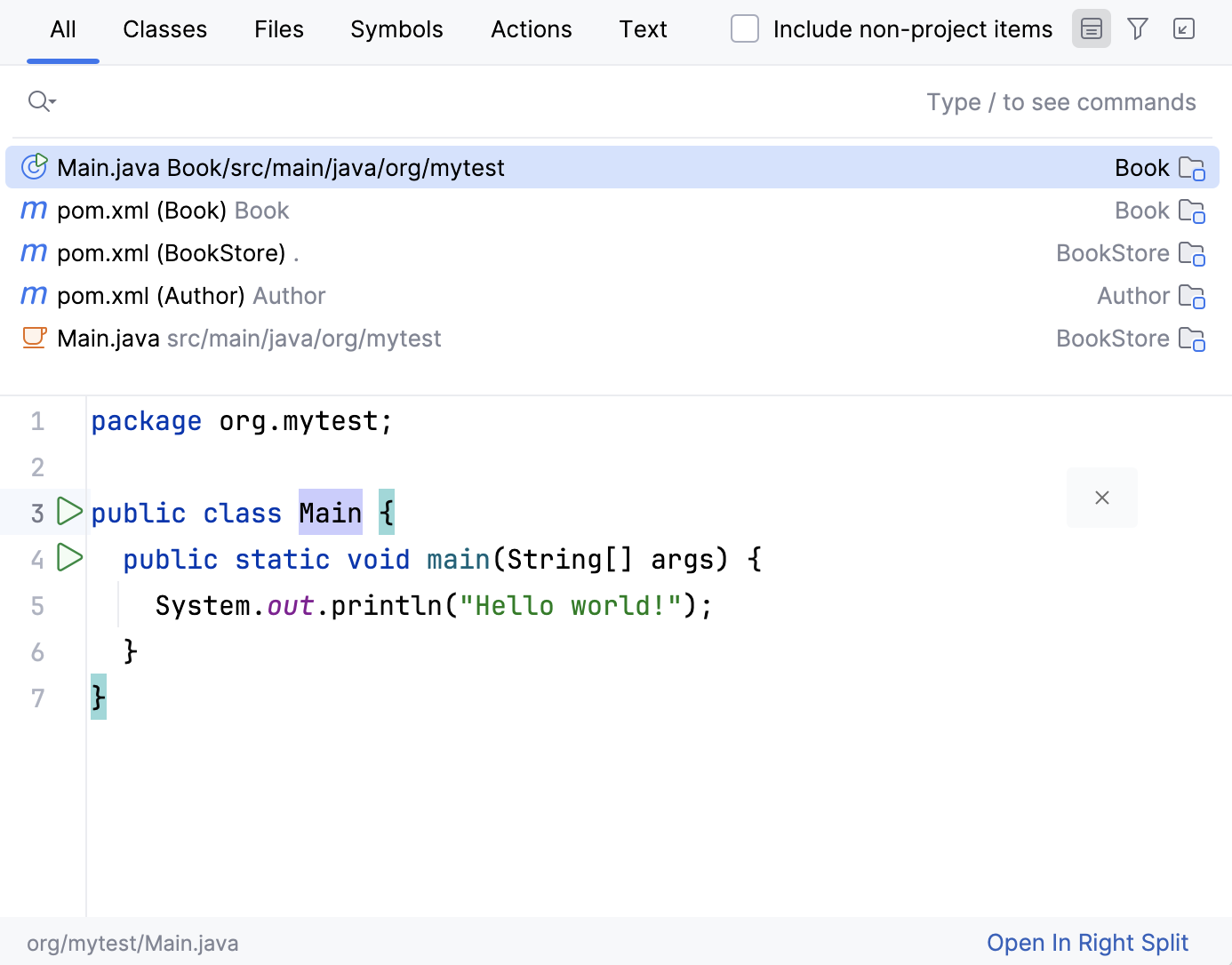
Pressing double `Shift` (Windows), `Shift` (macOS), `Shift` (IntelliJ IDEA Classic (macOS)), `Shift` (macOS System Shortcuts), `Shift` (XWin), `Shift` (GNOME), `Shift` (KDE), `Shift` (Emacs), `Shift` (Sublime Text), `Shift` (Sublime Text (macOS)), `Shift` (NetBeans), `Shift` (Visual Studio), `Shift` (Visual Studio (macOS)), `Shift` (Eclipse), `Shift` (Eclipse (macOS)) again or `Alt+N` for mnemonics will select the Include non-project items checkbox and the list of search results will extend to external items.
If you switch to other tabs, select the All Places to extend the search results to non-project items.
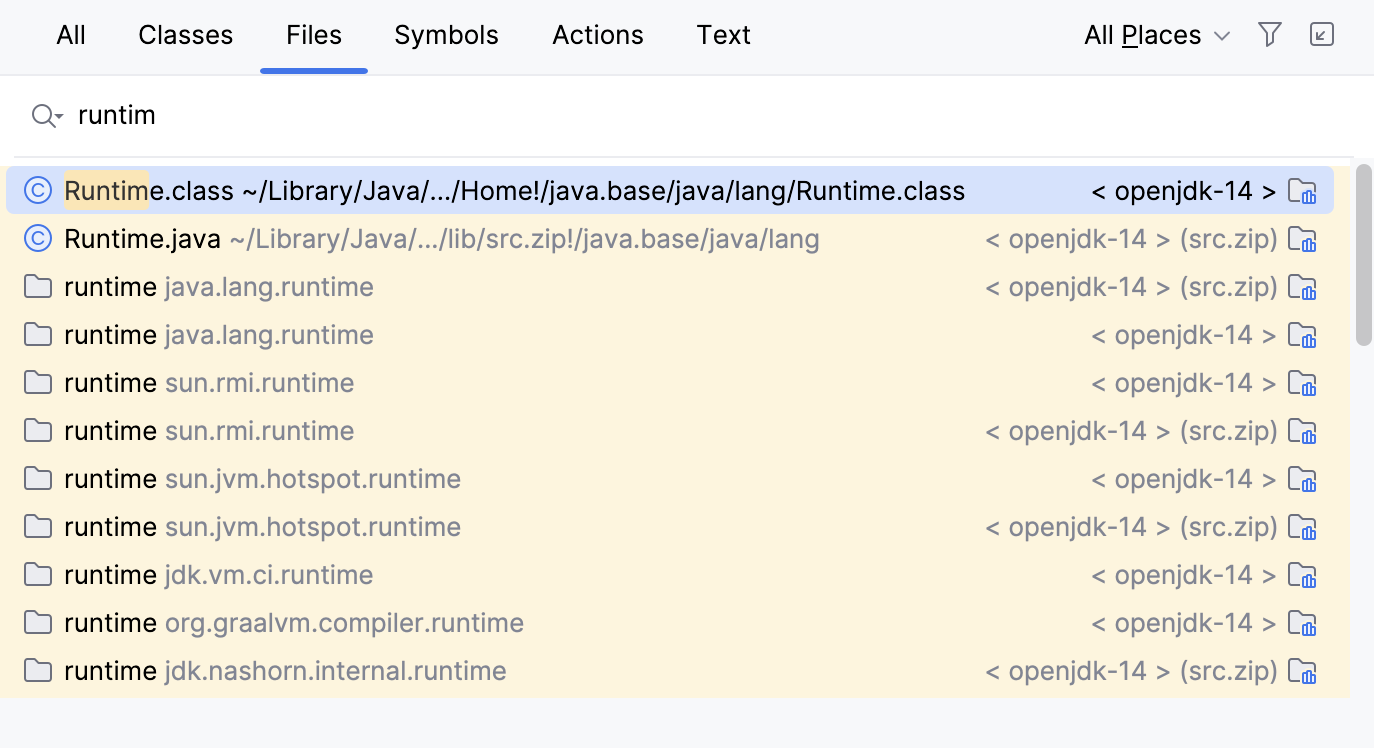
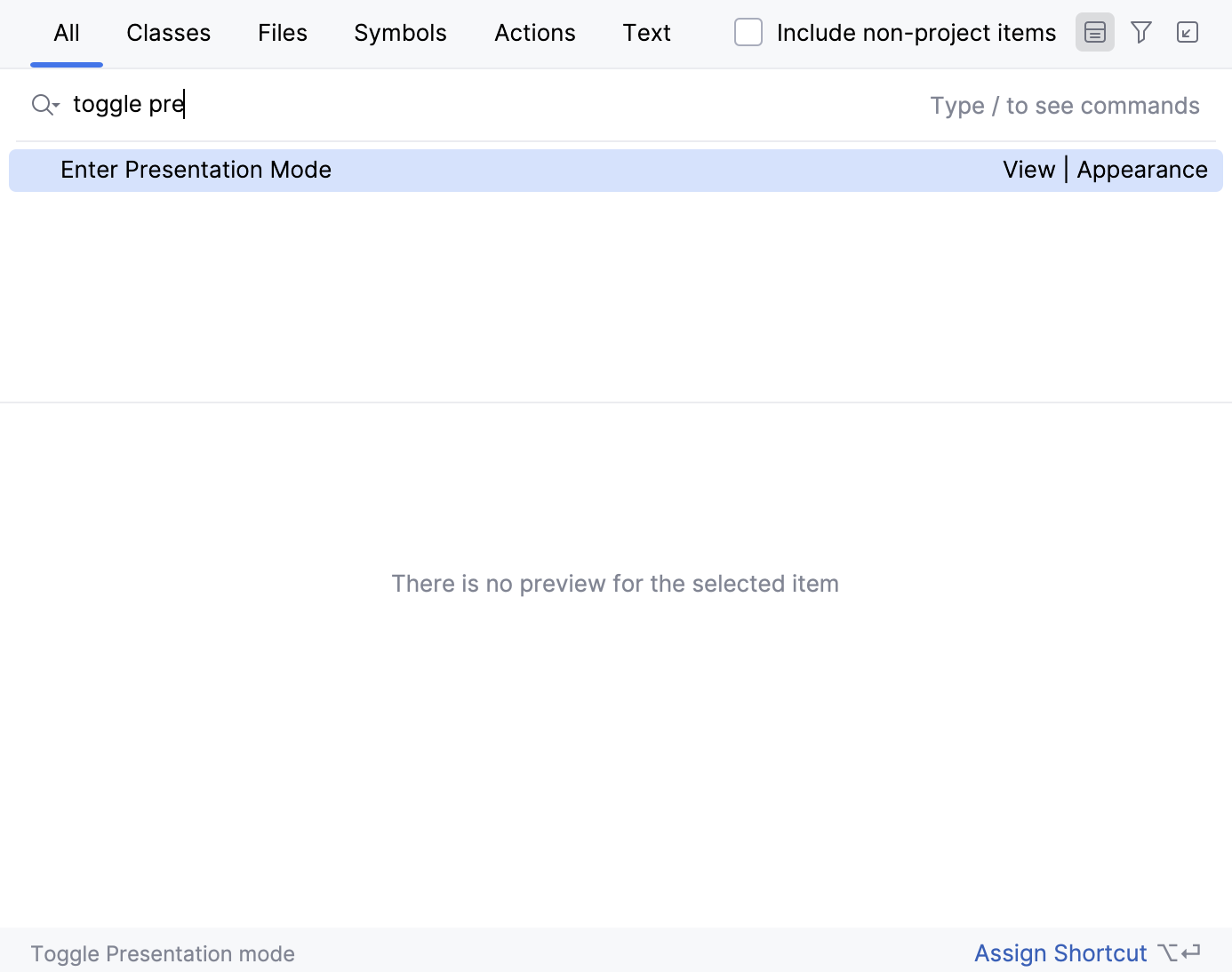
2. Start typing your query. You can use synonyms in your search. For example, typing `toggle presentation mode` to search for the presentation mode action will display `Enter Presentation Mode` in results.
IntelliJ IDEA lists all the found results where your query is found. Press `Ctrl+Down` (Windows), `Ctrl+Down` (macOS), `Ctrl+Down` (IntelliJ IDEA Classic (macOS)), `Ctrl+Down` (macOS System Shortcuts), `Ctrl+Down` (XWin), `Ctrl+Down` (GNOME), `Ctrl+Down` (KDE), `Ctrl+Down` (Emacs), `Ctrl+Down` (Sublime Text), `Ctrl+Down` (Sublime Text (macOS)), `Ctrl+Down` (NetBeans), `Ctrl+Down` (Visual Studio), `Ctrl+Down` (Visual Studio (macOS)), `Ctrl+Down` (Eclipse), `Ctrl+Down` (Eclipse (macOS)) to jump to the bottom of the list for `more...` items or `Ctrl+Up` (Windows), `Ctrl+Up` (macOS), `Ctrl+Up` (IntelliJ IDEA Classic (macOS)), `Ctrl+Up` (macOS System Shortcuts), `Ctrl+Up` (XWin), `Ctrl+Up` (GNOME), `Ctrl+Up` (KDE), `Ctrl+Up` (Emacs), `Ctrl+Up` (Sublime Text), `Ctrl+Up` (Sublime Text (macOS)), `Ctrl+Up` (NetBeans), `Ctrl+Up` (Visual Studio), `Ctrl+Up` (Visual Studio (macOS)), `Ctrl+Up` (Eclipse), `Ctrl+Up` (Eclipse (macOS)) to return to the top of the search results.
Press `Tab` (Windows), `Tab` (macOS), `Tab` (IntelliJ IDEA Classic (macOS)), `Tab` (macOS System Shortcuts), `Tab` (XWin), `Tab` (GNOME), `Tab` (KDE), `Tab` (Emacs), `Tab` (Sublime Text), `Tab` (Sublime Text (macOS)), `Tab` (NetBeans), `Tab` (Visual Studio), `Tab` (Visual Studio (macOS)), `Tab` (Eclipse), `Tab` (Eclipse (macOS)) to switch the context of your search to classes, files, symbols, actions, and so on.
You can use the following shortcuts to open the search window with the needed scope right from the start:
* `Ctrl+N` (Windows), `⌘ O` (macOS), `⌘ N` (IntelliJ IDEA Classic (macOS)), `⌘ O` (macOS System Shortcuts), `Ctrl+N` (XWin), `Ctrl+N` (GNOME), `Ctrl+N` (KDE), `Alt+Shift+G` (Emacs), `Ctrl+N` (Sublime Text), `Ctrl+N` (Sublime Text (macOS)), `Ctrl+O` (NetBeans), `Ctrl+N` (Visual Studio), `Ctrl+N` (Visual Studio (macOS)), `Ctrl+Shift+T` (Eclipse), `⌘ ⇧ T` (Eclipse (macOS)): finds a class by name.
* `Ctrl+Shift+N` (Windows), `⌘ ⇧ O` (macOS), `⌘ ⇧ N` (IntelliJ IDEA Classic (macOS)), `⌘ ⇧ O` (macOS System Shortcuts), `Ctrl+Shift+N` (XWin), `Ctrl+Shift+N` (GNOME), `Ctrl+Shift+N` (KDE), `Ctrl+X, Ctrl+F` (Emacs), `Ctrl+P` (Sublime Text), `⌘ P` (Sublime Text (macOS)), `Alt+Shift+O` (NetBeans), `Ctrl+Shift+T` (Visual Studio), `⌘ ⇧ T` (Visual Studio (macOS)), `Ctrl+Shift+R` (Eclipse), `⌘ ⇧ R` (Eclipse (macOS)): finds any file or directory by name (supports CamelCase and snake_case). > **Note:** > If you have a directory or a file that you excluded from your project, IntelliJ IDEA will not include it in the search process.
* `Ctrl+Alt+Shift+N` (Windows), `⌘ ⌥ O` (macOS), `⌘ ⌥ ⇧ N` (IntelliJ IDEA Classic (macOS)), `⌘ ⌥ O` (macOS System Shortcuts), `Ctrl+Alt+Shift+N` (XWin), `Ctrl+Alt+Shift+N` (GNOME), `Ctrl+Alt+Shift+N` (KDE), `Ctrl+Alt+Shift+N` (Emacs), `Ctrl+Shift+R` (Sublime Text), `⌘ ⇧ R` (Sublime Text (macOS)), `Ctrl+Alt+Shift+O` (NetBeans), `Ctrl+Alt+Shift+T` (Visual Studio), `⌘ ⌥ ⇧ T` (Visual Studio (macOS)), `Ctrl+Alt+Shift+N` (Eclipse), `⌘ ⌥ O` (Eclipse (macOS)): finds a symbol. In IntelliJ IDEA, a symbol is any code element such as method, field, class, constant, and so on.
* `Ctrl+Shift+A` (Windows), `⌘ ⇧ A` (macOS), `⌘ ⇧ A` (IntelliJ IDEA Classic (macOS)), `⌘ ⇧ P` (macOS System Shortcuts), `Ctrl+Shift+A` (XWin), `Ctrl+Shift+A` (GNOME), `Ctrl+Shift+A` (KDE), `Escape, X` (Emacs), `Ctrl+Shift+P` (Sublime Text), `⌘ ⇧ P` (Sublime Text (macOS)), `Ctrl+I` (NetBeans), `Ctrl+Shift+A` (Visual Studio), `⌘ ⇧ A` (Visual Studio (macOS)), `Ctrl+Shift+A` (Eclipse), `⌘ 3` (Eclipse (macOS)): finds an action by name. You can find any action even if it doesn't have a mapped shortcut or appear in the menu. For example, Emacs actions, such as kill rings, sticky selection, or hungry backspace.
To narrow down your search, click the Filter button () on the window toolbar and select the appropriate option.
For example, when you search for files, you can exclude some file types from your search.
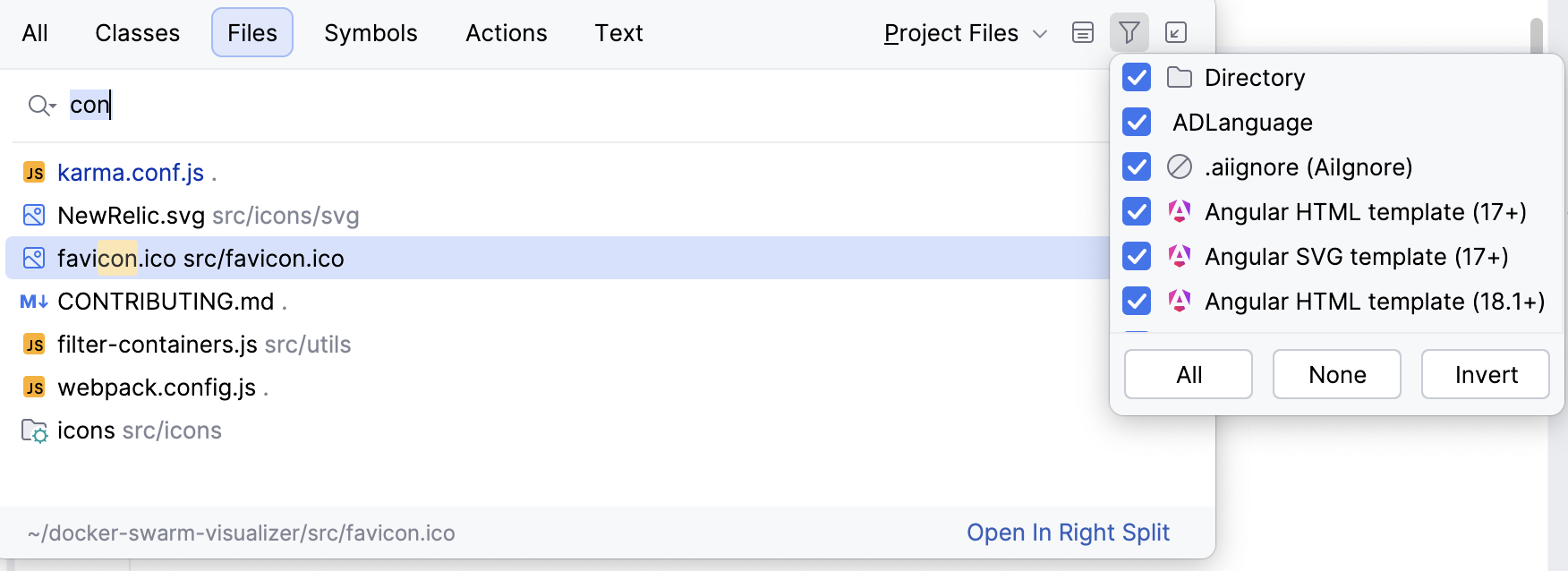
To see the results of your search in the [Find tool window](find-tool-window.html), click the Open in Find Tool Window button () on the window toolbar. This button is disabled when you search in the Actions tab.
> **Tip:**
> For more information about viewing recent or edited files, see the [Editor navigation](recent-files-and-changes.html#recent_files) section.
Procedure: Search for settings and plugins
You can search for a list of settings, their options, and plugins that you can quickly access, enable, or disable.
1. Press `Shift` (Windows), `Shift` (macOS), `Shift` (IntelliJ IDEA Classic (macOS)), `Shift` (macOS System Shortcuts), `Shift` (XWin), `Shift` (GNOME), `Shift` (KDE), `Shift` (Emacs), `Shift` (Sublime Text), `Shift` (Sublime Text (macOS)), `Shift` (NetBeans), `Shift` (Visual Studio), `Shift` (Visual Studio (macOS)), `Shift` (Eclipse), `Shift` (Eclipse (macOS)) twice to open the search window and type `/`. IntelliJ IDEA lists the available groups of settings.
2. Select the one you need and press `Enter` (Windows), `⏎` (macOS), `⏎` (IntelliJ IDEA Classic (macOS)), `⏎` (macOS System Shortcuts), `Enter` (XWin), `Enter` (GNOME), `Enter` (KDE), `Enter` (Emacs), `Enter` (Sublime Text), `⏎` (Sublime Text (macOS)), `Enter` (NetBeans), `Enter` (Visual Studio), `⏎` (Visual Studio (macOS)), `Enter` (Eclipse), `⏎` (Eclipse (macOS)).
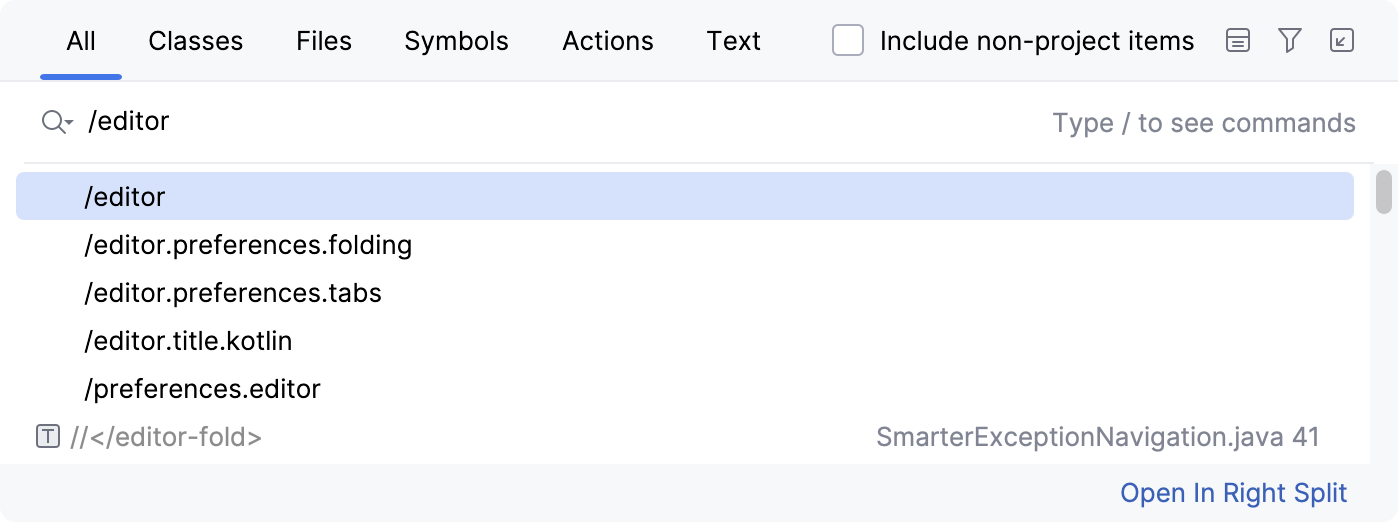
As a result, IntelliJ IDEA gives you quick access to the selected setting and its options.
You can also search for plugins and enable or disable them. Type `/plugins` in the search field, in the list of the search results use ON/OFF control keys to enable or disable the needed plugin.
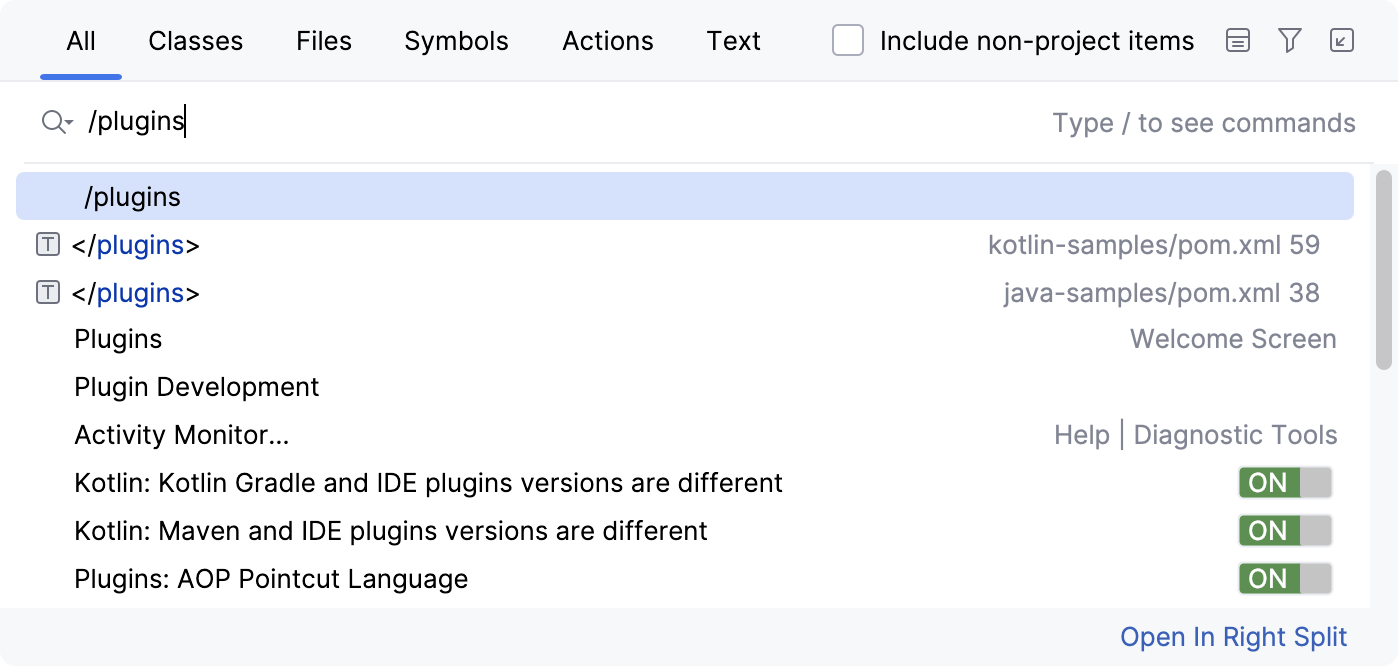
Other tags include `/appearance`, `/system`, `/inspections`, `/registry`, `/intentions`, `/templates`, and `/vcs`.
Procedure: Search for URL mappings
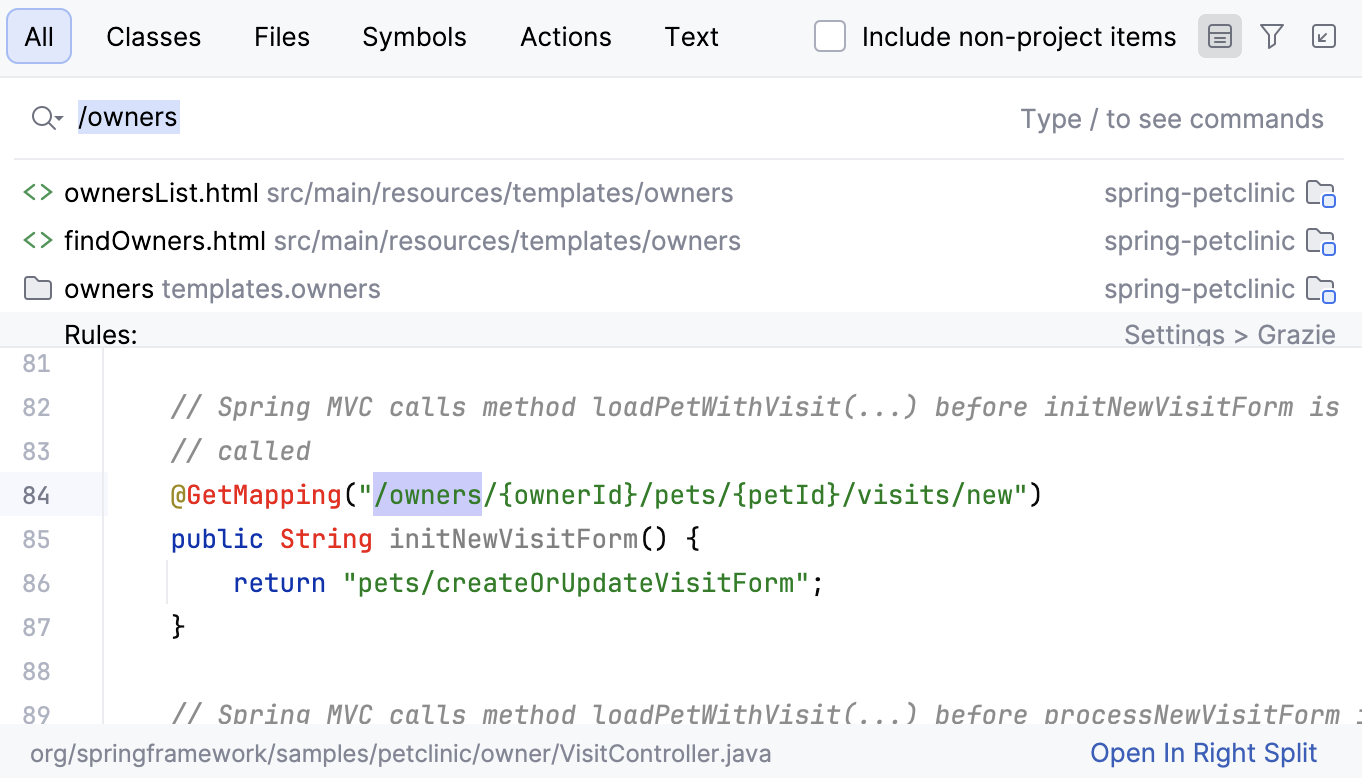
IntelliJ IDEA recognizes URLs as symbols. It is supported for Spring, Micronaut, Helidon, JAX-RS and Swagger/OpenAPI.
1. Press `Shift` (Windows), `Shift` (macOS), `Shift` (IntelliJ IDEA Classic (macOS)), `Shift` (macOS System Shortcuts), `Shift` (XWin), `Shift` (GNOME), `Shift` (KDE), `Shift` (Emacs), `Shift` (Sublime Text), `Shift` (Sublime Text (macOS)), `Shift` (NetBeans), `Shift` (Visual Studio), `Shift` (Visual Studio (macOS)), `Shift` (Eclipse), `Shift` (Eclipse (macOS)) twice to open the search window.
2. Type `/` and part of the URL mapping you want to search for.
Procedure: Search for actions
You can search for actions. For example, you can search for a VCS action and access its dialog.
1. Press `Shift` (Windows), `Shift` (macOS), `Shift` (IntelliJ IDEA Classic (macOS)), `Shift` (macOS System Shortcuts), `Shift` (XWin), `Shift` (GNOME), `Shift` (KDE), `Shift` (Emacs), `Shift` (Sublime Text), `Shift` (Sublime Text (macOS)), `Shift` (NetBeans), `Shift` (Visual Studio), `Shift` (Visual Studio (macOS)), `Shift` (Eclipse), `Shift` (Eclipse (macOS)) twice to open the search window.
2. In the search field, type, for example, `push`.
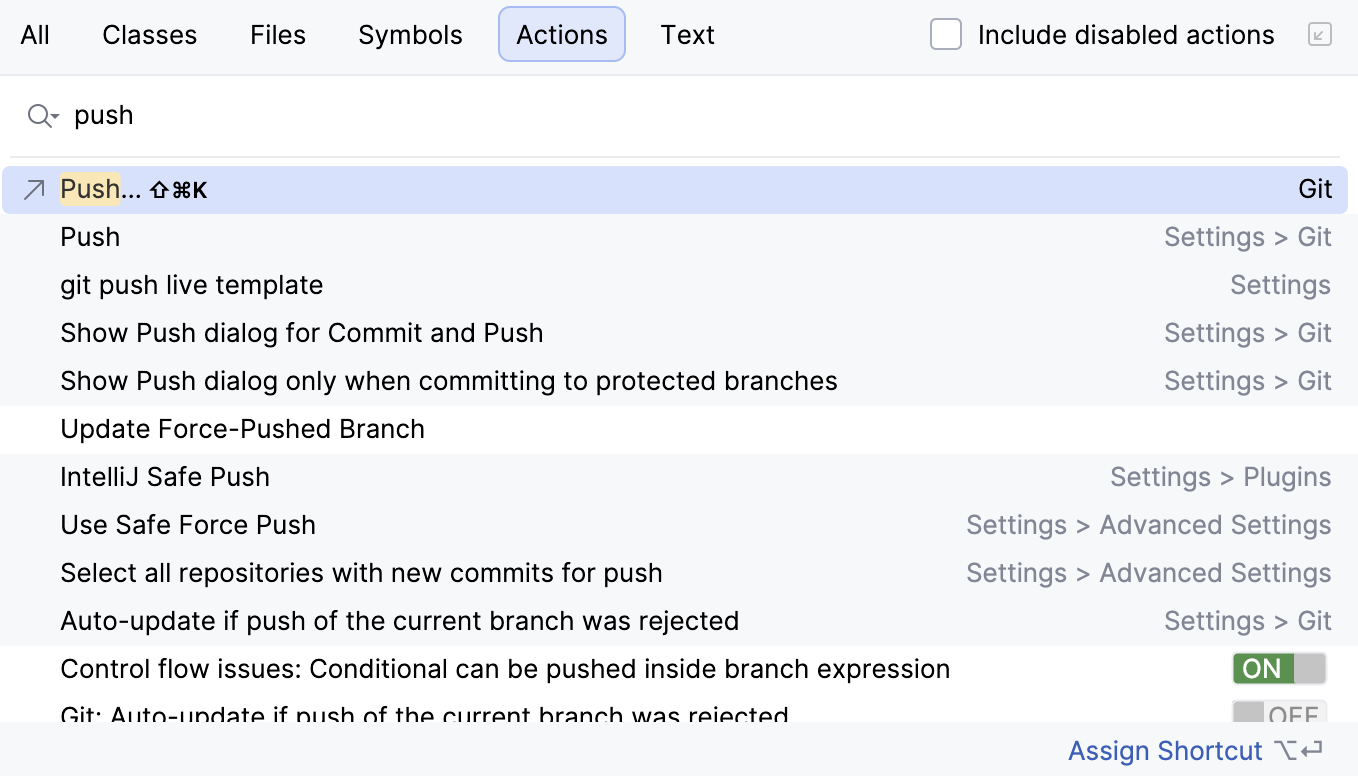
IntelliJ IDEA displays the Push action in the Actions section together with the `Ctrl+Shift+K` (Windows), `⌘ ⇧ K` (macOS), `⌘ ⇧ K` (IntelliJ IDEA Classic (macOS)), `⌘ ⇧ K` (macOS System Shortcuts), `Ctrl+Shift+K` (XWin), `Ctrl+Shift+K` (GNOME), `Ctrl+Shift+K` (KDE), `Ctrl+Shift+K` (Emacs), `Ctrl+Shift+K` (Sublime Text), `⌘ ⇧ K` (Sublime Text (macOS)), `Ctrl+Shift+K` (NetBeans), `Ctrl+Shift+K` (Visual Studio), `⌘ ⇧ K` (Visual Studio (macOS)), `Ctrl+Shift+K` (Eclipse), `⌘ ⇧ K` (Eclipse (macOS)) shortcut, which lets you access the Push dialog.
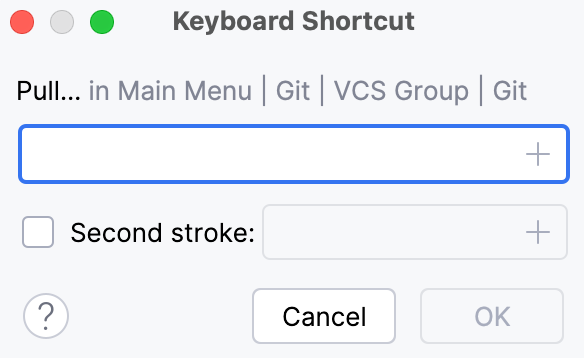
If the action doesn't have a shortcut, you can assign it without leaving the Search Everywhere window.
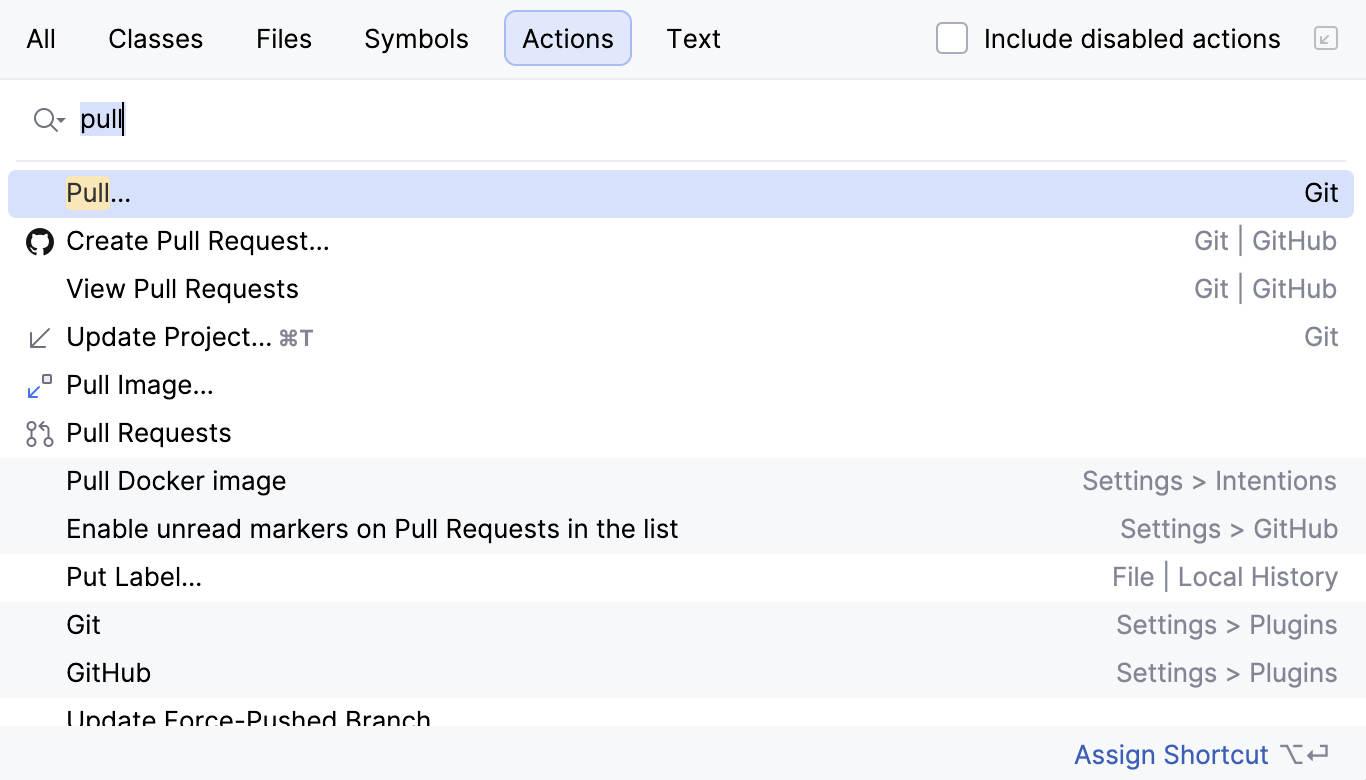
After typing the action name in the search field, select it in the search results, press `Alt+Enter` (Windows), `⌥ ⏎` (macOS), `⌥ ⏎` (IntelliJ IDEA Classic (macOS)), `⌥ ⏎` (macOS System Shortcuts), `Alt+Enter` (XWin), `Alt+Enter` (GNOME), `Alt+Enter` (KDE), `Alt+Enter` (Emacs), `Alt+Enter` (Sublime Text), `⌥ ⏎` (Sublime Text (macOS)), `Alt+Enter` (NetBeans), `Alt+Enter` (Visual Studio), `⌥ ⏎` (Visual Studio (macOS)), `Ctrl+1` (Eclipse), `⌘ 1` (Eclipse (macOS)) and in the dialog that opens specify a new shortcut.
Procedure: Search for abbreviations
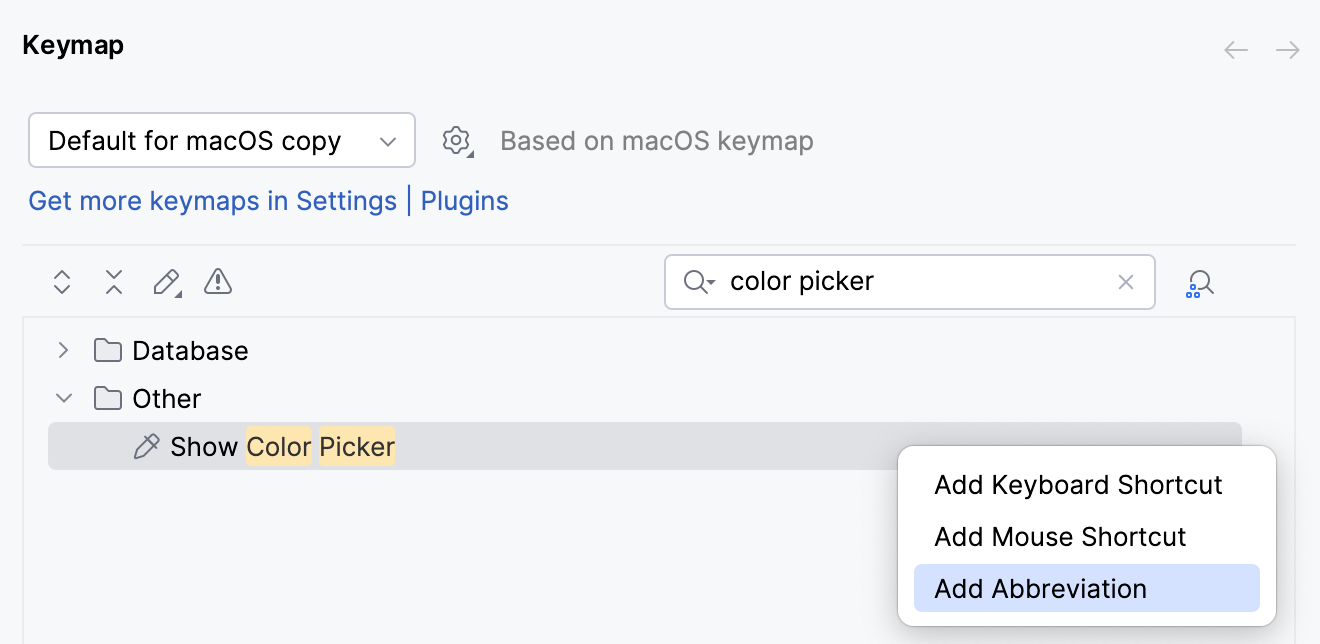
You can assign a short code for the action and use it to search for such action and quickly access it. For example, assign an abbreviation for Color Picker.
1. In the Settings dialog (`Ctrl+Alt+S` (Windows), `⌘ Comma` (macOS), `⌘ Comma` (IntelliJ IDEA Classic (macOS)), `⌘ Comma` (macOS System Shortcuts), `Ctrl+Alt+S` (XWin), `Ctrl+Alt+S` (GNOME), `Ctrl+Alt+S` (KDE), `Ctrl+Alt+S` (Emacs), `Ctrl+Alt+S` (Sublime Text), `⌘ Comma` (Sublime Text (macOS)), `Ctrl+Alt+S` (NetBeans), `Ctrl+Alt+S` (Visual Studio), `⌘ Comma` (Visual Studio (macOS)), `Ctrl+Alt+S` (Eclipse), `⌘ Comma` (Eclipse (macOS))), go to Keymap. From the options on the right, select `Other | Show Color Picker`.
2. From the context menu, select Add abbreviation.
3. In the dialog that opens, specify the abbreviation you are going to use, for example, cp and click OK.
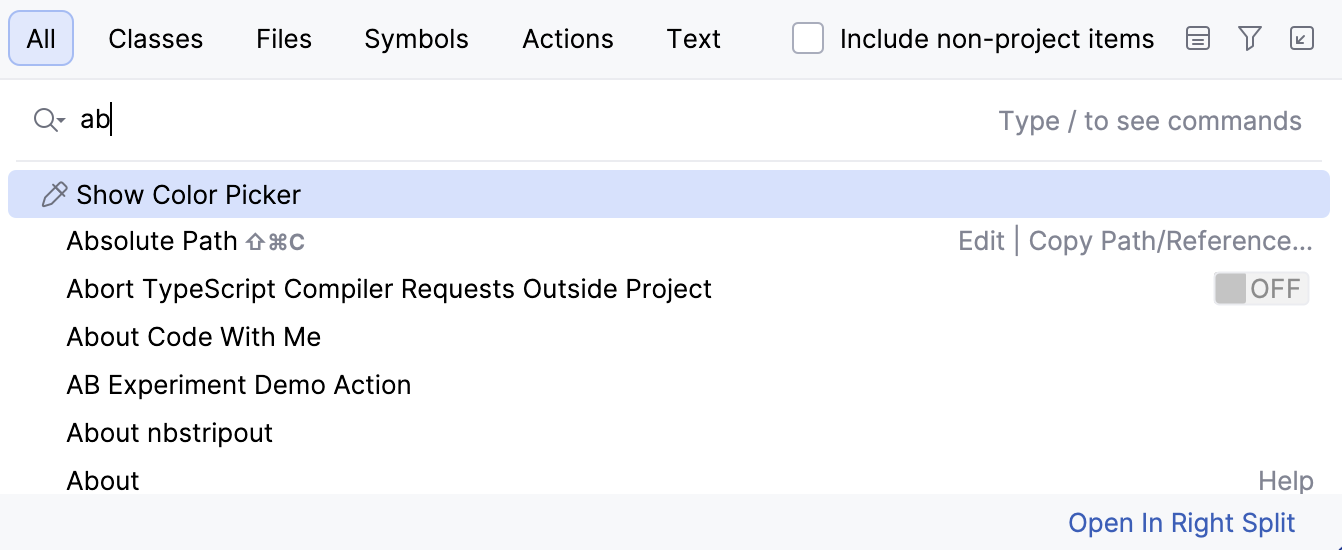
4. Press `Shift` (Windows), `Shift` (macOS), `Shift` (IntelliJ IDEA Classic (macOS)), `Shift` (macOS System Shortcuts), `Shift` (XWin), `Shift` (GNOME), `Shift` (KDE), `Shift` (Emacs), `Shift` (Sublime Text), `Shift` (Sublime Text (macOS)), `Shift` (NetBeans), `Shift` (Visual Studio), `Shift` (Visual Studio (macOS)), `Shift` (Eclipse), `Shift` (Eclipse (macOS)) twice to open the search window.
5. When you type cp in the search field, IntelliJ IDEA will display the item to which you have assigned your abbreviation. Press `Enter` (Windows), `⏎` (macOS), `⏎` (IntelliJ IDEA Classic (macOS)), `⏎` (macOS System Shortcuts), `Enter` (XWin), `Enter` (GNOME), `Enter` (KDE), `Enter` (Emacs), `Enter` (Sublime Text), `⏎` (Sublime Text (macOS)), `Enter` (NetBeans), `Enter` (Visual Studio), `⏎` (Visual Studio (macOS)), `Enter` (Eclipse), `⏎` (Eclipse (macOS)) to access the Color Picker dialog.
Procedure: Evaluate mathematical expressions
You can quickly type and evaluate simple mathematical expressions. IntelliJ IDEA also supports HEX, binary, and octal expressions.
1. Press `Shift` (Windows), `Shift` (macOS), `Shift` (IntelliJ IDEA Classic (macOS)), `Shift` (macOS System Shortcuts), `Shift` (XWin), `Shift` (GNOME), `Shift` (KDE), `Shift` (Emacs), `Shift` (Sublime Text), `Shift` (Sublime Text (macOS)), `Shift` (NetBeans), `Shift` (Visual Studio), `Shift` (Visual Studio (macOS)), `Shift` (Eclipse), `Shift` (Eclipse (macOS)) twice to open the search window.
2. Enter an expression you want to evaluate, IntelliJ IDEA will display the answer in the search results.
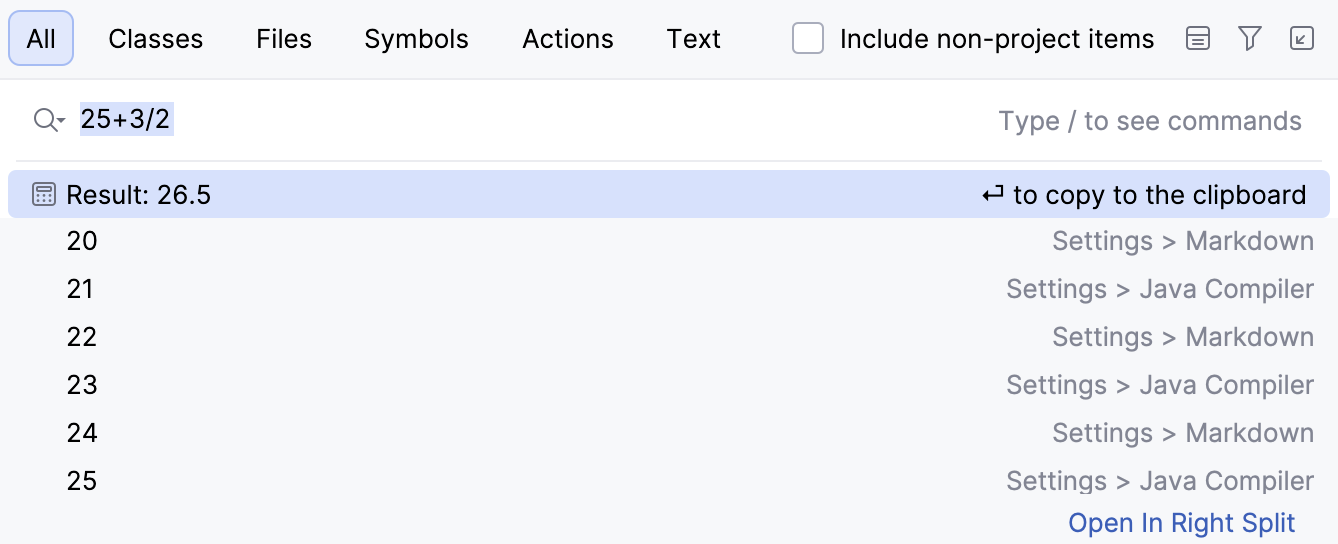
You can use basic arithmetic operators — `+`, `-`, `*`, `/`, as well as `^` for power — and basic math functions: `sqrt()`, `sin()`, `cos()`, `tan()`.
Procedure: Manage text search in Search Everywhere
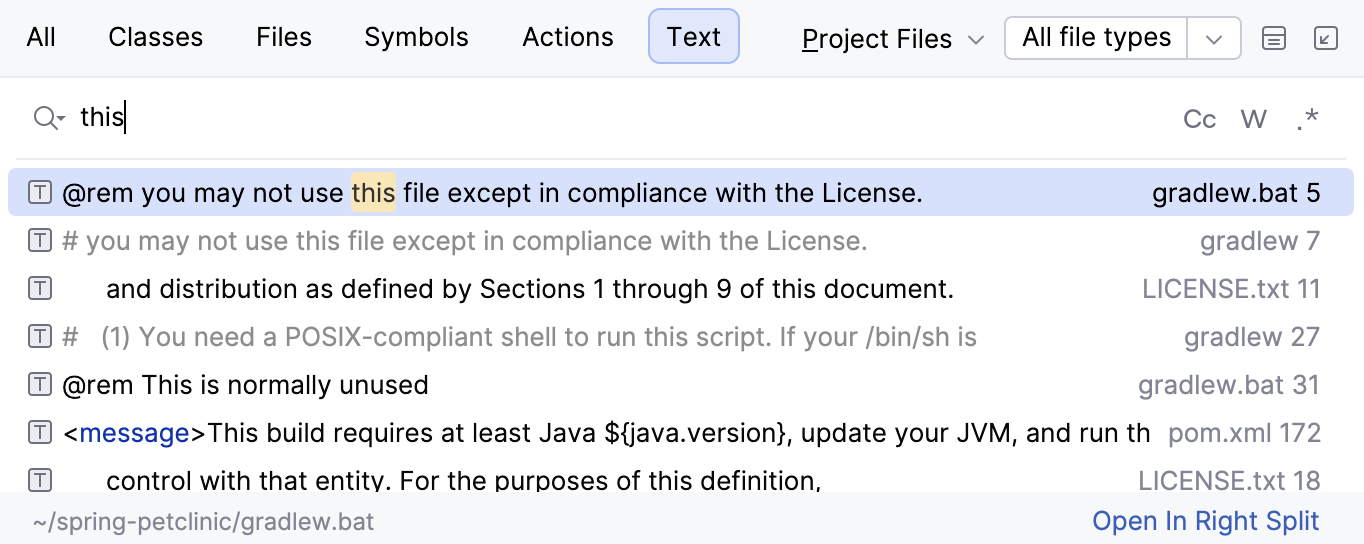
The text search is available by default within the Text tab. Within this tab, you can search for text queries, matching words, including case-sensitive scopes, and [regex](tutorial-finding-and-replacing-text-using-regular-expressions.html).
The text search results are also available on the All tab at the bottom of the list. They are displayed when there are few or no other search results available for a given query. You can disable the text search at any time through Advanced Settings.
1. Press `Ctrl+Alt+S` (Windows), `⌘ Comma` (macOS), `⌘ Comma` (IntelliJ IDEA Classic (macOS)), `⌘ Comma` (macOS System Shortcuts), `Ctrl+Alt+S` (XWin), `Ctrl+Alt+S` (GNOME), `Ctrl+Alt+S` (KDE), `Ctrl+Alt+S` (Emacs), `Ctrl+Alt+S` (Sublime Text), `⌘ Comma` (Sublime Text (macOS)), `Ctrl+Alt+S` (NetBeans), `Ctrl+Alt+S` (Visual Studio), `⌘ Comma` (Visual Studio (macOS)), `Ctrl+Alt+S` (Eclipse), `⌘ Comma` (Eclipse (macOS)) to open settings and then select `Advanced Settings`.
2. Scroll down to the Search Everywhere section and disable Show text search results in Search Everywhere.
3. Apply the changes and close the dialog.
Procedure: Manage tabs for Search Everywhere
You can add more tabs to the Search Everywhere window or disable them through [Advanced Settings](advanced-settings.html).
For example, you can enable the Git tab to search for Git branches or commits.
1. Press `Ctrl+Alt+S` (Windows), `⌘ Comma` (macOS), `⌘ Comma` (IntelliJ IDEA Classic (macOS)), `⌘ Comma` (macOS System Shortcuts), `Ctrl+Alt+S` (XWin), `Ctrl+Alt+S` (GNOME), `Ctrl+Alt+S` (KDE), `Ctrl+Alt+S` (Emacs), `Ctrl+Alt+S` (Sublime Text), `⌘ Comma` (Sublime Text (macOS)), `Ctrl+Alt+S` (NetBeans), `Ctrl+Alt+S` (Visual Studio), `⌘ Comma` (Visual Studio (macOS)), `Ctrl+Alt+S` (Eclipse), `⌘ Comma` (Eclipse (macOS)) to open settings and then select `Advanced Settings`.
2. On the Advanced Settings page, in the search field, start typing `Search Everywhere` to see options and tabs that are available.
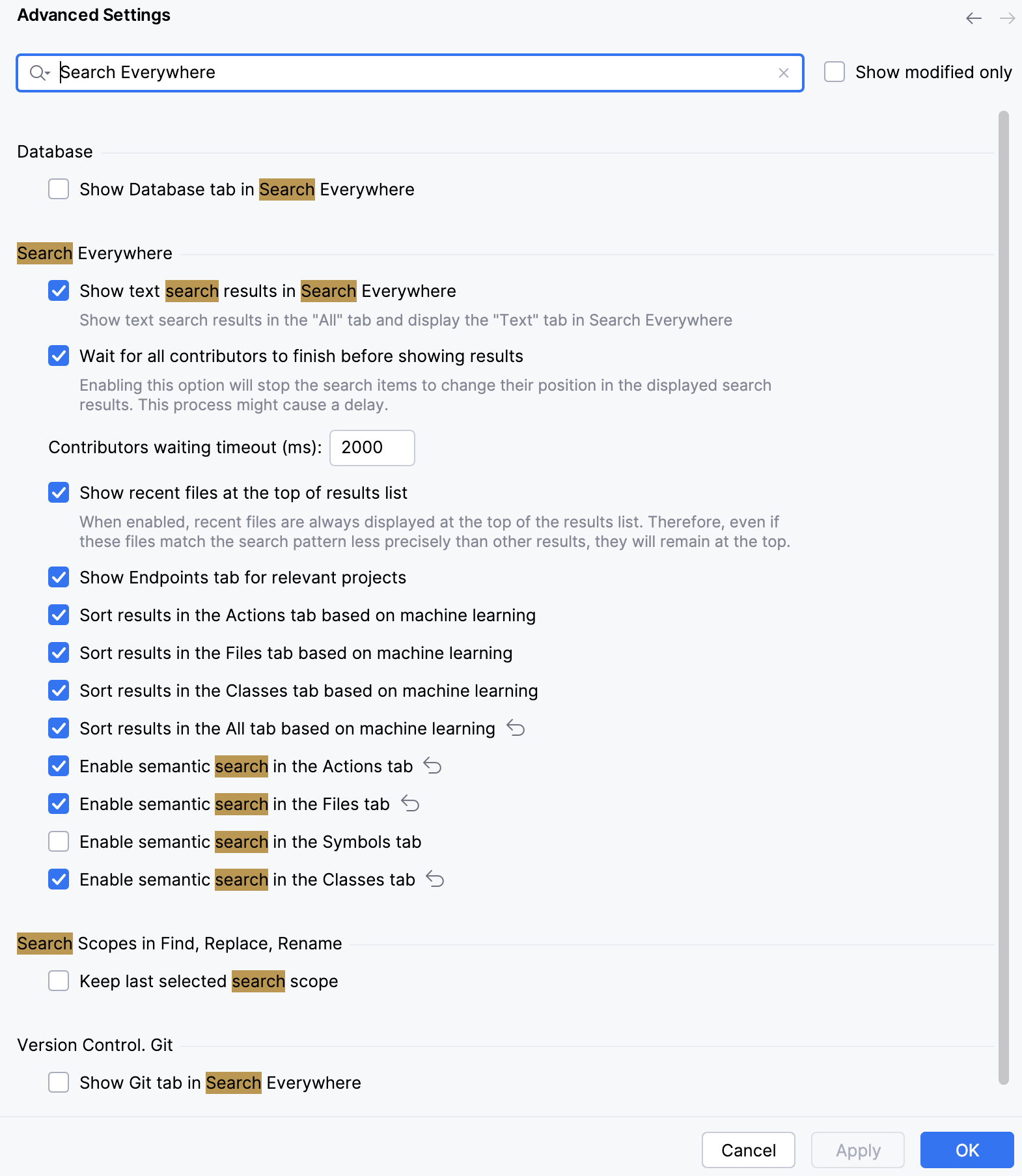
3. Select the appropriate option and click OK to save the changes.
Procedure: Customize the Search Everywhere window shortcut
If you need to customize the assigned shortcut (double `Shift` (Windows), `Shift` (macOS), `Shift` (IntelliJ IDEA Classic (macOS)), `Shift` (macOS System Shortcuts), `Shift` (XWin), `Shift` (GNOME), `Shift` (KDE), `Shift` (Emacs), `Shift` (Sublime Text), `Shift` (Sublime Text (macOS)), `Shift` (NetBeans), `Shift` (Visual Studio), `Shift` (Visual Studio (macOS)), `Shift` (Eclipse), `Shift` (Eclipse (macOS))) for the Search Everywhere window, use the following steps:
1. Press `Ctrl+Alt+S` (Windows), `⌘ Comma` (macOS), `⌘ Comma` (IntelliJ IDEA Classic (macOS)), `⌘ Comma` (macOS System Shortcuts), `Ctrl+Alt+S` (XWin), `Ctrl+Alt+S` (GNOME), `Ctrl+Alt+S` (KDE), `Ctrl+Alt+S` (Emacs), `Ctrl+Alt+S` (Sublime Text), `⌘ Comma` (Sublime Text (macOS)), `Ctrl+Alt+S` (NetBeans), `Ctrl+Alt+S` (Visual Studio), `⌘ Comma` (Visual Studio (macOS)), `Ctrl+Alt+S` (Eclipse), `⌘ Comma` (Eclipse (macOS)) to open settings and then select `Keymap`.
2. In the search field, start typing Search Everywhere. In the search results, locate the option under the Navigate node and double-click it.
3. From the context menu that opens, select the action you want to perform (add, remove, or edit the shortcut), then click OK.
## See also
### Procedures
[IntelliJ IDEA keyboard shortcuts](mastering-keyboard-shortcuts.html)