Tutorial: Get started with Bazel
Bazel is an open-source build and test tool developed by Google. It is designed to manage large codebases with complex dependencies across multiple languages and platforms. Bazel automates the process of compiling code, linking dependencies, running tests, and deploying artifacts.
This tutorial will help you get started with Bazel in IntelliJ IDEA. In the course of completing it, you will:
Create a new Bazel project
Get acquainted with Bazel project structure and terminology
Rename a repository
Add Java sources to the project
Build and run the project
Add a package with Kotlin sources and call it from Java code
Get the JAR build artifact
Learn how to use project views
Prerequisites
For this tutorial, you only need the Bazel plugin.
Install the Bazel plugin
Press Ctrl+Alt+S to open settings and then select .
Open the Marketplace tab, find the Bazel plugin, and click Install.
Restart the IDE to activate the plugin.
Create a project
Launch IntelliJ IDEA.
If the Welcome screen opens, click New Project.
Otherwise, go to in the main menu.
Give your project a name and select Bazel as the build system.
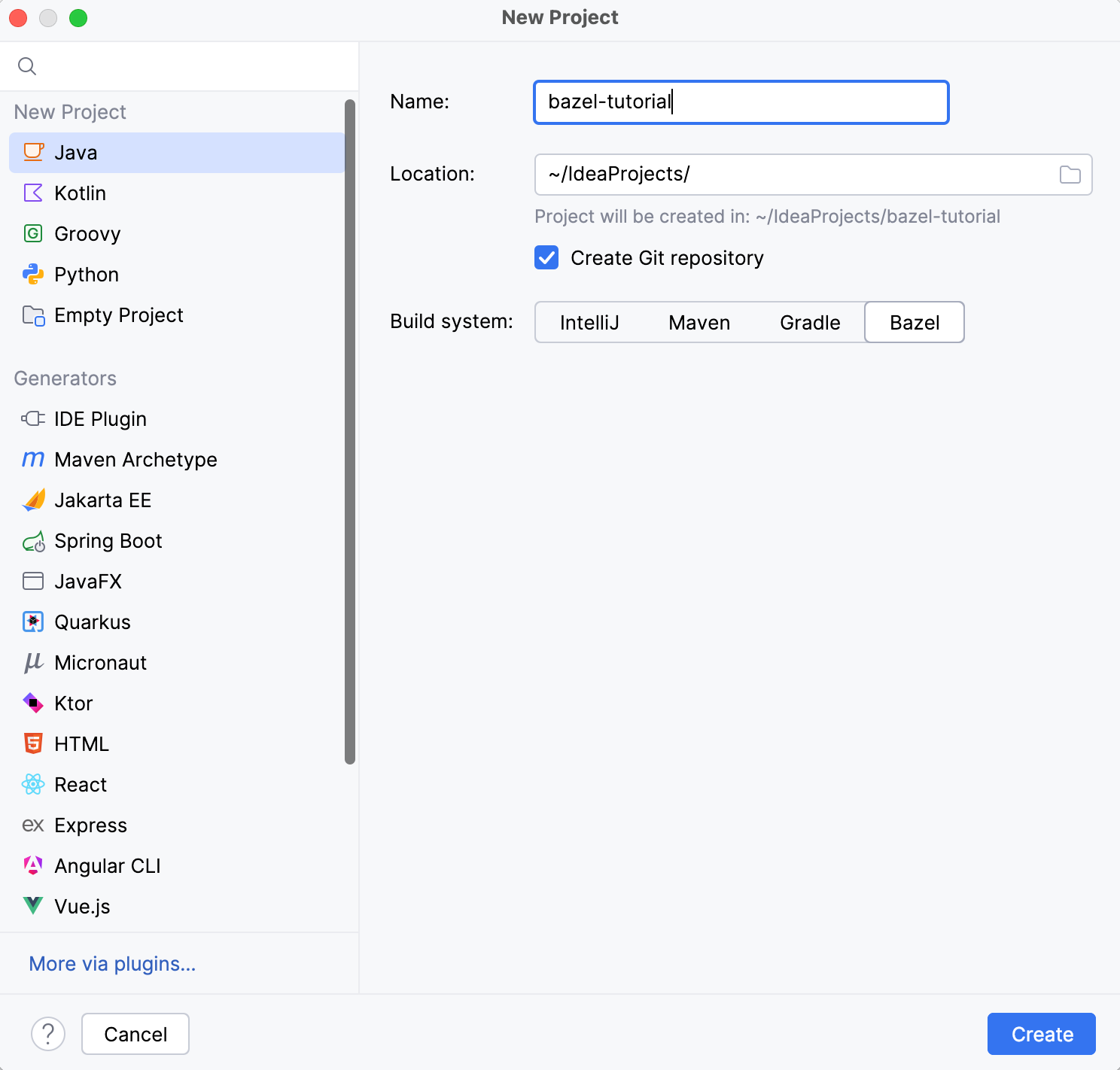
(optional) If you want to version this project or later publish it on GitHub, check Create Git repository.
Click Create.
IntelliJ IDEA generates the project files. After that, it synchronizes with Bazel, which might take a while.
Project structure and terminology
If you are new to Bazel, here is a quick tour around the project. It discusses the main concepts and files that define how your Bazel project is built. We'll be referring to these concepts and files later in the tutorial.
If you are already familiar with Bazel, you can skip this section.
Main repository
The project we are looking at is called the main repository. In Bazel terminology, a repository is a collection of files that is used to build software.
Since we are building a Java application, we are going to also need other repositories, such as compiler executables and code dependencies.
Workspace
The workspace is a term used to refer to the collection of all the repositories required to build the main repository.
Modules
Apart from being a repository, our project is also a module. A module is a unit of dependency management in Bazel. Modules are defined in the MODULE.BAZEL file.
In our project, the MODULE.BAZEL file starts with the module declaration, which sets the name and version for the module:
It declares the workspace as a Bazel module for bzlmod (Bazel’s built‑in dependency management system). If a repository is later published to a registry, this declaration gives it a unique identity, roughly equivalent to Maven's artifact coordinates. This will allow other Bazel projects use it as a dependency.
Then, the MODULE.BAZEL specifies the dependencies for working with the Java language and external JVM dependencies:
Both of those dependencies import repositories with required files. You add dependencies by referencing modules. Referencing a module can result in importing a single repository or a collection of repositories.
The rest of the file loads the Maven extension, points to the libraries from Maven Central, and exposes the generated repository to the workspace under the name @maven:
You can find the generated repositories in the Excluded Directories view including the transitive dependencies.
Packages
A package is a unit of Bazel build process. Packages are identified by a BUILD.BAZEL file in the package directory.
In our project, there are two Bazel packages: one for source code, one for tests:
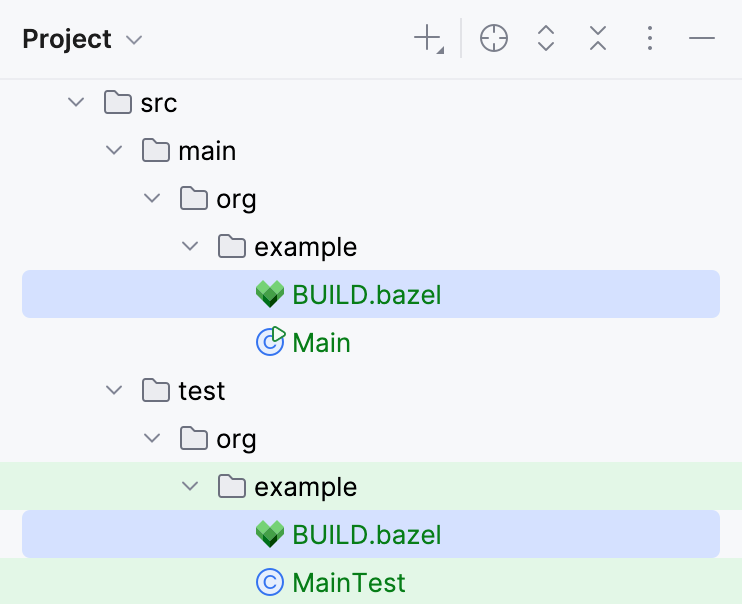
A package includes all the subdirectories except those with their own BUILD.BAZEL file.
BUILD.BAZEL for the source code package contains the following:
The load() statement imports symbols (like java_binary) from the defs.bzl file. defs.bzl comes from the @rules_java external repository that we are importing in the MODULE.BAZEL file via bazel_dep().
After the symbols are imported, we can use them in this BUILD.BAZEL file.
The package built-in function sets the package metadata (only visibility for now). In this case, the package visibility is public because we need to reference the package from the tests.
The java_binary rule call defines a build target called Main. It builds a JAR file from the Java source files in the package. The main_class attribute specifies the main class of the application. The srcs attribute specifies the source files to include in the JAR.
The BUILD.BAZEL for tests package is similar, but it adds two extra dependencies: one for JUnit, and one for the tested package.
In the dependency coordinates, @maven is the repository name and junit_junit is the artifact name.
Review the imported repositories
Every imported module corresponds to one or more repositories in your project. You can review the repositories that your project uses in the bazel-{project name}/external folder:
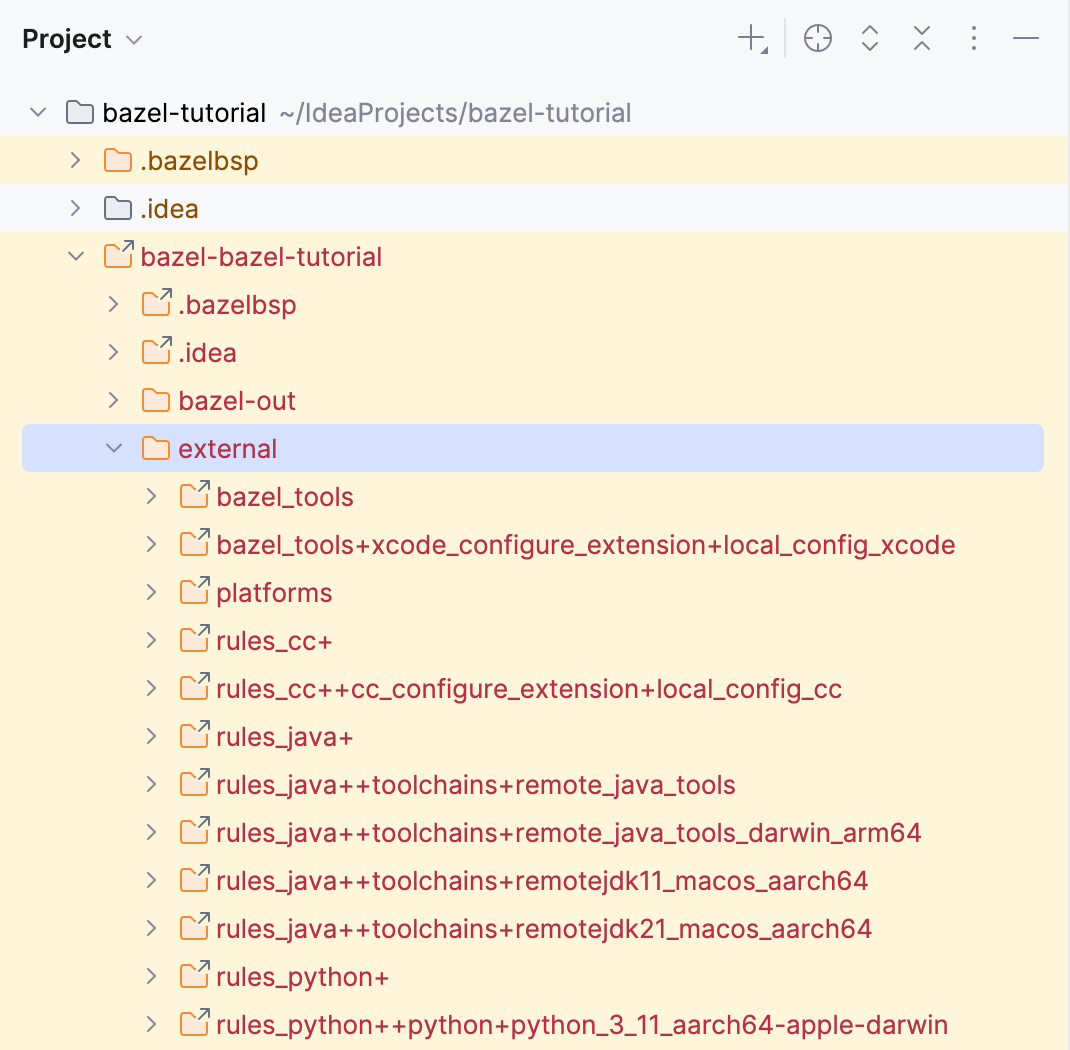
If you look into the BUILD.BAZEL file, you'll find that there are fewer dependencies than there are repositories in the external folder. This is because each imported module might depend on more modules. Bazel recognizes such transitive dependencies and imports them for you.
Run Bazel targets
Before proceeding with changes to the project, let us make sure it actually builds and runs. There are several ways to do this. In this tutorial, we'll use the Bazel tool window.
In the right sidebar, click the Bazel icon. Alternatively, select from the main menu.
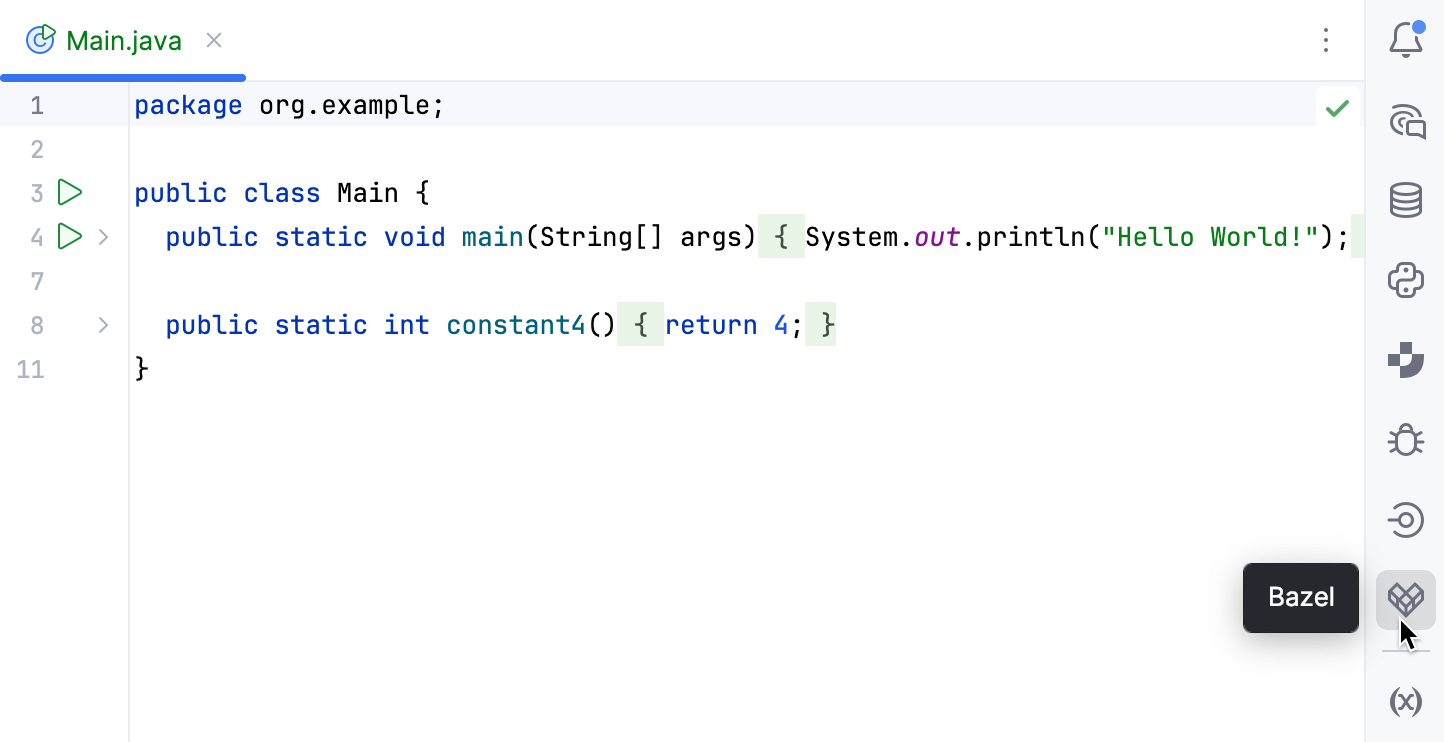
This opens the Bazel tool window, which lists the targets as defined in the BUILD.BAZEL files.
In the Bazel tool window, right-click the
Maintarget and select Run.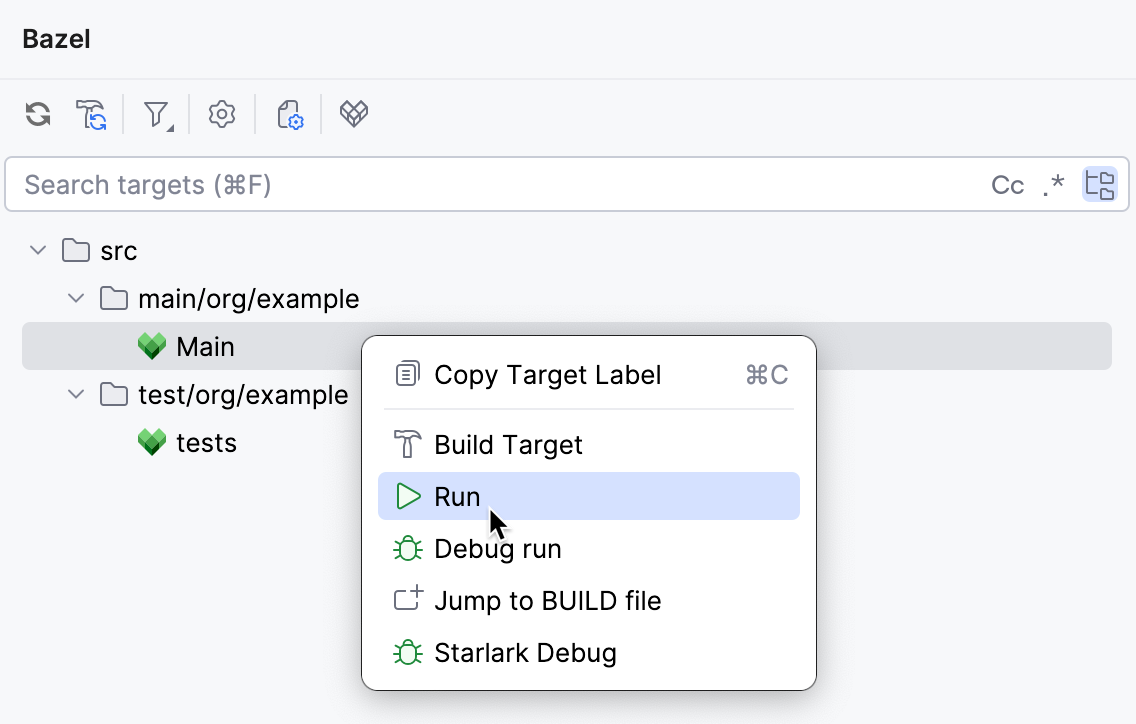
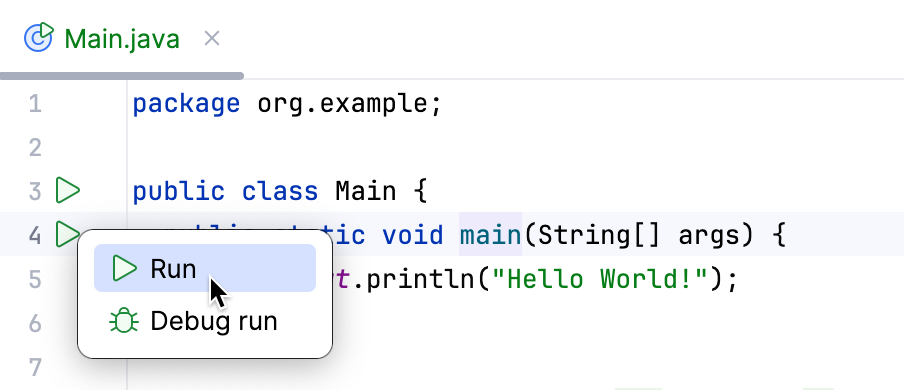
Alternatively, if a main method is currently in front of you in the editor, you can use the gutter icon to run it.
Rename repository and sync changes
As we have seen in the overview, the install() call generates an external Bazel repository for each resolved artifact:
Since it sets name to maven, we reference the generated repository as @maven, for example @maven//:junit_junit.
Suppose we want to reference it by another name, for example third-party. For this, let us change the name of the generated repository.
Rename the generated repository
Change the
nameattribute in theinstall()anduse_repo()calls in MODULE.BAZEL.maven.install( # before # name = "maven", name = "third-party", # after artifacts = [ "junit:junit:4.13.2", ], repositories = [ "https://repo1.maven.org/maven2", ], ) # before # use_repo(maven, "maven") use_repo(maven, "third-party") # afterChange the label in BUILD.BAZEL for the test package. This is the only package where the repository name is referenced. Otherwise, it would be necessary to change all the other references as well.
java_test( name = "tests", srcs = glob(["**/*.java"]), test_class = "org.example.MainTest", deps = [ "//src/main/org/example:Main", # before # "@maven//:junit_junit", "@third-party//:junit_junit", # after ], )
After the project configuration is changed, you need to resync the project for Bazel to pick up the changes.
Resync the project
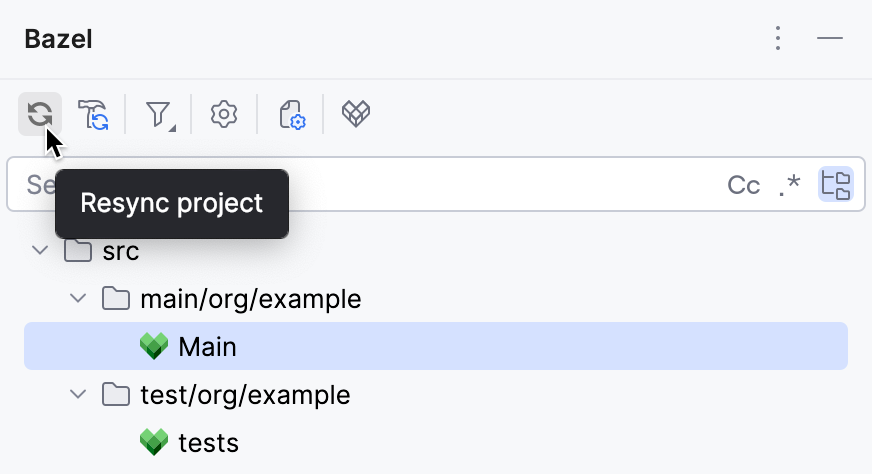
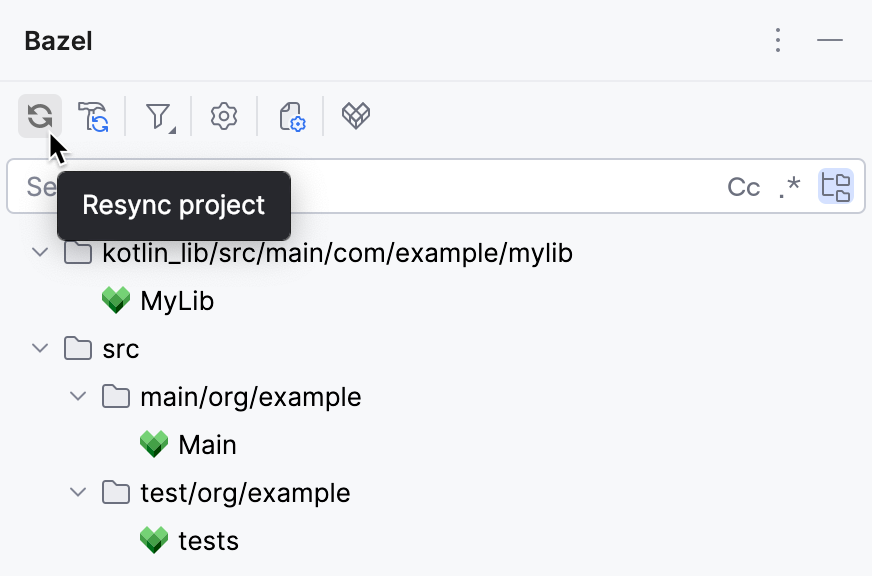
On the toolbar of the Bazel tool window, click the Resync project button.
Add sources for a dependency
If we go to the definition Ctrl+B of the assertEquals() method that is used in the test package, IntelliJ IDEA brings us to a decompiled version of the class file.
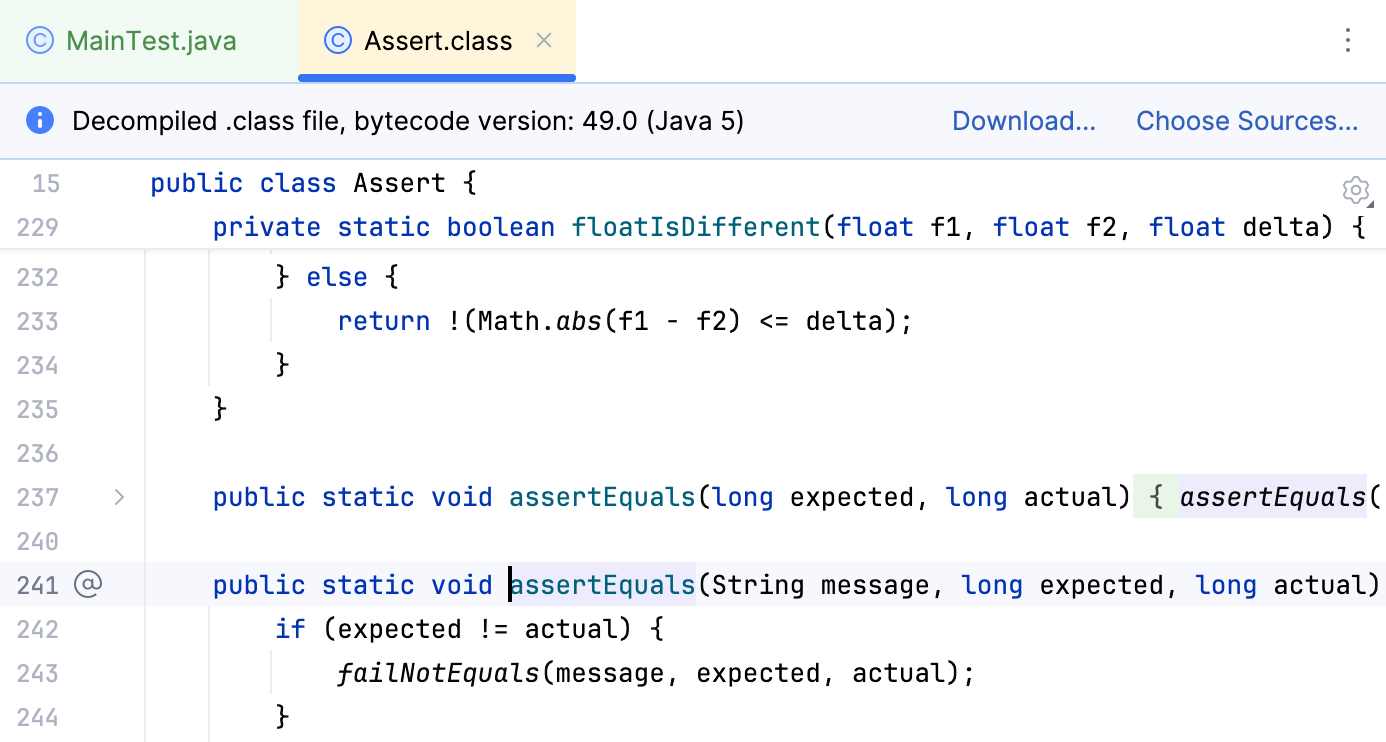
This is because the imported repository only includes the compiled classes and does not include their sources. Let us fix this by instructing Bazel to also include the source code when generating a repository.
Add the sources
Open the MODULE.BAZEL file.
Add the the
fetch_sourcesparameter to theinstall()call as follows:maven.install( name = "third-party", artifacts = [ "junit:junit:4.13.2", ], repositories = [ "https://repo1.maven.org/maven2", ], fetch_sources = True )
For the changes to take effect, we need to resync the project again.
Resync the project
On the toolbar of the Bazel tool window, click the Resync project button.
Let us try navigating to the assertEquals() definition again Ctrl+B:
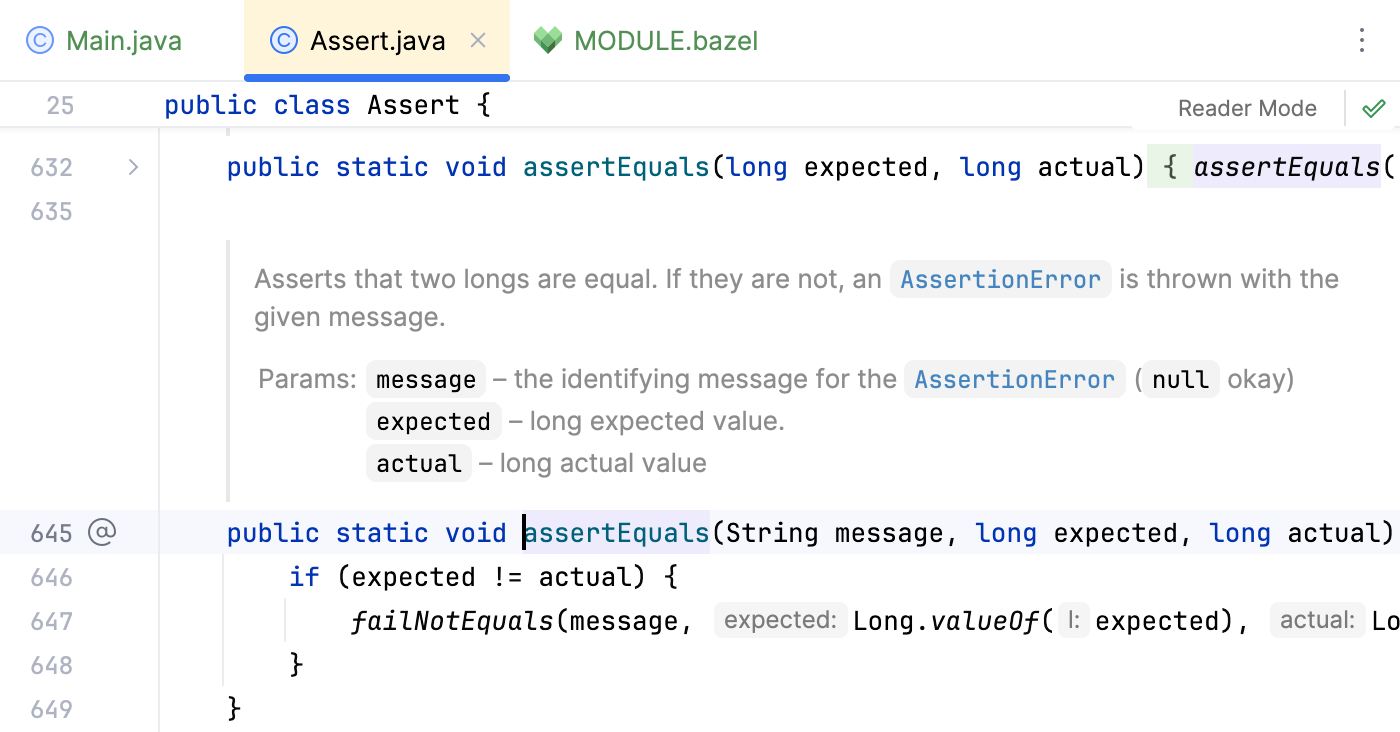
These are actual sources for the JUnit class now, not a decompiled version.
Add Kotlin
As the next step, let us add a separate package with a library that uses Kotlin.
Add Kotlin dependency
Add building rules
In the MODULE.BAZEL file, paste the statement for importing the rules for Kotlin (
rules_kotlin 2.1.8) at the top of the file:module( name = "null", version = "0.1.0", ) bazel_dep(name = "rules_java", version = "8.10.0") bazel_dep(name = "rules_jvm_external", version = "6.7") bazel_dep(name = "rules_kotlin", version = "2.1.8") maven = use_extension("@rules_jvm_external//:extensions.bzl", "maven") maven.install( name = "third-party", artifacts = [ "junit:junit:4.13.2", ], repositories = [ "https://repo1.maven.org/maven2", ], fetch_sources = True ) use_repo(maven, "third-party")
After we have added the rules, we can proceed with adding a package with Kotlin sources that will use them.
Add a package with Kotlin sources
Switch to the Project tool window. With the root folder selected, press Alt+Insert or right-click it and select .
Give the package a name, for example
kotlin_lib.A new folder appears with a BUILD.BAZEL file in it.
In the kotlin_lib folder, create the following folder structure: src/main/com/example/mylib.
Move BUILD.BAZEL to newly created src/main/com/example/mylib and add the following code in it:
load("@rules_kotlin//kotlin:jvm.bzl", "kt_jvm_library") package(default_visibility = ["//visibility:public"]) kt_jvm_library( name = "MyLib", srcs = ["MyLib.kt"] )Similar to the Java package, this code:
Imports the
kt_jvm_libraryrule from the Kotlin Bazel rules (rules_kotlin). This makes the Kotlin JVM library rule available in this BUILD file.Sets the default visibility for targets in this package to public, meaning any other Bazel package in the project can depend on them.
Declares a Kotlin JVM library target named
MyLibin Bazel. The target compiles MyLib.kt into a JAR.
In src/main/com/example/mylib, create a file named MyLib.kt with the following content:
package com.example.mylib fun hello() = println("Hello from Kotlin")
Again, we need to resync the project to apply the changes.
Resync the project
On the toolbar of the Bazel tool window, click the Resync project button.
Call Kotlin from Java
To call the Kotlin library from the Java package, we need to add a dependency on it in the corresponding BUILD.BAZEL file.
Add a dependency on Kotlin package
Open the Project tool window Alt+1.
In the src/main/org/example/BUILD.bazel file, add the
depsargument to thejava_binarycall as follows:java_binary( name = "Main", main_class = "org.example.Main", srcs = glob(["**/*.java"]), deps = ["//kotlin_lib/src/main/com/example/mylib:MyLib"] )
Then, we can call the hello() method from the Java package:
Update Java code
In the src/main/org/example/Main.java file, add an
importstatement and the library function invocation as follows:package org.example; import com.example.mylib.MyLibKt; // import the library public class Main { public static void main(String[] args) { System.out.println("Hello World!"); MyLibKt.hello(); // call the library function } public static int constant4() { return 4; } }
Then, resync the project one more time:
Resync the project
On the toolbar of the Bazel tool window, click the Resync project button.
Let us run the project and check that the Main Java target builds and runs correctly.
Build and run
In the right sidebar, click the Bazel icon. Alternatively, select from the main menu.
In the Bazel tool window, right-click the
Maintarget and select Run.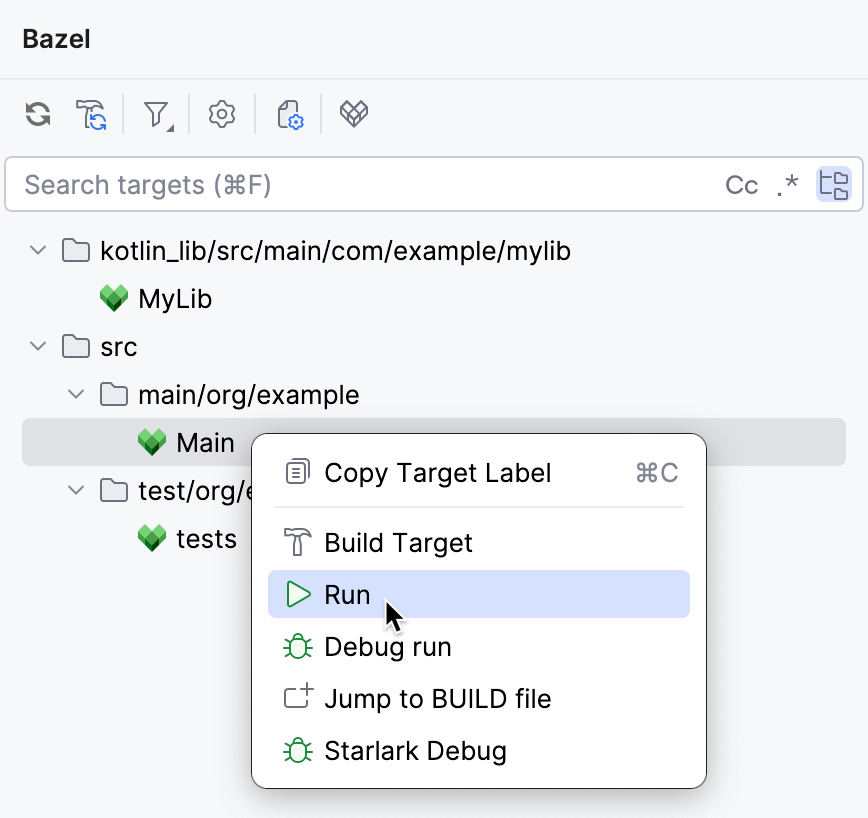
The Run tool window opens and shows the following output:
Get the JAR
So far we have run the project right from IntelliJ IDEA. Let us find the JAR file that we can use to run the project elsewhere.
Open the Project tool window Alt+1.
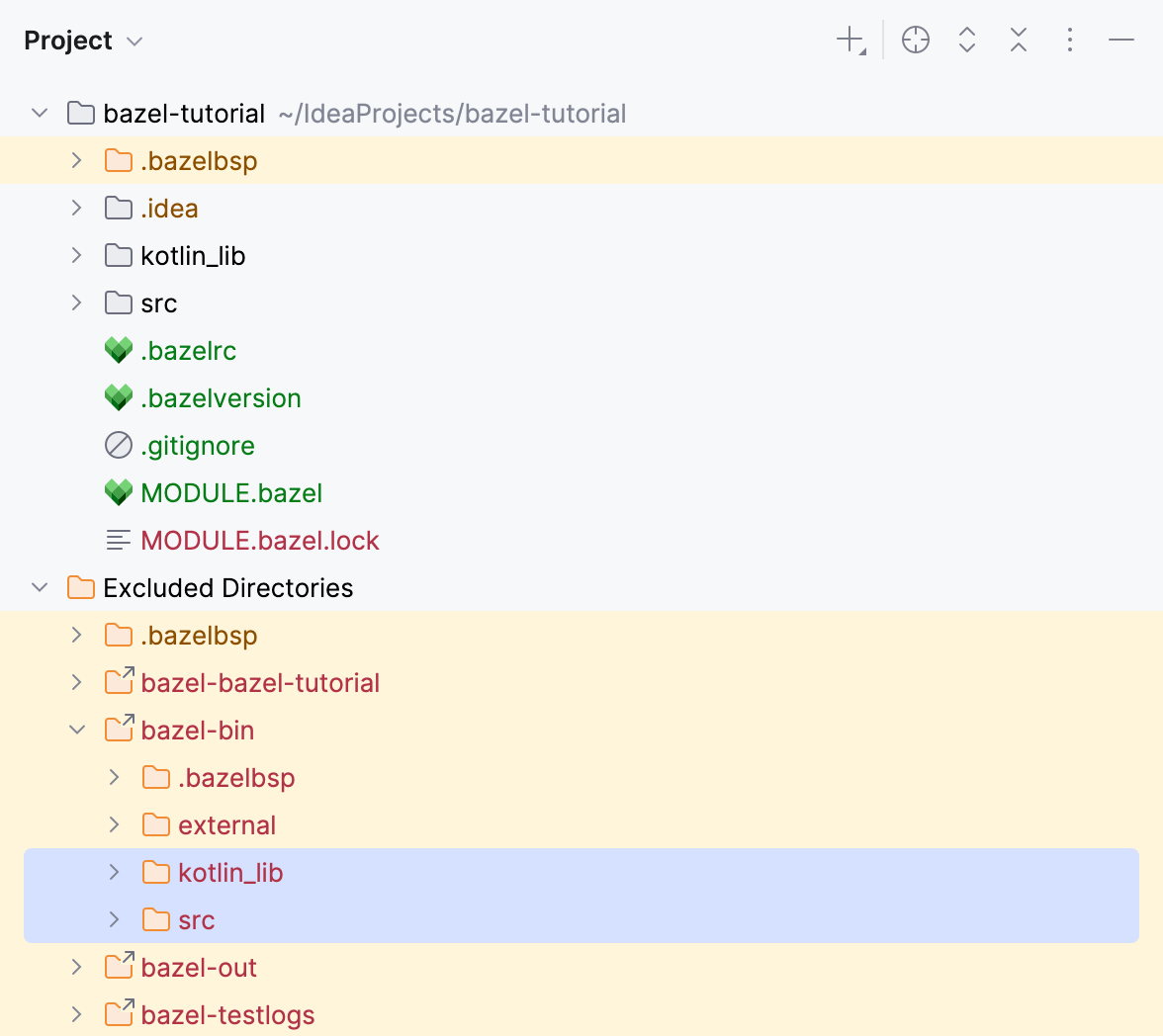
Navigate to Excluded Directories, then under bazel-bin, locate the directories mirroring the package structure of the project. There you can find the JAR files for both our Kotlin library and the main Java application packages.
Change the project view
This example project is small. However, if you later find yourself building larger projects with Bazel, there is a feature that will be useful in this case.
Bazel's project view allows you to hide irrelevant packages and only work with those you need right now. This makes the sources easier to navigate and reduces the load on the development environment, which is important in huge monorepos.
Let us assume we are currently working on the Kotlin library and want to hide the Java package. This gives us an opportunity to test this feature in action.
First, we need to create a .bazelproject file. This type of files defines what is included in a Bazel's project view.
Create a .bazelproject file
Open the Project tool window Alt+1.
Under the .bazelbsp folder, locate the .bazelproject file.
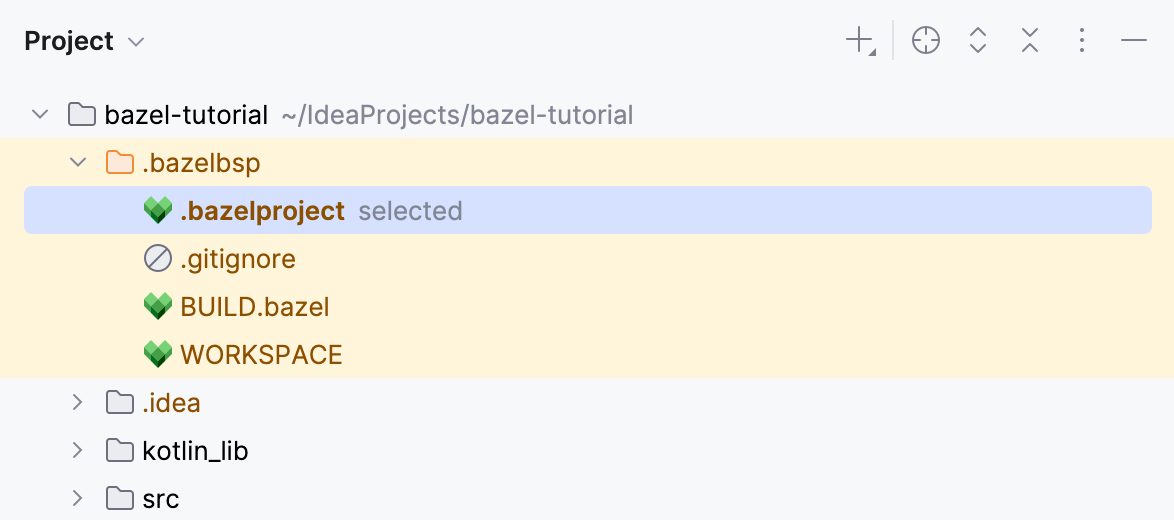
The selected label near it indicates that this is the project view that is currently used.
Copy the .bazelbsp/.bazelproject file and paste it in the project root.
In the newly created .bazelproject file, change the
directoriesproperty to point at the kotlin_lib folder as follows:derive_targets_from_directories: true directories: kotlin_libIn the Project tool window, right-click this file and select Load Project View.
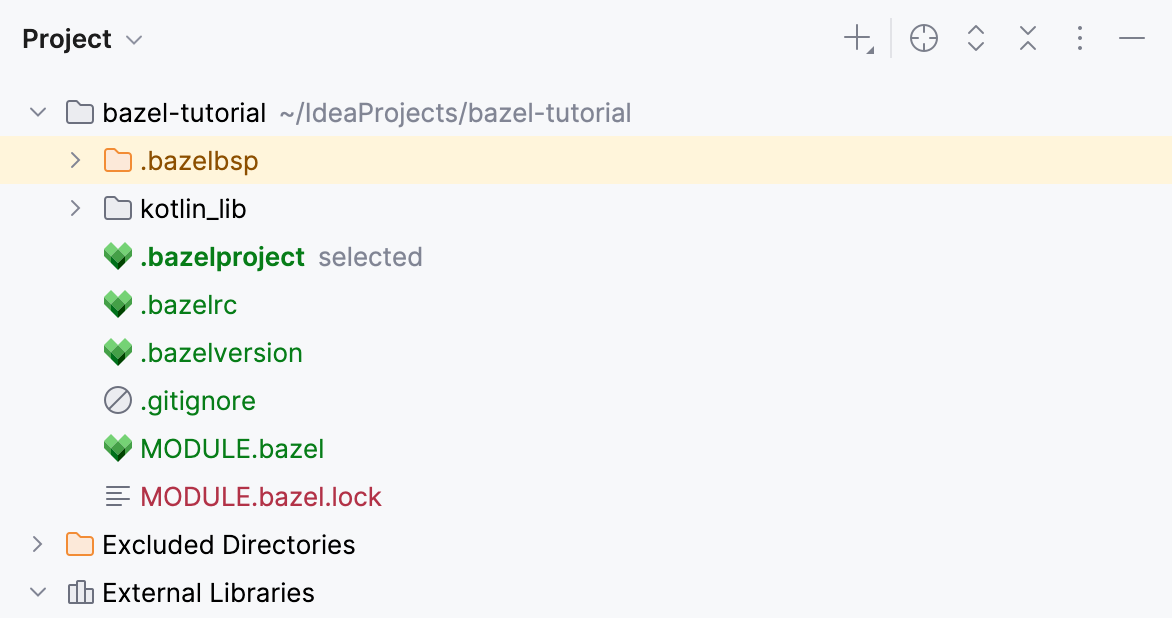
The Project tool window now only shows the kotlin_lib package.