# Live templates
> **TL;DR**
> Insert a live template: `Ctrl+J` (Windows), `⌘ J` (macOS), `⌘ J` (IntelliJ IDEA Classic (macOS)), `⌘ J` (macOS System Shortcuts), `Ctrl+J` (XWin), `Ctrl+J` (GNOME), `Ctrl+J` (KDE), `Ctrl+J` (Emacs), `Ctrl+J` (Sublime Text), `Ctrl+J` (Sublime Text (macOS)), `Ctrl+J` (NetBeans), `Ctrl+K, X` (Visual Studio), `⌘ E, L` (Visual Studio (macOS)), `Ctrl+Alt+Shift+J` (Eclipse), `Ctrl+J` (Eclipse (macOS))
>
>
>
> Expand a live template: `Tab` (Windows), `⇥` (macOS), `⇥` (IntelliJ IDEA Classic (macOS)), `⇥` (macOS System Shortcuts), `Tab` (XWin), `Tab` (GNOME), `Tab` (KDE), `Tab` (Emacs), `Tab` (Sublime Text), `⇥` (Sublime Text (macOS)), `Tab` (NetBeans), `Tab` (Visual Studio), `⇥` (Visual Studio (macOS)), `Tab` (Eclipse), `⇥` (Eclipse (macOS))
>
>
>
> Configure: `Ctrl+Alt+S` (Windows), `⌘ Comma` (macOS), `⌘ Comma` (IntelliJ IDEA Classic (macOS)), `⌘ Comma` (macOS System Shortcuts), `Ctrl+Alt+S` (XWin), `Ctrl+Alt+S` (GNOME), `Ctrl+Alt+S` (KDE), `Ctrl+Alt+S` (Emacs), `Ctrl+Alt+S` (Sublime Text), `⌘ Comma` (Sublime Text (macOS)), `Ctrl+Alt+S` (NetBeans), `Ctrl+Alt+S` (Visual Studio), `⌘ Comma` (Visual Studio (macOS)), `Ctrl+Alt+S` (Eclipse), `⌘ Comma` (Eclipse (macOS)) Settings | Editor | Live Templates
Use live templates to insert common constructs into your code, such as loops, conditions, declarations, or print statements .
[Video](https://www.youtube.com/v/ffBeoE6NBSs)
To expand a code snippet, type the corresponding template abbreviation and press `Tab` (Windows), `⇥` (macOS), `⇥` (IntelliJ IDEA Classic (macOS)), `⇥` (macOS System Shortcuts), `Tab` (XWin), `Tab` (GNOME), `Tab` (KDE), `Tab` (Emacs), `Tab` (Sublime Text), `⇥` (Sublime Text (macOS)), `Tab` (NetBeans), `Tab` (Visual Studio), `⇥` (Visual Studio (macOS)), `Tab` (Eclipse), `⇥` (Eclipse (macOS)) . . Keep pressing `Tab` (Windows), `⇥` (macOS), `⇥` (IntelliJ IDEA Classic (macOS)), `⇥` (macOS System Shortcuts), `Tab` (XWin), `Tab` (GNOME), `Tab` (KDE), `Tab` (Emacs), `Tab` (Sublime Text), `⇥` (Sublime Text (macOS)), `Tab` (NetBeans), `Tab` (Visual Studio), `⇥` (Visual Studio (macOS)), `Tab` (Eclipse), `⇥` (Eclipse (macOS)) to jump from one [variable](template-variables.html) in the template to the next one. Press `Shift+Tab` (Windows), `⇧ ⇥` (macOS), `⇧ ⇥` (IntelliJ IDEA Classic (macOS)), `⇧ ⇥` (macOS System Shortcuts), `Shift+Tab` (XWin), `Shift+Tab` (GNOME), `Shift+Tab` (KDE), `Shift+Tab` (Emacs), `Ctrl+[` (Sublime Text), `⌘ [` (Sublime Text (macOS)), `Alt+Shift+Left` (NetBeans), `Shift+Tab` (Visual Studio), `⇧ ⇥` (Visual Studio (macOS)), `Shift+Tab` (Eclipse), `⇧ ⇥` (Eclipse (macOS)) to move to the previous variable.

## Types of live templates
The following types of live templates are distinguished:
* Simple templates contain only fixed plain text. When you expand a simple template, the text is automatically inserted into your source code, replacing the abbreviation. | Abbreviation | Expands to | | --- | --- | | `psfs` | ```JAVA public static final String ``` | | `main` or `psvm` | ```JAVA public static void main(String[] args){ } ``` | | `sout` | ```JAVA System.out.println(); ``` |
* Parameterized templates contain [variables](template-variables.html) that enable user input. When you expand a parameterized template, variables are either replaced by input fields for the user to specify manually, or calculated by IntelliJ IDEA automatically. | Abbreviation | Expands to | | --- | --- | | `for` | ```JAVA for (int i = 0; i < ; i++) { } ``` | | `ifn` | ```JAVA if (var == null) { } ``` |
* Surround templates wrap a block of the selected code with the text specified by the user. For example, `T` expands into a pair of tags, for which you can specify a name. You can also select a block of code, then press `Ctrl+Alt+J` (Windows), `⌘ ⌥ J` (macOS), `⌘ ⌥ J` (IntelliJ IDEA Classic (macOS)), `⌘ ⌥ J` (macOS System Shortcuts), `Ctrl+Alt+J` (XWin), `Ctrl+Alt+J` (GNOME), `Ctrl+Alt+J` (KDE), `Ctrl+Alt+J` (Emacs), `Ctrl+Alt+J` (Sublime Text), `⌘ ⌥ J` (Sublime Text (macOS)), `Ctrl+Alt+J` (NetBeans), `Ctrl+E, U` (Visual Studio), `⌘ E, U` (Visual Studio (macOS)), `Ctrl+Alt+J` (Eclipse), `⌘ ⌥ J` (Eclipse (macOS)) to open the Select Template popup and select the `T` template to wrap the selection with a pair of tags.
[Postfix code completion](postfix-code-completion.html) is similar to live templates. It transforms the current expression without selecting it. For example, you can type `.if` after an expression to invoke the corresponding postfix completion and wrap the expression with an `if` statement.
## Configure live templates
To configure live templates, open the Editor | Live Templates settings page `Ctrl+Alt+S` (Windows), `⌘ Comma` (macOS), `⌘ Comma` (IntelliJ IDEA Classic (macOS)), `⌘ Comma` (macOS System Shortcuts), `Ctrl+Alt+S` (XWin), `Ctrl+Alt+S` (GNOME), `Ctrl+Alt+S` (KDE), `Ctrl+Alt+S` (Emacs), `Ctrl+Alt+S` (Sublime Text), `⌘ Comma` (Sublime Text (macOS)), `Ctrl+Alt+S` (NetBeans), `Ctrl+Alt+S` (Visual Studio), `⌘ Comma` (Visual Studio (macOS)), `Ctrl+Alt+S` (Eclipse), `⌘ Comma` (Eclipse (macOS)) . On the Live Templates page, you can see all the available live templates, enable and disable them using checkboxes, edit existing templates, and [create new
ones](creating-and-editing-live-templates.html).
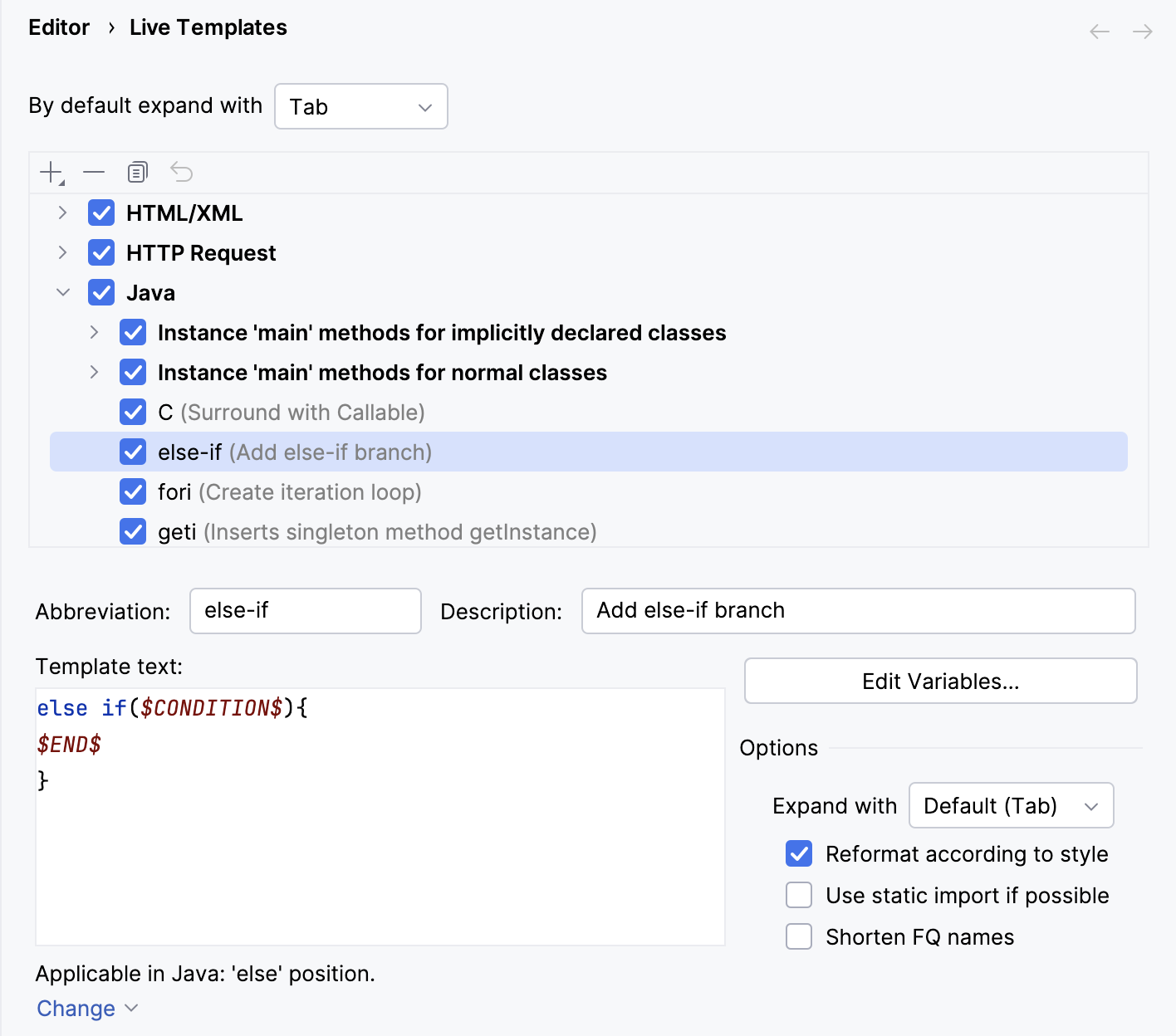
Templates are grouped according to the context where they can be used (usually, by the corresponding language). To move a template to another group, right-click the template, select Move, and then select the necessary group name.
Each live template is defined by an abbreviation containing alphanumeric characters, dots, and hyphens. The abbreviation must be unique within a group, but the same abbreviation may be used in different groups and expand to different constructs according to the context of the corresponding group . Abbreviations of modified default templates are shown in the list with blue font.
Procedure: Restore a modified template to the default settings
* On the [Live Templates](settings-live-templates.html) page of the Settings dialog, right-click the template which you want to restore and click Restore defaults.
## See also
### External Links
[IntelliJ IDEA Blog: Write Code Faster Using Live Templates](https://blog.jetbrains.com/idea/2020/05/write-code-faster-using-live-templates/)