# Flow
> **TL;DR**
> Required plugin:
>
>
>
> `JavaScript and TypeScript` - the plugin is bundled with IntelliJ IDEA and enabled by default.
[Flow](https://flow.org/) is a static type checker that brings type annotations to JavaScript. IntelliJ IDEA recognizes Flow structures and provides syntax highlighting for them on all operating systems.
## Before you start
Download and install [Node.js](http://nodejs.org/#download).
## Installing and configuring Flow
Procedure:
* In your command-line shell or in the embedded Terminal (`Alt+F12` (Windows), `⌥ F12` (macOS), `⌥ F12` (IntelliJ IDEA Classic (macOS)), `⌘ ⌃ T` (macOS System Shortcuts), `Alt+F12` (XWin), `Alt+F12` (GNOME), `Alt+F12` (KDE), `Alt+F12` (Emacs), `Alt+F12` (Sublime Text), `⌥ F12` (Sublime Text (macOS)), `Alt+F12` (NetBeans), `Ctrl+Alt+1` (Visual Studio), `⌘ ⌃ 1` (Visual Studio (macOS)), `Alt+F12` (Eclipse), `⌥ F12` (Eclipse (macOS))) , use one of the following commands:
* To install Flow globally, run: ```BASH npm install --global flow-bin ```
* To install Flow as a development dependency, run: ```BASH npm install --save-dev flow-bin ```
Learn more from the [Flow official website](https://flow.org/en/docs/install/).
To have IntelliJ IDEA recognize Flow structures, provide correct syntax highlighting, report errors properly, and avoid false-positive error highlighting, change the JavaScript language level in your project to Flow, add a `.flowconfig` configuration file to your project, and supply every file to be checked with a `// @flow` comment on top.
Procedure: Change the project language level to Flow
1. In the Settings dialog (`Ctrl+Alt+S` (Windows), `⌘ Comma` (macOS), `⌘ Comma` (IntelliJ IDEA Classic (macOS)), `⌘ Comma` (macOS System Shortcuts), `Ctrl+Alt+S` (XWin), `Ctrl+Alt+S` (GNOME), `Ctrl+Alt+S` (KDE), `Ctrl+Alt+S` (Emacs), `Ctrl+Alt+S` (Sublime Text), `⌘ Comma` (Sublime Text (macOS)), `Ctrl+Alt+S` (NetBeans), `Ctrl+Alt+S` (Visual Studio), `⌘ Comma` (Visual Studio (macOS)), `Ctrl+Alt+S` (Eclipse), `⌘ Comma` (Eclipse (macOS))), go to `Languages & Frameworks | JavaScript`. The [JavaScript](settings-languages-javascript.html) page opens.
2. From the JavaScript Language Version list, choose Flow.
3. In the Flow package or executable field, specify the path to the `node_modules\flow-bin` package or the Flow binary executable file. To use `node_modules\.bin\flow`, make sure the path to Node.js is added to the `PATH` environment variable.
4. In the Use Flow server for: area, specify the basis for coding assistance by selecting or clearing the following checkboxes:
* Type checking: When this checkbox is selected, syntax and error highlighting is provided based on the data received from the Flow server. When the checkbox is cleared, only the basic internal IntelliJ IDEA highlighting is available.
* Navigation, code completion, and type hinting: When this checkbox is selected, suggestion lists for reference resolution and code completiong contain both suggestions retrieved from integration with Flow and suggestions calculated by IntelliJ IDEA. When the checkbox is cleared, references are resolved through IntelliJ IDEA calculation only.
The checkboxes are available only when the path to the Flow executable file is specified.
5. Keep the Save all modified files automatically checkbox selected to ensure that Flow is applied continuously because Flow checks the current files only after all the other modified files are saved.
Procedure: Enable Flow
1. To add a `.flowconfig`, open your command-line shell or the embedded Terminal (`Alt+F12` (Windows), `⌥ F12` (macOS), `⌥ F12` (IntelliJ IDEA Classic (macOS)), `⌘ ⌃ T` (macOS System Shortcuts), `Alt+F12` (XWin), `Alt+F12` (GNOME), `Alt+F12` (KDE), `Alt+F12` (Emacs), `Alt+F12` (Sublime Text), `⌥ F12` (Sublime Text (macOS)), `Alt+F12` (NetBeans), `Ctrl+Alt+1` (Visual Studio), `⌘ ⌃ 1` (Visual Studio (macOS)), `Alt+F12` (Eclipse), `⌥ F12` (Eclipse (macOS))) and type:
`flow init`
To add `.flowconfig` to a specific folder, type:
`cd `
`flow init`
2. To enable Flow in a file, add a `// @flow` comment at the top of the file: just type `flow`, press `Tab` (Windows), `⇥` (macOS), `⇥` (IntelliJ IDEA Classic (macOS)), `⇥` (macOS System Shortcuts), `Tab` (XWin), `Tab` (GNOME), `Tab` (KDE), `Tab` (Emacs), `Tab` (Sublime Text), `⇥` (Sublime Text (macOS)), `Tab` (NetBeans), `Tab` (Visual Studio), `⇥` (Visual Studio (macOS)), `Tab` (Eclipse), `⇥` (Eclipse (macOS)), and IntelliJ IDEA will expand it into `// @flow`.
If you still don't have a `.flowconfig` yet, IntelliJ IDEA shows a tooltip prompting you to add a configuration file to the current folder.
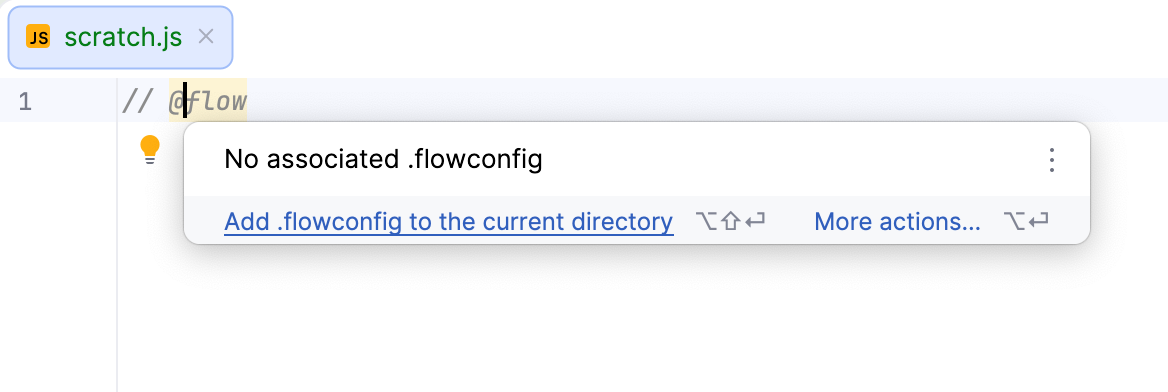
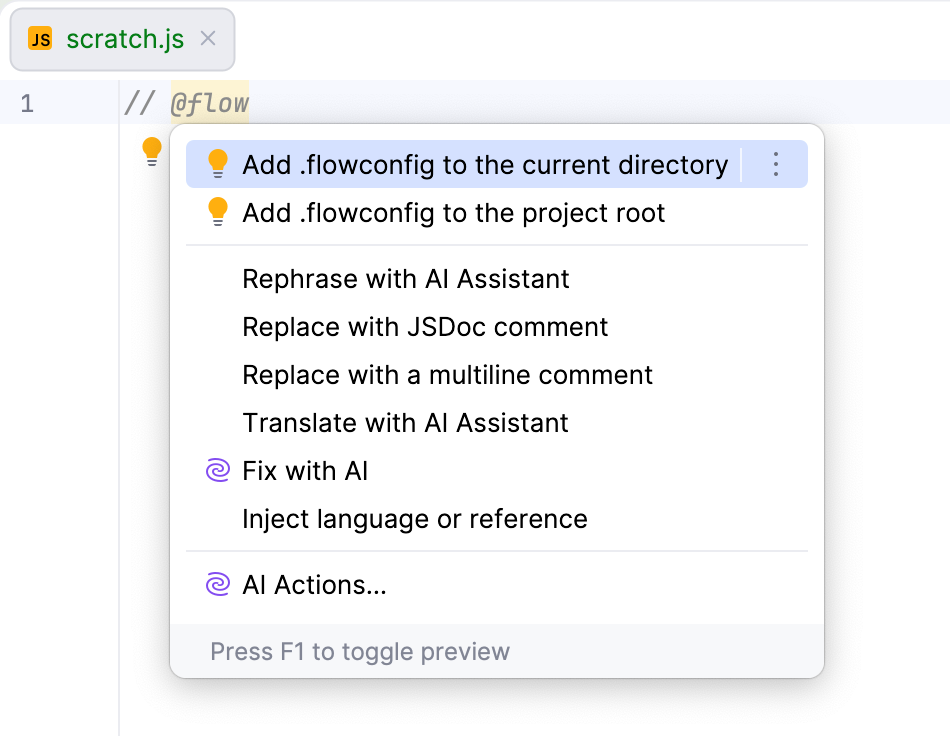
To choose between the current folder and the project root, click More actions or press `Alt+Enter` (Windows), `⌥ ⏎` (macOS), `⌥ ⏎` (IntelliJ IDEA Classic (macOS)), `⌥ ⏎` (macOS System Shortcuts), `Alt+Enter` (XWin), `Alt+Enter` (GNOME), `Alt+Enter` (KDE), `Alt+Enter` (Emacs), `Alt+Enter` (Sublime Text), `⌥ ⏎` (Sublime Text (macOS)), `Alt+Enter` (NetBeans), `Alt+Enter` (Visual Studio), `⌥ ⏎` (Visual Studio (macOS)), `Ctrl+1` (Eclipse), `⌘ 1` (Eclipse (macOS)).
## Monitoring errors
IntelliJ IDEA lets you view errors detected by Flow in the [Problems](problems-tool-window.html) tool window. To open the tool window, select `View | Tool Windows | Problems` from the main menu or click the widget in the right corner of the editor.
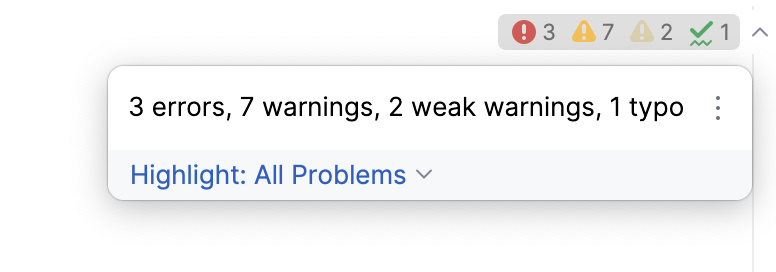
The tool window consists of two panes.
* The Errors pane shows a list of all the discrepancies detected in the file which is opened in the active editor tab. At the top the full path to the file is displayed. 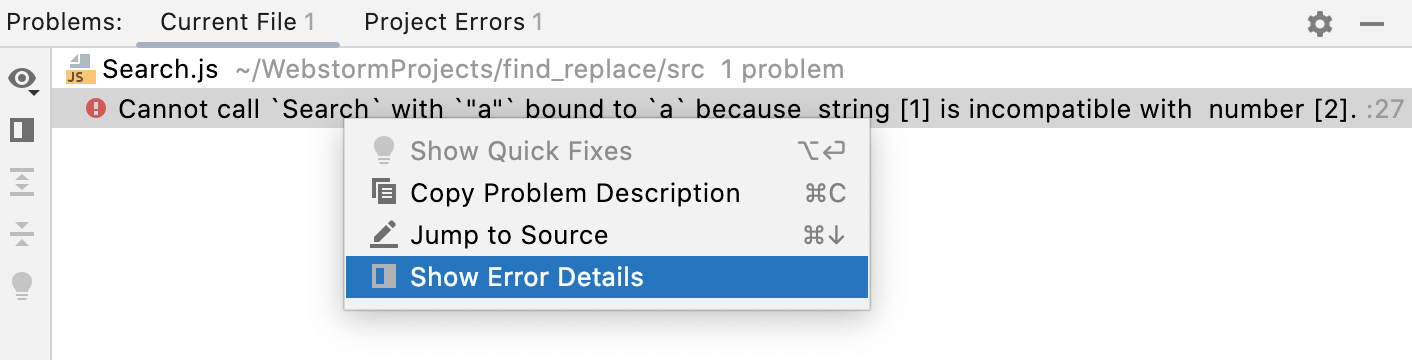 To get more in formation about an error, select Show Error Details from the context menu of its description. 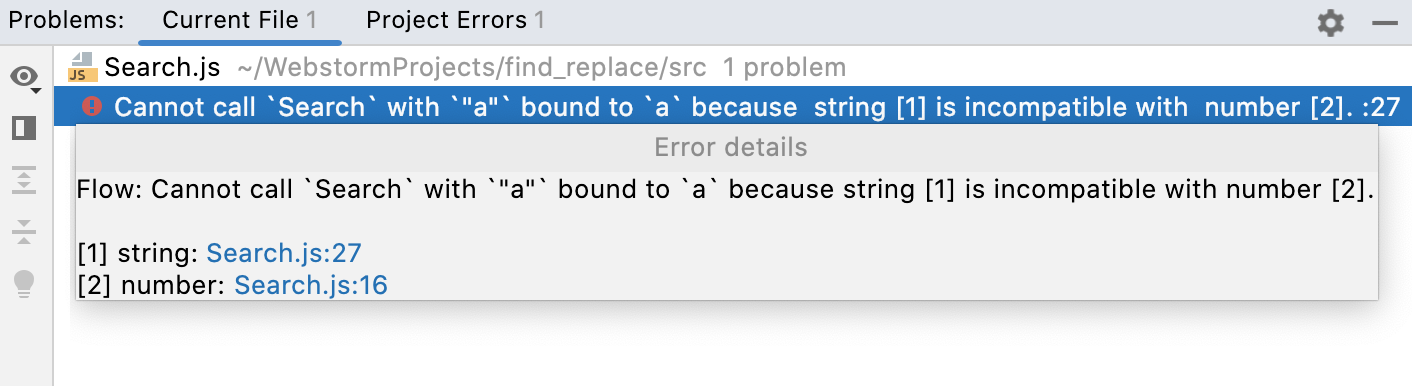
* The Project Errors pane shows a list of all the discrepancies detected in all the files in the current project. The error messages are grouped by files in which they were detected. 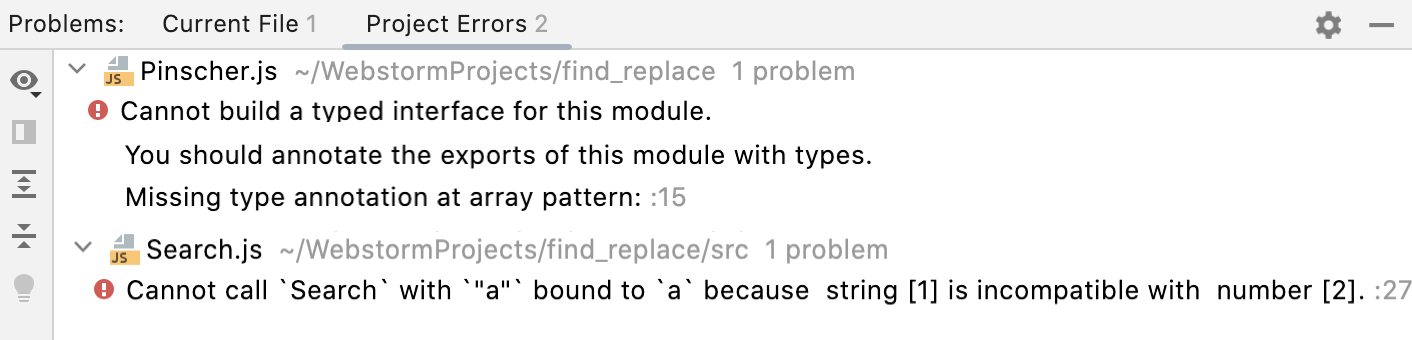
Learn more from [File and project-wide analysis](file-and-project-wide-analysis.html) and [Get results and fix problems](resolving-problems.html).
## See also
### Language and Framework-Specific Guidelines
[JavaScript](javascript-specific-guidelines.html) [Configure JavaScript libraries](configuring-javascript-libraries.html)
### Reference
[JavaScript](settings-languages-javascript.html)
### Web Resources
[Using Flow in WebStorm](https://blog.jetbrains.com/webstorm/2016/11/using-flow-in-webstorm/)