# TODO comments
> **TL;DR**
> Default patterns: `TODO` and `FIXME`
>
>
>
> Configure: `Settings | Editor | TODO`
>
>
>
> Tool window: `View | Tool Windows | TODO`
Sometimes, you need to mark parts of your code for future reference: areas of optimization and improvement, possible changes, questions to be discussed, and so on. IntelliJ IDEA lets you add special types of comments that are [highlighted](settings-colors-and-fonts.html) in the editor, indexed during project analysis, and listed in the TODO tool window. This way you and your teammates can keep track of issues that require attention.
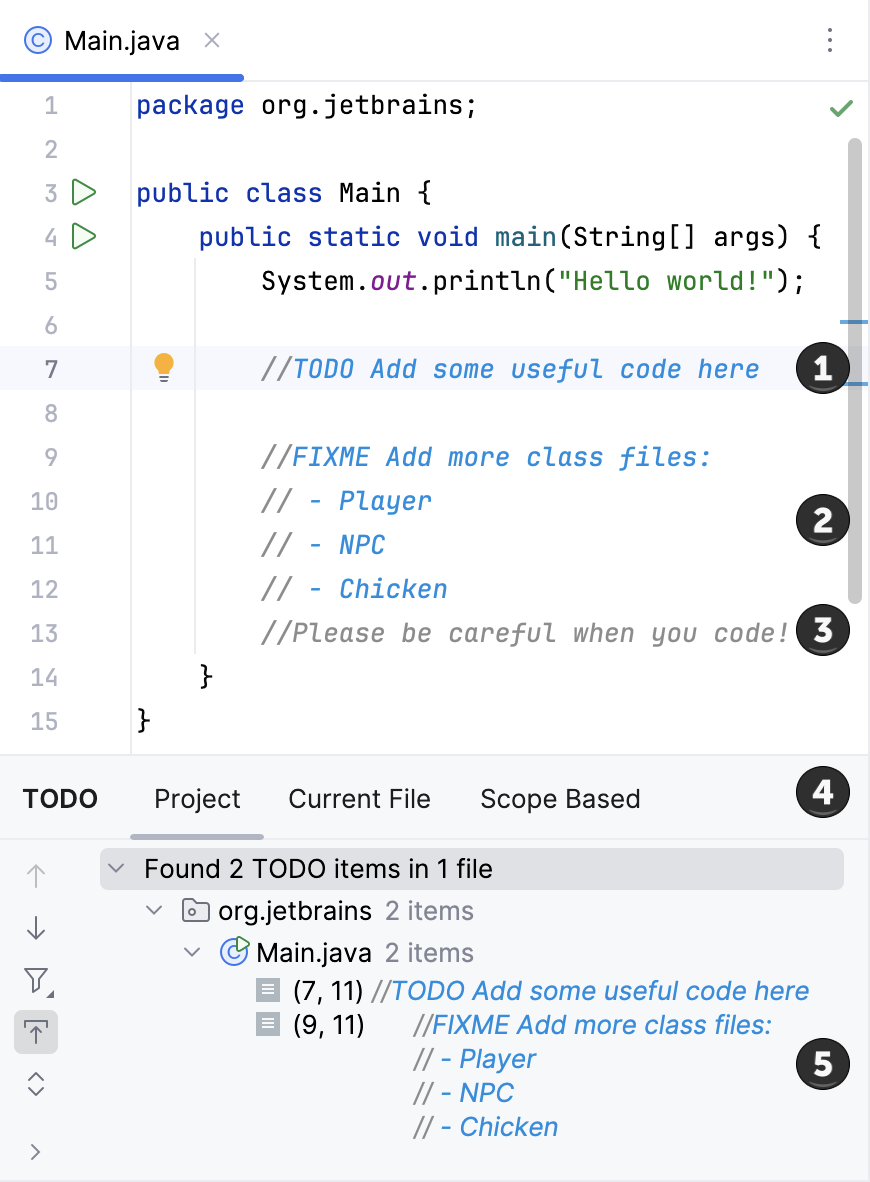
1. Single-line TODO comment
2. Multiline TODO comment
3. Regular comment line
4. TODO tool window
5. TODO items
By default, there are two patterns recognized by IntelliJ IDEA: `TODO` and `FIXME` in both lower and upper case. These patterns can be used inside line and block comments of any supported file type. You can modify the default patterns or [add your own patterns](#add_pattern_filter_todo) if necessary.
Write TODOs using the standard comment style of the language you are working in. In Markdown, you can [emulate a comment](markdown.html#comments).
Procedure: Create a multiline TODO item
* Indent the text in comment lines that follow the initial comment line.
You can use spaces and tabs, or a mix of both for indenting multiline TODO items.
Procedure: Disable multiline TODO items
1. Press `Ctrl+Alt+S` (Windows), `⌘ Comma` (macOS), `⌘ Comma` (IntelliJ IDEA Classic (macOS)), `⌘ Comma` (macOS System Shortcuts), `Ctrl+Alt+S` (XWin), `Ctrl+Alt+S` (GNOME), `Ctrl+Alt+S` (KDE), `Ctrl+Alt+S` (Emacs), `Ctrl+Alt+S` (Sublime Text), `⌘ Comma` (Sublime Text (macOS)), `Ctrl+Alt+S` (NetBeans), `Ctrl+Alt+S` (Visual Studio), `⌘ Comma` (Visual Studio (macOS)), `Ctrl+Alt+S` (Eclipse), `⌘ Comma` (Eclipse (macOS)) to open settings and then select `Editor | TODO`.
2. Clear the Treat indented text on the following lines as part of the same TODO checkbox.
Procedure: View TODO items
* Open the TODO tool window: `View | Tool Windows | TODO`.
Use tabs to change the source of TODO items you want to view: from all files in your current project, only those in the current file, based on a certain [scope](configuring-scopes-and-file-colors.html) of files, or from files in the [active changelist](managing-changelists.html) (if you have [version control integration](enabling-version-control.html) configured).
To jump to a TODO comment in the source code, click the corresponding TODO item in the TODO tool window. To disable this behavior, use the Navigate with Single Click button  on the toolbar (in this case, you will need to double-click the TODO item to jump to the relevant comment).
Procedure: Add custom patterns and filter TODO items
You can add your own patterns and filter the list to show only TODO items that match certain patterns. For example, you can choose to mark places of possible optimization in your code with the `OPTIMIZE` pattern and ignore all other types of TODO items when viewing them in the TODO tool window.
1. In the Settings dialog (`Ctrl+Alt+S` (Windows), `⌘ Comma` (macOS), `⌘ Comma` (IntelliJ IDEA Classic (macOS)), `⌘ Comma` (macOS System Shortcuts), `Ctrl+Alt+S` (XWin), `Ctrl+Alt+S` (GNOME), `Ctrl+Alt+S` (KDE), `Ctrl+Alt+S` (Emacs), `Ctrl+Alt+S` (Sublime Text), `⌘ Comma` (Sublime Text (macOS)), `Ctrl+Alt+S` (NetBeans), `Ctrl+Alt+S` (Visual Studio), `⌘ Comma` (Visual Studio (macOS)), `Ctrl+Alt+S` (Eclipse), `⌘ Comma` (Eclipse (macOS))), select `Editor | TODO`.
2. Use a [regular expression](regular-expressions.html) to specify a custom pattern.
For example, to add a pattern for the word `OPTIMIZE` in a comment, click  in the Patterns section of the TODO dialog, and type the following regular expression:
```PLAINTEXT
\boptimize\b.*
```
This matches the word "optimize" (`\b` designates word boundaries) and allows any number of other characters in the comment.
Then click OK to save the new pattern.
3. Add a filter to group TODO patterns and view the corresponding TODO items in the TODO tool window separately.
For example, to add the `Optimization` filter with the new pattern, click  in the Filters section of the TODO dialog, specify `Optimization` as its name and select the new pattern to be included in this filter.
Then click OK to save the new filter.
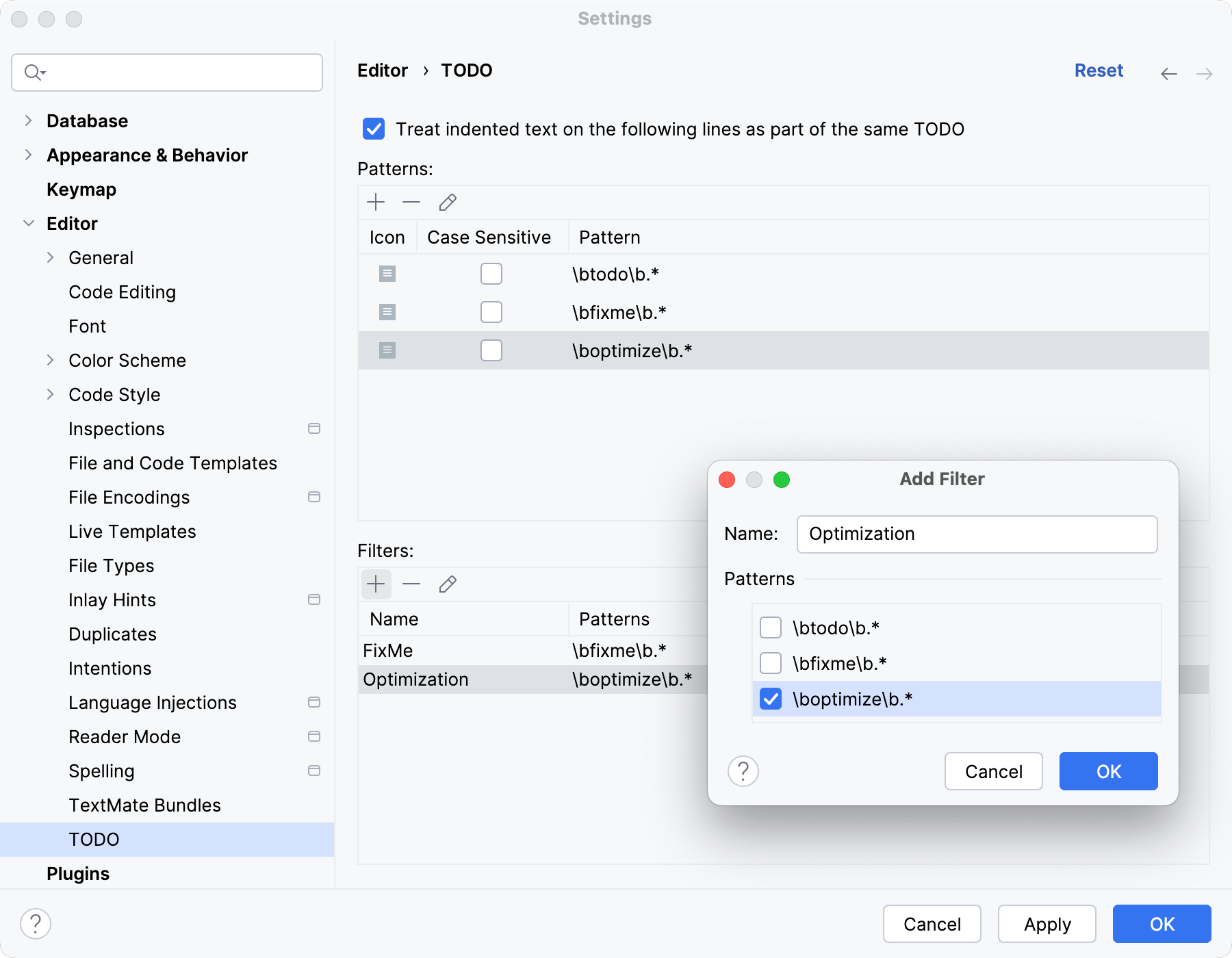
4. Click OK to apply the changes in the TODO settings dialog.
5. To apply the new filter, in the TODO tool window, click  and select the `Optimization` filter.
The icon that you select for a pattern is displayed in the TODO tool window to better distinguish various TODO items. By enabling the Case Sensitive checkbox for a pattern, you can force the pattern to match only with the specified case.
## See also
### Related
[Colors and fonts](configuring-colors-and-fonts.html) [Color Scheme](settings-colors-and-fonts.html) [Font settings](settings-editor-font.html)