# Emmet
The [Emmet](https://emmet.io/) toolkit enhances coding with HTML, CSS, and JSX. You can use Emmet code templates without leaving IntelliJ IDEA. To expand a template into the correct markup, type its [abbreviation](http://docs.emmet.io/abbreviations/) and press `Tab` (Windows), `⇥` (macOS), `⇥` (IntelliJ IDEA Classic (macOS)), `⇥` (macOS System Shortcuts), `Tab` (XWin), `Tab` (GNOME), `Tab` (KDE), `Tab` (Emacs), `Tab` (Sublime Text), `⇥` (Sublime Text (macOS)), `Tab` (NetBeans), `Tab` (Visual Studio), `⇥` (Visual Studio (macOS)), `Tab` (Eclipse), `⇥` (Eclipse (macOS)). To replace `Tab` (Windows), `⇥` (macOS), `⇥` (IntelliJ IDEA Classic (macOS)), `⇥` (macOS System Shortcuts), `Tab` (XWin), `Tab` (GNOME), `Tab` (KDE), `Tab` (Emacs), `Tab` (Sublime Text), `⇥` (Sublime Text (macOS)), `Tab` (NetBeans), `Tab` (Visual Studio), `⇥` (Visual Studio (macOS)), `Tab` (Eclipse), `⇥` (Eclipse (macOS)) with another key, refer to [Configure the abbreviation expansion key](#emmet_configure_expansion_key).
For example, in an HTML file, type `table>tr*3>td*2` and press `Tab` (Windows), `⇥` (macOS), `⇥` (IntelliJ IDEA Classic (macOS)), `⇥` (macOS System Shortcuts), `Tab` (XWin), `Tab` (GNOME), `Tab` (KDE), `Tab` (Emacs), `Tab` (Sublime Text), `⇥` (Sublime Text (macOS)), `Tab` (NetBeans), `Tab` (Visual Studio), `⇥` (Visual Studio (macOS)), `Tab` (Eclipse), `⇥` (Eclipse (macOS)) to get a stub of a 3 × 2 table:
```HTML
```
As a more complex example, let's type `table#myid>tr.row$*3>td*2` and press `Tab` (Windows), `⇥` (macOS), `⇥` (IntelliJ IDEA Classic (macOS)), `⇥` (macOS System Shortcuts), `Tab` (XWin), `Tab` (GNOME), `Tab` (KDE), `Tab` (Emacs), `Tab` (Sublime Text), `⇥` (Sublime Text (macOS)), `Tab` (NetBeans), `Tab` (Visual Studio), `⇥` (Visual Studio (macOS)), `Tab` (Eclipse), `⇥` (Eclipse (macOS)) to get the same table but with the `id` attribute and a custom class for each table row:
```HTML
```
For more information, refer to [Emmet Cheat Sheet](https://docs.emmet.io/cheat-sheet/).
IntelliJ IDEA supports such features as new syntax for writing RGBA colors, implied, default, and boolean attributes, the Update Tag action, and more.
## Enable and configure Emmet
With IntelliJ IDEA, you can use native Emmet templates plus more than 200 additional HTML, CSS, and XSL live templates that are listed under the Zen CSS, Zen HTML, and Zen XSL nodes on the Editor | Live Templates settings page `Ctrl+Alt+S` (Windows), `⌘ Comma` (macOS), `⌘ Comma` (IntelliJ IDEA Classic (macOS)), `⌘ Comma` (macOS System Shortcuts), `Ctrl+Alt+S` (XWin), `Ctrl+Alt+S` (GNOME), `Ctrl+Alt+S` (KDE), `Ctrl+Alt+S` (Emacs), `Ctrl+Alt+S` (Sublime Text), `⌘ Comma` (Sublime Text (macOS)), `Ctrl+Alt+S` (NetBeans), `Ctrl+Alt+S` (Visual Studio), `⌘ Comma` (Visual Studio (macOS)), `Ctrl+Alt+S` (Eclipse), `⌘ Comma` (Eclipse (macOS)) .
Procedure:
1. Press `Ctrl+Alt+S` (Windows), `⌘ Comma` (macOS), `⌘ Comma` (IntelliJ IDEA Classic (macOS)), `⌘ Comma` (macOS System Shortcuts), `Ctrl+Alt+S` (XWin), `Ctrl+Alt+S` (GNOME), `Ctrl+Alt+S` (KDE), `Ctrl+Alt+S` (Emacs), `Ctrl+Alt+S` (Sublime Text), `⌘ Comma` (Sublime Text (macOS)), `Ctrl+Alt+S` (NetBeans), `Ctrl+Alt+S` (Visual Studio), `⌘ Comma` (Visual Studio (macOS)), `Ctrl+Alt+S` (Eclipse), `⌘ Comma` (Eclipse (macOS)) to open settings and then select `Editor | Emmet`.
2. On the [Emmet page](settings-emmet.html) that opens, choose the key to expand Emmet abbreviations with, by default `Tab` (Windows), `⇥` (macOS), `⇥` (IntelliJ IDEA Classic (macOS)), `⇥` (macOS System Shortcuts), `Tab` (XWin), `Tab` (GNOME), `Tab` (KDE), `Tab` (Emacs), `Tab` (Sublime Text), `⇥` (Sublime Text (macOS)), `Tab` (NetBeans), `Tab` (Visual Studio), `⇥` (Visual Studio (macOS)), `Tab` (Eclipse), `⇥` (Eclipse (macOS)) is selected.
3. To enable or disable Emmet in a specific language (HTML, CSS, or JSX), go to `Editor | Emmet | ` and toggle the Enable Emmet checkbox. Use the controls on the [Emmet](settings-emmet.html) page to configure Emmet in various language contexts.
IntelliJ IDEA lets you use and customize Emmet live templates, or you can add your custom templates. Suppose you have a template entry with the following template text:
```
$END$
```
To generate a list of entries, you just need to type `“entry-list$END$
```
The `ATTRS` variable must have an empty string as the default value and should be skipped.
Procedure: Use live templates with Emmet
1. Press `Ctrl+Alt+S` (Windows), `⌘ Comma` (macOS), `⌘ Comma` (IntelliJ IDEA Classic (macOS)), `⌘ Comma` (macOS System Shortcuts), `Ctrl+Alt+S` (XWin), `Ctrl+Alt+S` (GNOME), `Ctrl+Alt+S` (KDE), `Ctrl+Alt+S` (Emacs), `Ctrl+Alt+S` (Sublime Text), `⌘ Comma` (Sublime Text (macOS)), `Ctrl+Alt+S` (NetBeans), `Ctrl+Alt+S` (Visual Studio), `⌘ Comma` (Visual Studio (macOS)), `Ctrl+Alt+S` (Eclipse), `⌘ Comma` (Eclipse (macOS)) to open settings and then select `Editor | Live Templates`.
2. On the [Live Templates](settings-live-templates.html) page that opens, expand the Zen HTML, Zen CSS, or Zen XSL template group and select the checkboxes next to the templates you want to use.
3. When you select a template in the list, the focus moves to the [Template
Text](settings-live-templates.html#templateTextArea) area where the fields show the settings of the selected template.
4. In the Template Text field, add the required text and variables to the template body.
5. Click the Edit Variables button. In the [Edit Template Variables](edit-template-variables-dialog.html) dialog that opens, specify the default variable values in the Default value field and select the Skip if defined checkbox where necessary.
## Configure the abbreviation expansion key
By default, Emmet native abbreviations and additional live templates are expanded by pressing `Tab` (Windows), `⇥` (macOS), `⇥` (IntelliJ IDEA Classic (macOS)), `⇥` (macOS System Shortcuts), `Tab` (XWin), `Tab` (GNOME), `Tab` (KDE), `Tab` (Emacs), `Tab` (Sublime Text), `⇥` (Sublime Text (macOS)), `Tab` (NetBeans), `Tab` (Visual Studio), `⇥` (Visual Studio (macOS)), `Tab` (Eclipse), `⇥` (Eclipse (macOS)). For additional live templates, IntelliJ IDEA lets you re-define the default expansion key. Note that this custom setting does not override the default setting for native Emmet support; you will just get the ability to expand the template using either of these keys.
Procedure: Configure the expansion key for native Emmet abbreviations
1. Press `Ctrl+Alt+S` (Windows), `⌘ Comma` (macOS), `⌘ Comma` (IntelliJ IDEA Classic (macOS)), `⌘ Comma` (macOS System Shortcuts), `Ctrl+Alt+S` (XWin), `Ctrl+Alt+S` (GNOME), `Ctrl+Alt+S` (KDE), `Ctrl+Alt+S` (Emacs), `Ctrl+Alt+S` (Sublime Text), `⌘ Comma` (Sublime Text (macOS)), `Ctrl+Alt+S` (NetBeans), `Ctrl+Alt+S` (Visual Studio), `⌘ Comma` (Visual Studio (macOS)), `Ctrl+Alt+S` (Eclipse), `⌘ Comma` (Eclipse (macOS)) to open settings and then select `Editor | Emmet`.
2. On the [Emmet page](settings-emmet.html) that opens, choose the new expansion key instead of the default `Tab` (Windows), `⇥` (macOS), `⇥` (IntelliJ IDEA Classic (macOS)), `⇥` (macOS System Shortcuts), `Tab` (XWin), `Tab` (GNOME), `Tab` (KDE), `Tab` (Emacs), `Tab` (Sublime Text), `⇥` (Sublime Text (macOS)), `Tab` (NetBeans), `Tab` (Visual Studio), `⇥` (Visual Studio (macOS)), `Tab` (Eclipse), `⇥` (Eclipse (macOS)) from the Expand abbreviation with list.
Procedure: Configure expansion keys for Emmet live templates
1. Press `Ctrl+Alt+S` (Windows), `⌘ Comma` (macOS), `⌘ Comma` (IntelliJ IDEA Classic (macOS)), `⌘ Comma` (macOS System Shortcuts), `Ctrl+Alt+S` (XWin), `Ctrl+Alt+S` (GNOME), `Ctrl+Alt+S` (KDE), `Ctrl+Alt+S` (Emacs), `Ctrl+Alt+S` (Sublime Text), `⌘ Comma` (Sublime Text (macOS)), `Ctrl+Alt+S` (NetBeans), `Ctrl+Alt+S` (Visual Studio), `⌘ Comma` (Visual Studio (macOS)), `Ctrl+Alt+S` (Eclipse), `⌘ Comma` (Eclipse (macOS)) to open settings and then select `Editor | Live Templates`.
2. On the [Live Templates](settings-live-templates.html) page that opens, expand the Zen HTML, Zen CSS, or Zen XSL template group and select the desired template. The focus moves to the [Template
Text](settings-live-templates.html#templateTextArea) area.
3. From the Expand with list, choose the key to expand the template with.
## Surround a block of code with an Emmet template
Procedure:
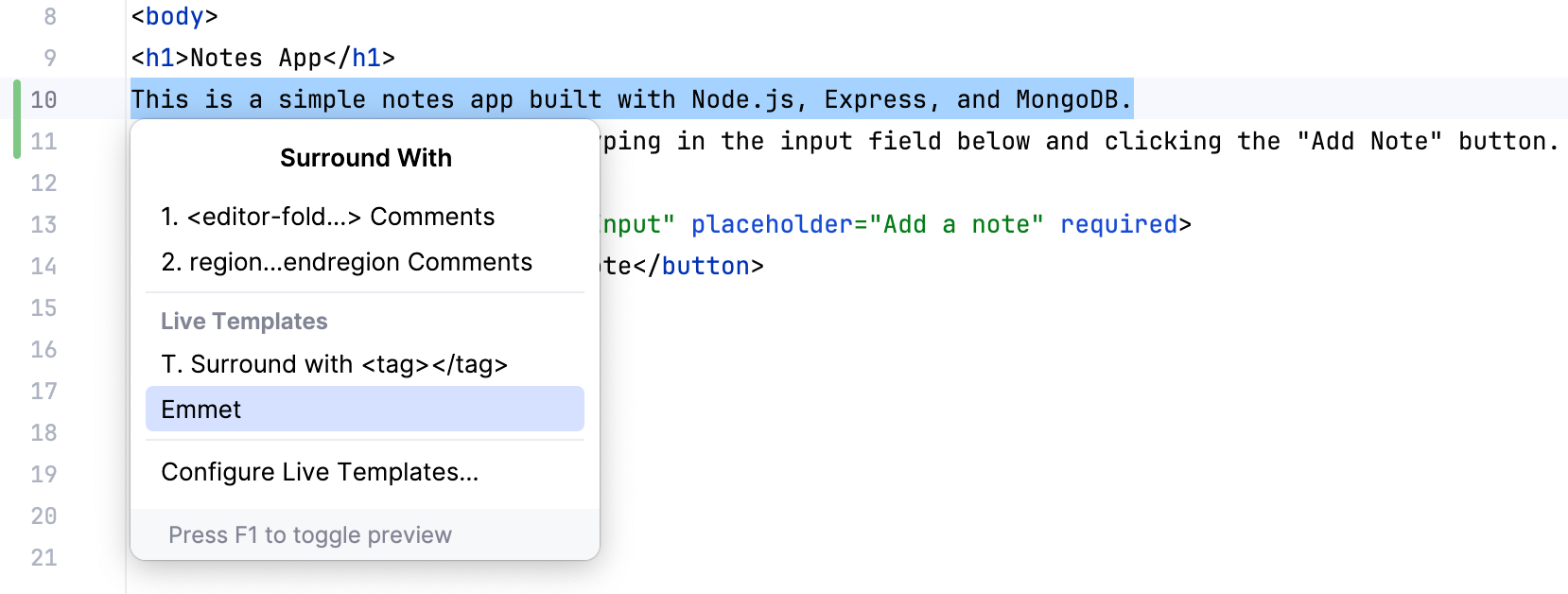
1. In the editor, select a block of code to surround and press `Ctrl+Alt+J` (Windows), `⌘ ⌥ J` (macOS), `⌘ ⌥ J` (IntelliJ IDEA Classic (macOS)), `⌘ ⌥ J` (macOS System Shortcuts), `Ctrl+Alt+J` (XWin), `Ctrl+Alt+J` (GNOME), `Ctrl+Alt+J` (KDE), `Ctrl+Alt+J` (Emacs), `Ctrl+Alt+J` (Sublime Text), `⌘ ⌥ J` (Sublime Text (macOS)), `Ctrl+Alt+J` (NetBeans), `Ctrl+E, U` (Visual Studio), `⌘ E, U` (Visual Studio (macOS)), `Ctrl+Alt+J` (Eclipse), `⌘ ⌥ J` (Eclipse (macOS)) or select `Code | Surround with | Live Template` from the main menu.
2. From the `Select Template` list, select Emmet:
3. Type the Emmet abbreviation to use and press `Enter` (Windows), `⏎` (macOS), `⏎` (IntelliJ IDEA Classic (macOS)), `⏎` (macOS System Shortcuts), `Enter` (XWin), `Enter` (GNOME), `Enter` (KDE), `Enter` (Emacs), `Enter` (Sublime Text), `⏎` (Sublime Text (macOS)), `Enter` (NetBeans), `Enter` (Visual Studio), `⏎` (Visual Studio (macOS)), `Enter` (Eclipse), `⏎` (Eclipse (macOS)).
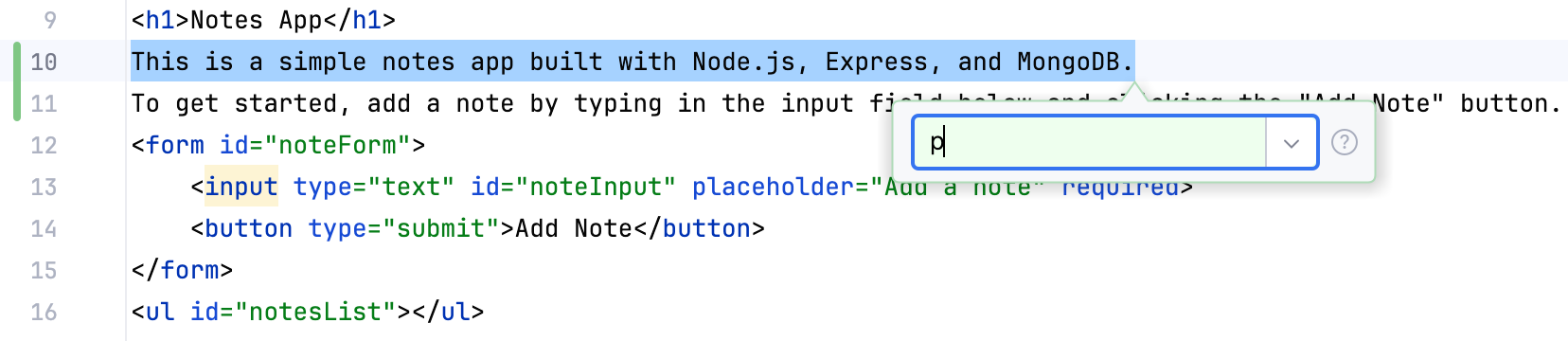
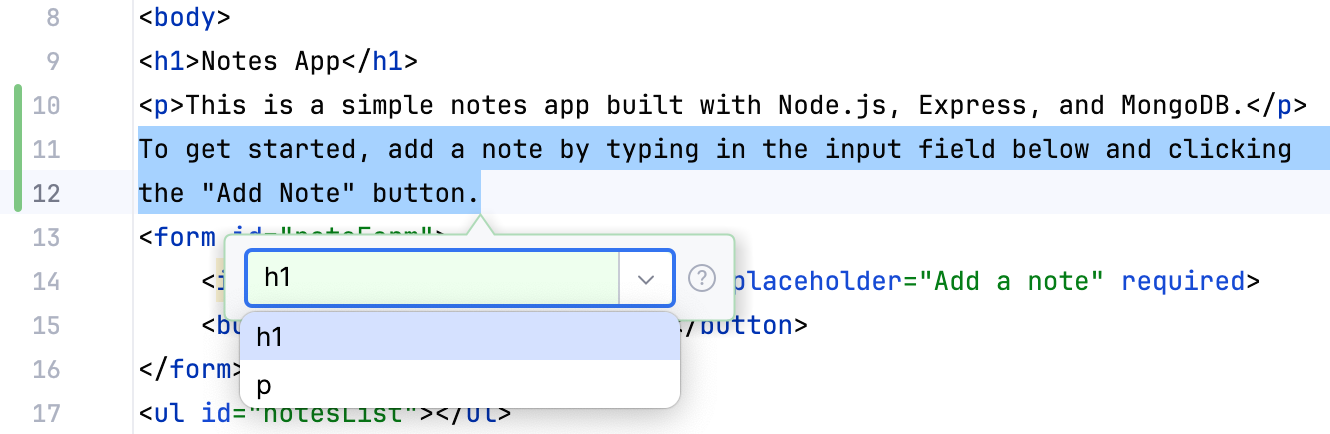
Note the list to the right. Click the down arrow to view the history of recently applied Emmet live templates:
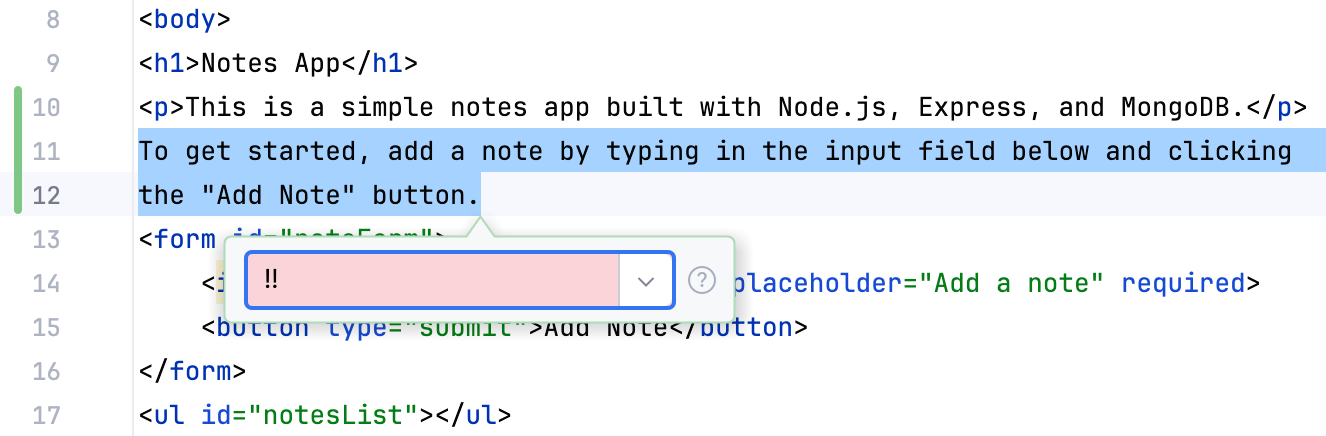
Also mind the color indication. If you type a valid Emmet abbreviation, the background is green. However, when a non-existent abbreviation is entered, the background turns red:
## Navigate between edit points
In HTML and XML, you can navigate between edit points, that is, between those points of code where Emmet templates are applicable.
Procedure:
* To move the caret to the previous edit point, choose `Navigate | Previous Emmet Edit Point`, or press `Alt+Shift+[` (Windows), `⌃ ⌥ ←` (macOS), `⌃ ⌥ ←` (IntelliJ IDEA Classic (macOS)), `⌃ ⌥ ←` (macOS System Shortcuts), `Alt+Shift+[` (XWin), `Alt+Shift+[` (GNOME), `Alt+Shift+[` (KDE), `Alt+Shift+[` (Emacs), `Alt+Shift+[` (Sublime Text), `Alt+Shift+[` (Sublime Text (macOS)), `Alt+Shift+[` (NetBeans), `Alt+Shift+[` (Visual Studio), `Alt+Shift+[` (Visual Studio (macOS)), `Alt+Shift+[` (Eclipse), `⌃ ⌥ ←` (Eclipse (macOS)).
* To move the caret to the next edit point, choose `Navigate | Next Emmet Edit Point`, or press `Alt+Shift+]` (Windows), `⌃ ⌥ →` (macOS), `⌃ ⌥ →` (IntelliJ IDEA Classic (macOS)), `⌃ ⌥ →` (macOS System Shortcuts), `Alt+Shift+]` (XWin), `Alt+Shift+]` (GNOME), `Alt+Shift+]` (KDE), `Alt+Shift+]` (Emacs), `Alt+Shift+]` (Sublime Text), `Alt+Shift+]` (Sublime Text (macOS)), `Alt+Shift+]` (NetBeans), `Alt+Shift+]` (Visual Studio), `⌃ ⌥ →` (Visual Studio (macOS)), `Alt+Shift+]` (Eclipse), `⌃ ⌥ →` (Eclipse (macOS)).
## See also
### Reference
[Emmet](settings-emmet.html) [Live Templates](settings-live-templates.html)
### External Links
[Emmet documentation](https://emmet.io/)