# Console tab
> **TL;DR**
> View | Tool Windows |
>
> `Alt+9` (Windows), `⌘ 9` (macOS), `⌘ 9` (IntelliJ IDEA Classic (macOS)), `⌘ 9` (macOS System Shortcuts), `Alt+9` (XWin), `Alt+9` (GNOME), `Alt+9` (KDE), `Alt+9` (Emacs), `Alt+9` (Sublime Text), `⌘ 9` (Sublime Text (macOS)), `Alt+9` (NetBeans), `Alt+9` (Visual Studio), `⌘ 9` (Visual Studio (macOS)), `Alt+9` (Eclipse), `⌘ 9` (Eclipse (macOS))
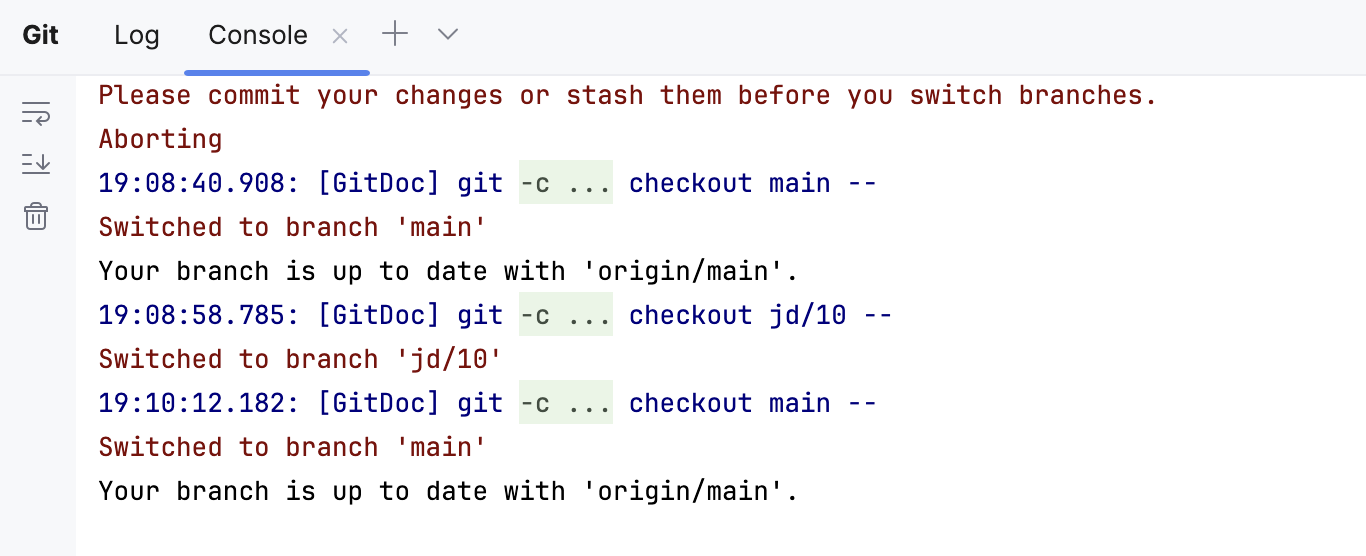
The Console tab only appears in the Version Control tool window when you execute version control-related commands. If you close this tab, the previous input will be lost.
The tab displays:
* Version control-related commands generated based on the settings you specify through the IntelliJ IDEA interface.
* The results of executing version control-related commands.
## Toolbar
| Item | Tooltip and Shortcut | Description |
| --- | --- | --- |
|  | Use Soft Wraps | Click this button to toggle the soft wrap mode of the output. |
|  | Scroll to the end | Click this button to navigate to the bottom of the stack trace and have the caret jump to the corresponding location. |
|  | Clear All | Click this button to remove all text from the console. This function is also available from the context menu of the console. |
## Context menu options
| Item | Description |
| --- | --- |
| Compare with Clipboard | Opens the Clipboard vs Editor dialog that allows you to view the differences between the selection from the editor and the current clipboard content. This dialog is a [regular comparing tool](differences-viewer.html) that enables you to copy the line at caret to the clipboard, find text, navigate between differences and manage white spaces. |
| Fold Lines Like This | Opens the [Console](settings-console-folding.html) dialog that allows you defining the lines to be folded to hide extraneous information. |
| Copy URL | Choose this command to copy the current URL to the system clipboard. This command only shows on a URL, if it is included in an application's output. |
| Create Gist | Choose this command to open the Create Gist dialog. |
| Clear All | Clears the output window. |
## See also
### Procedures
[Version control](version-control-integration.html)
### Reference
[Version Control window](version-control-tool-window.html)