# Source code hierarchy
With IntelliJ IDEA, you can examine the hierarchy of classes, methods, and calls and explore the structure of source files.
## Analyzing code hierarchies
* Type hierarchies show parent and child classes of a class.
* Method hierarchies show subclasses where the method overrides the selected one as well as superclasses or interfaces where the selected method gets overridden. In the hierarchy tree, IntelliJ IDEA displays  to indicate subclasses that are not abstract but don't have the method defined in them. When a method is not defined in a class, but is defined in the superclass, IntelliJ IDEA displays .
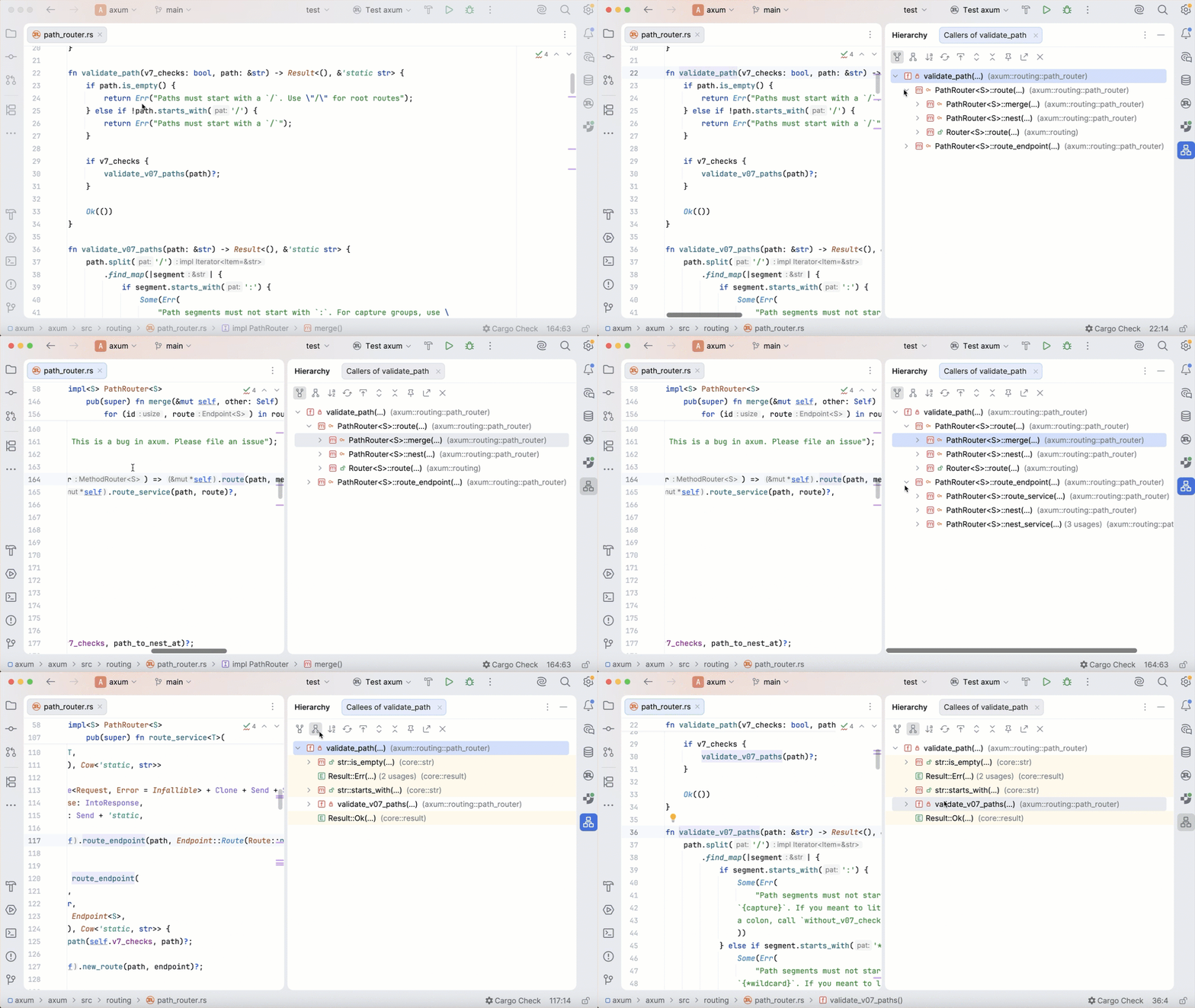
* Call hierarchies show callers (supertypes) or callees (subtypes) of a method. If you invoke the call hierarchy on a field, it will show you the list of the methods where the selected field is used.
When [built](#call), a hierarchy can be immediately viewed and examined in the Hierarchy tool window. The caller and the callee hierarchies are displayed in [two
separate tabs](#ws_toggle_between_views): click  to view callers and  to view callees.
> **Tip:**
> By default, every new built hierarchy overwrites the contents of the current tab. You can [retain the current tab](#retain) and have the next hierarchy built in a new one.
Procedure: Build a type hierarchy
1. Select the desired class in the Project tool window or open it in the editor.
2. In the main menu, go to `Navigate | Type Hierarchy` or just press `Ctrl+H` (Windows), `⌃ H` (macOS), `⌃ H` (IntelliJ IDEA Classic (macOS)), `⌃ ⌥ H` (macOS System Shortcuts), `Ctrl+H` (XWin), `Ctrl+H` (GNOME), `Ctrl+H` (KDE), `Ctrl+H` (Emacs), `Ctrl+H` (Sublime Text), `Ctrl+H` (Sublime Text (macOS)), `Alt+Shift+F12` (NetBeans), `Ctrl+E, H` (Visual Studio), `⌘ E, H` (Visual Studio (macOS)), `F4` (Eclipse), `F4` (Eclipse (macOS)).
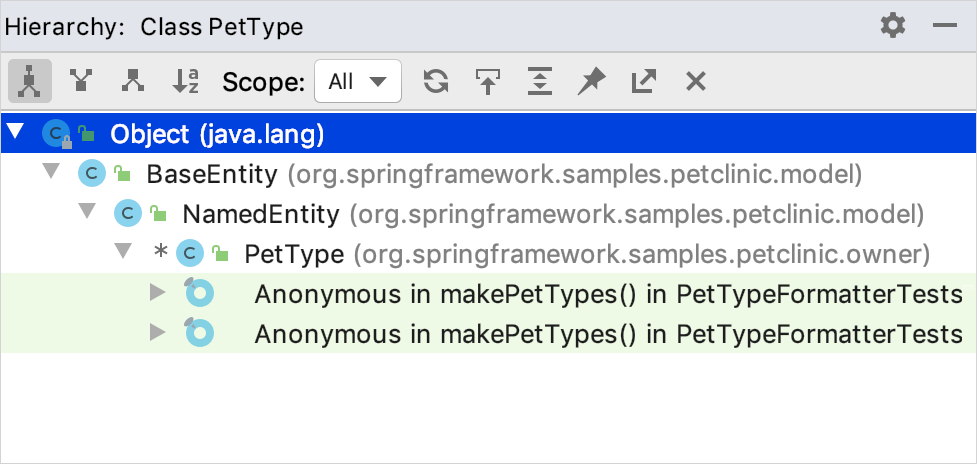
Different colors of elements stand for different scopes to which these files belong. For example, green by default is used for tests. For more information, refer to [Associate scopes with colors](configuring-scopes-and-file-colors.html#associate-file-color-with-a-scope).
Procedure: Build a method hierarchy
1. Open the file in the editor and place the caret at the declaration of the desired method.
Alternatively, select the desired method in the Project tool window.
2. Go to `Navigate | Method Hierarchy` or press `Ctrl+Shift+H` (Windows), `⌘ ⇧ H` (macOS), `⌘ ⇧ H` (IntelliJ IDEA Classic (macOS)), `⌘ ⇧ H` (macOS System Shortcuts), `Ctrl+Shift+H` (XWin), `Ctrl+Shift+H` (GNOME), `Ctrl+Shift+H` (KDE), `Ctrl+Shift+H` (Emacs), `Ctrl+Shift+H` (Sublime Text), `Ctrl+Shift+H` (Sublime Text (macOS)), `Ctrl+Shift+H` (NetBeans), `Ctrl+Shift+H` (Visual Studio), `Ctrl+Shift+H` (Visual Studio (macOS)), `Ctrl+Shift+H` (Eclipse), `⌘ ⇧ H` (Eclipse (macOS)).
Procedure: Build a call hierarchy
1. Open a file in the editor and place the caret at the declaration or usage of the desired method or a field.
Alternatively, select the desired method or the field in the Project tool window.
2. In the main menu, go to `Navigate | Call Hierarchy` or press `Ctrl+Alt+H` (Windows), `⌃ ⌥ H` (macOS), `⌃ ⌥ H` (IntelliJ IDEA Classic (macOS)), `⌃ ⇧ H` (macOS System Shortcuts), `Ctrl+Alt+H` (XWin), `Ctrl+Alt+H` (GNOME), `Ctrl+Alt+H` (KDE), `Ctrl+Alt+H` (Emacs), `Ctrl+Alt+H` (Sublime Text), `⌃ ⌥ H` (Sublime Text (macOS)), `Ctrl+Alt+H` (NetBeans), `Ctrl+Alt+H` (Visual Studio), `⌃ ⌥ H` (Visual Studio (macOS)), `Ctrl+Alt+H` (Eclipse), `⌃ ⌥ H` (Eclipse (macOS)).
Procedure: Retain a hierarchy tab
* In the Hierarchy tool window, click the Pin Tab button  on the toolbar.
## View hierarchies
Procedure: Open the Hierarchy tool window
1. Make sure, you have already built hierarchies to show, see [Building hierarchies](#ws_build_hierarchy) above.
2. Select `View | Tool Windows | Hierarchy` from the main menu.
Procedure: Navigate between the tabs
* Click the currently displayed tab and select the next one to display from the list.
Procedure: Toggle between views
* With IntelliJ IDEA, you can build and explore ascending or descending hierarchies, that is, callee or caller methods, parent or children classes, and so on.
Click  or  to show caller methods or callee methods respectively.
## Hierarchy tool window buttons
| Item | Description | Available In |
| --- | --- | --- |
|  | Shows both the parent and child classes of the selected class , which is marked with an arrow in the tree of results. > **Tip:** > For interfaces, this button is disabled. | Class hierarchies |
|  | Depending on the hierarchy type: * Class hierarchies: shows the hierarchy of each supertype of the current class. * Call hierarchies: shows the callers of the selected method. | Class hierarchies Call hierarchies |
|  | Depending on the hierarchy type: * Class hierarchies: shows all classes that extend the selected class. * Call hierarchies: shows the callees of the selected method. | Class hierarchies Call hierarchies |
|  | Sorts all elements within a tree alphabetically. | All hierarchies |
| Scope | Use this list to limit the scope of the current hierarchy: * Project: traces usages of the method across the project. * Test: traces usages of the method across the test classes. * All: traces usages of the method across the project and the libraries. * This class: limits the scope to the current class. In addition to the preconfigured scopes, you can define your own one. To define a scope, select Configure from the list and define the required scope in the [Scopes](configuring-scopes-and-file-colors.html) dialog. | Call hierarchies |
| In a method hierarchy, the tree views of the following classes are available: * : the method is defined. * : the method is defined only in the superclass. * : the method must be defined because the class is not abstract. |
|  | Shows all updated classes or class structures. | All hierarchies |
|  | Moves to a file and a section in a source code that corresponds to the selected node in the hierarchy tree. | All hierarchies |
|  | Expands all nodes. | All hierarchies |
|  | Locks the current tab from closing and reusing. Results of the next command are displayed in a new tab. | All hierarchies |
|  | Exports a hierarchy into a text file. You can specify a location for this file. | All hierarchies |
|  | Closes the tool window. | All hierarchies |