Upgrade or downgrade subscriptions
If your organization has subscriptions to a single IDE or .NET tool, you can upgrade to a bundle that includes it: the All Products Pack for IDEs or dotUltimate for .NET tools. You can also downgrade from a bundle to a single tool.
Depending on your product, other upgrade options might be available. For the full list, see Available options to upgrade or downgrade your subscription.
Upgrade or downgrade selected subscriptions
Log in to JetBrains Central Console.
In the sidebar, under Licensing, select Licenses.
If you don't see this page, or the controls on this page are inactive, your role doesn't have the necessary permissions.
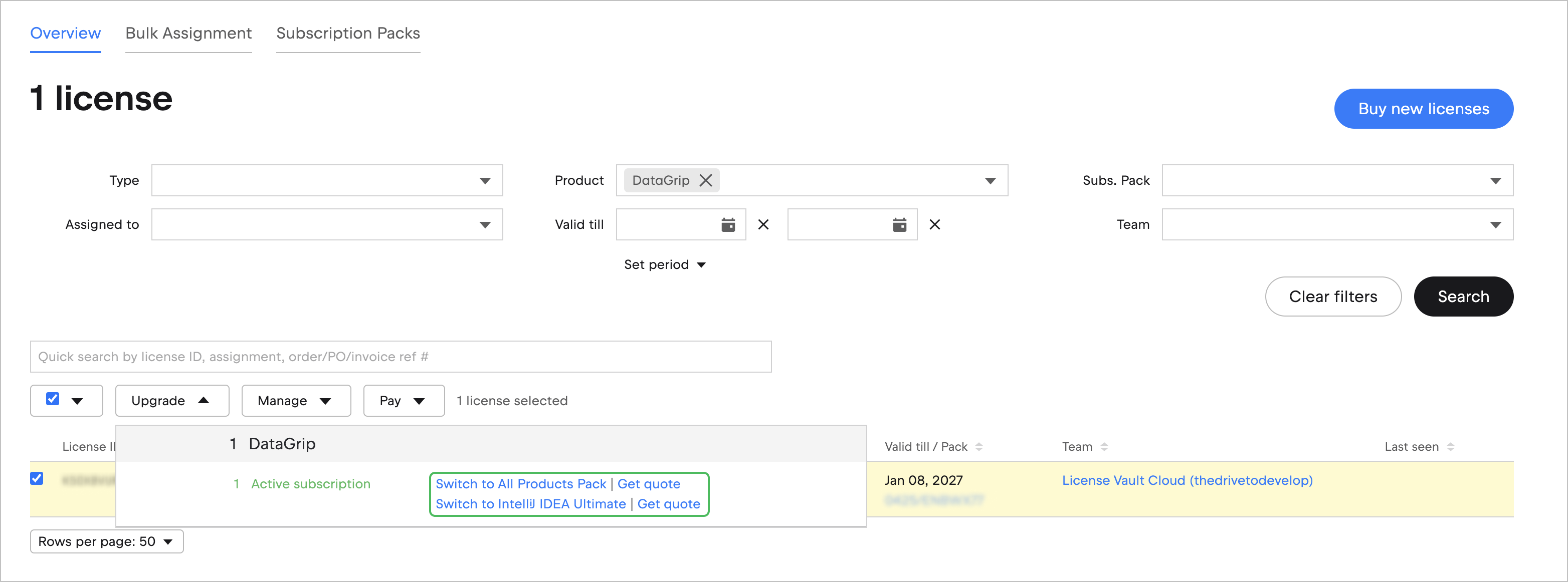
Use search or filters to find the licenses you want to upgrade or downgrade and select them.
Select Upgrade and then, in the dropdown menu, click Switch to <product name> to go to checkout and pay online, or click Get quote to request a quote.
Upgrade all product subscriptions
Log in to JetBrains Central Console.
In the sidebar, under Licensing, select Products and services.
If you don't see this page, or the controls on this page are inactive, your role doesn't have the necessary permissions.
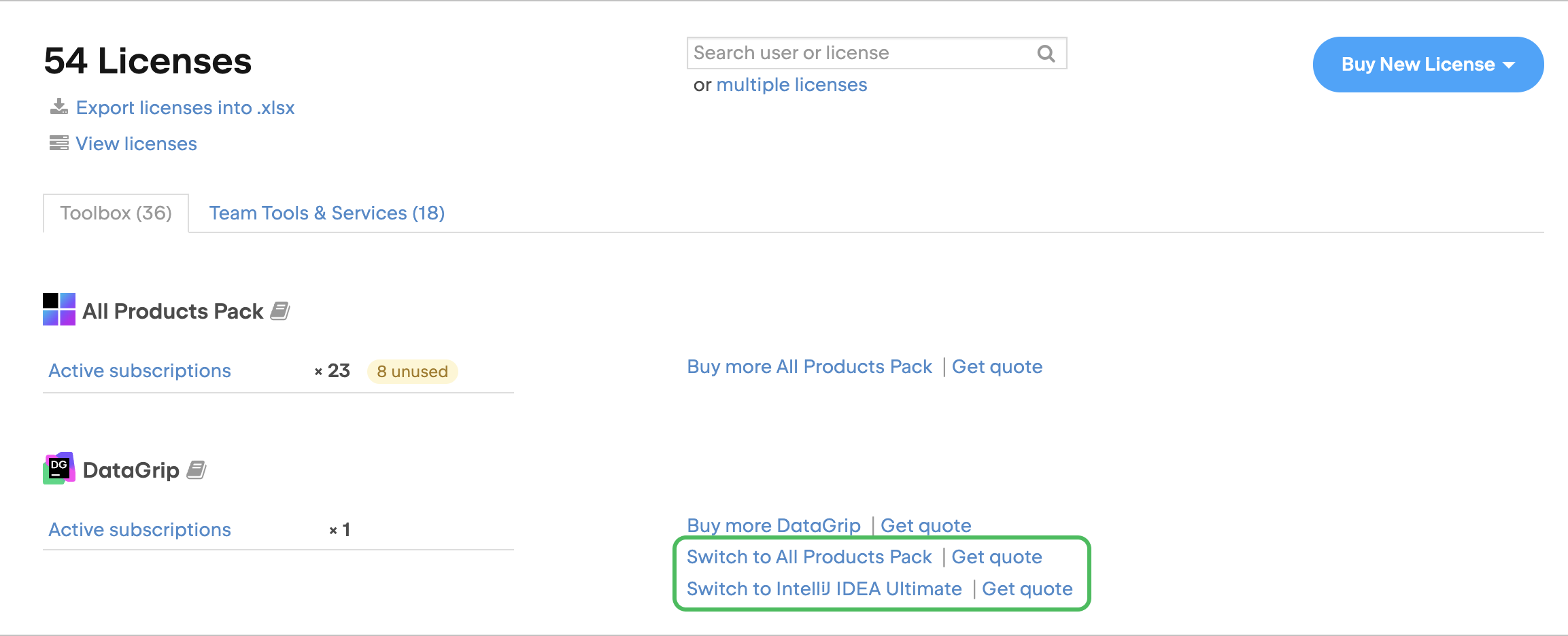
Find the product you want to upgrade.
Click Switch to <product name> to go to checkout and pay online, or click Get quote to request a quote.
How upgrades and downgrades work
When you switch, you’ll pay for the full billing period – one year or one month from the switching date. We’ll credit the unused time on your current subscription toward the new one.
At checkout, you’ll see how many days of your new subscription are covered by this credit. You’ll only need to pay for the remainder of the period.