Comparing Files
On this page:
Introduction
MPS enables you to compare arbitrary files in project (including image files), selected file with the editor, or compare a file in the editor with the Clipboard contents. All comparisons are performed in the Differences viewer.
Comparing two files
- Press and keep holding Ctrl for Windows and Linux or ⌘ for macOS and click the two files to compare in the Project tool window.
- On the context menu of the selection, choose . The Differences Viewer for Files opens, with the differences being color-highlighted.
- View the differences and apply them, if necessary, using the chevron buttons

 .
. Note that keeping Ctrl (for Windows and Linux) or ⌘ (for macOS) pressed turns the chevron buttons
to 
 . Click these buttons to append changes.
Keeping Shift pressed turns the chevron buttons
to  . Click this button to revert changes.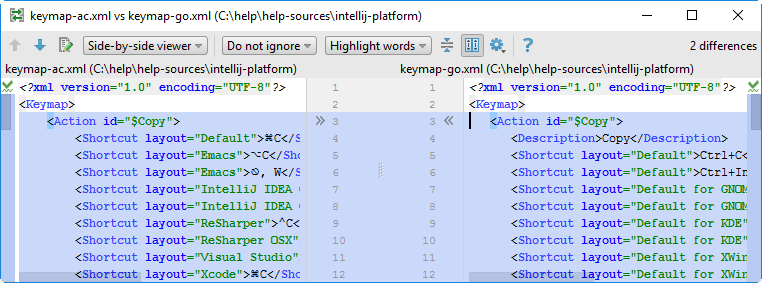
Comparing a file in the editor with the Clipboard contents
- Open the desired text file in the editor.
- Right-click the editor pane and choose on the context menu.
- View and manage differences in the Differences Viewer for Files.
Last modified: 10 January 2018