Find and replace in root nodes
You can quickly find and replace text strings in the current document. Using different options, you can narrow your search process, use regular expressions in your search, and manage your search results.
Search text in the current document
Press Control+F or choose Edit | Find | Find from the main menu. The search pane appears at the top of the active editor.
If necessary, specify the search options.
In the search field, start typing the search string:
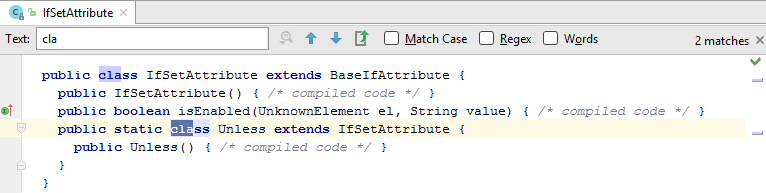
As you type, the first occurrence of the search string after the current caret position is selected; the other occurrences are highlighted in the editor. In addition, the matching occurrences are marked in the scrollbar with stripes.
To search for a multi-line fragment, click
 in the search box or press Control+Shift+Enter
To return to a single-line mode, press Backspace.
To search for symbols declared or used in the current document, start typing a symbol name or its Camel-Cased abbreviation, and then press Control+Space to choose from the matched items.
Explore the search results
To initiate a new search, do one of the following (depending on the current focus):
If the editor has the focus, press Control+F.
If the search field has the focus, press Control+A
In both cases, the existing search string will be selected, and you can start typing a new one.
To jump between occurrences, do one of the following:
Press Shift+F3 (jump to previous selection) or F3 (jump to next selection).
Use the
 or
or  buttons in the Search pane.
Click the gutter stripes.
Next to the search field, you will see the total number of found occurrences and the number of the selected occurrence.
You can click
 or press Alt+ArrowDown to show the list of recent search entries.
To close the search pane and switch the focus to the editor, press Escape.
When you press Escape and return the focus to the editor, the first search match stays selected, so you can copy Control+C or cut Control+X it, or start typing to replace the selection.
You can also add multiple carets and selection ranges to the occurrences of the search string — click
 Alt+J and
  Alt+Shift+J to select or unselect occurrences one by one, or click
  Control+Alt+Shift+J to select all occurrences.
Search options
| Show the history of the recent entries. |
| Clear the search field. |
| Enable entering the search string in several lines. Even without this option, you can search for multiline matches with regular expressions and escape characters. |
| Distinguish between upper and lowercase letters while searching. |
| Search for whole words only, that is, for character strings separated with spaces, tabs, punctuation, or special characters. This option is unavailable if Regular expressions is selected. |
| Navigate through the occurrences of the search string. |
| Show search results in the Find window. |
| Add the next found occurrence to a multiple selection. |
| Remove the found occurrence from a multiple selection. |
| Create a multiple selection that contains all the found occurrences. |
| Confine search and replacement to the current selection in the editor. |
| Invoke the list of additional options, for example to confine the search to comments or string literals. |


 Alt+F7
 Control+Alt+F