Code completion
Basic code completion helps you complete the names of classes, methods, and keywords within the visibility scope.
MPS analyzes the context and suggests the choices that are reachable from the current caret position. Completion is available for a non-English keyboard layout.
Invoke basic completion
By default, MPS displays the code completion popup automatically as you type.
Alternatively, you can press Ctrl+Space or select from the main menu.
Code completion is available for custom file types. However, MPS does not recognize the structure of such files and suggests options regardless of whether they are appropriate in the current context.
Accept a suggestion from the list
Press Enter or double-click the relevant list item to insert it to the left of the caret.
Press Tab to replace the characters to the right from the caret.
Use Ctrl+Shift+Enter to make the current code construct syntactically correct (balance parentheses, add missing braces and semicolons, and so on).
Type-matching completion
Smart type-matching code completion filters the suggestion list and shows only the types applicable to the current context.
Invoke type-matching completion
Start typing. By default, MPS displays the code completion popup automatically as you type. If automatic completion is disabled, press Ctrl+Shift+Space or choose from the main menu.
Press Ctrl+Shift+Space.
The most suitable suggestion for the current context is highlighted.
If necessary, press Ctrl+Shift+Space once again.
Statement completion
You can create syntactically correct code constructs by using statement completion. It inserts the necessary syntax elements (parentheses, braces, and semicolons) and gets you in a position where you can start typing the next statement.
Complete a code construct
Start typing a code construct and press Ctrl+Shift+Enter.
MPS automatically completes the construct and adds the required punctuation. The caret is placed at the next editing position.
Completion tips and tricks
Narrow down the suggestion list
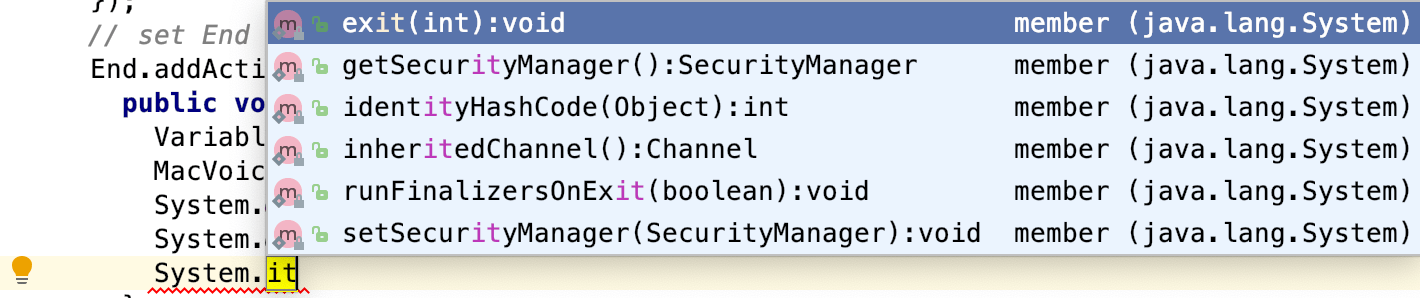
Narrow down the suggestion list by typing any part of a word (even characters from somewhere in the middle) or invoking code completion after a dot separator .
MPS displays suggestions containing the characters you've entered, regardless of their position. This makes the use of wildcards unnecessary.
Completion shortcuts
You can use the following live templates shortcuts for one of the most frequently used statements:
sout: printsSystem.out.printIn()serr: printsSystem.err.printIn()
View code hierarchy
You can view code hierarchy when you've selected an entry from the suggestion list:
Ctrl+H: view type hierarchy
Troubleshooting
If code completion doesn't work, this may be due to one of the following reasons:
The Power Save Mode is on (). Turning it on minimizes power consumption of your laptop by eliminating the background operations, including error highlighting, on-the-fly inspections, and code completion.
An SDK is not configured for your project.
Your file does not reside in a content root , so it does not get the required class definitions and resources needed for code completion.
A file containing classes and functions that you want to appear in the completion suggestion list is marked as a plain text file.
External libraries that contain functions that you want to appear in the completion suggestion list are not added as dependencies or global libraries.
Code completion popup might not appear automatically if it takes too long to gather the completion options. For example, if the computer is busy with another task. In this case, you may still activate the completion popup manually via Ctrl+Space.