Install MPS
MPS is a cross-platform IDE that provides a consistent experience on Windows, macOS, and Linux.
System requirements
Hardware
CPU | CPU with x86_64 or arm64 architecture and 4 cores |
|---|---|
RAM | 8 GB of total RAM; 3 GB available for the IDE processes |
Disk space | 10 GB |
Display resolution | 1280 x 720 |
Operating systems
Windows | 10, 11 |
|---|---|
macOS | 15, 26 |
Linux | Distributions:
Desktop environments:
|
You do not need to install Java to run MPS because JetBrains Runtime is bundled with the IDE (based on JBR 21).
Install using the Toolbox App
The JetBrains Toolbox App is the recommended tool to install JetBrains products. Use it to install and manage different products or several versions of the same product, including Early Access Program (EAP) and Nightly releases, update and roll back when necessary, and remove any tool. The Toolbox App maintains a list of all your projects to quickly open any project in the right IDE and version.
Install the Toolbox App
Download the installer .exe from the Toolbox App web page.
Run the installer and follow the wizard steps.
After you run the Toolbox App, click its icon
 in the notification area and select which product you want to install.
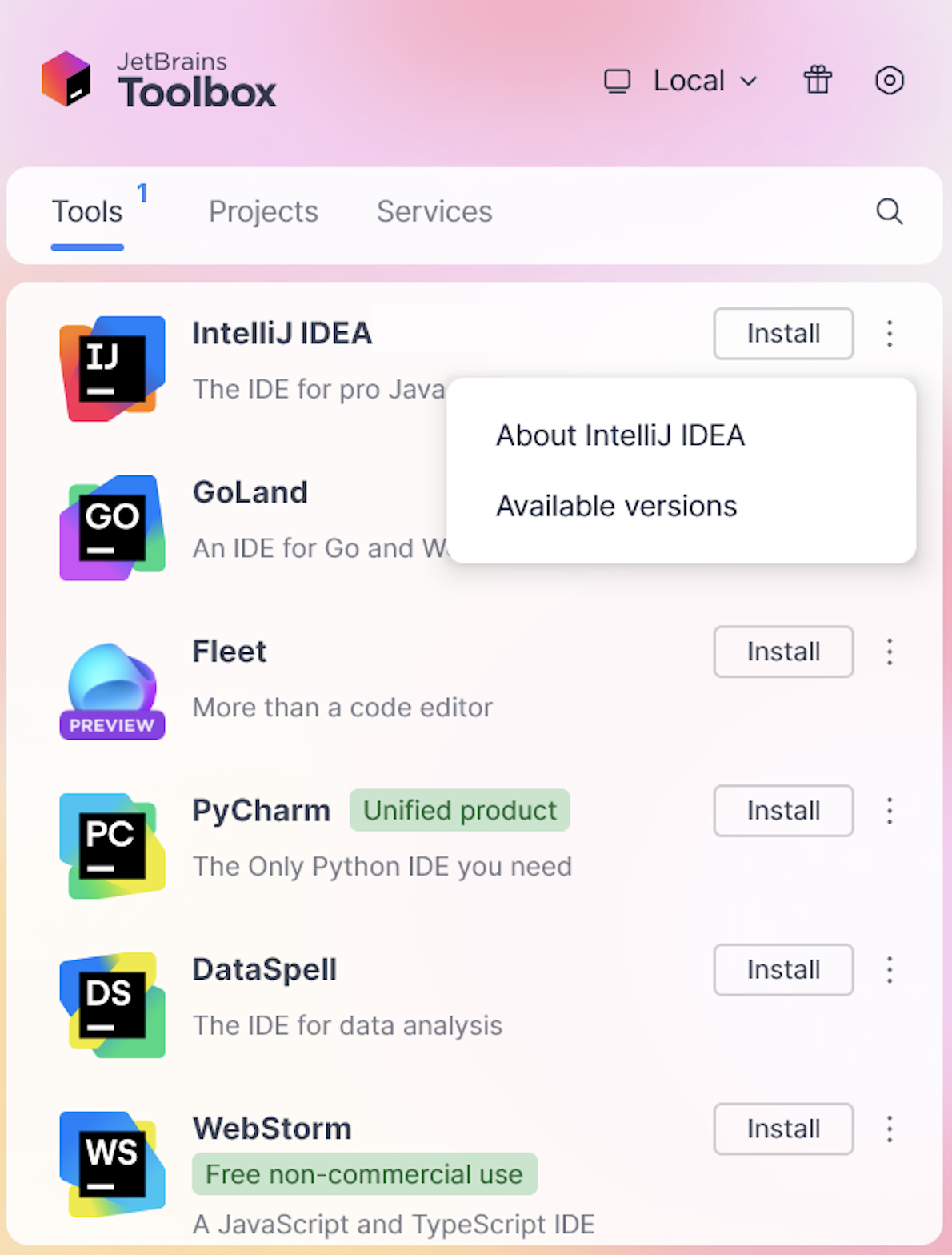
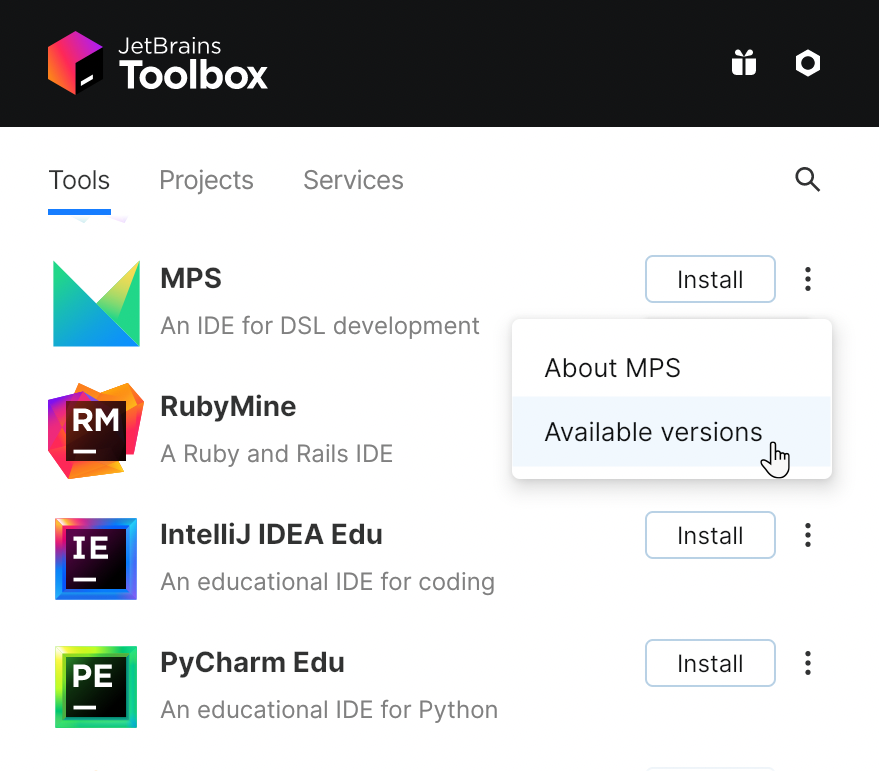
To install a specific version, click
 and select Available versions.
Log in to your JetBrains Account from the Toolbox App, and it will automatically activate the available licenses for any IDE that you install.
Install the Toolbox App
Download the disk image .dmg from the Toolbox App web page.
Mount the image and drag the JetBrains Toolbox app to the Applications folder.
After you run the Toolbox App, click its icon in the main menu and select which product you want to install.
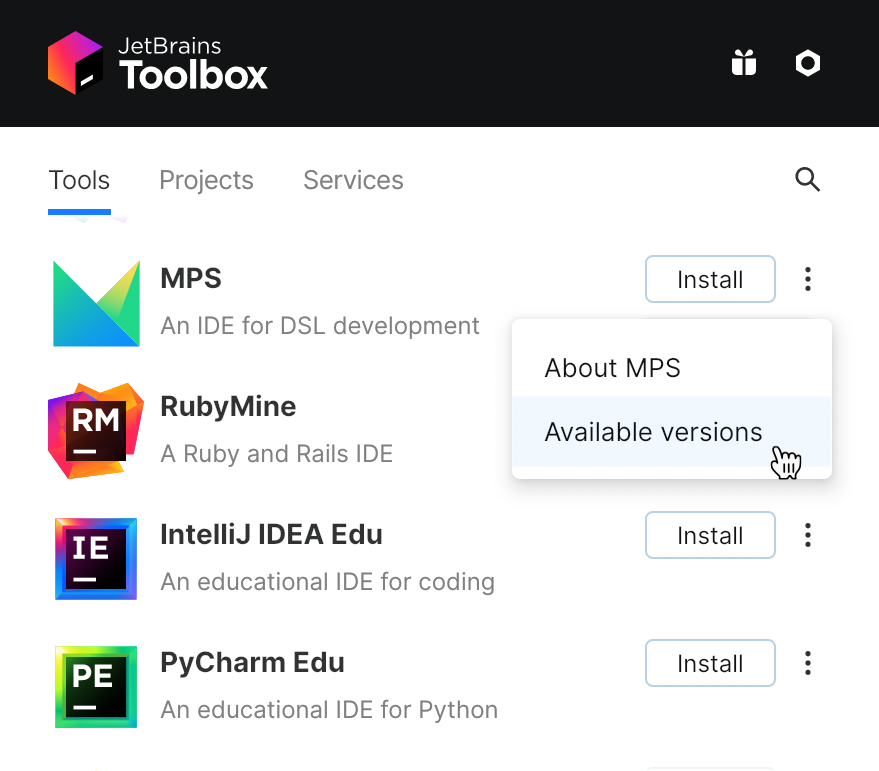
To install a specific version, click
and select Available versions.
Install the Toolbox App
The following packages must be present:
libxi6 libxrender1 libxtst6 mesa-utils libfontconfig libgtk-3-bin tar dbus-user-session.
Download the tarball .tar.gz.
Unpack the downloaded the Toolbox App distribution archive to the location where you want to install the application (
<installation-directory>):tar -xvf jetbrains-toolbox-<version>.tar.gz -C <installation-directory>To start the application, open a console, navigate to the installation directory (
cdinto<installation-directory>), and run the following command:./bin/jetbrains-toolboxThis will initialize various Toolbox application files in the application directory:
~/.local/share/JetBrains/ToolboxUpon the first launch, the Toolbox App will also create a
.desktopentry file in~/.local/share/applications.Select the product that you want to install.
To install a specific version, click
and select Available versions.
Standalone installation
Install MPS manually to manage the location of every instance and all the configuration files. For example, if you have a policy that requires specific install locations.
Download the installer .exe.
Run the installer and follow the wizard steps.
To run MPS, find it in the Windows Start menu or use the desktop shortcut. You can also run the launcher batch script or executable in the installation directory under bin.
Mount the image and drag the MPS app to the Applications folder.
Run the MPS app from the Applications directory, Launchpad, or Spotlight.
Download the tarball .tar.gz.
Extract the tarball to a directory that supports file execution.
For example, to extract it to the recommended /opt directory, run the following command:
sudo tar -xzf mps.tar.gz -C /opt
Create a desktop entry
In the main menu, go to .
Click Activities in the top-left corner of the screen.
Click the grid button in the dash to show all applications.
To pin the app to the dash, right-click the MPS icon and select Add to Favorites.
When you run MPS for the first time, you can take several steps to complete the installation, customize your instance, and start working with the IDE.
For more information, refer to Run MPS for the first time.