Plugin
A plugin is a way to integrate your code with the MPS IDE functionality.
The jetbrains.mps.lang.plugin and jetbrains.mps.lang.plugin.standalone languages give you a number of root concepts that can be used in your plugin. This chapter describes all of them.
Plugin instantiation
While developing a plugin, you have a solution holding the plugin and want the plugin classes to be automatically reloadable so as not to have to restart MPS after each change to see its effect. To set the development phase correctly, do the following:
Create a new solution for your plugin.
Create a model in this solution. If you name the model <solution_name>.plugin, this naming convention ensures that the plugin model is automatically recognized by MPS and loaded properly. The preferred strategy, however, is not to follow the naming strategy and instead identify the plugin using the StandalonePluginDescriptor, as described below.
Import j.m.lang.plugin and j.m.lang.plugin.standalone languages into the solution and the model.
Create a root StandalonePluginDescriptor in the model (it comes from the j.m.lang.plugin .standalone language).
If you do not follow the <solution_name>.plugin naming strategy for your plugin model, set the Generate initializer config flag in StandalonePluginDescriptor to true. This ensures that the plugin is included in a generated startup.properties file and is loaded as a plugin by MPS.
Customize the solution's compilation and class-loading on the Java tab to Regular MPS module contributing extensions to MPS:
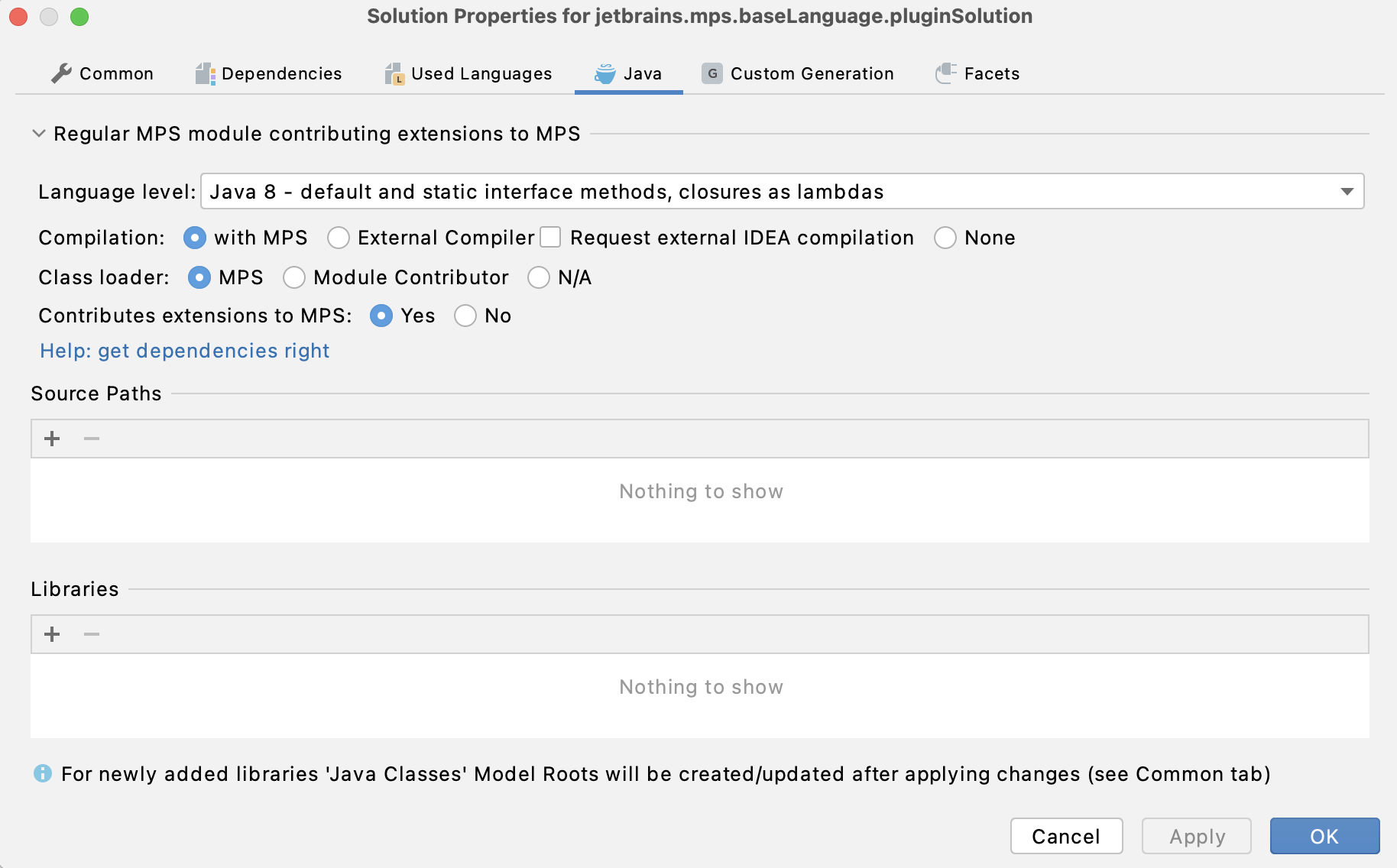
You can now edit your plugin model and see the changes applied to the current MPS instance just after generation. You can also distribute the solution and have the plugin successfully working for the users.
Actions and action groups
You can add custom actions to any menu in MPS by using action and action group entities.
An action describes one concrete action. Action groups are named lists of actions for organizing them — adding them to other groups and MPS groups (which represent menus) and combining them into popup menus. You can also create groups with dynamically changing contents.
To add new actions to existing groups:
Describe the actions.
Compose the described actions into groups.
Add these groups to existing groups (for example, to predefined MPS groups to add new actions to MPS menus).
Predefined MPS groups are stored in the jetbrains.mps.ide.actions model, which is an accessory model to jetbrains.mps.lang.plugin language, so you don't need to import it explicitly into your model.
Action structure
Action properties
Name - The name of an action. Names must be unique in the scope of the model and are checked for proper capitalization (see Proper capitalization of names).
Mnemonic - if mnemonic is specified, the action will be available via the alt+mnemonic shortcut when any group that contains this action is displayed. Note that the mnemonic (if specified) must be one of the chars in action's caption. Mnemonic is displayed as an underlined symbol in the action's caption.
Required access - specifies the access control that MPS should provide to the action:
none - no access control will be provided, any locking must be performed manually by the action. The action can perform UI operations without the risk of locking the UI.
read - a read access is granted. The action can perform UI operations without the risk of locking the UI.
command - all operations with MPS models are executed within commands. A command is an item in the undo list (you don't control it manually, MPS does it for you), so the user can undo changes brought into the model by action's execution. Also, all the code executed in a command, has read-write access to the model. The catch is that if you show visual dialogs to the user from inside a command, it can cause a deadlock by blocking while holding the read/write locks. Use this option only if you are not using UI in your action.
editor command - similarly to the option above, the action is performed in the context of an undoable command, read and write access is granted. The command is obtained from the editor context, so an editor context must be provided as one of the action's context parameters.
Execute outside command - (this option should be gradually abandoned in favour of required access, if set to true, it overrides any settings for the required access property) all operations with MPS models are executed within commands. A command is an item in the undo list (you don't control it manually, MPS does it for you), so the user can undo changes brought into the model by action's execution. Also, all the code executed in a command, has read-write access to the model. The catch is that if you show visual dialogs to the user from inside a command, it can cause a deadlock by blocking while holding the read/write locks. Set the execute outside command option to false only if you are not using UI in your action. Otherwise, set it to true and proper read/write access locking should be performed manually with the read action and command statements within the action.
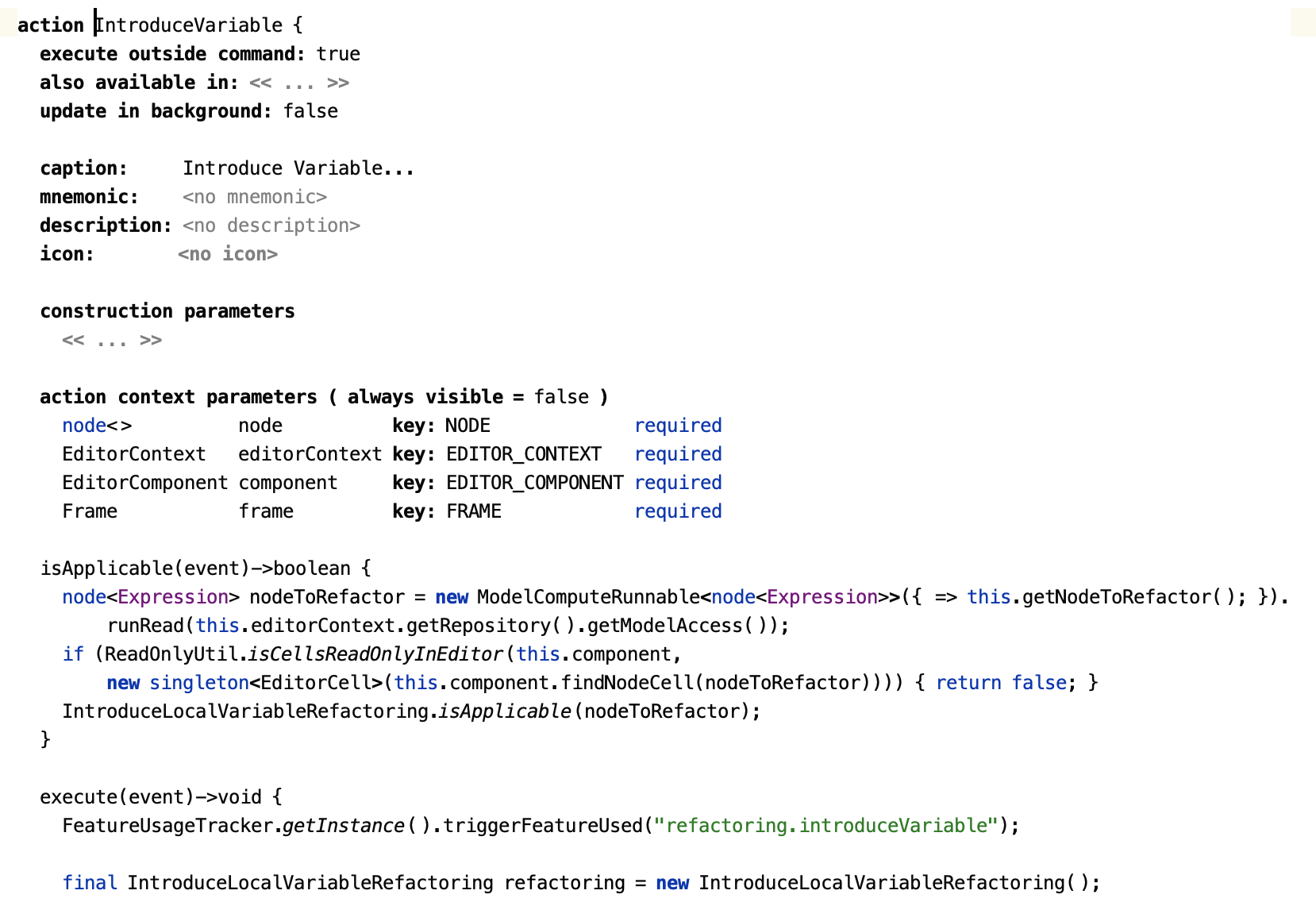
Also available in - currently, this can only be set to "everywhere", which means the action will not only be available in the context, where you can invoke it through the completion menu, but also in any other context. For example, if an action is added to the editor context menu group, but the author wants it to be available when the focus is in the logical view, or just when all the editors are closed, "also available in" should be set to "everywhere".
Caption - the string representing the action in menus
Description - this string (if specified) will be displayed in the status bar when this action is active (selected in any menu)
Icon - this icon will be displayed near the action in all menus. You can select an icon file or describe the icon using a DSL. Note that the icon file must be placed near your language (because it's stored not as an image, but as a path relative to the language's root).
Construction parameters
Each action can be parameterized at construction time using construction parameters. This can be any data determining action's behavior. Thus, a single action that uses construction parameters can represent multiple behaviors. To manage actions and handle keymaps MPS needs a unique identifier for each concrete behavior represented by an action. So, the toString function was introduced for each construction parameter (can be seen in the inspector). For primitive types there is no need to specify this function explicitly - MPS can do it automatically. For more complex parameters, you need to write this function explicitly so that for each concrete behavior of an action there is a different set of values returned from the toString() functions.
Enable/disable action control
Is always visible flag - if you want your action to be visible even in the disabled state (when the action is not applicable in the current context), set this to true, otherwise to false.
Context parameters - specifies which items must be present in the current context for the action to be able to execute. They are extracted from the context before any action's method is executed. Context parameters have conditions associated with them - required, custom and id are the three most frequently used ones. If some required parameters were not extracted, the action state is set to disabled and the isApplicable/update/execute methods are not executed. If all required action parameters were extracted, you can use their values in all the action methods. Custom context parameters give you the option to decide whether the context parameter is mandatory on case-by-case basis using the supplied function. The is condition tests the obtained object against a supplied class.
There are 2 types of action parameters - simple and complex action parameters.
Simple action parameters (represented by ActionDataParameterDeclaration) allow you to extract all available data from the current data context. The data is provided "by key", so you should specify the name and the key in the declaration. The type of the parameter will be set automatically.
Complex action parameters (represented by ActionParameterDeclaration ) were introduced to perform some frequently used checks and typecasts. Now there are 3 types available for the context parameter of this type:
node<concept> - currently selected node, which is an instance of a specified concept. Action won't be enabled, if the selected node isn't an instance of this concept.
nlist<concept> - currently selected nodes. It is checked that all nodes are instances of the concept (if specified). As with node<concept>, the action won't be enabled if the check fails.
model - the current model holding the selected node
Is Applicable / update - In cooperation with the context parameters, this method controls the enabled/disabled state of the action. You can pick either of the two options:
The isApplicable method returns the new state of an action
The update method is designed to update the state manually. You can also update any of your action's properties (caption, icon, and other properties) by accessing action's presentation via event.getPresentation() . Call the setEnabledState() method on an action to enable or disable it manually.
These methods are executed only if all required context parameters have been successfully extracted from the context.
Note: The this keyword refers to the current action, use action<...> to get hold of any visible action from your code.
Execute - this method is executed when the action is performed. It is guaranteed that it is executed only if the action's update method for the same event left the action in active state (or isApplicable returned true) and all the required context parameters are present in the current context and were filled in.
Methods - in this section you can declare utility methods.
Group structure
Group describes a set of actions and provides the information about how to modify other groups with current group.
Presentation
Name - The name of the group. You can give any name you want, the only constraint is that the names must be unique in the scope of the model.
is popup - if this is true, the group represents a popup menu, otherwise it represents a list of actions.
When "is popup" is true:
Caption - string that will be displayed as the name of the popup menu
Mnemonic - if mnemonic is specified, the popup menu will be available via the alt+mnemonic shortcut when any group that contains it is displayed. Note that the mnemonic (if specified) must be one of the chars in caption. Mnemonic is displayed as an underlined symbol in the popup menu caption.
Is invisible when disabled - if set to true, the group will not be shown in case it has no enabled actions or is disabled manually in the update() method. Call the enable()/disable() methods on an action group to enable or disable it manually.
Contents
There are 3 possibilities to describe group contents:
Element list - this is just a static list of actions, groups and labels (see modifications). The available elements are:
->name - an anchor. Anchors are used for modifying one group with another. For more information, refer to the Add statement section.
<---> - separator
ActionName[parameters] - an action.
Build - this alternative should be used in groups, the contents of which is static, but depends on some initial conditions - the group is built once and is not updated ever after. Use the add statement to add elements inside build block.
Update - this goes for dynamically changing groups. Group is updated every time right before it is rendered.
Modifications and labels
Add to <group> at position <position> - this statement adds the current group to a <group> at the given position. Every group has a <default> position, which tells to add the current group to the end of the target group. Some groups can provide additional positions by adding so-called anchors into themselves. Adding anchors is described in the contents section. The anchor itself is invisible and represents a position, in which a group can be inserted.
actionGroup <...> expression
There is a specific expression available in the jetbrains.mps.lang.plugin language to access any registered group - actionGroup< group > expression.
isInternal
This option is specified in the Inspector. Groups marked as "internal" are only visible when MPS is run in internal mode.
register via plugin.xml
This option is specified in the Inspector. This flags controls whether the group's actions are registered statically via a plugin.xml file or dynamically when (re-)loading the group's class. When set to true, you need to provide an instance of IdeaComponent.xml (the IdeaConfigurationXml concept) in your model that lists (aka registers) your group.
IdeaComponent.xml
Registers groups, bootstrap groups and keymaps statically through a generated components.xml file as required by the IntelliJ platform.
Bootstrap groups
Bootstrap groups are a way to work with action groups that have been defined outside of MPS (for example, groups contributed by IDEA or an IDEA plugin).
In this case, a bootstrap group is defined in MPS and its internal ID is set to the ID of the external group. After doing this, you can work with the bootstrap group just like with a normal one — insert it into your groups and vice versa.
A regular user rarely needs to use bootstrap groups.
The register via plugin.xml option in the Inspector has the same meaning as for ordinary groups, and is described above.
Touch Bar Support on MacOS
Custom user actions and action groups can be added to the Touch Bar by adding to one of predefined InterfaceGroups:
IDEATouchBarDefault
IDEATouchBarDefault_alt
IDEATouchBarDefault_cmd
IDEATouchBarDefault_cmd_alt
IDEATouchBarDefault_shift
IDEATouchBarDebug
Displaying progress indicators
Long-lasting actions should indicate their activity and progress to the user. For more information about progress bars, allowing for cancellation, and enabling actions for running in the background, refer to the Progress indicators page.
KeyMap Changes
The KeymapChangesDeclaration concept allows the plugin to assign key shortcuts to individual actions and group them into shortcuts schemes.
Any action can have a number of keyboard shortcuts. This can be specified using the KeyMapChanges concept. For a parameterized action, which has a number of "instances" (one instance per parameter value), a function can be specified, which returns different shortcut for a different parameter value.
In MPS, there are some "default keymaps", which you can see in Settings->Keymaps. The for keymap section allows you to specify a keymap that the KeyMapChanges definition is contributing to. For example, you can set different shortcuts for the same action in the MacOS and the Windows keymaps.
All the actions added by plugins are visible in Settings->Keymap and Settings->Menus and Toolbars. This means that any user can customize the shortcuts used for all MPS actions.
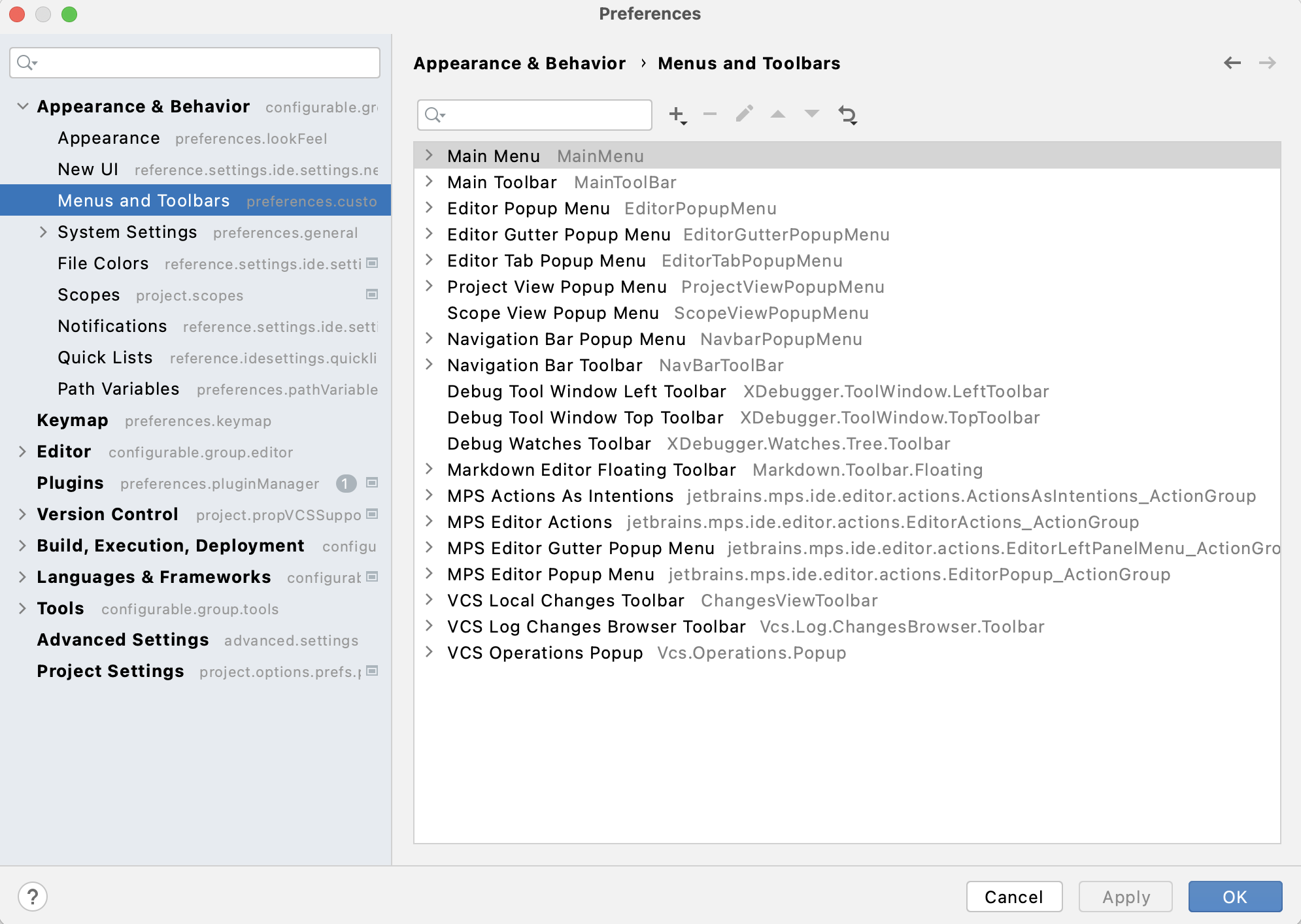
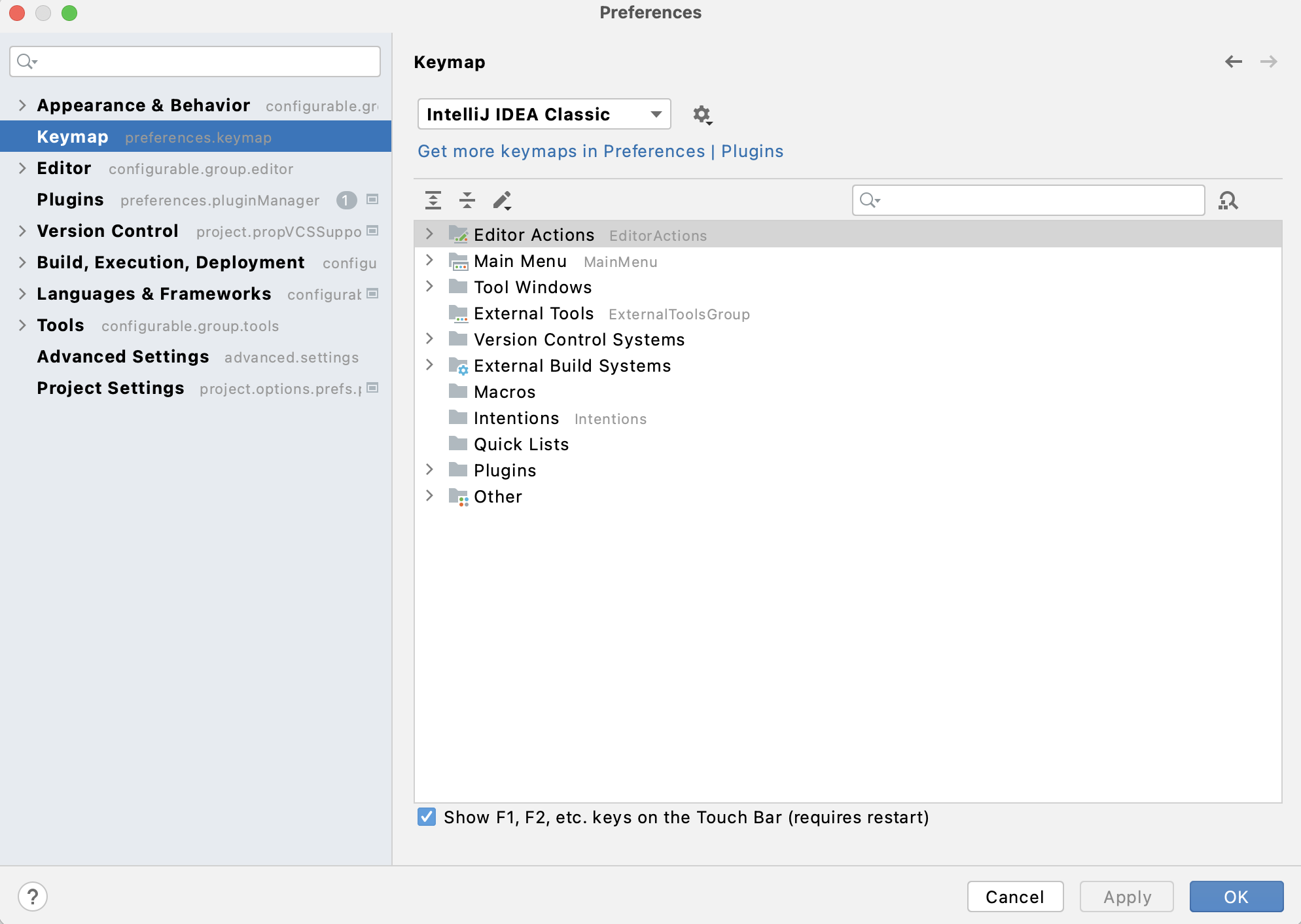
A KeyMap Change must have a name unique within the model and must specify the Keymap being altered (or Default to change all keymaps), then assign a keystroke to actions that should have one. The keystroke can either be SimpleShortcutChange with a directly specified keystroke or ParametrizedShortcutChange, which gives you the ability to handle parametrized actions.
The register via plugin.xml option in the Inspector has the same meaning as for ordinary groups, and is described above.
NonDumbAwareActions
If your action uses platform indices (which is very rare), add it to NonDumbAwareActions. Those actions will be automatically disabled while the indices are being built.
Editor Tabs
If you look at any concept declaration you will certainly notice the tabs at the bottom of the editor. You are able to add the same functionality to the concepts from your language.
These tabs contain the editors for some aspects of the "base" node. Each tab can be either single-tabbed (which means that only one node is displayed in it, for example the editor tab) or multi-tabbed (if multiple nodes can be created for this aspect of the base node, see the Typesystem tab, for example).
How is the editor for a node created? When you open some node, call it N, MPS tries to find the "base" node for N. If there isn't any base node, MPS just opens the editor for the selected node. If the node is found (call it B), MPS opens some tabs for it, containing editors for some subordinate nodes. Then it selects the tab for N and sets the top icon and caption corresponding to B.
When you create tabbed editors, you actually provide rules for:
finding the base node
finding subordinate nodes
optionally an algorithms of subordinate nodes creation
The tabs that match the requested base concept are displayed and organized depending on their relative order rules specified in their respective order constraints sections.
Editor Tab Structure
Name - The name of the rule. You can give any name you want, the only constraint is that the names must be unique in the scope of the model.
Icon - this icon will be displayed in the header of the tab. You can select an icon file or describe the icon using a DSL. Note that the icon file must be placed near your language (because it's stored not as an image, but as a path relative to the language's root).
Shortcut char - a char to quickly navigate to the tab using the keyboard
Order constraints - an instance of the Order concept. Orders specify an order, in which the current tab should be displayed relative to the other tabs. You can either refer to an external order or specify one in-place.
Base node concept - the concept of the base node for this as well as all the related tabs.
Base Node - this is a rule for searching for the base node given a known node. It should return null, if the base node is not found or this TabbedEditor can't be applied.
Is applicable - indicates whether the tab can be used for the given base node
getNode/getNodes - should return the node or a list of nodes to edit in this tab
command - indicates whether the node creation should be performed as a command, that is, whether it should be undoable and uses no additional UI interaction with the user.
getConcepts - returns the concepts of nodes that this tab can be used for to edit
Create - if specified, this will be executed when user asks to create a new node from this tab. It is given a requested concept and the base node as parameters.
Order
The Order root concept enables you to create ordering rules for the editor tabs. See the chapter above for more details.
Tools
A tool is an instrument with a graphical presentation designed to perform specific tasks. For example, Usages View, Todo Viewer, Model and Module dependencies Viewers are all tools. MPS has rich UI support for tools - you can move it by drag-and-drop from one edge of the window to another, hide, show and perform many other actions.
Tools are created "per project". They are initialized and disposed on class reloading (after language generation, on "reload all" action, and similar events)
Tool structure
Name - The name of the tool. Names must be unique in the scope of the model and are checked for proper capitalization (see Proper capitalization of names).
Caption - this string will be displayed in tool's header and on the tool's button in tools pane
Number - if specified, alt+number becomes a shortcut for showing this tool (if it's available)
Icon - the icon to be displayed on the tool's button. You can select an icon file or describe the icon using a DSL. Note that the icon file must be placed near your language (because it's stored not as an image, but as a path relative to the language's root).
Position - one of top/bottom/left/right to add the tool to the desired MPS tool bar
Init - initialize the tool instance here
Dispose - dispose all the tool resources here
getComponent - should return a Swing component (instance of a class which extends JComponent) to display inside the tool's window. If you are planning to create tabs in your tool and you are familiar with the tools framework in IDEA, it's better to use IDEA's support for tabs. Using this framework greatly improves tabs functionality and UI.
Fields and methods - regular fields and methods, you can use them in your tool and in external code.
Tool operation
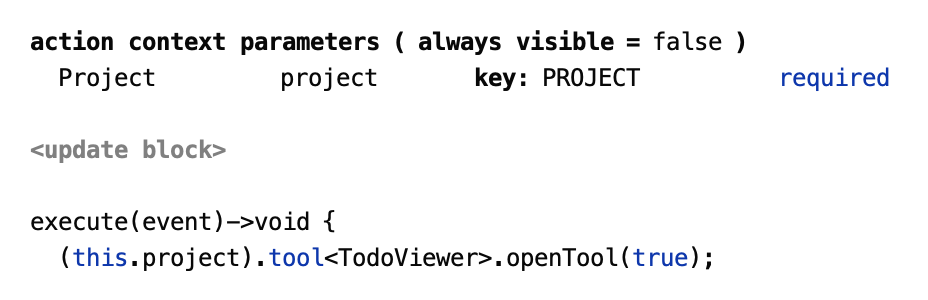
We added the operation (GetToolInProjectOperation concept) to access a tool in a project. Use it as project.tool<toolName>, where project is an IDEA Project. Do not forget to import the jetbrains.mps.lang.plugin.standalone language to be able to use it.
For example, to open the TODO tool window use the following code in an action:
Tabbed Tools
It's the same as a tool window, but additionally can contain multiple tabs
Tool structure
Name - The name of the tool. You can give any name you want, the only constraint is that the names must be unique in the scope of the model.
Caption - this string will be displayed in tool's header and on the tool's button in tools pane
Number - if specified, alt+number becomes a shortcut for showing this tool (if it's available)
Icon - the icon to be displayed on the tool's button. You can select an icon file or describe the icon using a DSL. Note that the icon file must be placed near your language (because it's stored not as an image, but as a path relative to the language's root).
Position - one of top/bottom/left/right to add the tool to the desired MPS tool bar
Init - initialize the tool instance here
Dispose - dispose all the tool resources here
Fields and methods - regular fields and methods, you can use them in your tool and in external code.
Preferences components
Sometimes you may want to be able to edit and save some settings (for example, your tools' settings) between MPS startups. We have introduced preferences components for these purposes.
Each preferences component includes a number of preferences pages and a number of persistent fields. A preferences page is a dialog for editing user preferences. They are accessible through File->Settings.
Persistent fields are saved to the $PROJECT_HOME/.mps/workspace.xml file when the project is closed and restored from them on project open. The saving process uses reflection, so you don't need to care about serialization/deserialization in most cases.
Preferences component structure
name - component name. You can give any name you want, the only constraint is that the names must be unique in the scope of the model.
fields - these are the persistent fields. They are initialized before after read and pages creation, so their values will be correct in every moment they can be accessed. They can have default values specified, as well.
after read / before write - these blocks are used for custom serialization purposes and for applying/collecting preferences, which have no corresponding preferences pages (for example, tool dimensions)
pages - preferences pages
Preferences page structure
name - the string to be used as a caption in Settings page. The name must be unique within a model.
component - a UI component (a Java swing class) to edit the preferences.
icon - the icon to show in Settings window. The size of the icon can be up to 32x32. The icon is currently not used by MPS.
help topic - the auxiliary id of a documentation page that serves as help for this preferences page. It is only effective when the JetBrains documentation system is being utilized.
reset - reset the preferences values in the UI component when this method is called.
commit - in this method preferences should be collected from the UI component and committed to wherever they are used.
isModified - if this method returns false, commit won't be executed. This is typically useful for preferences pages with long-running commit method.
PreferenceComponent expression
We added an expression to access a PreferenceComponent in a project. The concept is named GetPreferencesComponentInProjectOperation and you can access it as project.preferenceComponent<componentName>, where project is an IDEA Project. Do not forget to import the jetbrains.mps.lang.plugin.standalone language to use it.
Custom plugin parts (ProjectPlugin, ApplicationPlugin)
Custom plugin parts execute custom code on plugin initialization and disposal. They behave exactly like plugins. You can create as many custom plugins for your language as you want. There are two types of custom plugins - project and application custom plugins. The project custom plugin is instantiated once per project, while the application custom plugin is instantiated once per application and therefore it doesn't have a project parameter.
IdeaInitializerDescriptor
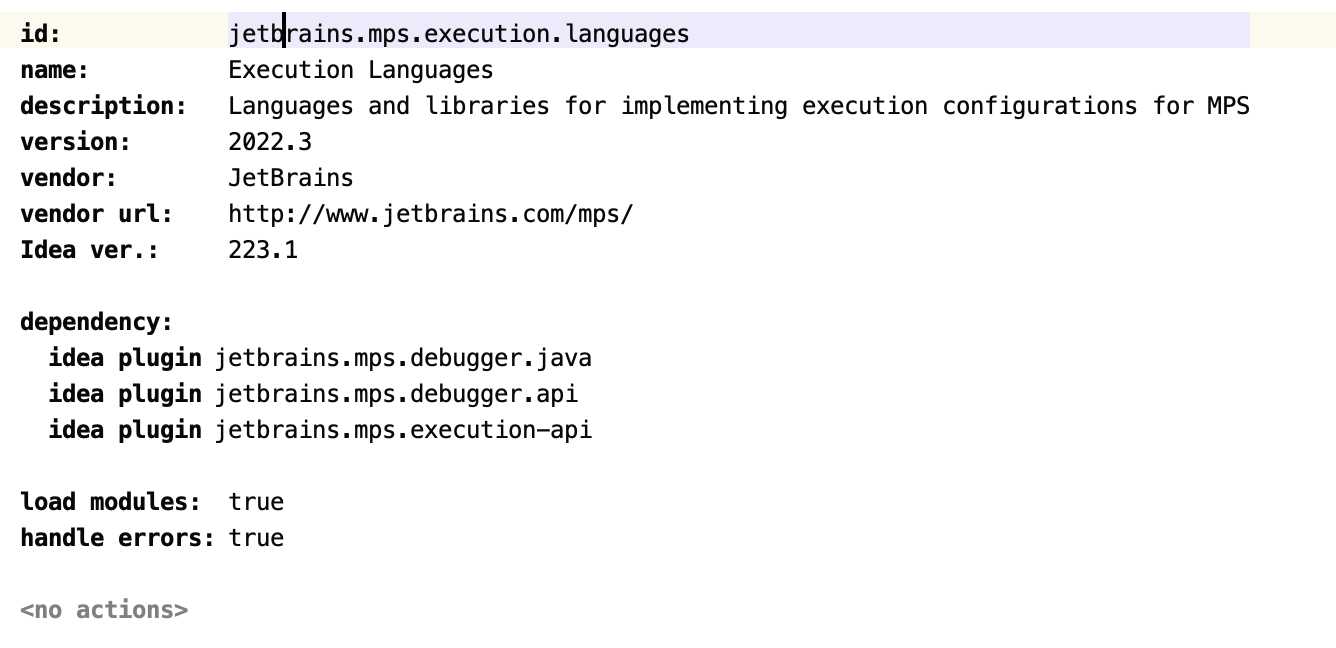
Provides a convenient way to specify a plugin.xml file for registering the plugin in the IntelliJ platform.
Proper capitalization of names
The name property of many of the concepts is checked for proper capitalization. There are four options:
Title-case - the default; Prepositions, articles, particles and conjunctions should be lower-case, other words should have the first character capital. MPS uses the Grazie plugin to detect the language and to parse the text using the rules of the detected language. Alternatively, the language to use for name validation in a particular root node can be specified explicitly in the Inspector.
Sentence-case - following the IntelliJ platform rules (First character must be capital, all-caps words like AST, DSL, MPS are allowed, a certain fraction of the words may have their first character capital)
Inherited - use the capitalization rules of the closest ancestor ICheckedNamePolicy
No capitalization rules - the values remain unchecked
For Grazie to support a language, its language support must be installed in Settings | Editor | Natural Languages. The support for English is installed by default.