WSL
WSL (WSL 2) – Windows Subsystem for Linux – is a compatibility layer for running Linux binary executables natively on Windows 10 and later. Currently, it supports several Linux distributions, such as Ubuntu, OpenSUSE, and SLES.
Configure WSL
Download and install a WSL distribution (for instance, Ubuntu) from Microsoft Store on your Windows machine.
For this step, be sure to use at least Windows 10 or later with the latest “Fall Creators Update” (minimum version 1709, build 16299.15). See the official guide Install the Windows Subsystem for Linux for instructions.
To work with WSL 2, your Windows version should be 10 build 18917 or later. Follow these instructions to switch the distributive.
Note that PhpStorm does not support legacy WSL, which you may have installed before upgrading your system to the build 16299.15 or later of Windows 10. In this case, you need to update your WSL distribution.
Run the Linux distribution.
Upon the first launch, the system may prompt you to enable the Windows optional feature. In this case, you need to do the following:
Open Windows PowerShell as Administrator and run
Enable-WindowsOptionalFeature -Online -FeatureName Microsoft-Windows-Subsystem-LinuxRestart your computer.
Inside the Linux installation, make sure PHP is installed. For the detailed installation instructions, refer to Debian GNU/Linux installation notes. If you are using Ubuntu, you can run this command in the Terminal to quickly install PHP:
sudo apt install php php-mbstring php-xml php-zip php-curl php-xdebug
Configure a remote PHP interpreter for WSL
Install and run PhpStorm locally on Windows as you normally would.
Press Ctrl+Alt+S to open settings and then select .
On the PHP page that opens, click
 next to the CLI Interpreter list.
 In the CLI Interpreters dialog that opens, click
 in the left-hand pane, then choose From Docker, Vagrant, VM, WSL, Remote... from the popup menu.
 In the Configure Remote PHP Interpreter dialog that opens, choose the WSL method and provide the connection parameters:
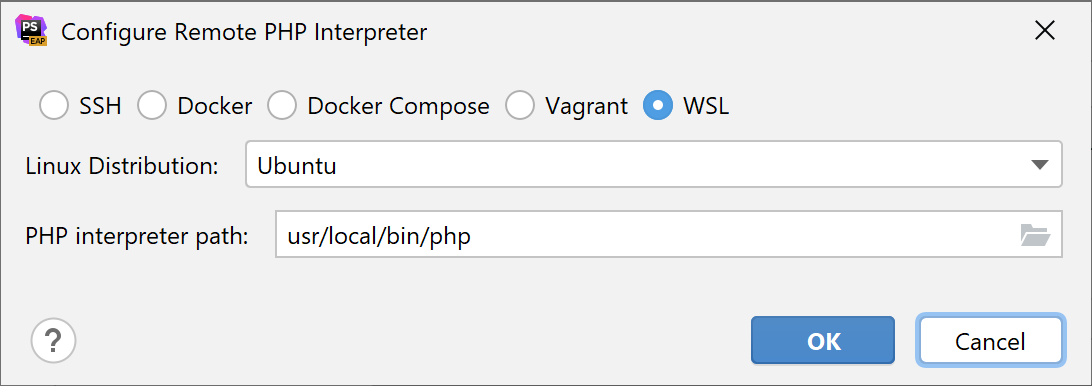
Field
Description
Linux distribution
Choose one of the installed Linux distributions to use from the drop-down list.
PHP interpreter path
Specify the location of the PHP executable file in accordance with the configuration of the selected remote development environment.
For WSL, PhpStorm by default suggests /usr/local/bin/php.
To specify a different folder, click
 and choose the relevant folder in the dialog that opens. Note that the PHP home directory must be open for editing.
Click OK. PhpStorm checks whether a PHP executable is actually stored in the folder specified in the PHP interpreter path field.
If no PHP executable is found, PhpStorm displays an error message asking you whether to continue searching or save the interpreter configuration anyway.
If the PHP executable is found, you return to the CLI Interpreters dialog where the installation folder and the detected version of the PHP interpreter are displayed.
Selecting the Visible only for this project checkbox restricts the interpreter's availability only to the current project.
Clicking
 next to the PHP executable field opens a separate information window with the installation details and the list of loaded extensions and configured options.
You can now select the WSL-based PHP interpreter from the list of configured PHP interpreters for all common tasks: executing scripts or Composer commands, running PHP Quality tools, and so on.
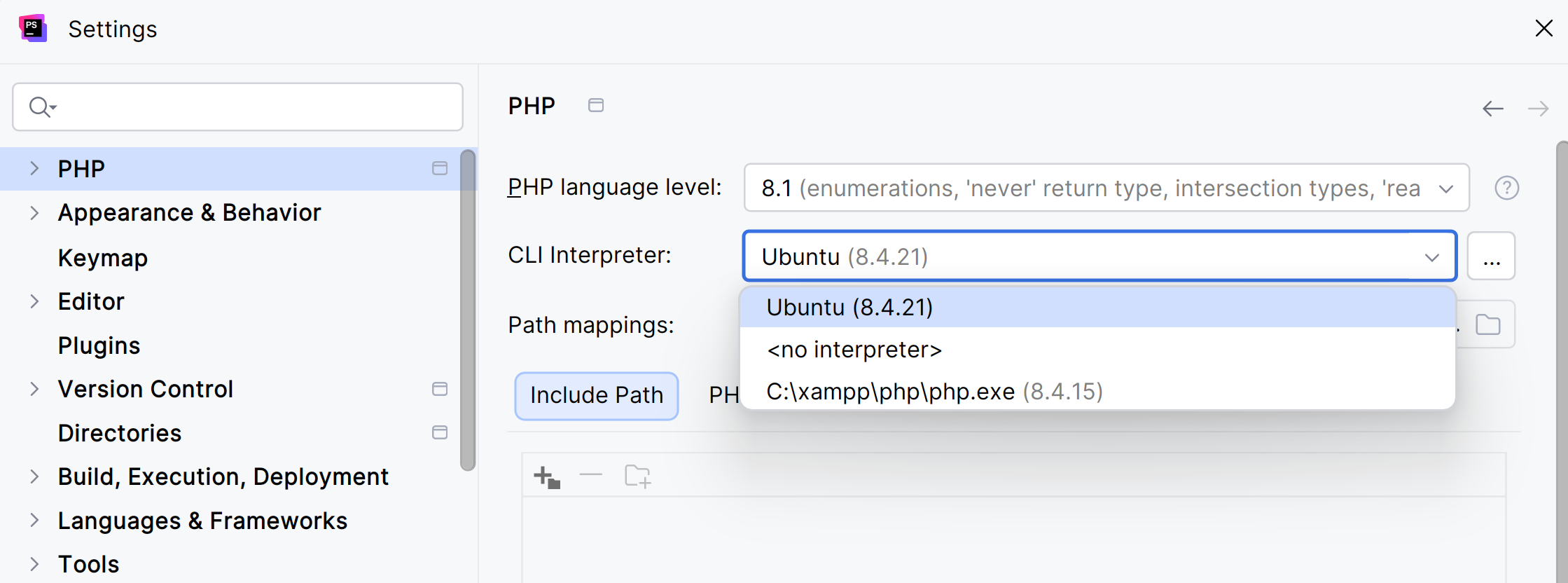
You can create a project and store it in the WSL environment, open one from the WSL file system, and develop your projects further in WSL.
Create a new project in the WSL file system
Install and run PhpStorm locally on Windows as you normally would.
On the welcome screen, click New Project.
On the page that opens, select a type of the project you want to create.
In the right pane, specify the path to the project in the Location field. The project location for WSL will show the absolute path starting with \\wsl$ to the WSL file system.
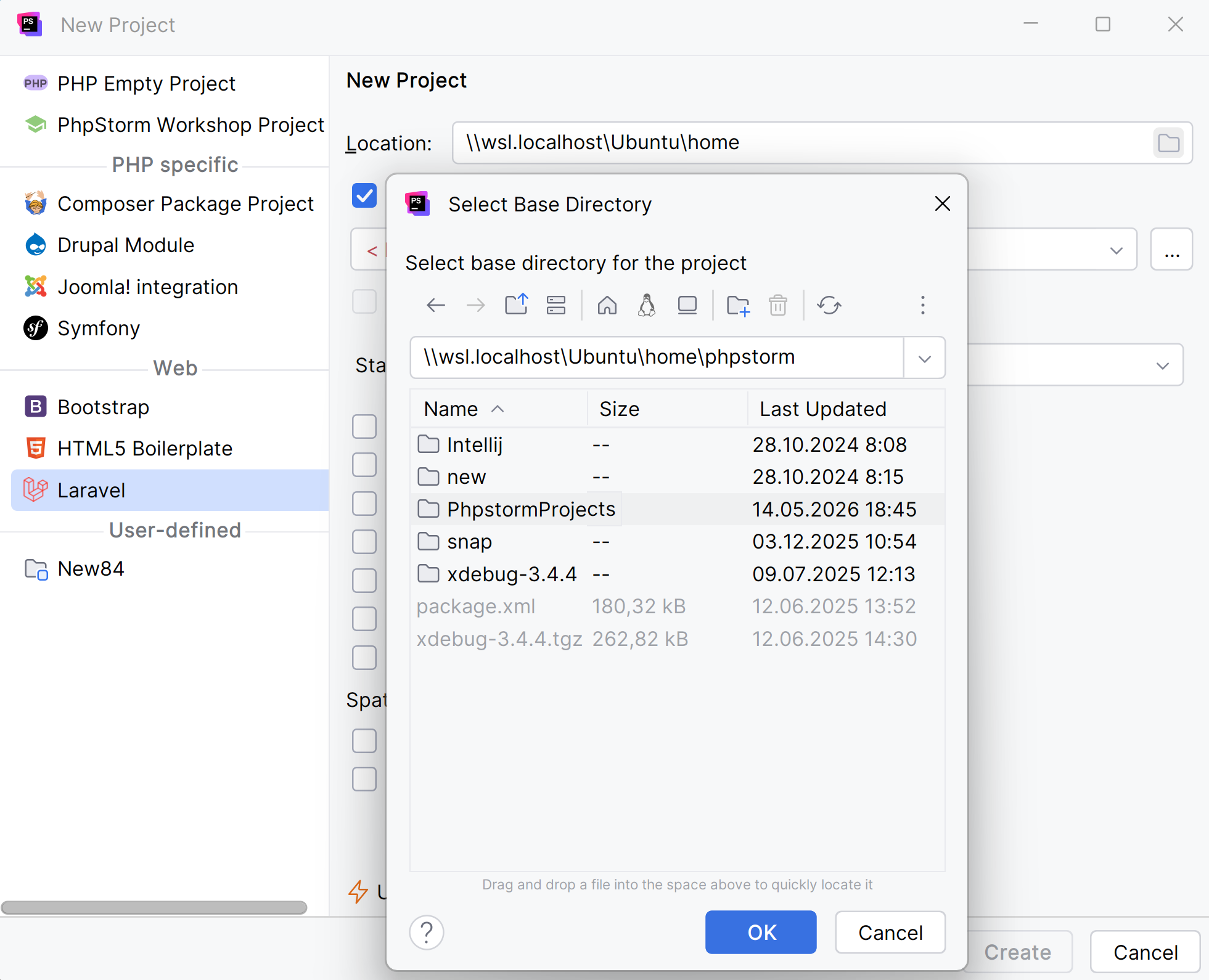
Click Create.
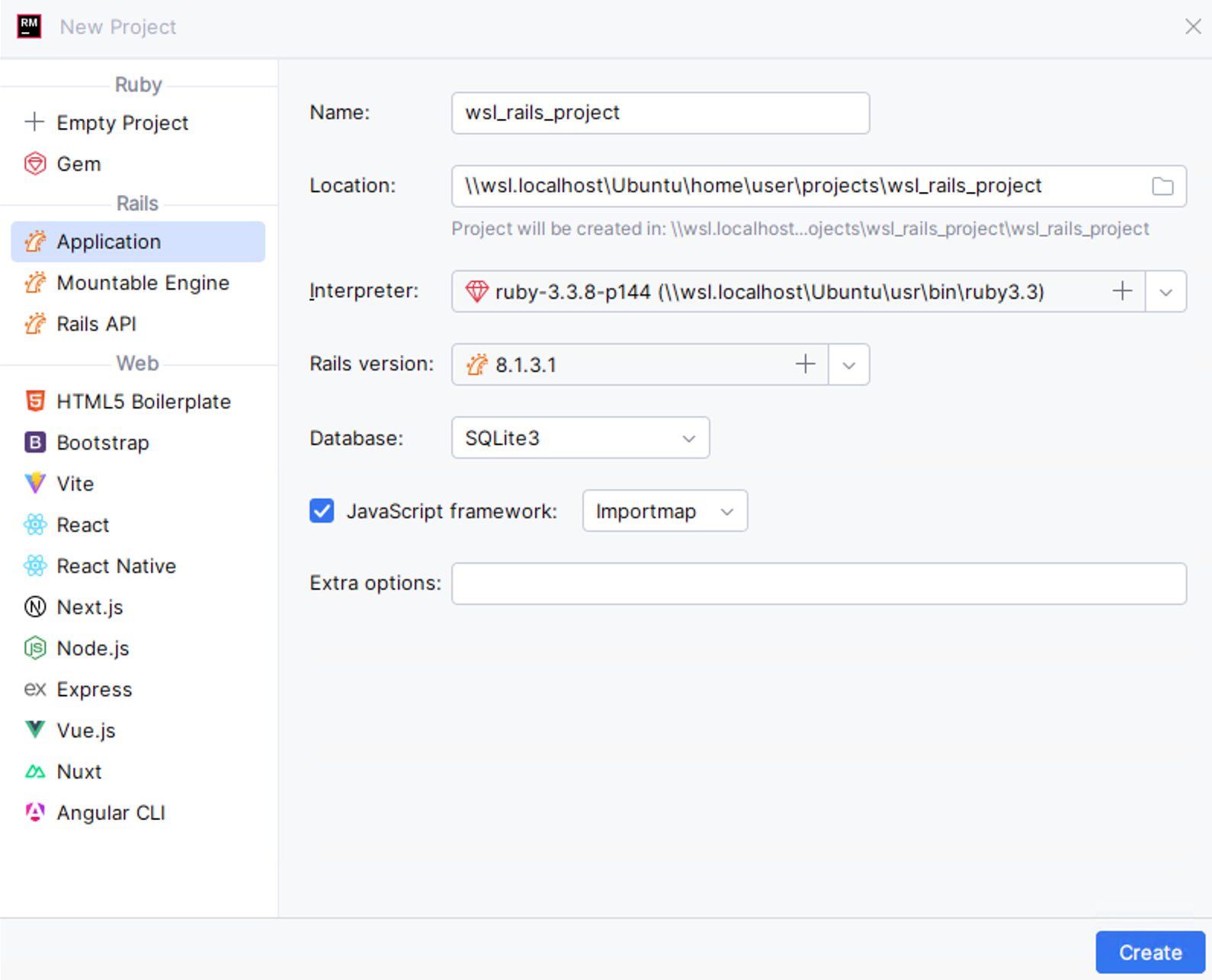
PhpStorm creates a project located in WSL, and you can develop and build your project inside the WSL environment without leaving the IDE.
Open a project stored in the WSL file system
In PhpStorm, you can directly open a project stored in the WSL file system and work with it like with any other project.
Click Open on the Welcome screen or select from the main menu.
In the Select Path dialog that opens, select the folder in the WSL file system that contains the project to open, or type the path to the project location manually.
The path syntax is
\\wsl.localhost\DistributionNamewhereDistributionNameis the name of your Linux distribution such as Ubuntu, Debian, Arch, and so on.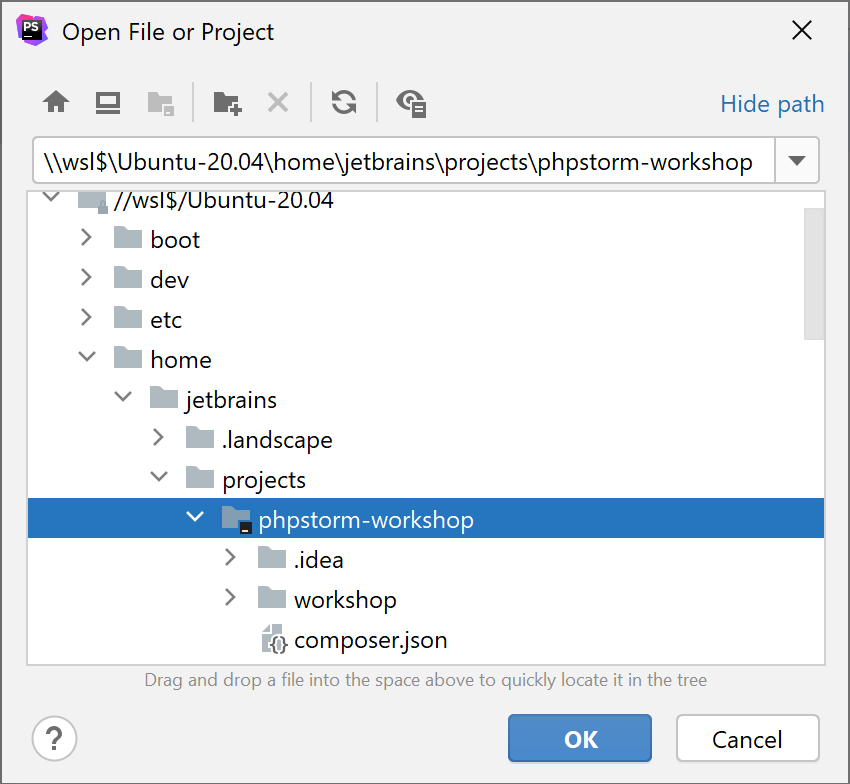
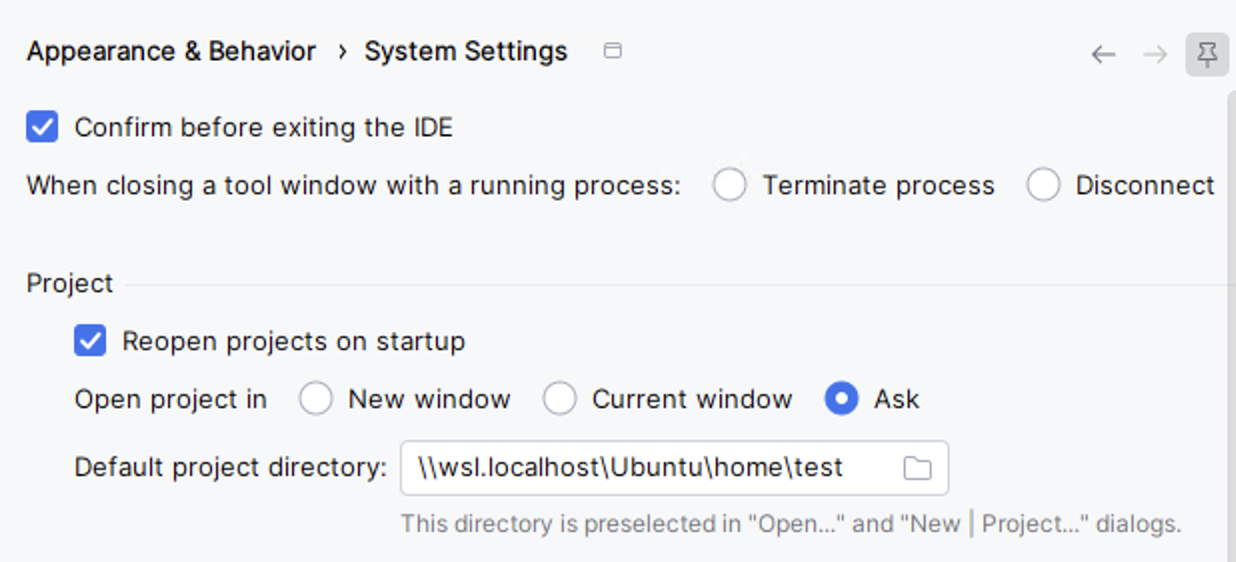
Configure the project location
You can ensure that any project you create or open uses the appropriate WSL location.
WSLg
WSLg lets you run Linux GUI applications and shows their output on the Windows desktop.
We do not recommend running PhpStorm through WSLg. PhpStorm already provides native WSL integration, which is the preferred approach.
Keep in mind the following:
WSLg has limitations related to rendering, popups, window management, input methods, and desktop integration.
We do not provide dedicated support, installation guidance, onboarding, or product-specific fixes for running PhpStorm through WSLg.
To learn how to create a project in WSL, refer to Create a new project in the WSL file system.