Create a Snowflake data source with Google Workspace SSO and Google Authenticator MFA
Enable the Database Tools and SQL plugin
This functionality relies on the Database Tools and SQL plugin, which is bundled and enabled in PyCharm by default. If the relevant features are not available, make sure that you did not disable the plugin.
Press Ctrl+Alt+S to open settings and then select .
Open the Installed tab, find the Database Tools and SQL plugin, and select the checkbox next to the plugin name.
Official documentation
In this tutorial, we will take a closer look at creating data sources and connecting to Snowflake with SSO authentication and MFA. We will use Google Workspace as an identity provider and Google Authenticator for MFA.
SSO using Google Workspace
In this case, authentication is performed by logging into your Google account in a web browser window with your credentials.
Create a Snowflake data source to use with Google Workspace SSO
In the Database tool window, click
 New on the toolbar and navigate to .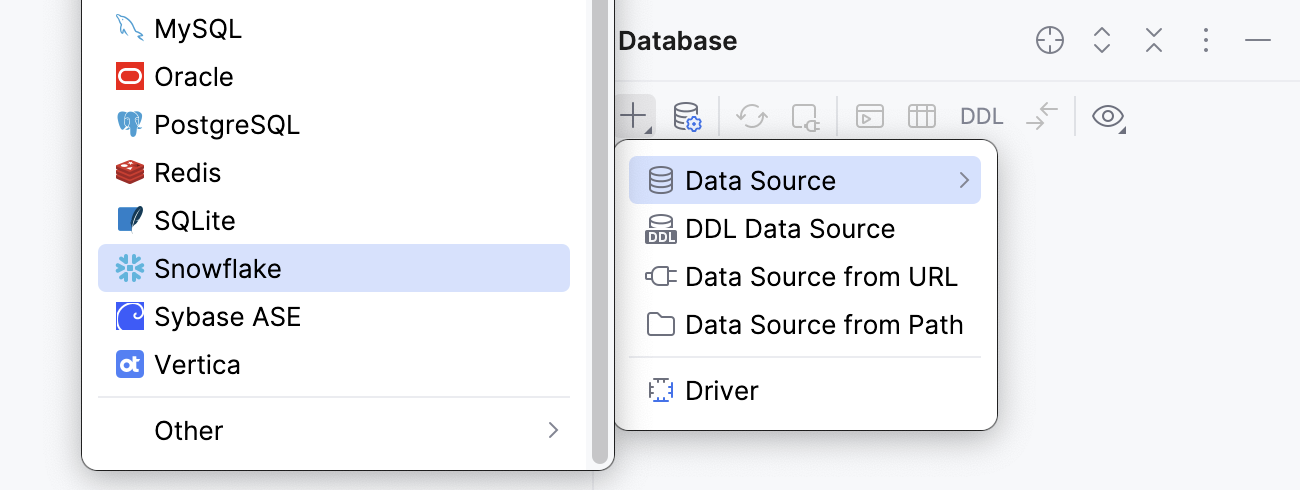
Check if there is a Download missing driver files link at the bottom of the connection settings area. Click this link to download drivers that are required to interact with a database.

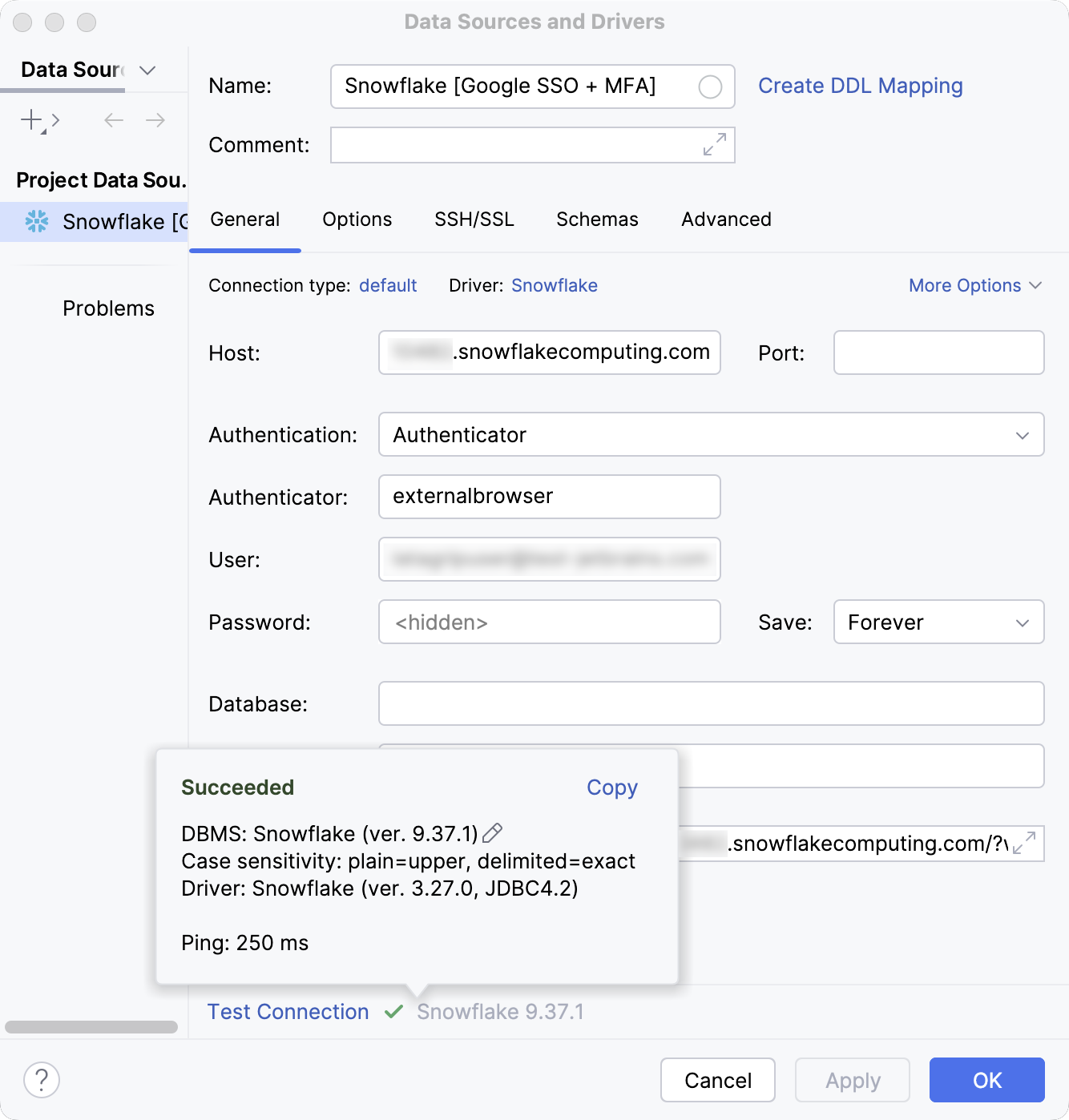
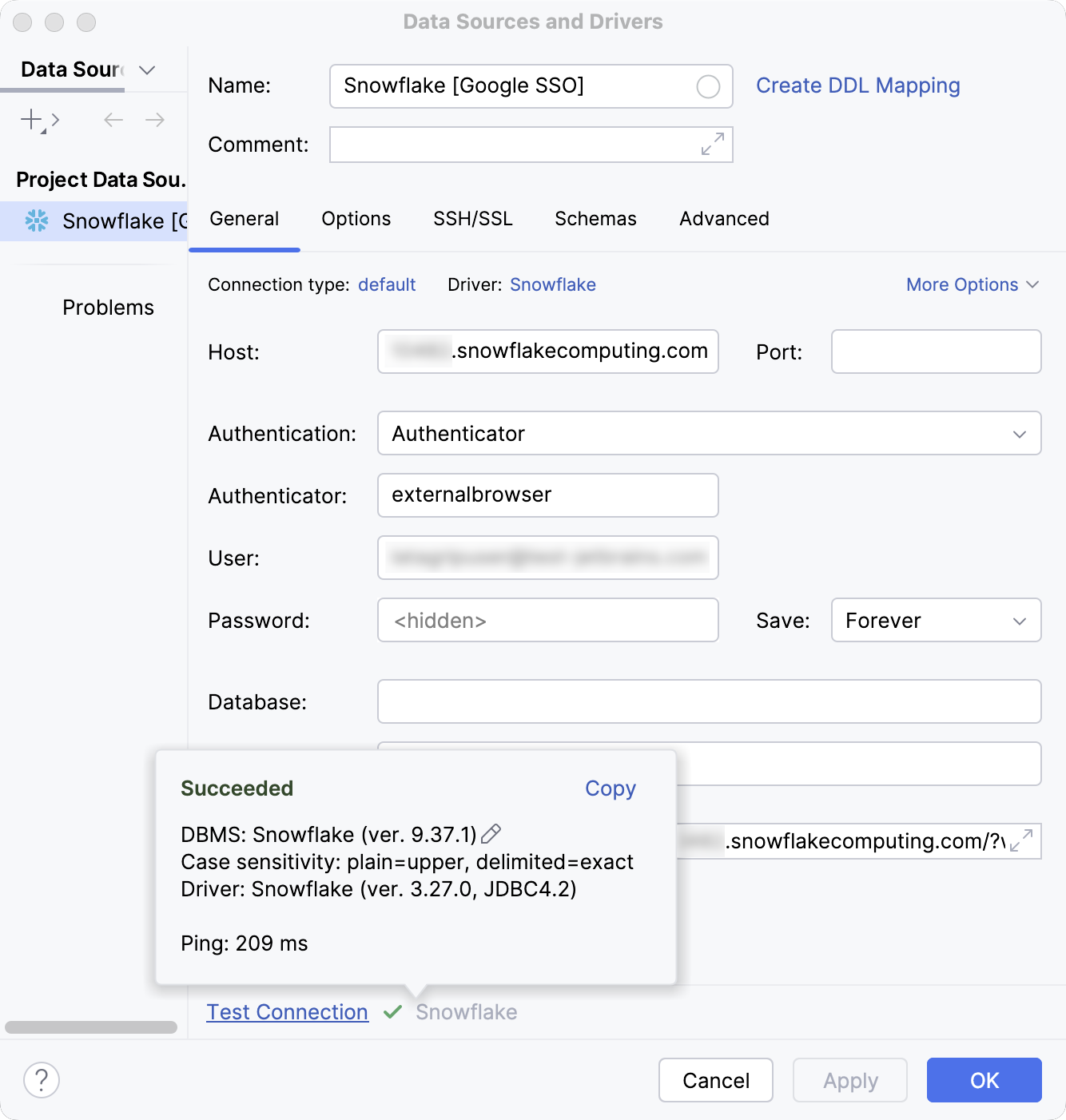
Specify the database connection details.
In the Name field, enter your new data source name.
For example,
Snowflake [SSO].In the Host field, type the URL to connect to your Snowflake account with. For example,
myorg-myconnection.snowflakecomputing.com.From the Authentication dropdown, select Authenticator.
In the Authenticator field, type
externalbrowser.In the User field, type the email address you use to log in to both your Snowflake and Google accounts. In Snowflake, it is your
login_name.Leave the Password field empty.
In the Warehouse field, type the name of a compute resources cluster in Snowflake that you want to use.
Alternatively, type your JDBC URL in the URL field. The general URL to use is as follows:
Format:
jdbc:snowflake://<organization_name>-<connection_name>.snowflakecomputing.com/?warehouse=<warehouse_name>&db=<database_name>&schema=<schema_name>&user=<okta_username>&password=<okta_password>&authenticator=externalbrowserExample:
jdbc:snowflake://myorg-myconnection.snowflakecomputing.com/?warehouse=AUTH_WH&db=TESTDB&schema=MYSCHEMA&user=MYUSERNAME@DOMAIN.COM&password=DUMMY-PASSWORD&authenticator=externalbrowser
Click the Test Connection link at the bottom of the connection details area to initiate a test connection to your database.

On the Google website that opens in the browser, enter your user credentials and log in to your Google account.
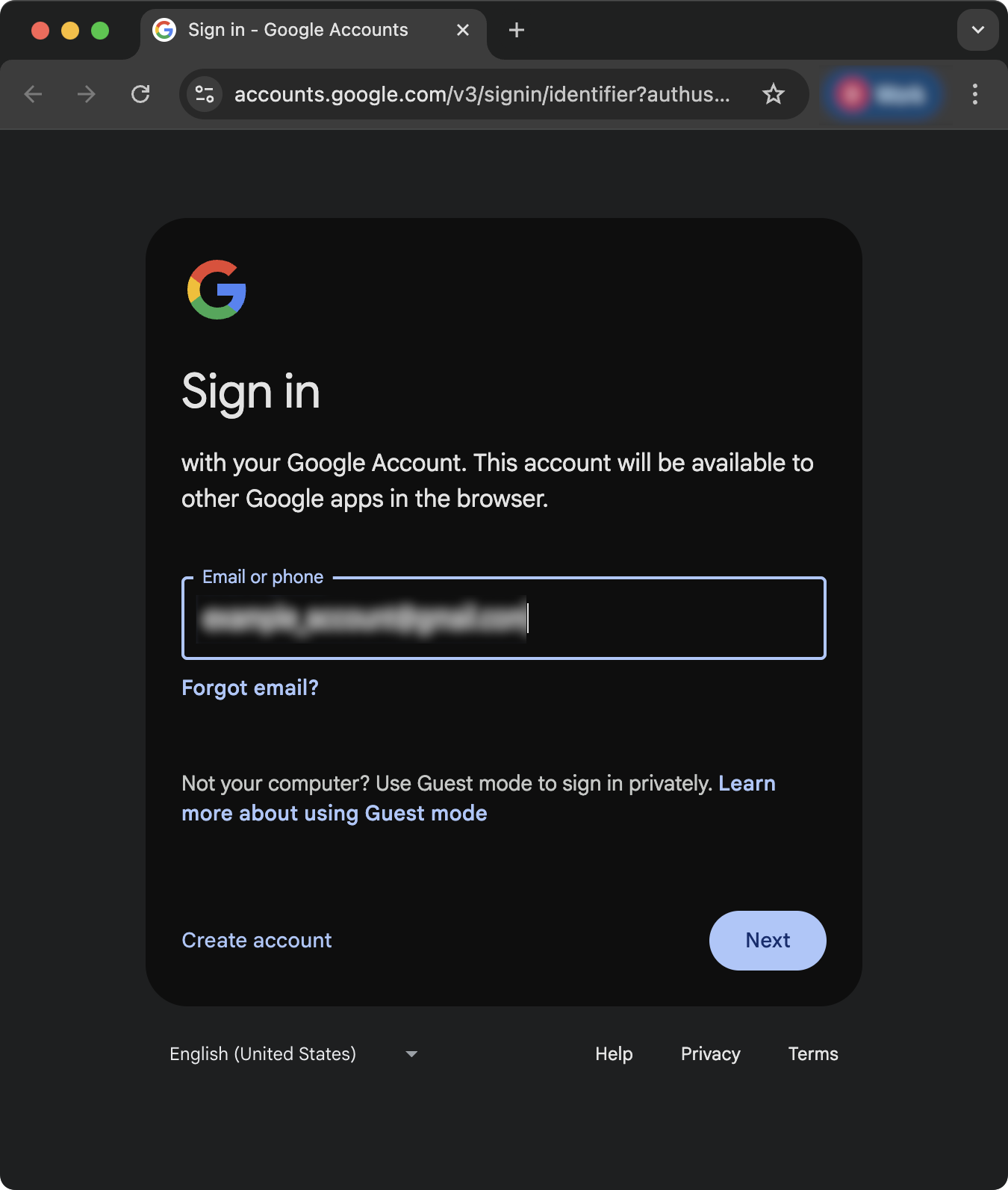
Once Google confirms your identity, return to PyCharm.
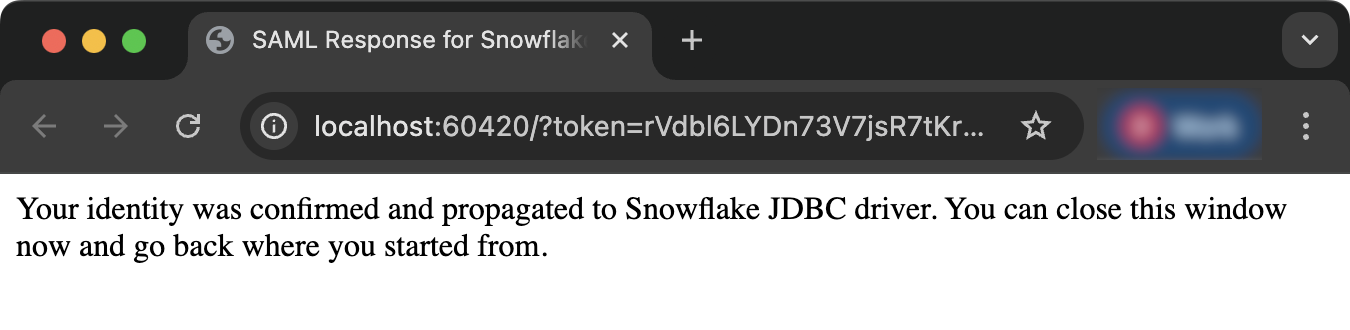
In the IDE, click OK to save your new data source.
Google Workspace SSO and Google Authenticator MFA
In this case, authentication is performed by logging into your Google account with your credentials and then verifying your identity using two-factor authentication.
As your two-factor authentication method, you can use your phone number, Google Authenticator mobile application, or a passkey. In our example, we will use the Google Authenticator mobile application.
Create a Snowflake data source to use with Google Workspace SSO and Google Authenticator MFA
In the Database tool window, click
New on the toolbar and navigate to . Check if there is a Download missing driver files link at the bottom of the connection settings area. Click this link to download drivers that are required to interact with a database.
Specify the database connection details.
In the Name field, enter your new data source name.
For example,
Snowflake [SSO + MFA].In the Host field, type the URL to connect to your Snowflake account with. For example,
myorg-myconnection.snowflakecomputing.com.From the Authentication dropdown, select Authenticator.
In the Authenticator field, type
externalbrowser.In the User field, type the email address you use to log in to both your Snowflake and Google accounts. In Snowflake, it is your
login_name.Leave the Password field empty.
In the Warehouse field, type the name of a compute resources cluster in Snowflake that you want to use.
Alternatively, type your JDBC URL in the URL field. The general URL to use is as follows:
Format:
jdbc:snowflake://<organization_name>-<connection_name>.snowflakecomputing.com/?warehouse=<warehouse_name>&db=<database_name>&schema=<schema_name>&user=<okta_username>&password=<okta_password>&authenticator=externalbrowserExample:
jdbc:snowflake://myorg-myconnection.snowflakecomputing.com/?warehouse=AUTH_WH&db=TESTDB&schema=MYSCHEMA&user=MYUSERNAME@DOMAIN.COM&password=DUMMY-PASSWORD&authenticator=externalbrowser
Click the Test Connection link at the bottom of the connection details area to initiate a test connection to your database.
On the Google website that opens in the browser, enter your user credentials and log in to your Google account.
In Google Authenticator, find the verification code for your Google account.
In the web browser window, verify your identity by entering the verification code from Google Authenticator.
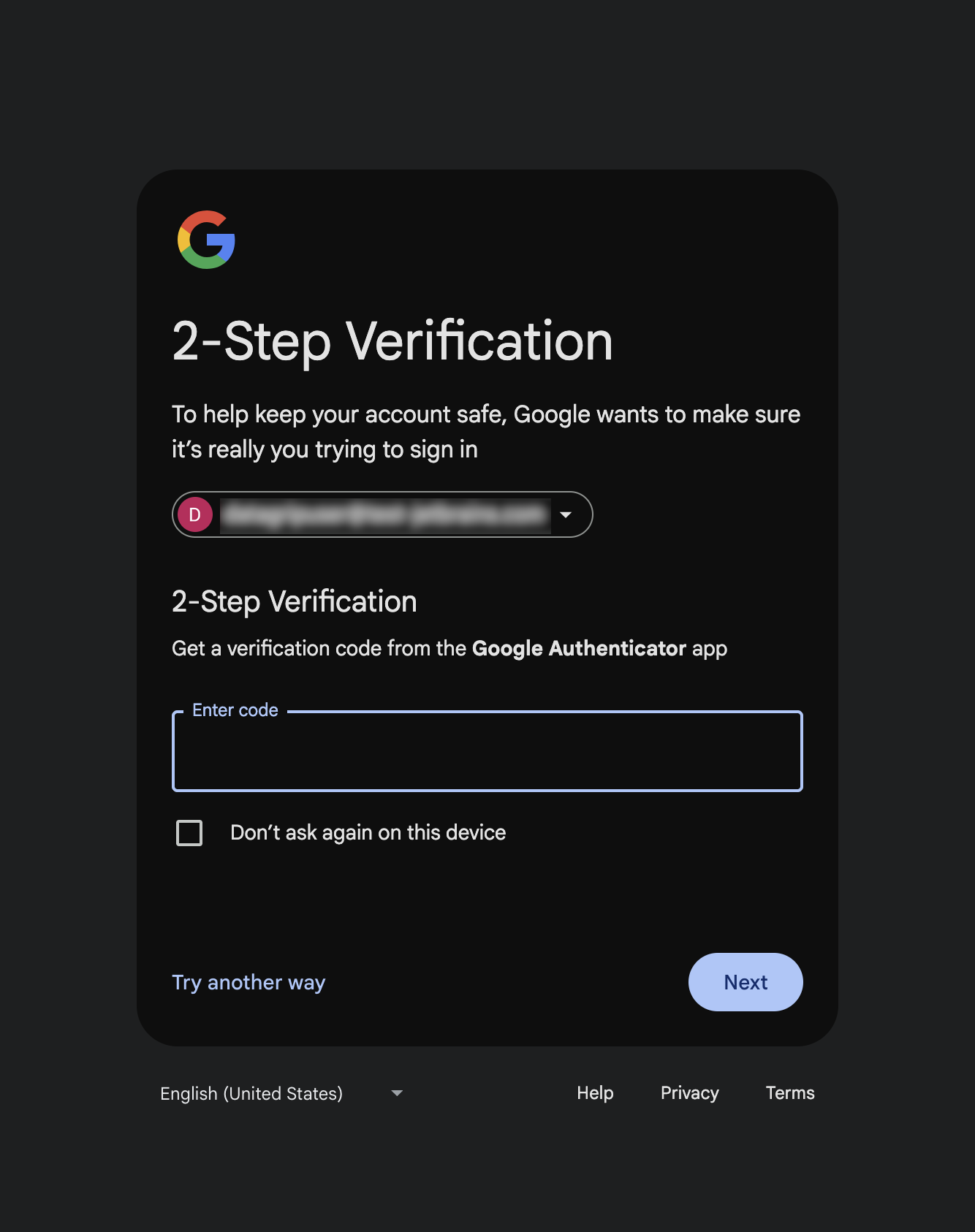
Once Google confirms your identity, return to PyCharm.
In the IDE, click OK to save your new data source.