Nuxt
With PyCharm, you can use the Nuxt framework to develop your Vue.js applications. The recommended way to set up a Nuxt app in PyCharm is to use the New Project wizard with a dedicated Nuxt template.
Before you start
Make sure you have Node.js 20 or later on your computer.
Make sure a local Node.js runtime is configured in your project: open the Settings dialog (Ctrl+Alt+S) and go to . The Node runtime field shows the default project Node.js runtime. Learn more from Configuring a local Node.js interpreter.
Make sure the JavaScript and TypeScript, JavaScript Debugger, and Vue.js required plugins are enabled on the Settings | Plugins page, tab Installed. For more information, refer to Managing plugins.
Create a project from a Nuxt-specific template
Click Create New Project on the Welcome screen or select from the main menu. The New Project dialog opens.
In the left-hand pane, choose Nuxt.
In the right-hand pane:
Specify the path to the folder where the project-related files will be stored.
In the Node runtime field, specify the Node.js runtime to use. Select a configured runtime from the list or choose Add to configure a new one.
From the Nuxt CLI list, select npx nuxi@latest and click Create.
Create a project from the command line
Open the embedded Terminal (Alt+F12) and type:
npm create nuxt@latest <project-name>or
yarn create nuxt@latest <project-name>or
pnpm create nuxt@latest <project-name>The wizard asks you some questions. After you answer them, a Nuxt project is initialized in the current folder and is ready to use in PyCharm.
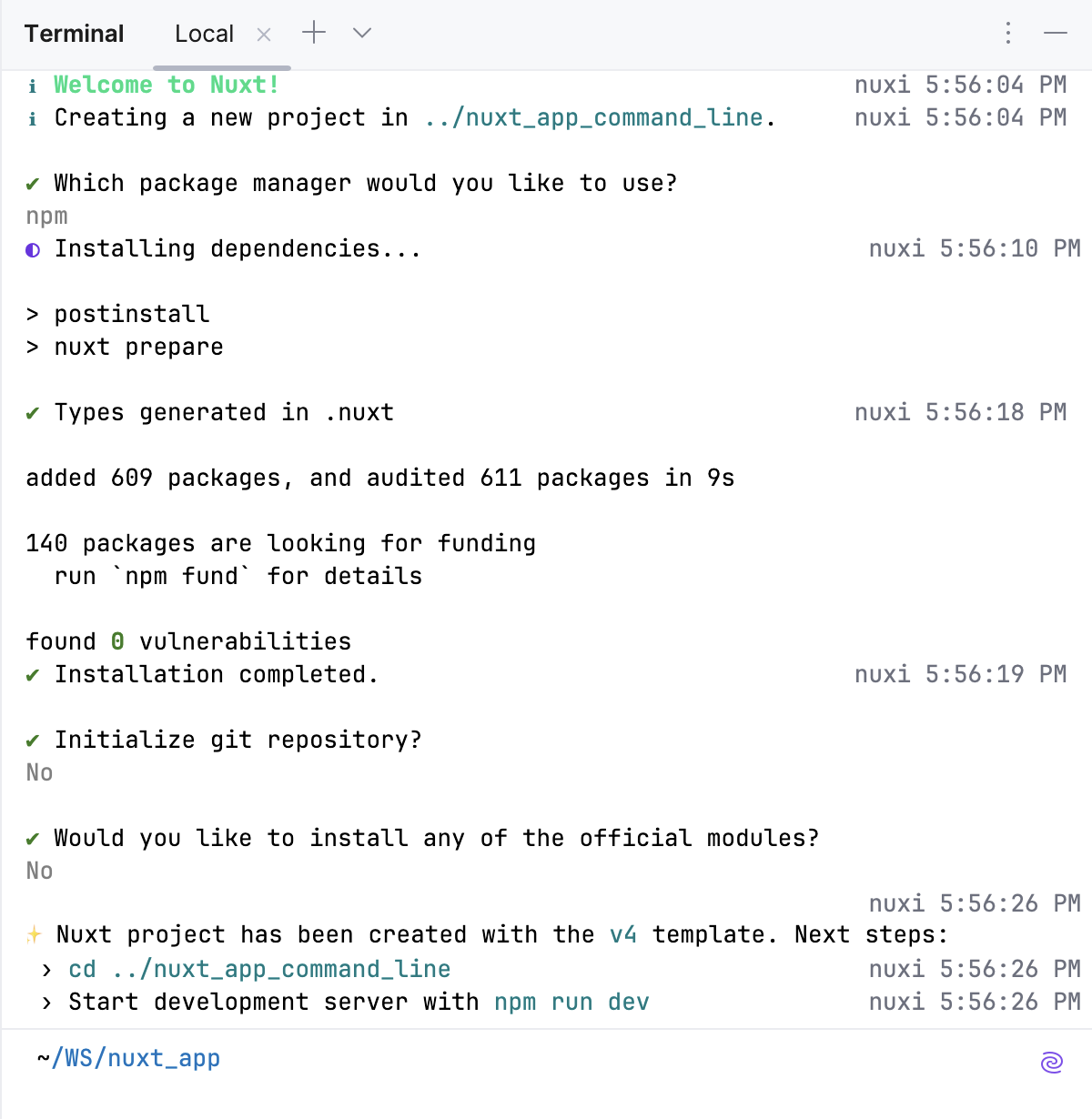
Learn more from the Nuxt official website.
Nuxt-aware coding assistance
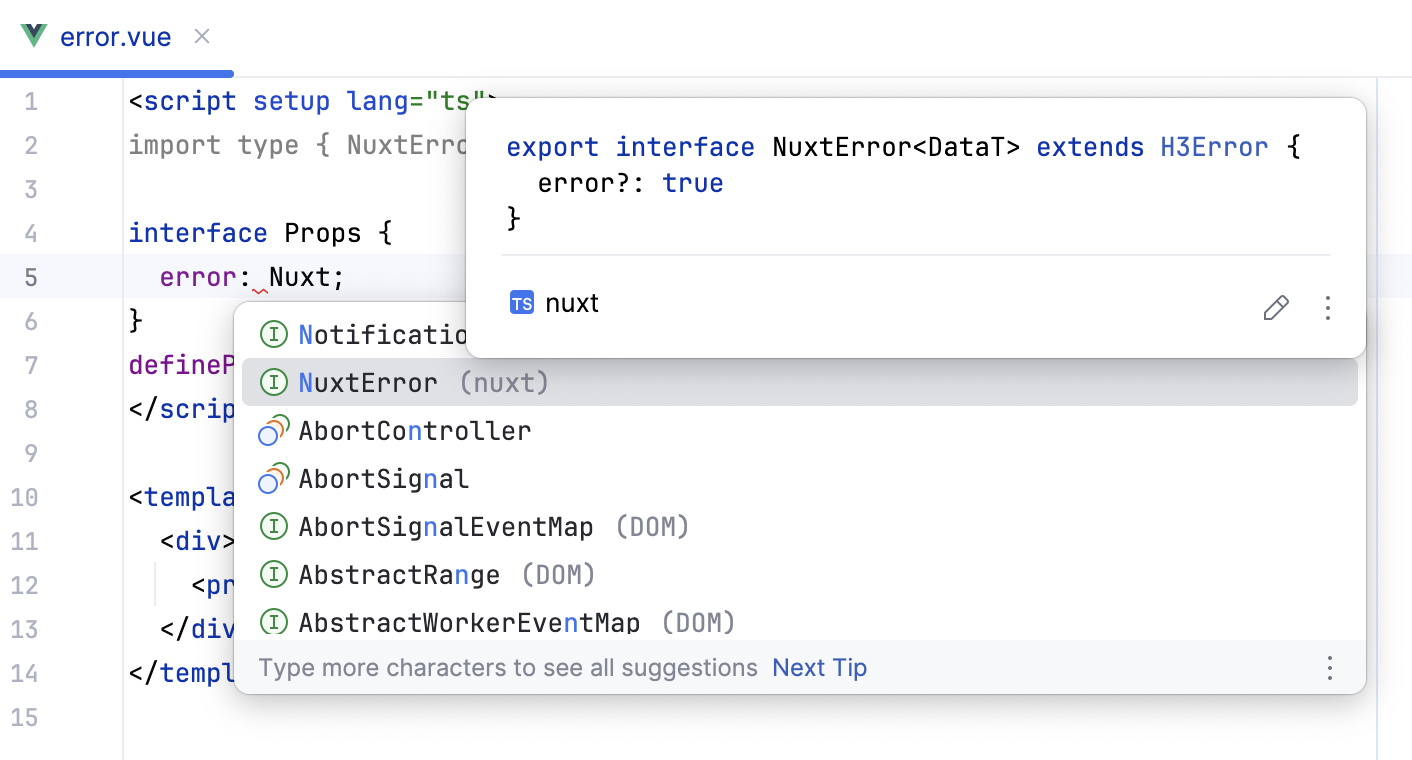
PyCharm suggests code completion and shows quick documentation for all core Nuxt components.
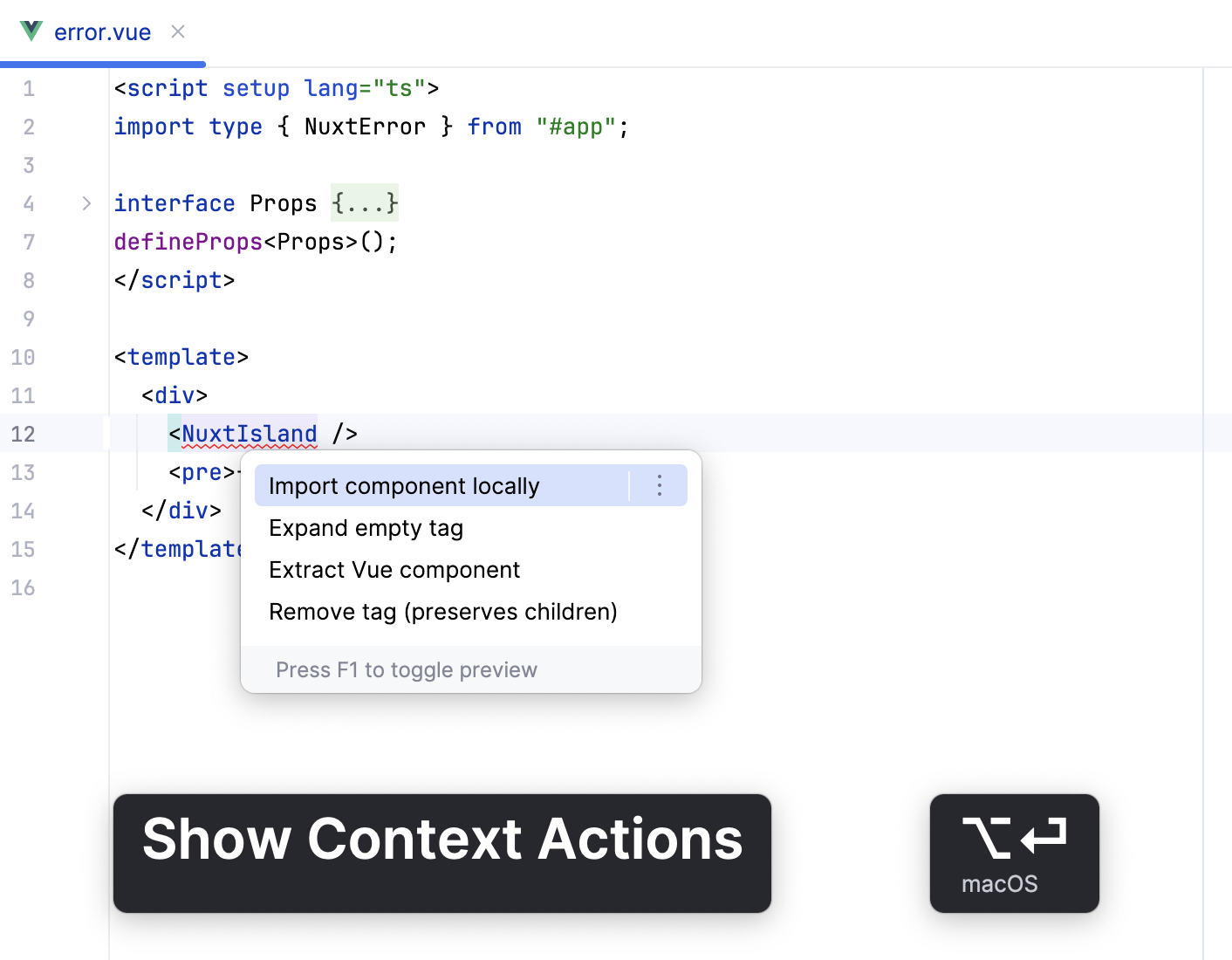
PyCharm also suggests importing missing import statements for Nuxt components (Alt+Enter.
Edit nuxt.config.ts
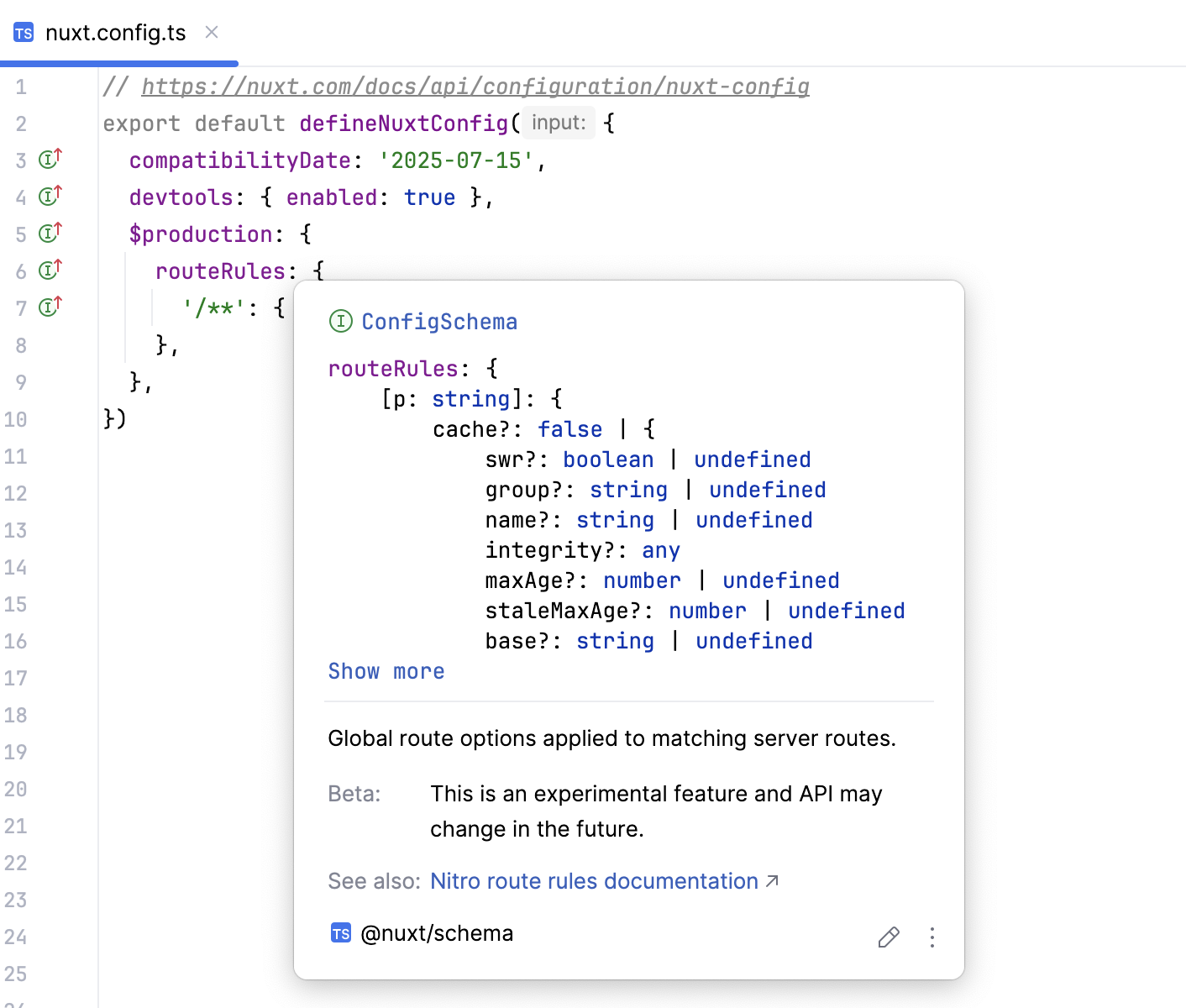
PyCharm provides proper completion suggestions for the nuxt.config.ts configuration file.
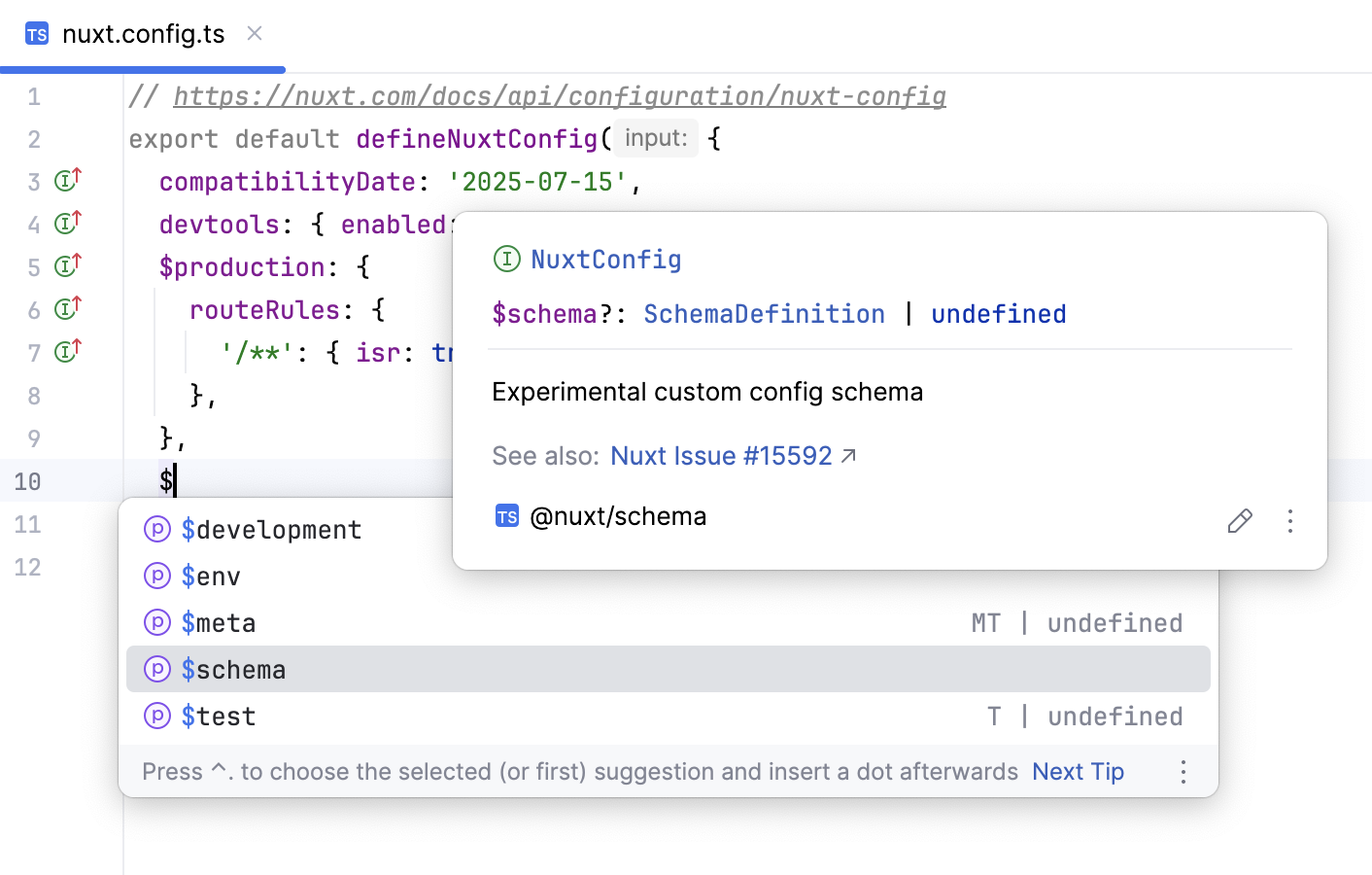
On hover, you’ll also see the Documentation popup showing the type information for the Nuxt options used in the file.
Type checking
Nuxt 4 is fully typed of the box. With earlier Nuxt versions, you need the @nuxt /types package to get better code completion.
Learn more from the Nuxt official website.
Install the @nuxt/types package
If you’re using a Nuxt version from 2.9.0 onwards and don’t have the
@nuxt/typespackage installed, PyCharm notifies you about it and suggests installing it as a development dependency. Click the Install @nuxt/types as dev dependency link in the notification popup.
If you close the popup, you can still install
@nuxt/typesby clicking the Install @nuxt/types as dev dependency link in the Event Log tool window ().Alternatively, open the embedded Terminal (Alt+F12) and type:
npm install --save-dev @nuxt/types