Managing code coverage suites
PyCharm provides a tool to select coverage suites for showing or hiding, adding, and removing suites.
Coverage measurement results comprise a coverage suite. You can have the results of a new simulation merged with any existing suite. In this case, a line will be considered covered if it is covered by at least one of the simulations.
A coverage suite is generated every time a test or an application with code coverage measurement is executed. It is possible to have an unlimited number of coverage suites.
Results of the code coverage analysis are saved to the coverage folder in the IDE system directory.
Select which coverage suites to display
The list of coverage suites becomes available after at least one run with coverage.
In the main menu, go to (Ctrl+Alt+F6).
In the Choose Coverage Suite to Display dialog that opens, select the suites you want to display results from.
If you want to hide all code coverage results, click No Coverage instead. This deselects all coverage suites and closes the dialog.
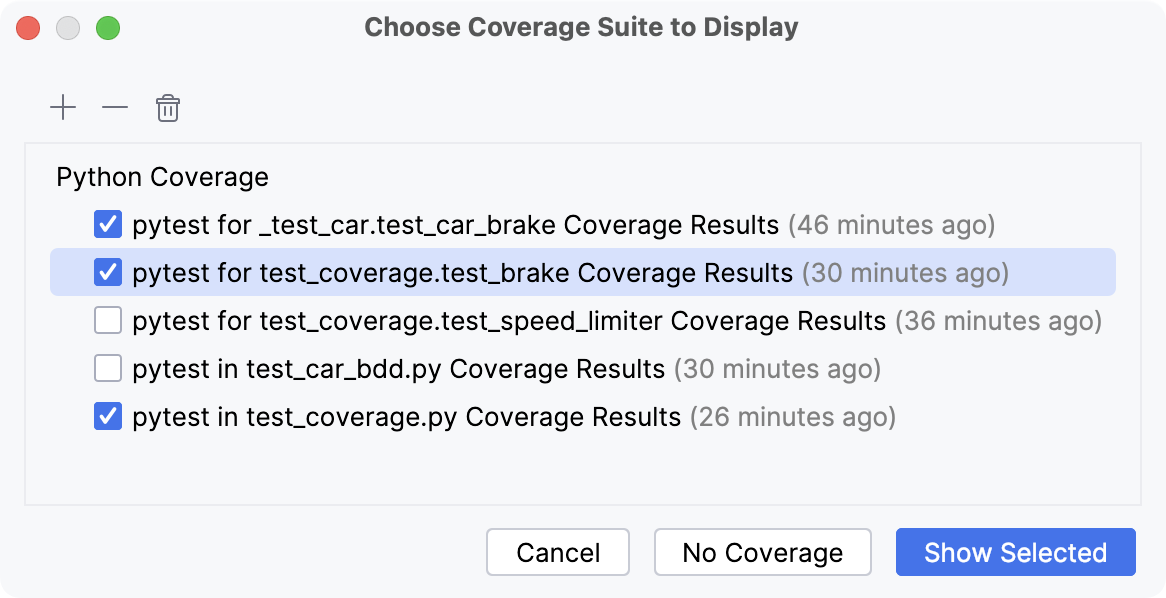
Click Show Selected.
PyCharm loads the code coverage results for the selected suites.
Reading code coverage results
In the gutter, PyCharm highlights how different parts of code are covered in your application. The following levels of coverage are indicated:
Full (
 ): indicates that the line of code or code block was executed during testing and application execution. In tests, this means that every part of this specific code segment has been covered by one or more tests. In application code, it means that the line was executed by some other code in the application, not just tests.
Partial (
 ): indicates that only a portion of the code in the line or block was executed during testing or application execution. This typically occurs in complex statements with multiple conditions, where only some conditions were tested or executed.
 Uncovered (
 ): indicates that the line of code or code block has not been executed at all during testing or application execution. This suggests a potential risk, as untested or dead code might contain undetected bugs.
Add and remove coverage suites
If you want to review code coverage results from a file that was generated outside PyCharm (for example, by a build server or another developer), you can add the file as a separate coverage suite.
You can also remove suites from the IDE or completely delete them from disk.
In the main menu, go to (Ctrl+Alt+F6).
In the Choose Coverage Suite to Display dialog that opens, choose an action from the toolbar:
To import an external coverage file, click
 Add and browse for the file.
The files with coverage data generated by PyCharm are saved to the coverage folder in the IDE system directory by default.
To remove a coverage suite from the IDE but keep it on disk, select the suite and click
 Remove.
To delete a coverage suite from both the IDE and the disk, select the suite and click
 Delete.