The dialog opens when you click Add in the Node.js Runtimes dialog and choose Remote... from the drop-down menu.
Use this dialog to configure access to Node.js installations on remote hosts.
Item
Description
SSH
Select this option to configure access to a Node.js runtime on a remote host or environment that is accessible through SSH credentials. Select the relevant SSH configuration and check the path to the default Node.js runtime from the remote host or environment.
This option is available only when the Node.js, Node.js Remote Interpreter, and Docker Integration plugins are installed and enabled as described in Installing plugins from the repository.
Select this option to use a Node.js runtime in a Docker container.
In the Server field, specify the Docker configuration to use. For more information, refer to Working with Docker: Process overview. Select a configuration from the list or click and create a new configuration on the Docker page that opens.
In the Image name field, specify the base Docker image to use. Choose one of the previously downloaded or your custom images from the list or type the image name manually, for example, node:argon or mhart/alpine-node. When you later launch the run configuration, Docker will search for the specified image on your machine. If the search fails, the image will be downloaded from the Docker Official Images repository on the Docker Registry page.
The Node.js runtime path field shows the location of the default Node.js runtime from the specified image.
When you click OK, PyCharm closes the Configure Node.js Remote Interpreter dialog and brings you to the Node.js Runtimes dialog where the new runtime configuration is added to the list. Click OK to return to the run configuration.
Docker Compose
This option is available only when the Node.js, Node.js Remote Interpreter, and Docker Integration plugins are installed and enabled as described in Installing plugins from repository.
Select this option to use a Node.js runtime configuration defined in a Docker Compose file docker-compose.yml. Note that this file must have node or npm in the command field, for example, command: node ./src/app.js. For more information, refer to the Docker official website.
In the Server field, specify the Docker configuration to use. For more information, refer to Working with Docker: Process overview. Select a configuration from the list or click and create a new configuration on the Docker page that opens.
In the Configuration file(s) field, specify the docker-compose.yml file that defines the application's services.
From the Service list, select the service you want to run.
Optionally, in the Environment variables field, define the environment variables. For more information, refer to Docker Compose run configuration settings.
Node.js runtime path
In this field, specify the location of the Node.js executable file in accordance with the configuration of the selected remote development environment.
For Docker containers, PyCharm by default suggests the node location.
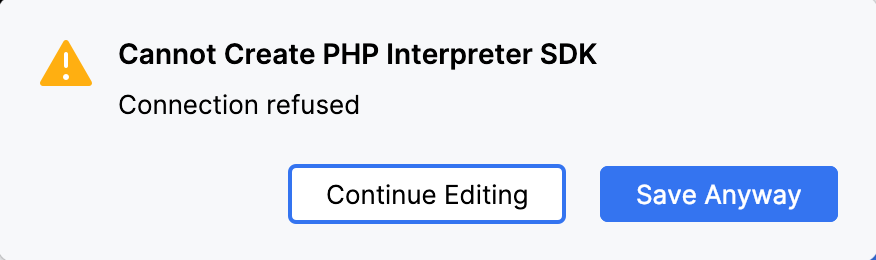
When you click OK, PyCharm checks whether the Node.js executable is actually stored in the specified folder.
If no Node.js executable is found, PyCharm displays an error message asking you whether to continue searching or save the interpreter configuration anyway.
If the Node.js executable is found, you return to the Node.js Runtimes dialog where the installation folder and the detected version of the Node.js interpreter are displayed.
 in the Node.js Runtimes dialog and choose Remote... from the drop-down menu.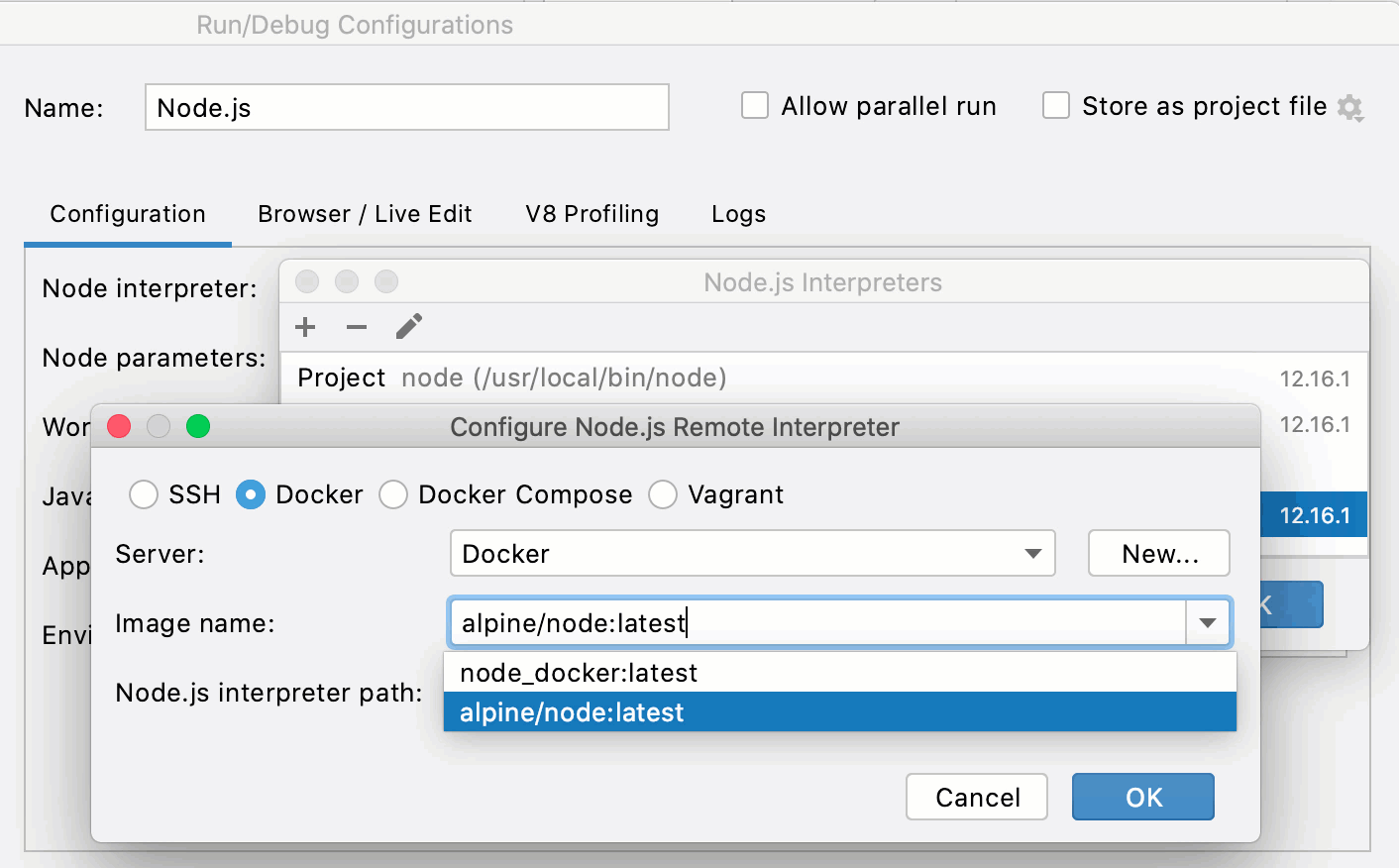
 and create a new configuration on the