Introduce Variable
If you come across an expression that is hard to understand, or it is duplicated in several places throughout your code, the Introduce Variable refactoring Ctrl+Alt+V can help you deal with those problems by placing the result of such expression or its part into a separate variable that is less complex and easier to understand. Plus, it reduces the code duplication.
Introduce a variable in place
In the editor, select an expression or its part that you want to introduce. You can also place the caret within the expression, in this case PyCharm offers you a list of potential code selections.
Press Ctrl+Alt+V or go to in the main menu. Alternatively, right-click and choose from the context menu.
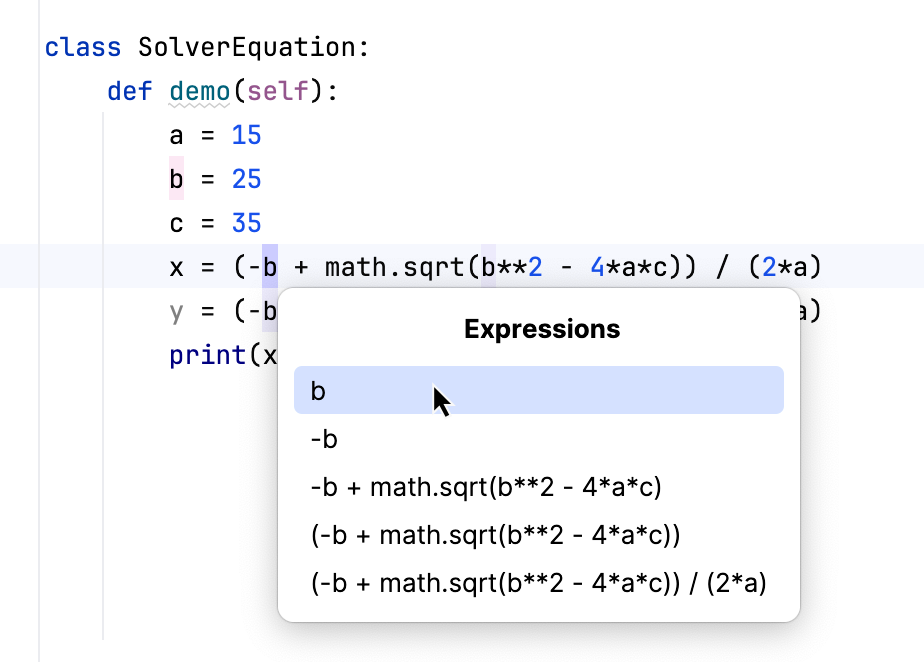
If more than one expression is detected for the current caret position, the Expressions list appears. If this is the case, click the expression to select it. Alternatively, use the Up and Down arrow keys to navigate to the expression of interest and then press Enter to select it.
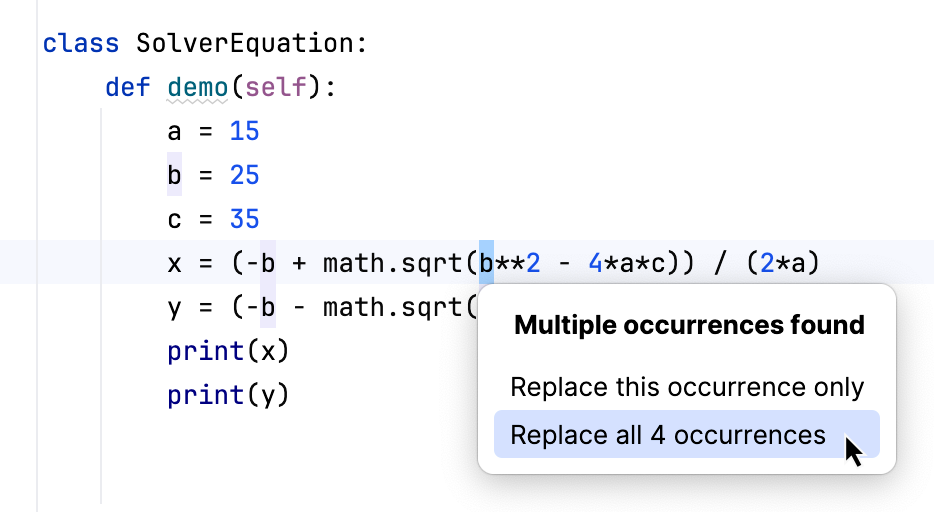
If more than one occurrence of the expression is found, specify whether you wish to replace only the selected occurrence, or all the found occurrences.
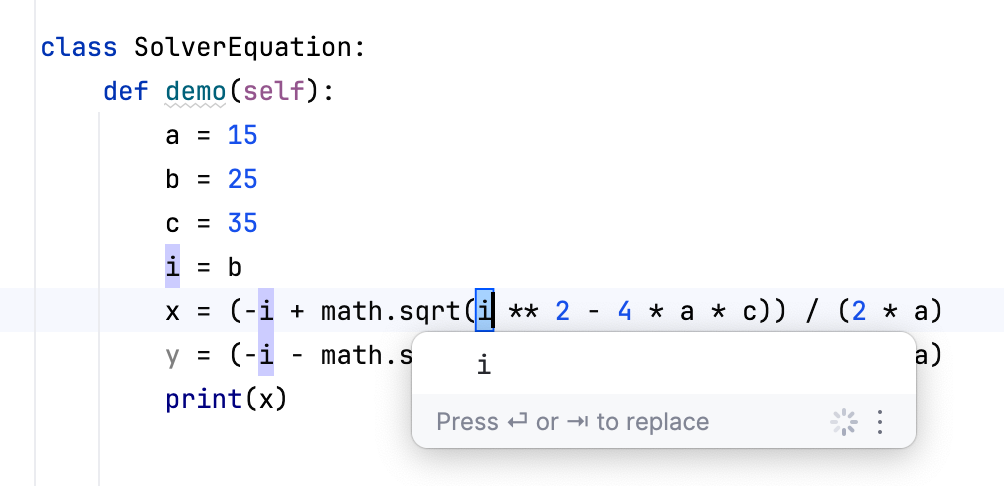
Select a name suggested in the popup or type your own and press Enter.
Extract a variable using the dialog
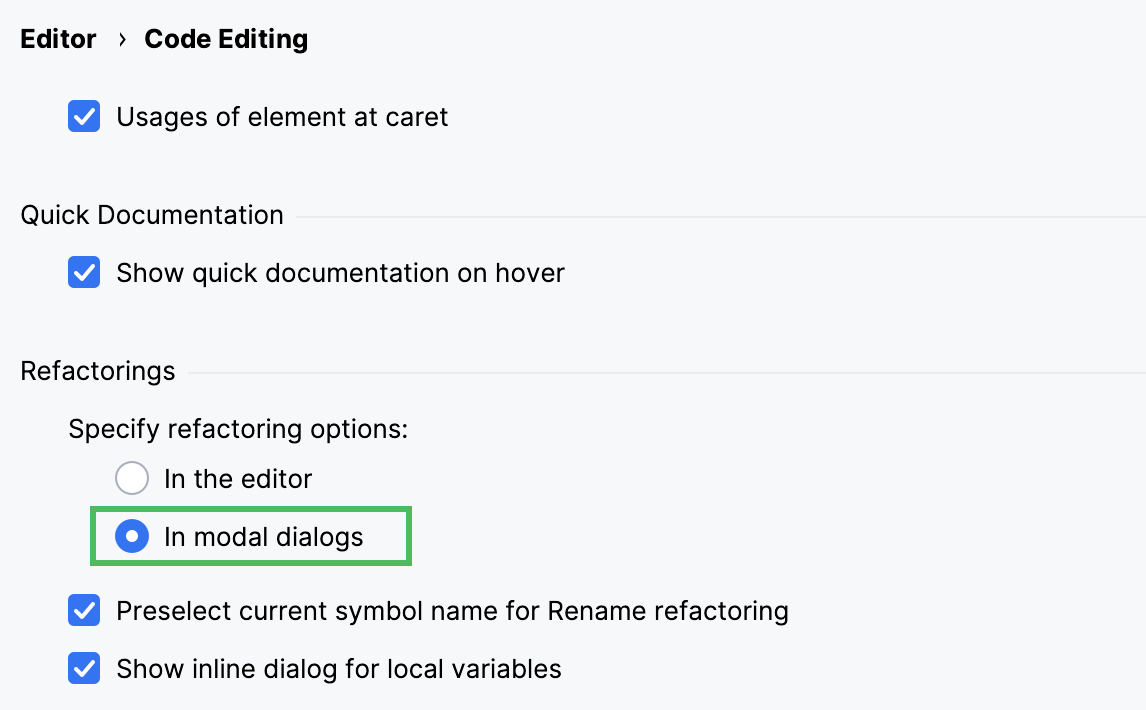
By default, PyCharm uses the in-place refactoring. To use the dialog for the refactoring, open the Settings dialog (Ctrl+Alt+S) , go to Editor | Code Editing, and select the In modal dialogs refactoring option in the Refactorings area.
In the editor, select an expression or its part that you want to introduce as a variable.
Press Ctrl+Alt+V or go to in the main menu. Alternatively, select from the context menu.
In the Extract Variable dialog that opens, specify the name of the new constant.
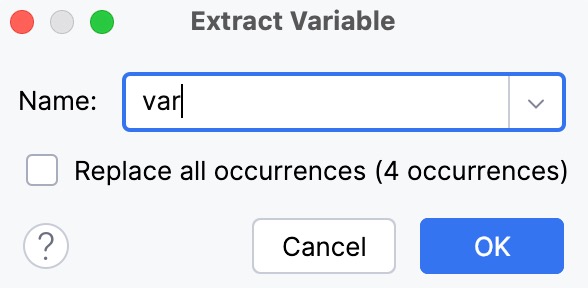
To automatically replace all occurrences of the selected expression (if it is found more than once), select the option Replace all occurrences.
Click OK to create the constant.