Run/Debug Configuration: Flask Server
Create: 
Use this dialog to create a run / debug configuration for the Flask server and customize the way PyCharm executes your Flask application.
See Creating web applications with Flask for more details on using Flask in PyCharm.
Select from the main menu, then click and select the Flask server template.
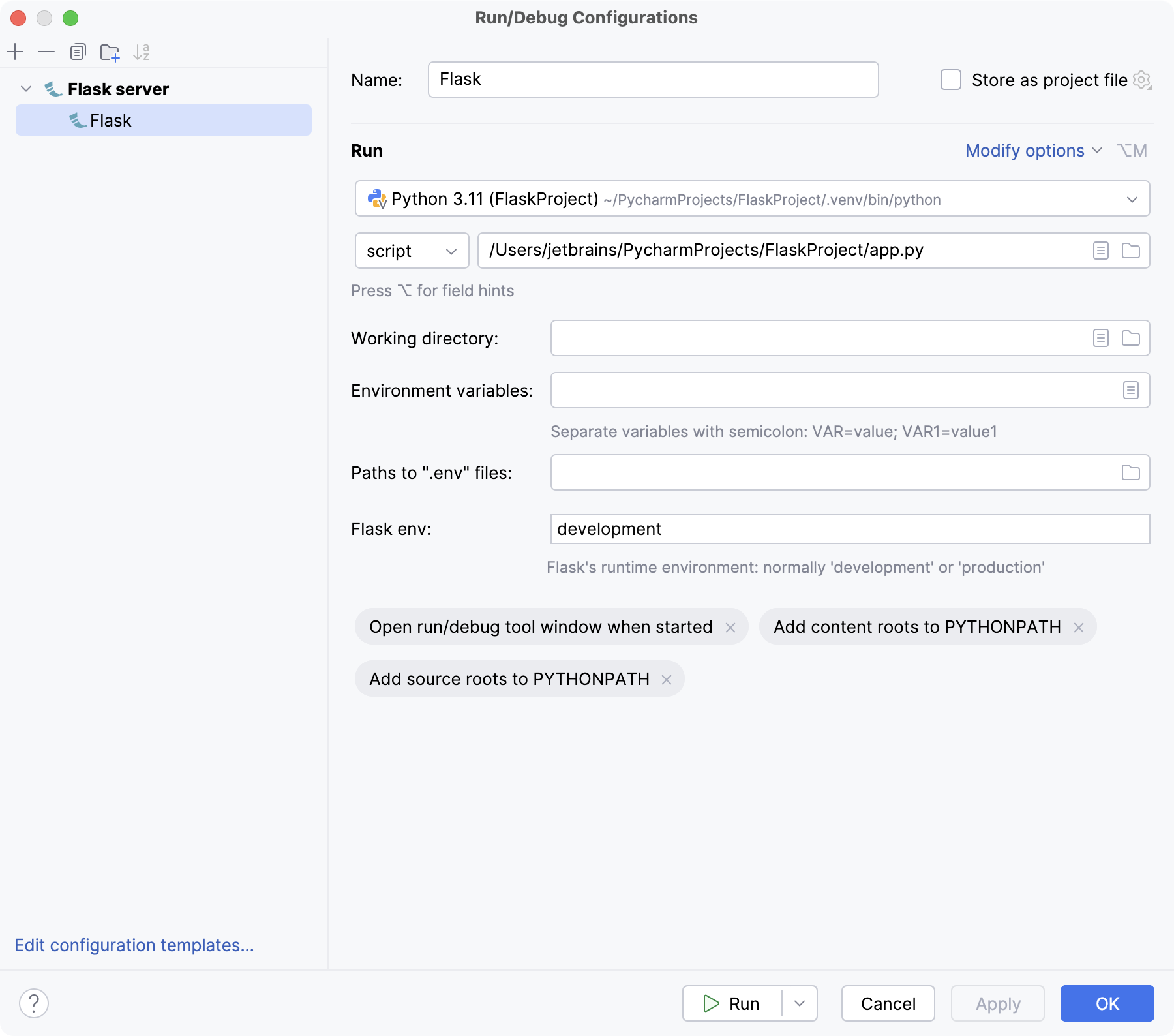
Configure the run/debug configuration parameters. Some optional parameters are hidden. To view and enable them, click the Modify options link.
Toolbar
The tree view of run/debug configurations has a toolbar that helps you manage configurations available in your project as well as adjust default configurations templates.
Item | Shortcut | Description |
|---|---|---|
| Alt+Insert | Create a run/debug configuration. |
| Alt+Delete | Delete the selected run/debug configuration. Note that you cannot delete default configurations. |
| Ctrl+D | Create a copy of the selected run/debug configuration. Note that you create copies of default configurations. |
| The button is displayed only when you select a temporary configuration. Click this button to save a temporary configuration as permanent. | |
| Move into new folder / Create new folder. You can group run/debug configurations by placing them into folders. To create a folder, select the configurations within a category, click Then, to move a configuration into a folder, between the folders or out of a folder, use drag or To remove grouping, select a folder and click | |
| Click this button to sort configurations in the alphabetical order. |


 , and specify the folder name. If only a category is in focus, an empty folder is created.
 and
and  buttons.
Common options
Item | Description |
|---|---|
Name | Specify a name for the run configuration to quickly identify it among others when editing or running. |
Store as project file | Save the file with the run configuration settings to share it with other team members. The default location is .idea/runConfigurations. However, if you do not want to share the .idea directory, you can save the configuration to any other directory within the project. By default, it is disabled, and PyCharm stores run configuration settings in .idea/workspace.xml. |
Flask Server-specific options
Item | Description |
|---|---|
Python Interpreter | Select one of the pre-configured Python interpreters from the list. Note that you can select a remote interpreter as well as the local one. |
Module/Script/Custom | Choose one of the following methods from the dropdown to construct and pass the
For more information about the |
Target | Depending on the method you selected previously, you can specify the following values:
|
Working directory | Specify a directory to be used by the running task.
|
Environment variables | This field shows the list of environment variables. If the list contains several variables, they are delimited with semicolons. By default, the field contains the variable To create a new variable, click You might want to populate the list with the variables stored as a series of records in a text file, for example:
Variable1 = Value1
Variable2 = Value2
Just copy the list of variables from the text file and click Paste ( |
Paths to ".env" files | This field shows paths to .env files with environment variables. If there are several files, the paths to them are delimited with semicolons. To manage the list of .env files, click You can also use |
Flask env | An environment variable set to one of the possible environments. The default value is 'development'. |
Add content roots to PYTHONPATH | Select this checkbox to add all content roots of your project to the environment variable PYTHONPATH. |
Add source roots to PYTHONPATH | Select this checkbox to add all source roots of your project to the environment variable PYTHONPATH. |
 button to locate the file in the project structure.
 ) in the
Additional options
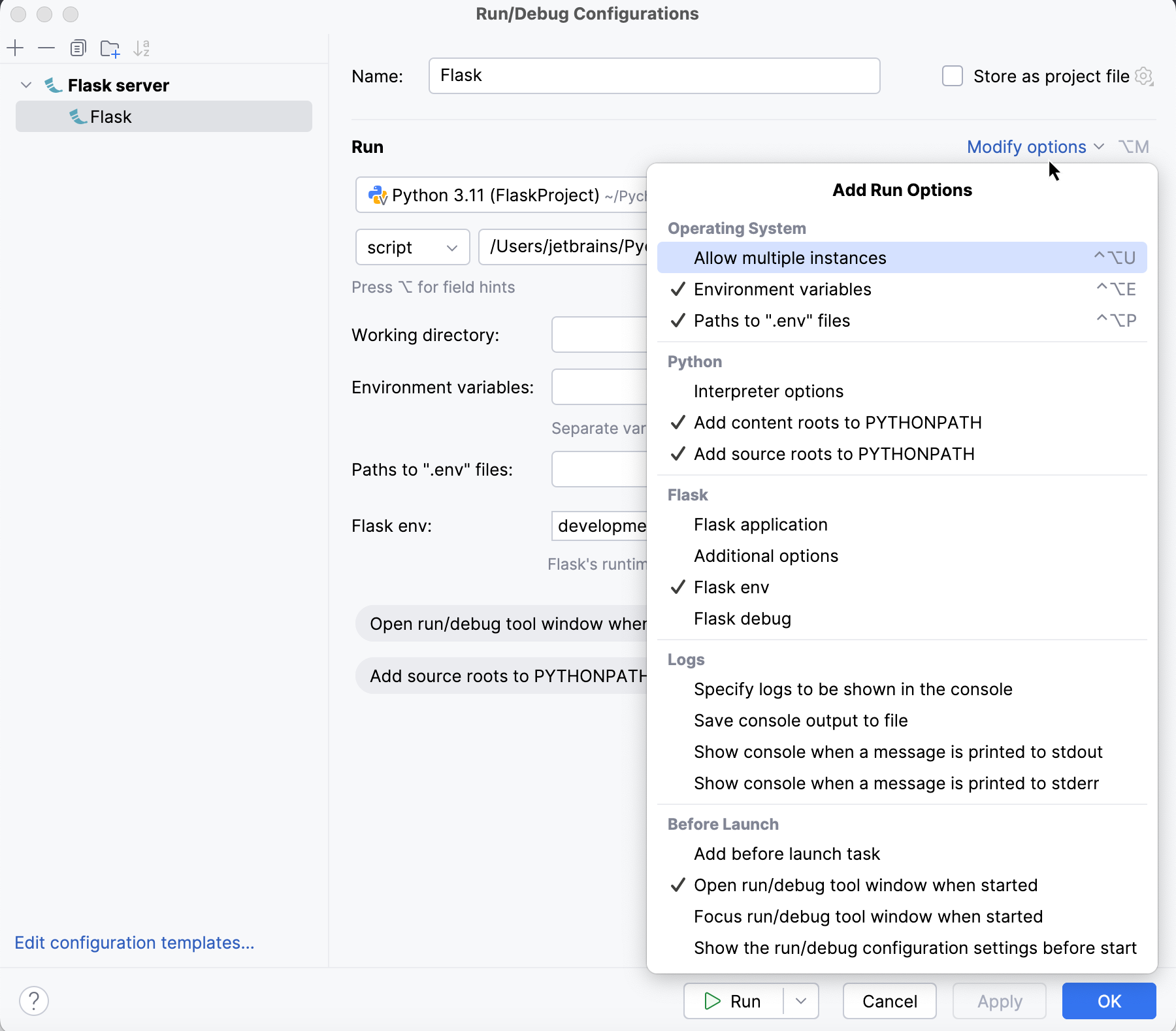
Click Modify options and select the options that you want to add to the dialog.
Operating System
Item | Description |
|---|---|
Allow multiple instances | Allow running multiple instances of this run configuration in parallel. By default, it is disabled, and when you start this configuration while another instance is still running, PyCharm suggests stopping the running instance and starting another one. This is helpful when a run configuration consumes a lot of resources and there is no good reason to run multiple instances. |
Python
Item | Description |
|---|---|
Interpreter options | In this field, specify the command-line options to be passed to the interpreter. If necessary, click |
 , and type the string in the editor.
Debug
Item | Description |
|---|---|
Debug just my code | When this option is enabled, the debugger focuses only on user-written code and skips stepping into external libraries. |
Flask
Item | Description |
|---|---|
Flask application | The target Then you can add |
Additional options | Parameters of the
Example: |
Logs
The following options are related to logging the execution of this configuration. For more information, refer to Setting log options.
Item | Description |
|---|---|
Specify logs to be shown in the console | Specify which log files to display while running the application. Click
For logs in the table, you can configure the following options:
|
Save console output to file | Save the console output to the specified location. Type the path manually or click the browse button and point to the desired location in the dialog that opens. |
Show console when a message is printed to stdout | Activate the console when the application writes to the standard output stream. |
Show console when a message is printed to stderr | Activate the console when the application writes to the standard error stream. |
Before launch
Item | Description |
|---|---|
Add before launch task | Select this option to add one of the following available tasks:
|
Open run/debug tool window when started | By default this option is selected and the Run or the Debug tool window opens when you start the run/debug configuration. Otherwise, the tool window is hidden. However, when the configuration is running, you can open the corresponding tool window for it yourself by pressing Alt+4 or Alt+5. |
Focus run/debug tool window when started | Select this option to automatically move focus to the Run or the Debug tool window when you start the run/debug configuration. |
Show the run/debug configuration settings before start | Select this option to show the run/debug configuration settings prior to actually starting the run/debug configuration. |