Build projects
ReSharper for Visual Studio Code can build MSBuild-based .NET projects. It will detect required SDKs automatically, but you can also configure MSBuild and Mono locations in settings.
To build a project or solution, right-click it in the ReSharper Solution Explorer node of the Explorer view and choose Build or Rebuild.
The build output will appear in the Terminal, where you can Ctrl/Cmd+click the file names to open the corresponding build issue in the editor.
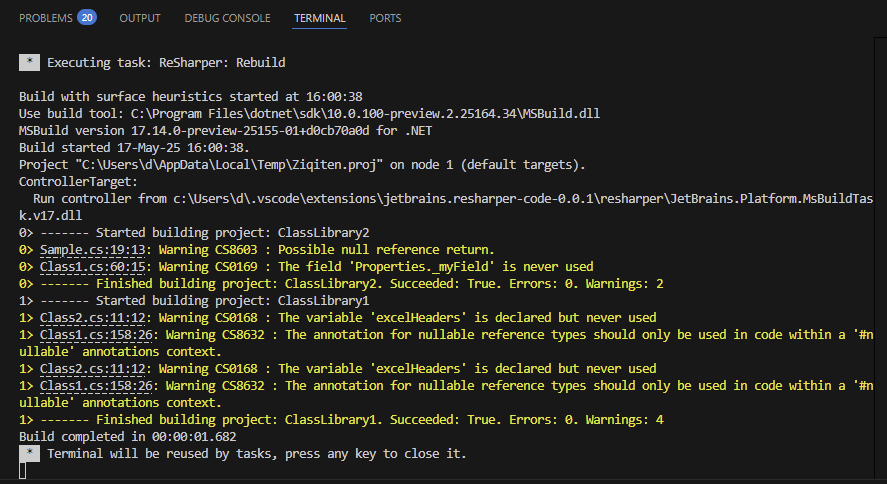
By default, ReSharper optimizes the build process with ReSharper Build, which tracks changes in your solution and only rebuilds modified projects and necessary dependencies.
If your solution includes non-MSBuild projects or projects with custom build steps, you need to disable ReSharper Build in settings — in this case, ReSharper will delegate the entire solution build to MSBuild.exe.
Build settings
To find ReSharper build settings, type resharper build in the settings pane.
Name | Description |
|---|---|
Use custom .NET CLI executable path The path to the .NET CLI tools executable is detected automatically, but you can specify a path to a custom installation if your setup requires it. | |
Use custom Mono executable path You will need a Mono executable if you want to build .NET projects on macOS. By default, ReSharper automatically detects Mono executable on your machine. You can specify a custom path for a non-standard location. | |
Use custom MSBuild path By default, ReSharper will use the latest MSBuild version found on your machine. You can specify a custom path to use another version or if the MSBuild executable is in a non-standard location. | |
Verbosity of build-related output messages | |
Restore NuGet packages before build When this checkbox is selected, ReSharper will restore NuGet packages for all projects in the current solution | |
Run NuGet restore on build if needed | |
Use ReSharper build engine If this checkbox is selected, ReSharper for Visual Studio Code will optimize build process with ReSharper Build, which tracks changes in your solution and only rebuilds modified projects and necessary dependencies. If the checkbox is unselected, ReSharper will delegate the entire solution build to MSBuild.exe. You may need to disable this option if your solution includes projects with custom build steps. |
How ReSharper Build works
When you run ReSharper Build for the first time, it builds all projects using multiple parallel processes
The next time you build the solution, ReSharper for Visual Studio Code only builds projects where supported build items were changed. If the change affects public types used in other projects, the dependent projects are rebuilt as well.
The projects that are not affected by changes are skipped completely, including all additional build logic.
ReSharper Build maintains a dependency graph of inputs and outputs to MSBuild tasks, targets and projects, and efficiently monitors the file system for changes. When you start a build, ReSharper Build already knows if the timestamps are up to date, without having to invoke MSBuild: if a timestamp is up to date, the project is skipped.
By default, ReSharper Build uses the latest installed MSBuild version. If necessary, you can specify MSBuild version explicitly in settings.