Typing assistance
In addition to saving your time by providing smart suggestions in completion lists, ReSharper for Visual Studio Code provides other typing assistance features, which let you create and edit your code even faster.
Auto-Insert matching delimiters
By default, whenever you type an opening delimiter (, [, ", or ', a paired character is inserted automatically (whenever appropriate). If you change your mind and press Backspace to delete an opening delimiter, its closing pair is also deleted. If the matching closing delimiter already exists, ReSharper for Visual Studio Code will not add another one. The matching symbols are inserted according to your formatting preferences.
Correct Length/Count mistyping
ReSharper for Visual Studio Code prevents you from stumbling over mistyped Length/Count properties of arrays/collections. As soon as you erroneously start typing the Count property for a usage of an array, ReSharper for Visual Studio Code will allow you to pick it from the completion list and replace with the Length property, which you probably meant to type.
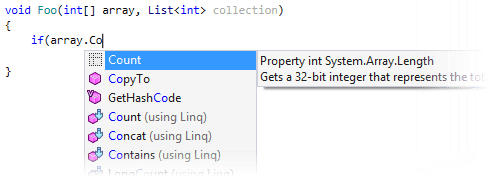
In a similar way, it will help you call the Count property on a collection usage when you start typing the Length property by mistake.

The correct property will be there as soon as you accept the completion suggestion:
Smart behavior of dot and semicolon
By default, when you choose a method in the completion list ReSharper for Visual Studio Code automatically adds parentheses and sets your caret between them in the position to start typing arguments. If you want to call the method without parameters, and chain-call another method, you can type the dot right where your caret is and ReSharper for Visual Studio Code will move it to the right place:
myStringBuilder.AppendLine(./*caret*/) becomes myStringBuilder.AppendLine()./*caret*/
If you typed a complete method call, and then decide to chain-call another method, you do not have to move your caret, type the dot right after the final semicolon:
myStringBuilder.AppendLine();./*caret*/ becomes myStringBuilder.AppendLine()./*caret*/;
When your caret is inside parentheses, you do not have to move it outside to type the final semicolon, type it right away or after the last argument:
myStringBuilder.AppendLine("line";/*caret*/) becomes myStringBuilder.AppendLine("line");/*caret*/
Correct prefixes in verbatim string interpolation
Starting from C# 6.0, you can make the same string both interpolated and verbatim if you add the $ and @ prefixes in the correct order: $@"some string".
With ReSharper for Visual Studio Code, the order will be always correct — a mistakenly typed @$ will be automatically replaced with the correct $@.
Add NotNull/CanBeNull annotations
If code annotations support is enabled in your project, you can add [NotNull] and [CanBeNull] annotations, as well as generate null checks with a single keystroke:
When writing a method signature or member declaration, type
!or?directly after the type name to get the item annotated with[NotNull]or[CanBeNull]: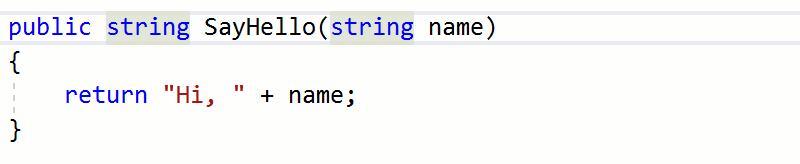
If the symbol is already annotated with
[NotNull]or[CanBeNull], you can type?or!correspondingly to change the existing annotation.If a parameter is marked with the [NotNull] attribute, you can place the caret directly after the parameter name or parameter type and press !:
private void Foo([NotNull] object/*!*/ arg/*!*/)ReSharper for Visual Studio Code will generate a null check for this parameter.
Make comments multiline on Enter
Block comments
If you write a multiline block comment /*....*/, you can type the opening part /*, then write the first line, and then press Enter in the end of the line — ReSharper for Visual Studio Code will insert the closing part */.
Line comments
In simple (non-XML Doc) line comments, you can press Enter in the middle of the comment text, and to avoid getting a non-compilable text on the new line, ReSharper for Visual Studio Code will automatically add two slashes // in front of the text. If you press Enter at the end of the comment line, you will start an empty new line as usual.
Wrap code blocks with braces and parentheses
With ReSharper for Visual Studio Code, you can select a code block or an expression, then type an opening { or a closing } brace to put the selection inside braces, or type an opening ( or a closing ) parenthesis to put the selection inside parentheses.