To-do Explorer window
To-do Explorer helps navigate between To-do items within your solution.
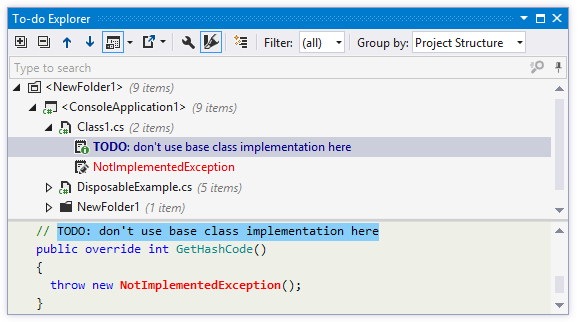
Toolbar Controls
Control | Name | Description |
|---|---|---|
| Expand All/Collapse All | Expands/collapses all nodes in the current tab. |
| Previous/Next Shift+F8/F8 | Navigate to the previous/next item and scrolls through the source code accordingly. |
| Show Preview Ctrl+P | Hides or shows the pane with a preview of the selected item in the position specified using the list (at the bottom or in the right part of the window). |
| Export | Click this button to export the data currently displayed in the window in text format , or use the drop-down selector to export the data in XML or HTML format. The Export Data dialog that appears, will help you to save the data to a file or copy it to the clipboard . |
| To-do Settings | Opens the page of ReSharper options , where you can manage patterns for To-do items. |
| Paint items | Toggles coloring of To-do items in the window according to their types (Edit, Normal, Question, Warning, Error). Colors are configurable on the page of Visual Studio options: 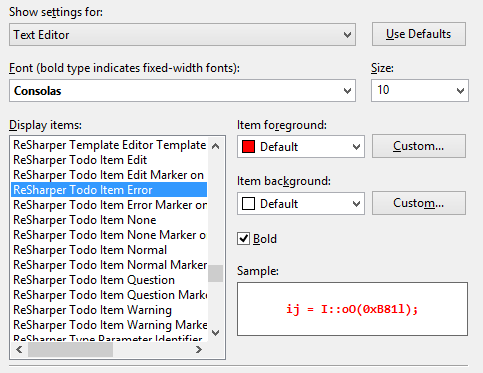 |
| Show To-do items in generated code | Allows you to show or hide To-do items in generated code. You can configure the list of files and regions containing generated code on the page of ReSharper options . |
Filter | Use this list to select a filter to show items that pertain to the corresponding pattern only. By default, five filters are provided:
| |
Group by | Use this list to select criteria for grouping To-do items. Several options are provided:
|
.png "Themed icon expand all screen gray")
.png "Themed icon collapse all screen gray")
.png "Themed icon up screen gray")
.png "Themed icon down screen gray")
.png "Themed icon preview toggle screen gray")
.png "Themed icon export screen gray")
.png "Themed icon settings screen gray")
.png "Themed icon highlighting screen gray")
.png "Themed icon generated code screen gray")