Compare assemblies, NuGet packages, and more
ReSharper allows you to compare two assemblies, NuGet packages, archives, or folders. Each comparison is presented as a separate top-level node in the Assembly Explorer; you can expand this node and see differences in the assembly structure right away, and in addition to that, you can double-click types, members, and other elements to see a text-based comparison in the editor.
Initiate comparison
Click Compare on the Assembly Explorer toolbar , select two files or folders for comparison in the dialog that opens, and click OK.
Alternatively, right-click an assembly, a NuGet package, or a folder in the Assembly Explorer, choose Compare With, and then select an entity for comparison.
The comparison will appear as a new top-level node in the Assembly Explorer.
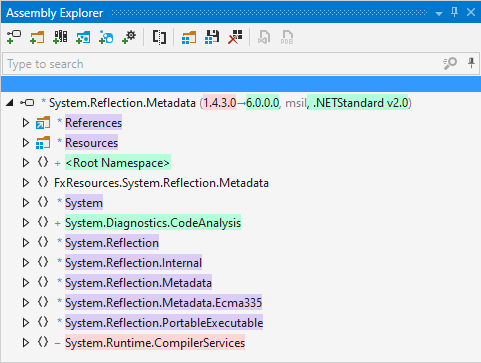
Elements within the comparison node (types, members, files) are highlighted in different colors with the following meanings:
Green — the element is present in the second assembly and absent in the first assembly.
Red — the element is present in the first assembly and absent in the second assembly.
Violet — the element is present in both assemblies, and it has differences.
When you double-click an element with differences, the comparison opens in the diff window.
To finish comparing assemblies, select the comparison node and press Delete or right-click it and choose Remove Item from List.