AI Assistant. General options
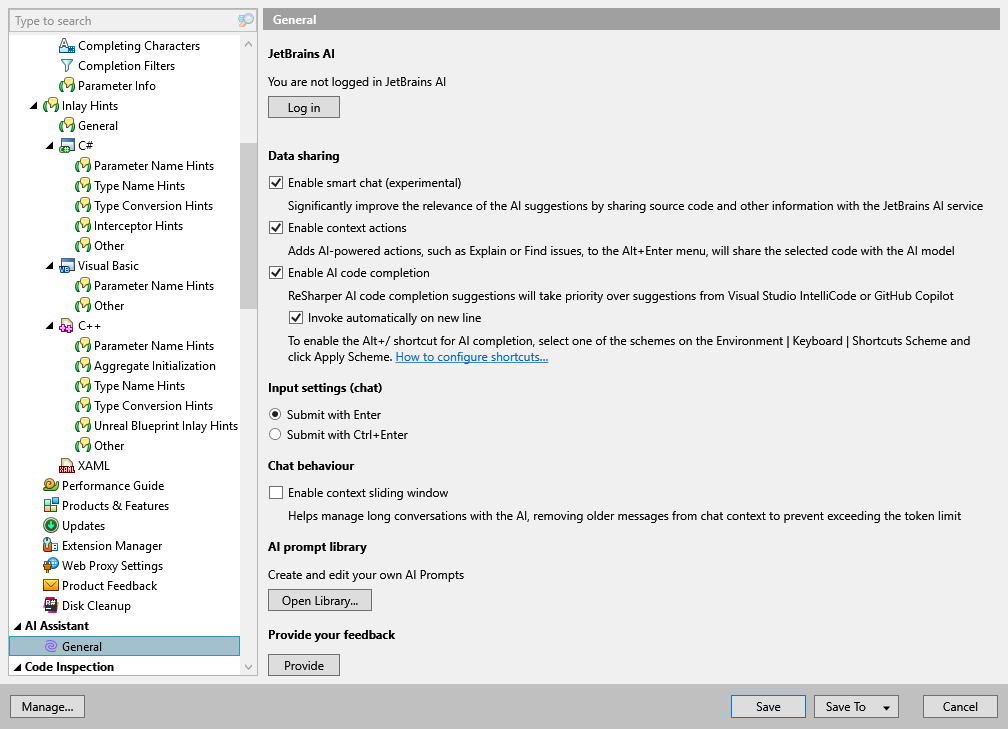
On this page of ReSharper options, you can configure the integrated AI Assistant.
Data sharing
Enable smart chat | When the smart chat is enabled, ReSharper can access the source code of your solution, currently opened documents, Git history, and other project-related information and share it with the JetBrains AI service to significantly improve the relevance of the AI Assistant suggestions and make it able to answer questions related to your solution. For example, when you ask the assistant to explain the selected code, it will be able to analyze usages of that code in your solution and come up with a more meaningful explanation. Otherwise, AI Assistant will answer your questions and generate suggestions using only the generic training data of the underlying language model. |
Enable context actions | When this checkbox is selected, you can use all AI-specific context actions in the Alt+Enter menu. Otherwise, only the basic actions for sending the selection to the AI chat will be available. |
Enable AI code completion | In each new line of code that you are going to write, AI Assistant can generate suggestions ranging from a single line to multiple statements implementing some logic according to the surrounding context and symbol names. In the example below, AI Assistant suggests an implementation of a method based on its name and parameter:  AI code completion is enabled by default, and if you also have IntelliCode or GitHub Copilot enabled in Visual Studio, ReSharper's AI completion will take priority over suggestions from those systems. You can clear this checkbox to disable ReSharper's AI completion. |
Invoke automatically on new line | By default, AI code completion suggestions also appear as soon as you move the caret to a new line. You can clear this checkbox to disable automatic suggestions, but you will still be able to generate AI completion suggestions by pressing Alt+/. Alt+/ will only work if you have selected one of the default keyboard shortcut schemes. If you have not, select one of the schemes on the page of ReSharper options (Alt+R, O) and click Apply Scheme. You can also configure a custom shortcut AI code completion: open Visual Studio options () and look for the |
Input settings
Submit with Enter | Select this option to submit your AI Assistant queries by pressing Enter and add line breaks with Shift+Enter or Ctrl+Enter. |
Submit with Ctrl+Enter | Select this option to submit your AI Assistant queries by pressing Ctrl+Enter and add line breaks with Enter or Shift+Enter. |