Execute complex tasks with Junie
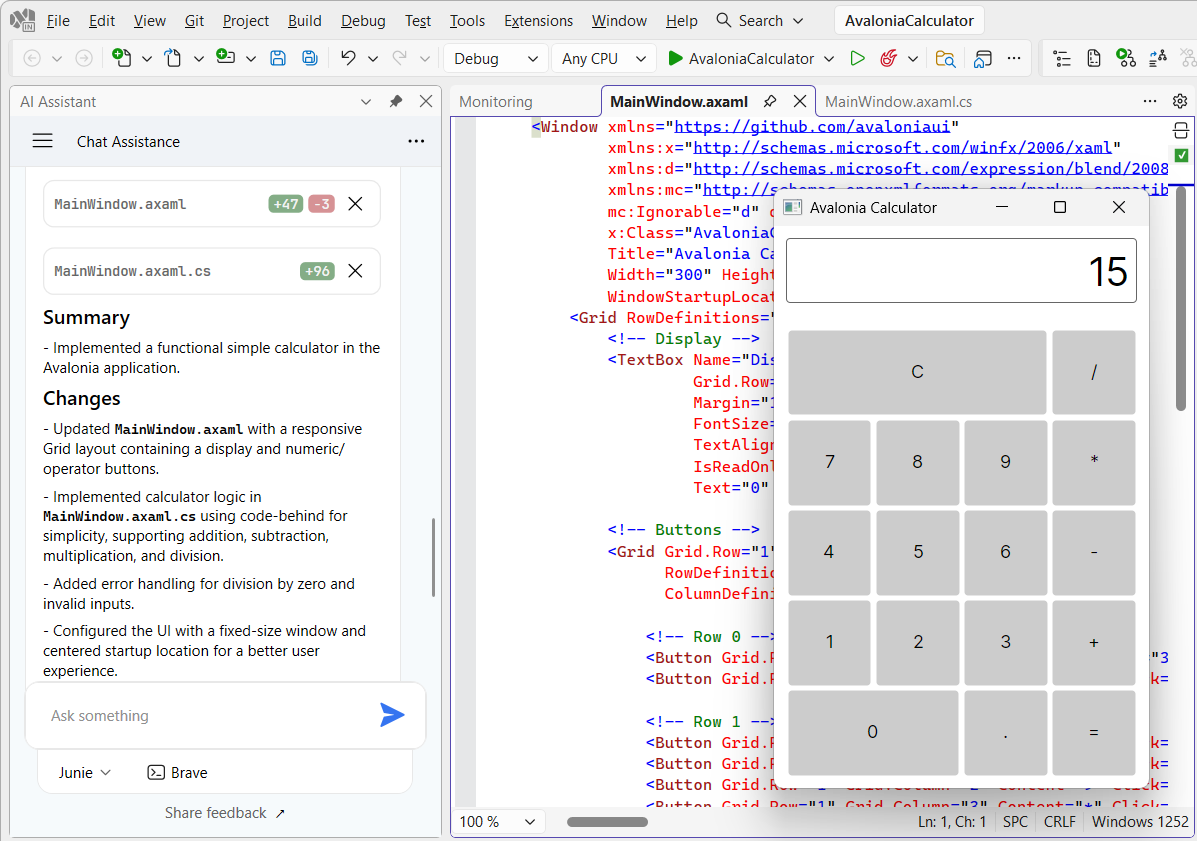
Junie is an integrated AI coding agent. It can generate code, explain and refactor complex logic, suggest and implement improvements — all within the context of your solution.
Capabilities
Write and edit code autonomously — Junie actively builds and modifies your application. You can ask it to write complex logic based on simple text prompts, or have it edit and update your existing codebase.
Execute advanced, autonomous refactorings — Junie doesn't just suggest changes; it applies them. You can task the agent with rewriting a massive, complex class into several cleanly separated logical modules, or have it hunt down and fix suboptimal code across your files.
Perform terminal and VCS operations — drive your workflow directly from the prompt. Junie can execute useful terminal commands to create or delete files, initialize Git repositories, stage and commit changes, write your commit messages, and manipulate branches without you ever needing to open a command line.
Explore, explain, and advise — Junie can answer project-specific questions, explain dense legacy algorithms, and suggest high-level architectural improvements.
Current limitations
Junie has general access to all files in the solution directory. Fine-grained manual context management is not yet available.
Deep integration with ReSharper's refactoring and analysis engines is not yet available.
Quota and trial
Interacting with AI models requires an AI quota:
If you have a JetBrains AI subscription, Junie consumes the AI quota from your plan.
If you do not have a subscription, you will be prompted to activate a free trial with a limited quota when you first open the AI Assistant tool window.
Actual quota usage depends on the selected LLM model and the complexity of your tasks.
Get started
Enable Junie
Click Try Junie on the promotional page inside the IDE to open the AI Assistant tool window.
If you have a JetBrains AI subscription, you can start using the chat right away. Your first prompt will trigger a one-time download of Junie components.
If you do not have a subscription, a licensing dialog will appear. Click Start Trial, accept the Terms & Conditions, and provide bank card information for verification purposes.
You will see Junie is selected at the bottom of the AI Assistant tool window.
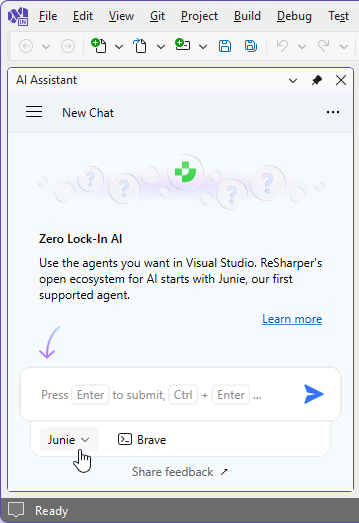
Junie is a multi-model agent and you can switch between models. Available models include Gemini 3 Flash (Default), GPT-5, GPT-5.1-codex-max, GPT-5.2, Claude Sonnet 4.5, Claude Opus 4.5 (Fast), Claude Opus 4.5, Gemini 3 Pro, Gemini 3 Flash, and Grok 4.1 Fast Reasoning. Each model varies in response quality, speed, and credit consumption relative to the default.
Switch models
Select from the main menu or press Alt+R O, then choose on the left.
Select the desired model.
Click Save in the Options dialog to apply the modifications and let ReSharper choose where to save them, or save the modifications to a specific settings layer by choosing this layer from the Save To selector. For more information, see manage and share resharper settings.
The selected LLM model will be activated and used by Junie.
Agentic capabilities and Brave mode
As a coding agent, Junie can perform a wide range of tasks, including editing files, generating code, refactoring, and more. By default, Junie executes non-sensitive tasks such as editing files within the solution directory or running simple console commands such as dotnet build autonomously. However, some tasks and terminal commands that may have a wider impact will require your approval before executing.
Brave mode allows Junie to execute all terminal commands without confirmation.
To enable Brave mode for the current session, click  Brave below the chat input field.
To make Brave mode the default for all sessions, select Allow Junie to execute terminal commands without confirmation on the page of ReSharper options Alt+R, O
If you want to disable all agentic capabilities, including the ability to edit files, select AI Chat instead of Junie at the bottom of the AI Assistant tool window.
Troubleshooting
AI Assistant tool window does not open
Make sure AI Assistant is enabled in ReSharper. Go to and select the AI Assistant checkbox.
If there is no AI Assistant category in the options, run the dotUltimate Setup Wizard, make sure that Install or Repair is selected next to AI Assistant in the list, and complete the wizard.
AI Assistant explains what to do instead of doing it
Make sure that Junie is selected instead of AI Chat at the bottom of the AI Assistant tool window.