Configure compiler warnings
ReSharper includes code inspections that report the most notable compiler warnings, as well as the corresponding quick-fixes for them. To make sure that ReSharper code inspection results correspond to the compiler output and other tools and analyzers, the severity levels of compiler warnings cannot be configured from the editor or through ReSharper options as for ReSharper proprietary inspections.
Instead, there are other ways to suppress compiler warnings, which are summarized below:
Configure with | Compatibility | Granularity | Use it to |
|---|---|---|---|
All code analysis rules, not all compiler warnings | File/type/global | Ensure compatibility with Roslyn analyzers; change severity levels of the rules | |
All compiler warnings and code analysis rules | Code block/File | Suppress specific warnings locally | |
All compiler warnings and code analysis rules | Project-wide | Suppress warnings or promote warnings to error at the build level | |
All compiler warnings and code analysis rules | Type/Member | Suppress specific warnings in a local scope | |
All compiler warnings and code analysis rules | Assembly-wide | Suppress warnings in non-editable or generated code project-wide |
Use .editorconfig (preferred for code style and modern analyzers)
The .editorconfig file is a convenient way to configure code styles and diagnostics. It allows you to specify the severity of certain warnings in a consistent and project-wide manner.
You can use EditorConfig keys for all supported warnings in the following format:
For example:
This method works for compiler warnings starting with C# 8.0 and with Roslyn analysis rules, including those emitted by the compiler itself. For example:
Warnings related to nullable references (CS8xxx).
Platform compatibility warnings (CS9xxx).
Certain documentation or code style diagnostics (for example, CS1591).
Use #pragma directives in code
You can suppress specific warnings directly in the code using #pragma directives. This is useful for one-off suppressions or limiting the scope of a warning to a specific block of code.
To suppress a highlighted compiler warning, press Alt+Enter and pick the corresponding item.
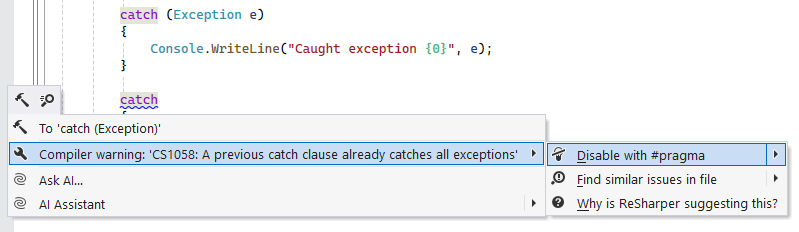
Suppression with #pragma will look as follows:
This method works for all compiler warnings (CSxxxx), even those that cannot be configured with .editorconfig.
Configure warnings in the project file (.csproj)
The project file allows you to configure warning behaviors on a project-wide level. Examples include:
Suppress specific warnings
Treat all warnings as errors
Specific warnings as errors or not
Configurations in the .csproj file apply to all CS warnings and will override .editorconfig settings when it comes to build output behavior.
Use [SuppressMessage] attribute
[SuppressMessage] is used to suppress specific compiler warnings and code analysis rules within a particular type or member. It can be used as an alternative to #pragma when you want clear, scoped, and documented suppression. For example:
Use a global suppression file (GlobalSuppressions.cs)
You can suppress any compiler warning or Roslyn code analysis rule across the entire project with a global suppression file. Use attributes to specify which warnings to suppress. For example: