Similar Retention
The Similar Retention view groups objects by the similarity of their retention paths. For each object set, the view shows the two shortest paths to roots. Note that from the whole variety of shortest paths, dotMemory selects only two paths that are most different from each other.
The Similar Retention view allows you to distinguish where the objects of the same type logically belong. For example, several int variables in an array will have the same retention path, which is different from variables of any other int array.
You can also use Similar Retention to identify why an object is still in memory. For example, it may be helpful when investigating potential memory leaks caused by objects retained on multiple paths (refer to Group by Dominators for details).
The list of objects for which the graph is built consists of the following columns:
Name | Description |
|---|---|
Type | Type name. |
Objects count | The number of objects with the same retention path. |
Bytes | The overall size of objects in bytes. |
Example
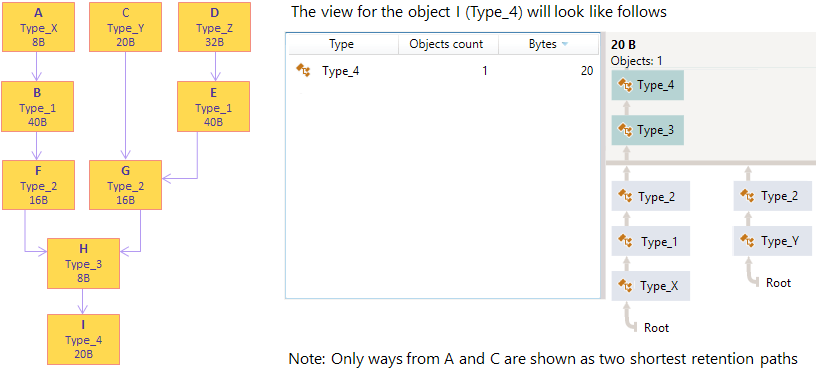
Filter objects
You can filter out objects that are of no interest to your analysis by type .
To narrow the list
Start typing the desired string pattern. JetBrains Rider will highlight matching strings.
You can make your search more efficient by using the following tips:
Use CamelHumps. E.g.
fowill return objects of bothSystem.Drawing.FontandMS.Utility.FrugalObjectListtypes.Use special symbols, like wildcards and others. The full list is shown in the table below.
- Special symbols and filter examples
Symbol
Description
Example
*Wildcard
*All objects in the set
sys.*.dataAll types and namespaces that match the pattern. E.g.
System.Data,System.Windows.Controls.Datagrid, andSystem.Windows.Data.Binding.sys.*.data.Only namespaces that match the pattern. E.g.
System.Windows.Data.Bindingbut notSystem.Windows.Controls.Datagrid.Arrays
[]Leave only arrays
str[]Arrays, containing
strin their type or namespace. E.g.String[].[,[,,...or
[,][,,]...Leave only arrays of the specified or higher (if brackets are not closed) dimension
str[,,Arrays with the dimension 3 and higher containing
strin their type or namespace. E.g.String[,,]andString[,,,].str[,,]Three-dimensional arrays containing
strin their type or namespace. E.g.String[,,].!aExclude arrays from the result
!a strObjects (excluding arrays) containing
strin their type or namespace. E.g.Stringbut notString[].Generic type arguments
<Leave only types with generic type arguments
str<Only objects containing
strin their type or namespace and having generic type arguments. E.g.FileStreamStorage<Char>but notList<String>.<strOnly objects containing
strin their generic type arguments. E.g.List<String>but notFileStreamStorage<Char>.<,<,,...or
<,><,,>...Leave only objects with the specified number of generic type arguments
fun<,,>Objects containing
funin their type or namespace and having three generic type arguments. E.g.Func<String, Object, Object>.fun<str,,taskObjects containing
funin their type or namespace and having three or generic type arguments that match the pattern. E.g.Func<Stream, IAsyncResult, TaskResult, EventArgs>.!gExclude generic type arguments from the search scope
!g strObjects (that do not have generic type arguments) containing
strin their type or namespace. E.g.Stringbut notList<String>.#c#struct#m#nsSearch by type, value type, method, or namespace.
#ns FeatureObjects containing
Featurein their namespace.
Select objects for further analysis
In the Similar Retention view, you can select the following subjects for further analysis:
To select objects of a particular type retained in the same way
Double-click the corresponding type in the list.
After this, the [Type_name] with same retention paths subject will be added to the analysis path on the left and the list of desired objects will be displayed in the Group by Types view.
To select the objects that are exclusively retained by the analyzed objects set
Click the
 Open objects retained by this set button.
After this, the Exclusively retained objects subject will be added to the analysis path on the left and the list of desired objects will be displayed in the Group by Types view.