Code Vision
Code Vision gathers various metrics for types and type members and displays this information above or after their declarations. Position of metrics, their maximum number, and other preferences can be configured on the page of JetBrains Rider settings Ctrl+Alt+S.

You can click every metric to reveal additional details, or hover over metrics and then click More to view hidden metrics or access Code Vision settings.
If you want to access code metrics details with the keyboard, you can use the Navigate To shortcut Ctrl+Shift+G for all navigation-related metrics, or you can configure a custom shortcut for the Show Code Vision action.
Code Vision metric providers
Code Vision relies on two subsystems to have metrics pre-calculated:
Solution-wide analysis to calculate navigation metrics (usages of symbol, inheritors, returning API, and so on).
If solution-wide analysis is disabled, these metrics will not be calculated, and you can hide them by clearing the Show unavailable metrics when Solution-Wide analysis is disabled or not ready checkbox on the page of JetBrains Rider settings Ctrl+Alt+S. If not hidden, these metrics will appear with question marks. However, you can still click these metrics to start the required calculations and get the corresponding results.
Integrated VCS client to display code contributors. This metric appears for all supported VCS clients (Git, Mercurial, Subversion, TFVC, and so on) provided that version control integration is enabled for the current solution — you can check it on the page of JetBrains Rider settings Ctrl+Alt+S.
VCS Info behavior
The VCS Info metric displays the latest contributor of the current type or member. Click this metric to further investigate the edit history of the symbol.
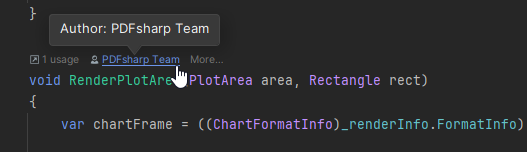
On the page of JetBrains Rider settings Ctrl+Alt+S, you can use the VCS Action option to choose the desired behavior:
Annotate: toggles VCS annotations in the left margin that show edit history information for each line of code. To hide the annotations, click the VCS Info metric, or right-click the annotations panel and choose Close Annotations.
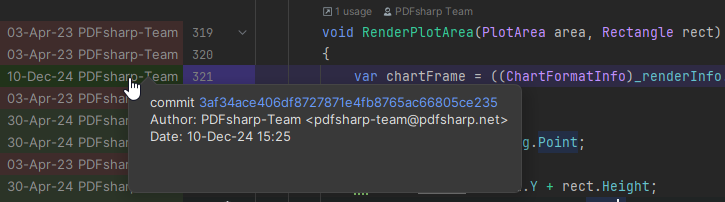
History: shows a popup with the edit history of the current symbol.
