Connect to remote Mac
Rider can connect to a Mac over SSH and use it as the Apple build, deployment, simulator, and device host for related macOS run configurations.
Availability
Rider client: Windows, Linux, and macOS.
Remote host: macOS only.
On macOS, the same dialog can also switch back to This Computer for local Apple-device support.
Prepare the Mac you want to connect to
Enable SSH access on the Mac ().
Make sure the Mac is reachable from the Rider machine on SSH port
22.Use a macOS account that can sign in over SSH with a username and password.
Install Xcode and accept the Xcode license.
Select the intended Xcode installation with
xcode-select, or configure the Xcode path in Rider's Apple Platforms settings.Keep at least 3 GB of free disk space available.
Make sure the Rider machine and the Mac can access the network if Rider needs to install or update .NET SDKs and MAUI workloads.
Connect to the Mac
Open the device selector on the toolbar. If no device is selected, it is shown as <No device>.
Select Connect to Mac....
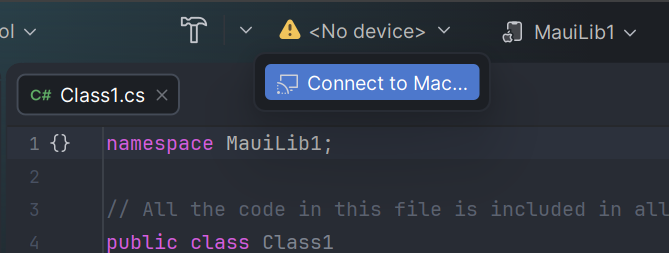
The Remote Mac Computers dialog opens. It shows saved remote Macs and, on macOS, This Computer.
Click +, then, in the New Remote Mac dialog, enter the Mac's IP address or DNS name, and then confirm.
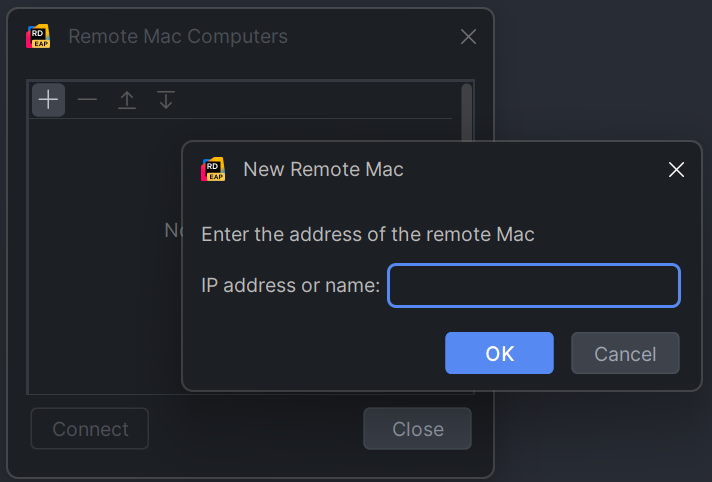
Select the newly added host and click Connect, enter the macOS username and password, and click Connect.
The first connection can take some time. Rider establishes the SSH session, checks the remote macOS and Xcode environment, prepares a compatible .NET SDK and MAUI workloads when needed, uploads the Rider Mac Agent, and starts it on the Mac.
After connection
When the connection succeeds, Rider refreshes the device selector. Simulators and physical Apple devices available to the remote Mac become available in Rider.
Build, run, deploy, and debug operations for the Apple run configuration use the connected Mac. Simulators come from the remote Xcode installation. Physical devices must be connected to, paired with, and visible from the remote Mac.
Reconnect and disconnect
Rider stores the remote host list in application settings. If you enabled Remember password, Rider stores credentials in the IDE Password Safe and can reconnect to the last active remote Mac after reopening a project with an Apple-platform run configuration.
To disconnect, open Connect to Mac..., select the connected host, and click Disconnect. Removing a connected remote host also disconnects it.
Troubleshooting
Failed to establish SSH connection: check Remote Login, host name, network access, username, password, and port22.Unsupported operating system: the selected remote host is not macOS.Xcode license or version errors: open Xcode once on the Mac, accept the license, and verify the selected Xcode path.
Disk-space errors: free at least 3 GB on the Mac.
.NET SDK or MAUI workload errors: check internet access from the Mac, or preinstall the compatible SDK and workloads.
Remote session closed unexpectedly: reconnect from Connect to Mac...; Rider reports SSH or Mac Agent termination in the IDE notifications/problems UI.