Hot Reload settings
On this page, you can configure the way Hot Reload works for making changes in running processes.
General settings
Enable Hot Reload when debugging (excluding Mono) | When this option is on, you can edit your code and continue debugging without restarting. There are cases when modifying the code is not possible and a restart is required. These include changing signatures, modifying generic functions, renamings of any kind, and some more. If this happens JetBrains Rider will make you aware by showing a tooltip. |
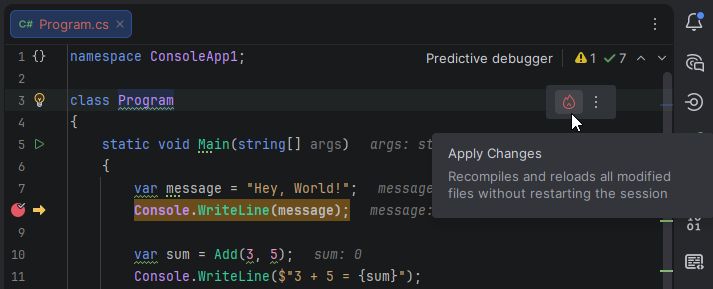
Automatically apply changes on step and resume |
|
Enable Hot Reload when running without debugging (.NET 6.0 and later) | This option enables Hot Reload when you run code without debugging Shift+F10. If it is disabled, you can make any edits, but they will not be synced with the running application. |
Automatically apply changes on document save | When this option is on, JetBrains Rider applies pending code changes via Hot Reload every time a document is saved. (which happens either automatically or by pressing Ctrl+S). This works during both debugging and running, so you don't need to click Apply changes in the Hot Reload widget or use the dedicated shortcut. |
XAML
Enable XAML Hot Reload for Xamarin.Forms | XAML Hot Reload in JetBrains Rider works the same way as in Visual Studio. |
Blazor WebAssembly
Enable Hot Reload for Blazor WebAssembly | Hot Reload for Blazor WebAssembly in JetBrains Rider works the same way as in Visual Studio. |