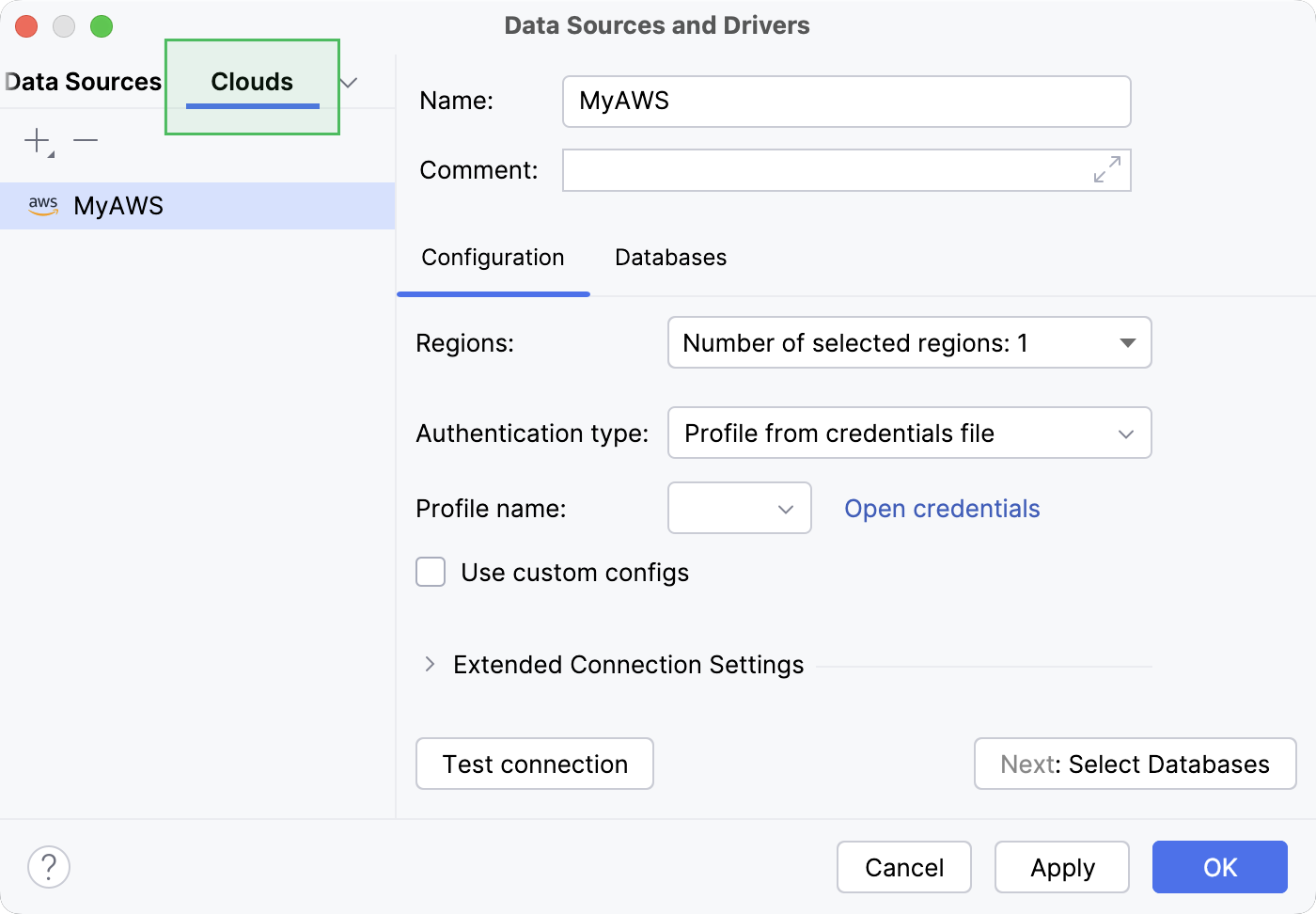
Clouds
Enable the Database Tools and SQL plugin
This functionality relies on the Database Tools and SQL plugin, which is bundled and enabled in JetBrains Rider by default. If the relevant features are not available, make sure that you did not disable the plugin.
Press Ctrl+Alt+S to open settings and then select .
Open the Installed tab, find the Database Tools and SQL plugin, and select the checkbox next to the plugin name.
In JetBrains Rider, you can work with a database stored in a cloud. To do this, you have to download a cloud provider plugin and connect to your cloud provider account first. JetBrains Rider obtains and displays the list of databases available in the account. When you select a database you want to connect to and proceed with creating a data source for it, the connection details are automatically filled in the corresponding files of the Data Sources and Drivers dialog.
Supported clouds and plugins to work with them in JetBrains Rider:
Azure, Azure Cloud Explorer plugin
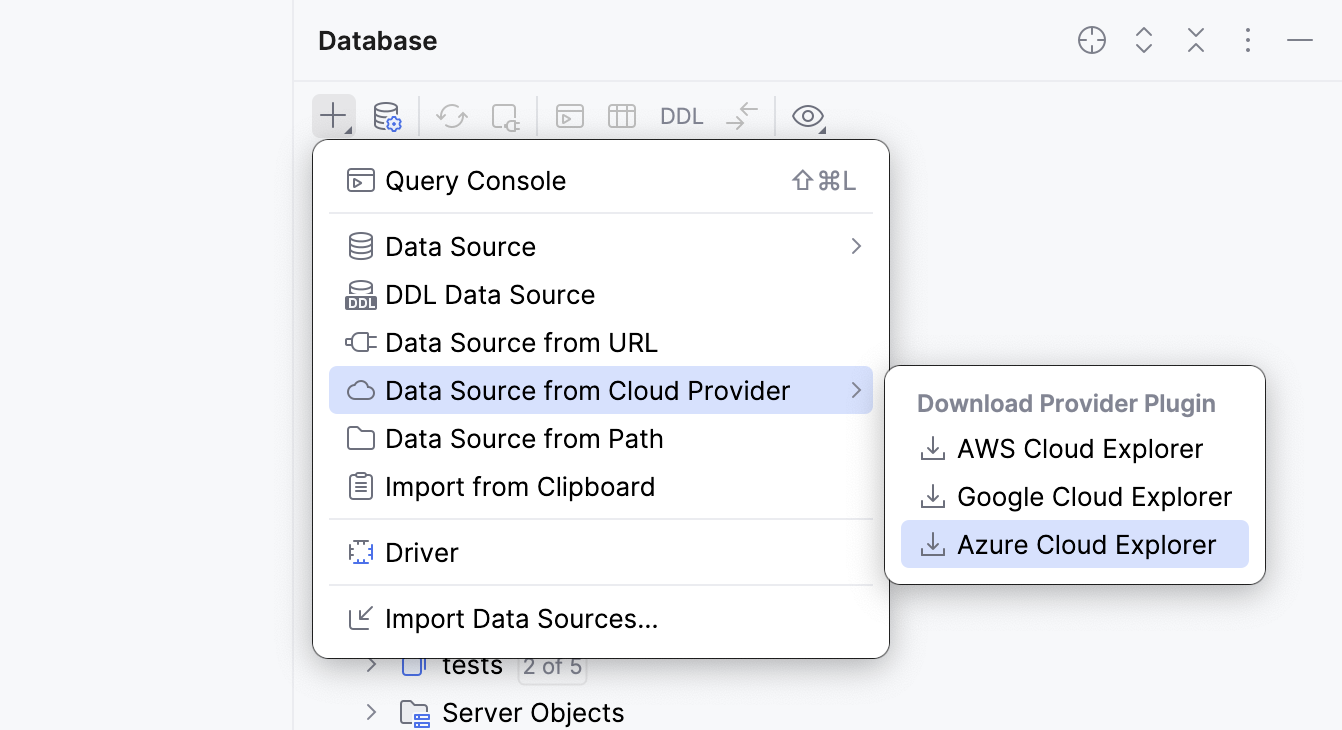
To download a cloud provider plugin and connect to your cloud account, navigate and select the plugin to download or cloud you want to connect to.
All the cloud databases connected to your IDE are displayed in the Cloud tab of the Data Sources and Drivers dialog.