Grammar and spelling analysis
JetBrains Rider helps ensure your codebase is error-free and consistent not only in terms of correct programming languages syntax, but also in terms of proper grammar, spelling, and style. In addition to common text files like your project's README.md, it checks natural language consistency and correctness in your source files, including names of identifiers and variables, contents of string literals, comments, XML doc comments, and even your commit messages.
Enable the Natural Languages plugin
This functionality relies on the Natural Languages plugin, which is bundled and enabled in JetBrains Rider by default. If the relevant features are not available, make sure that you did not disable the plugin.
Press Ctrl+Alt+S to open settings and then select .
Open the Installed tab, find the Natural Languages plugin, and select the checkbox next to the plugin name.
By default, JetBrains Rider includes support for the English language. If you open a file with several paragraphs of text in another supported language, JetBrains Rider will detect it and offer a suggestion to download and enable checks for that language. You can see the list of supported languages and enable them in the settings.
Add spelling and grammar checks for a language
Press Ctrl+Alt+S to open settings and then select .
Click
 in the list of languages and select your language.
JetBrains Rider will download the language model and enable spelling and grammar checks for it.
Local and cloud processing modes
JetBrains Rider supports two modes:
Local processing for grammar, style, and spelling checks is enabled by default. These checks are performed locally on your device and do not require an internet connection.
Cloud processing provides advanced checks and assistance features powered by cloud-based models.
Connect to Writing Assistance Cloud
Press Ctrl+Alt+S to open settings and then select .
Click Enable Cloud next to Language processing.
In the dialog that opens, click Sign In.
After you apply the changes, you can configure rules per domain in on the Rules tab.
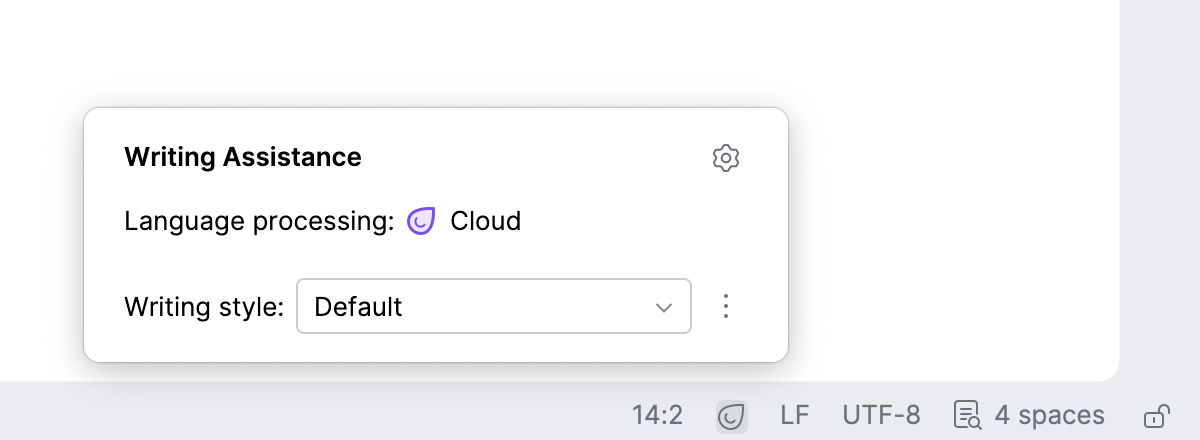
When you connect to the cloud, a widget appears in the status bar. Use it to quickly switch between writing styles and access writing style settings.
Disconnect from the cloud
If you decide to stop using Writing Assistance Cloud and switch to local processing of your data, you can switch JetBrains Rider back to the local mode.
Press Ctrl+Alt+S to open settings and then select .
Next to Language processing, click Disable Cloud.