Set up a GitLab account
With JetBrains Rider, you can:
Access your GitLab projects without leaving the IDE.
Clone and share projects hosted on GitLab.
Manage GitLab accounts
To retrieve data from a project hosted on GitLab or share your projects, you need to log in to your GitLab account in JetBrains Rider.
Log in to GitLab
Press Ctrl+Alt+S to open settings and then select .
Click
 . The Add GitLab Account dialog opens: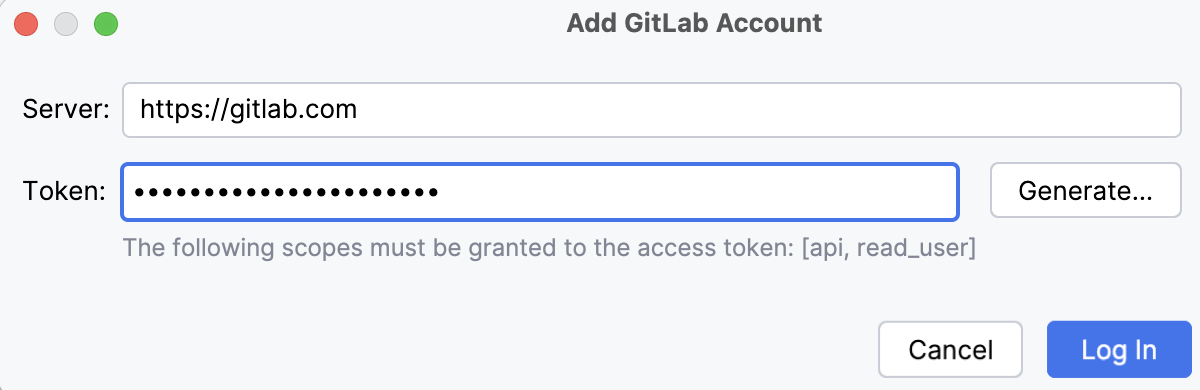
In the dialog, do one of the following:
If you already have a token, insert it in the Token field.
If you have no token, click Generate.
In the token generation page that opens, make sure that the
apiandread_userscopes are selected.Click Create personal access token, copy the token, and paste it into the Add GitLab Account dialog window.
Click Log In.
When your token expires, you will get a warning when trying to push changes to the GitLab repository. Either use this warning to generate a new token or remove and re-add your account in .
See Personal access tokens for more details on GitLab tokens.
Manage multiple GitLab accounts
You can use multiple GitLab accounts in JetBrains Rider: for example, a personal account to work on an open-source project, and a corporate account for your main job.
Press Ctrl+Alt+S to open settings and then select .
Use the
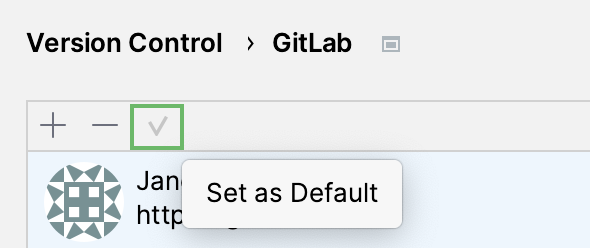
button to add as many accounts as you need.To set an account as the default one for the current project, select it and click
 .
.