Troubleshooting materials
Consider attaching some troubleshooting materials for a more precise and quick answer. The following materials might be helpful for our investigation: log files, screenshots, animations, videos, database dumps.
Locate log files
Locate JetBrains Rider log
Click . The idea.log file contains recent log information about your IDE performance.
Change location of the SQL log
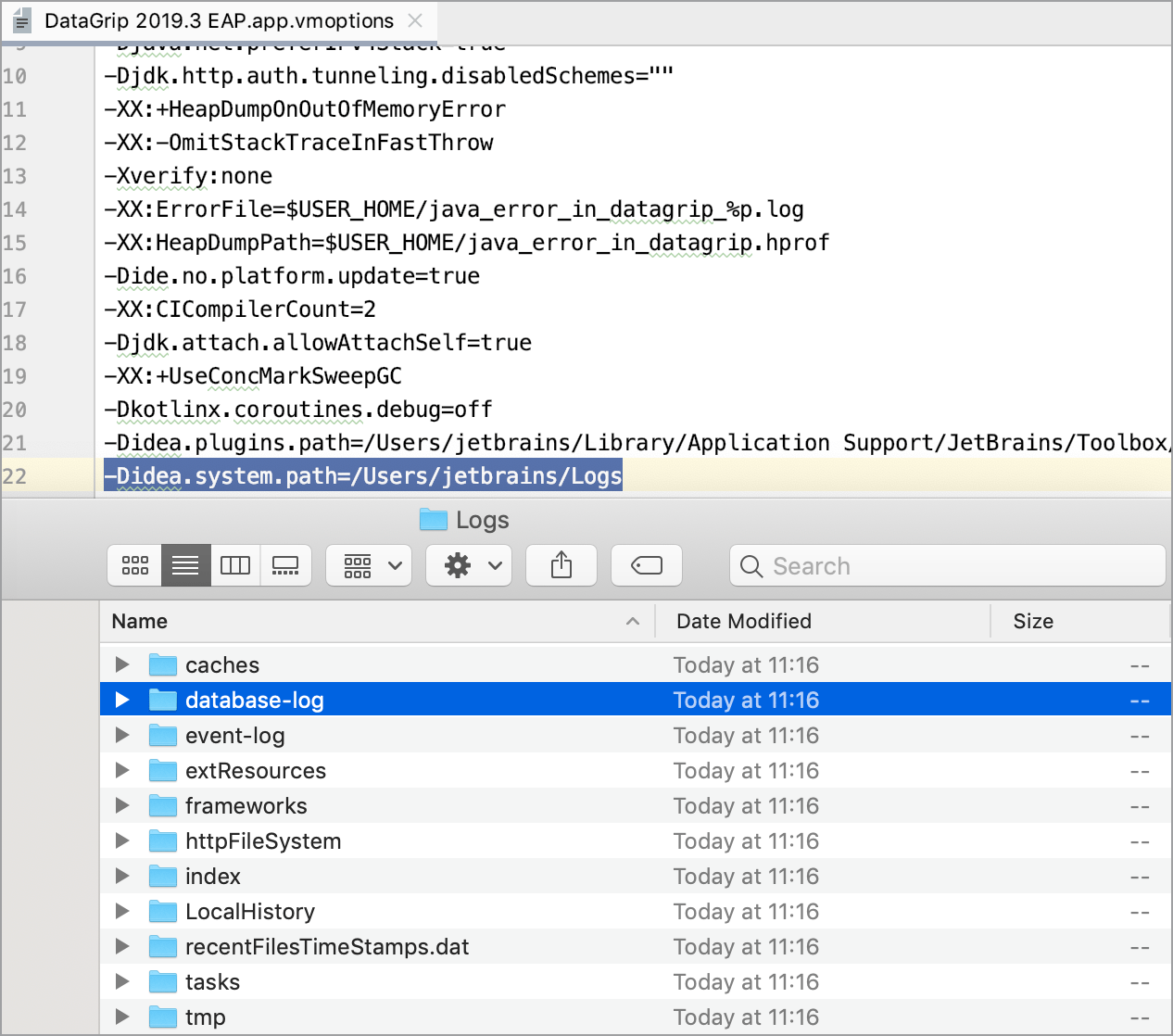
To change location of the SQL log, add the -Didea.system.path property to the custom VM options. This change affects all logs.
Click .
At the end of the option list, add the following line:
-Didea.system.path=/path/to/your_log_directory.
Configure JetBrains Rider log settings
To avoid editing the log.xml file itself, JetBrains Rider suggests a handy dialog to change logging level for a category. This file resides under the bin directory of JetBrains Rider installation.
Click .
In the Custom Debug Log Configuration dialog, type the log categories names, separated with new lines.