Consume NuGet packages
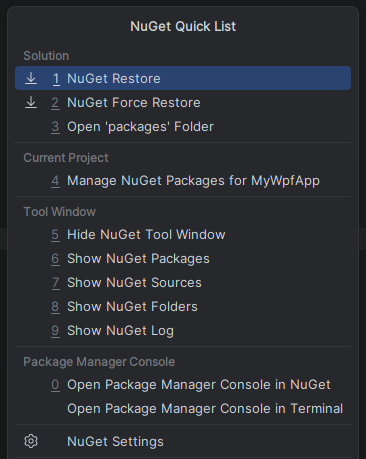
You can install, update, and remove NuGet packages via the NuGet window Alt+Shift+7 and NuGet quick list Ctrl+P, N.
Browse installed and available NuGet packages
By default, the Packages tab of the window shows all packages installed in the whole solution, but you can change the view to only show packages of a specific project. To do so, use the scope selector next to the search field:
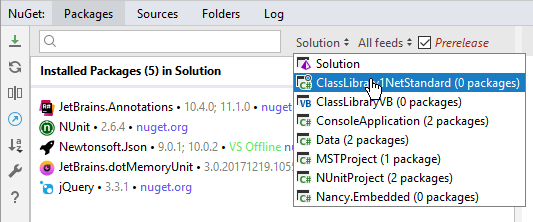
Available packages for the selected scope are always shown below the installed packages.
Packages that are referenced from other installed packages are displayed in the Implicitly Installed category. Their versions are shown in parentheses because you cannot upgrade or downgrade them. To learn which package references an implicitly installed one, right-click it and choose Quick NuGet Documentation or press Ctrl+Q.
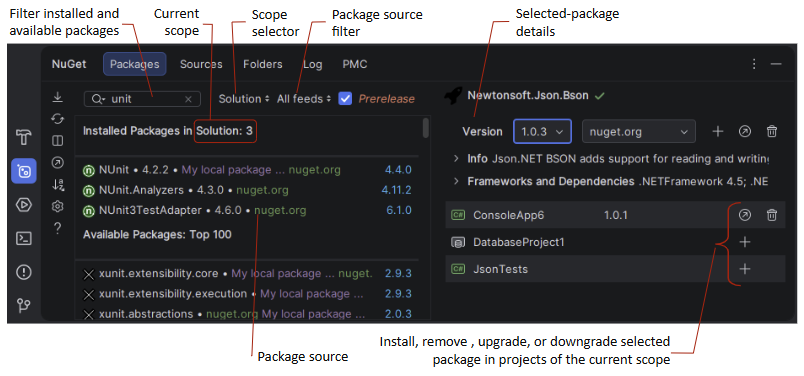
You can select installed or available packages in the left part of the Packages tab, and use the right part to check package details, as well as to install, upgrade/downgrade, or remove the package in specific projects:
Restore and Upgrade NuGet packages
Rider provides two algorithms for restoring NuGet packages:
Normal — calls the standard NuGet restore mechanism, which can be slow, especially on .NET projects. It is available in the main menu (), in the NuGet quick list Ctrl+P, N, and by clicking Restore
 on the NuGet window toolbar.
Force — performs a number of heuristics to determine which packages should be restored. The 'Force' algorithm works almost instantaneously, however there could be cases where it fails to restore some packages. ) or in the NuGet quick list Ctrl+P, N.
When you open a solution, Rider will automatically apply the 'Light' algorithm to restore missing packages. If necessary, you can change the auto-restore behavior on the NuGet settings page, which you can also open by clicking NuGet Settings .png "NuGet Settings") on the NuGet window toolbar.
on the NuGet window toolbar.
To upgrade the installed packages, click Upgrade Packages in Solution  on the NuGet window toolbar and then choose which packages should be upgraded.
Alternatively, you can select one of the installed packages in the left-hand side of the NuGet window choose the desired version in the right part, and then upgrade/downgrade specific projects to this package version.
Find and install NuGet packages
To find a NuGet package, use the search field and the list of Available packages, which appears under the list of Installed packages.
In the search field, you can enter a package name to look for or use prefixes: T: to look for types and N: to look for namespaces.
By default, Rider searches all available package sources, but you can limit the search scope using the corresponding selector:
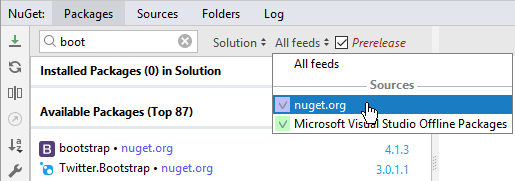
A single click on a package source will select the source and deselect all others. You can Shift-click to select multiple sources or click All feeds to select all.
Install or upgrade/downgrade a NuGet package
Find the desired package as described above and select it in the left part of the Packages tab
In the right part of the tab, choose a project where you want to install the selected package. If your solution contains too many projects, you may want to use the scope selector on the toolbar to display specific project and hide all others.
Use the Prerelease checkbox on the toolbar to show or hide pre-release versions of the package.
Use the Version selector in the right tab to choose the desired version of the package.
Before installing the selected package, you may want to check which dependent packages will be installed. To do so, expand Frameworks and Dependencies in the right part:
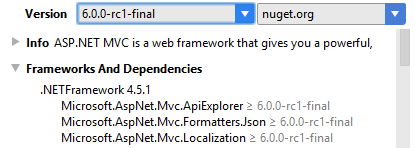
Depending on the selected package version, and on whether the selected package is installed in the selected project, you will be able to install, upgrade or downgrade the package.
After installing a new package, you will see it's readme.txt file in the editor so that you will be able to check if any additional steps are required after installing.
If config file/XDT transformations are implemented in the package, JetBrains Rider will run them to help in adding required entries, for example to an App.config or Web.config file.
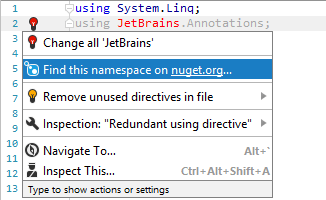
The easiest way to start the search for a NuGet package is to use the corresponding Alt+Enter action that becomes available for unresolved namespaces:
... and types:
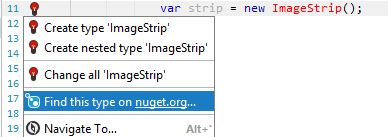
In any case, JetBrains Rider will open the NuGet window, where you will see all packages that contain the desired type or namespace.
Manage package sources
In the Sources tab of the NuGet window, Rider lists all NuGet configuration files discovered on your machine. You can add, remove, or edit package sources for the selected config file on the right panel, or click these files to open them in the editor.
If necessary, you can also add or remove package sources by editing the packageSources section of the NuGet.config configuration file. For example:
Credential providers for private NuGet feeds
JetBrains Rider lets you authenticate to private NuGet feeds that use with different authentication methods.
Authentication prompt for username/password combination
In the Sources tab of the NuGet window, you can edit or add a feed and add credentials in the form of a username/password combination.
The URL to private feeds is often shared with team members in the NuGet.config file that sits next to the solution file, so that everyone on the team can connect to such private feed. On the first load of such solution where package restore is required, JetBrains Rider will prompt for credentials.
When credentials are correct, they are stored in JetBrains Rider’s password store so that you don’t have to re-enter credentials each time you access a NuGet feed. The password store is configurable on the Appearance and Behavior | System Settings | Passwords settings page Ctrl+Alt+S.
JetBrains Rider also has integrated credential providers for MyGet and Visual Studio Team Services (VSTS).
Use authentication plugins
For private feeds that use plugin-based authentication method, such as the one provided by Azure Artifacts, you need to change the Use credential providers preference on the Build, Execution, Deployment | NuGet settings page Ctrl+Alt+S to NuGet/.NET CLI plugins or to NuGet/.NET CLI plugins, then Rider integrated (if you use different authentication methods) and then restart JetBrains Rider.
Once authentication plugins support is enabled, the %USERPROFILE%\.nuget\plugins (Windows) and $HOME/.nuget/plugins (Linux/macOS) path will be monitored for credential provider plugins that are applicable, and JetBrains Rider will use those to perform necessary authentications.
NuGet options
You can configure NuGet preferences in the NuGet settings page, which you can open by clicking NuGet Settings in the NuGet window or by choosing in Rider settings Ctrl+Alt+S.
Manage NuGet caches
NuGet caches all downloaded packages to make them available when there is no internet connection and to prevent multiple downloads of the same package.
With Rider, you can view locations of NuGet caches and clear selected locations in the Folders tab of the NuGet window. Clearing NuGet caches is safe, it does not affect packages installed in your projects.
Edit NuGet configuration files
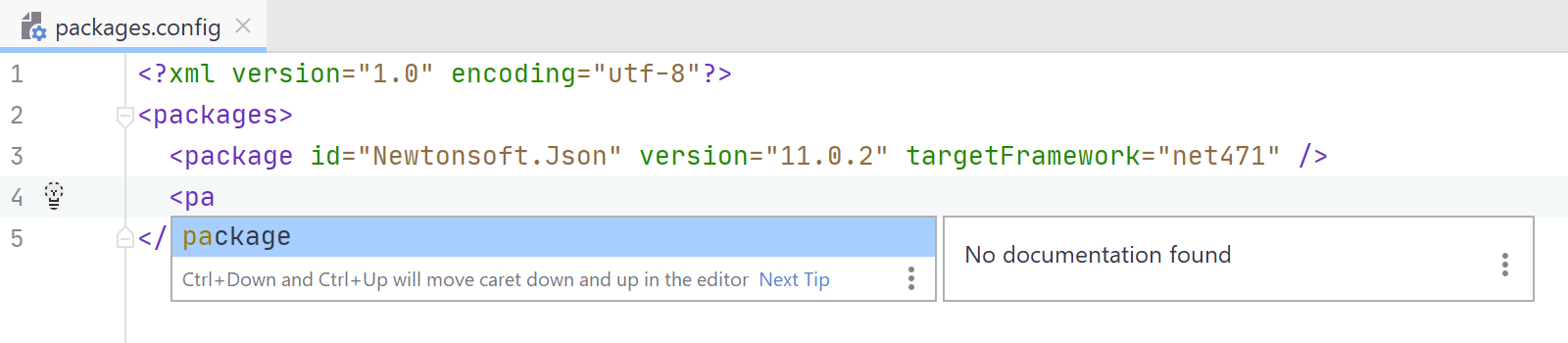
If necessary, you can also manually edit NuGet configuration files — NuGet.Config, packages.config, and *.nuspec. Most of the coding assistance features, including syntax validation, Code completion are there for you.
NuGet package manager console
The NuGet Package Manager Console (PMC) provides a PowerShell environment to manage NuGet packages through commands. You may want to use the PMC if you prefer the console experience over GUI or for advanced scenarios.
Enable the Rider PMC plugin
This functionality relies on the Rider PMC plugin, which is bundled and enabled in JetBrains Rider by default. If the relevant features are not available, make sure that you did not disable the plugin.
Press Ctrl+Alt+S to open settings and then select .
Open the Installed tab, find the Rider PMC plugin, and select the checkbox next to the plugin name.
Configure PowerShell
Press Ctrl+Alt+S to open settings and then select .
Choose whether to use PowerShell as a .NET tool or point at an existing PowerShell installation:
Use PowerShell as .NET tool
With this option selected, JetBrains Rider will validate the selected tool and offer to install, update, or restore it if it's invalid.
The Auto option prioritizes the local tool if available, falling back to the global tool. The minimal supported tool version is 7.0.4.
Use an existing PowerShell installation
Select this option to specify a custom path to an existing PowerShell executable on your machine. For example, on Windows, you can use the built-in Windows PowerShell.
No validation is performed for this option, so ensure the specified path is valid and the version is compatible. Version 5.1 or later is recommended.
Access Package Manager Console
The Package Manager Console can be accessed in two different ways:
As the PMC tab in the NuGet window.
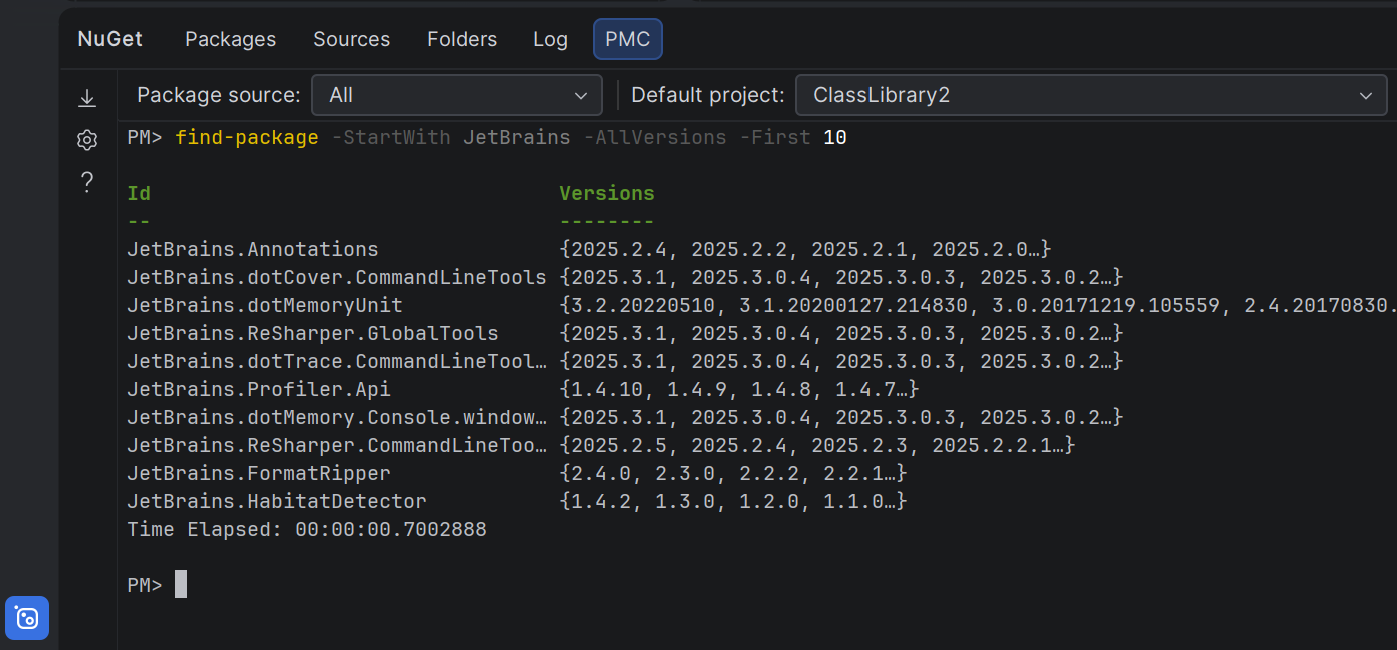
As a predefined session in the Terminal window.
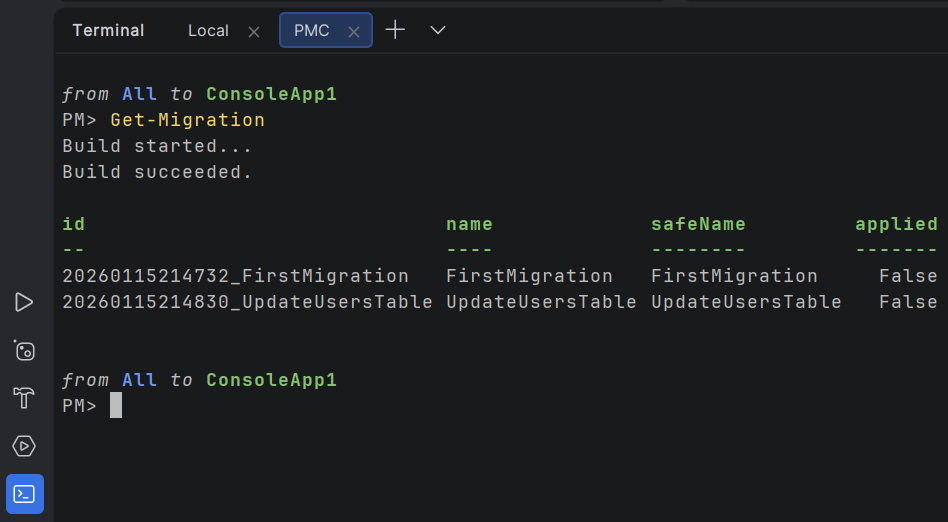
The NuGet window version provides an experience similar to Visual Studio, while the Terminal version offers integration with Rider's Terminal tool window.
Use Package Manager Console
The Package Manager Console allows you to execute PowerShell commands to manage NuGet packages. Common commands include:
Install-Package- Installs a package and its dependenciesUpdate-Package- Updates a package and its dependenciesUninstall-Package- Removes a packageGet-Package- Lists installed packagesFind-Package- Searches for packages from package sources
The Console also allows for automation and advanced scenarios that the GUI interface does not support. Here are a few common scenarios exclusive to the Console:
Mass updates with pattern Matching — While the GUI requires you to update all packages in the solution with one click, in the PMC, you can use the PowerShell logic to update only specific sets of packages (for example, all Microsoft packages) across the entire solution:
Get-Project -All | Update-Package -Id Microsoft.*Reinstall all packages — If your local bin or obj folders are corrupted or references are broken, you often need to address every package to rewrite the project file entries. In the PMC, you can do that with the following command:
Update-Package -ReinstallCustom scripting via $profile — You can create a PowerShell profile for your PMC (via $profile) to define custom shortcuts or complex cleanup scripts that run within the context of your open solution.
For example, you can createa custom command
Sync-MyPackagesthat uninstalls a specific conflicting package and installs a corporate-approved version across all projects in your solution.Ignore dependencies — Sometimes a package update tries to force a dependency version that breaks your build. The Console allows you to bypass the dependency check:
Install-Package <PackageName> -IgnoreDependencies
You can extend the PMC functionality using tools coming from NuGet packages. In the current version, you can use the EFCore Tools package that makes EFCore PowerShell commands such as Add-Migration, Update-Database, and Scaffold-DbContext available directly in the Console.
NuGet quick list
The most frequently used actions are available in the NuGet quick list — Ctrl+P, N or :