Create and publish your first Ruby gem
This tutorial shows how to create a simple Ruby gem in RubyMine and publish it to RubyGems.org.
Before you start:
Install Git.
Register your GitHub account in RubyMine.
Install the Ruby distribution for your platform.
Create a Gem application
To create a new Gem application, follow the steps below:
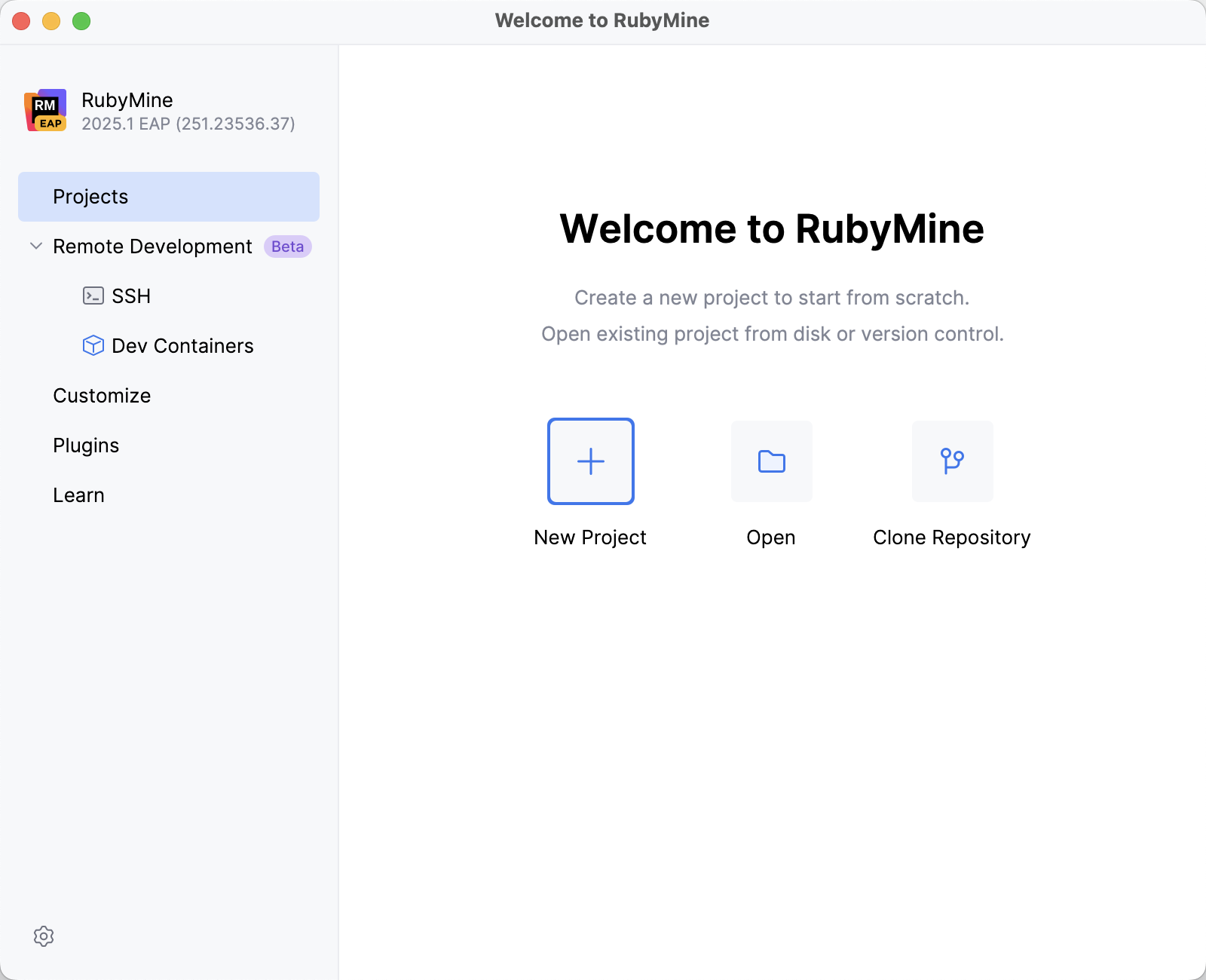
Run RubyMine and click New Project on the Welcome Screen.
In the New Project dialog, select Gem on the left pane and specify the following settings:
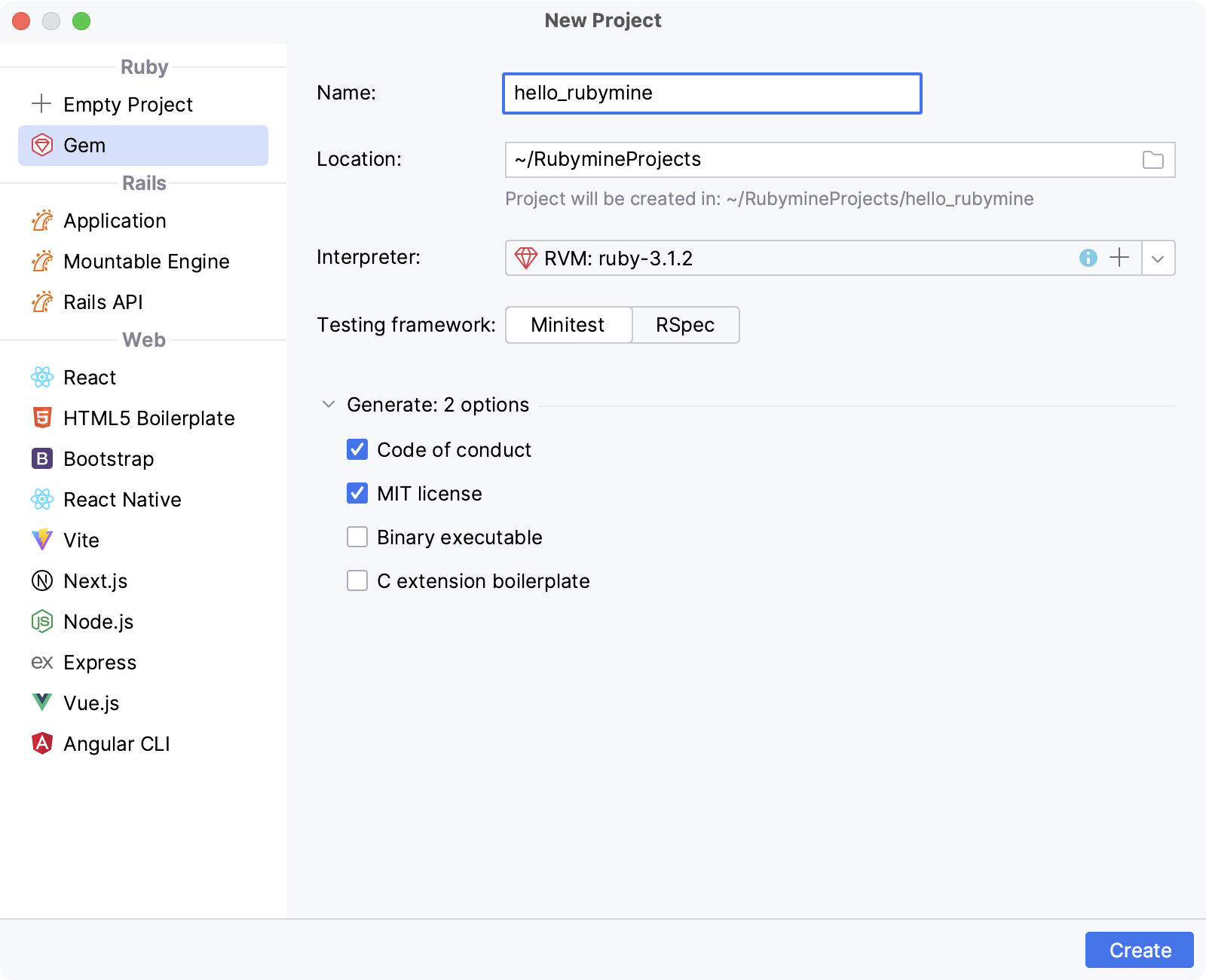
Location: Specify a project's location and name (hello_rubymine in our case).
Interpreter: Select a required Ruby interpreter.
After you’ve specified all the options, click Create in the New Project dialog. RubyMine will create a new Gem application.
Add code
Code for gems is placed within the lib directory. Our newly created project contains the hello_rubymine.rb file in this folder. Let's add working code for our gem:
To open hello_rubymine.rb, press Ctrl+Shift+N, start typing hello_rubymine.rb, select this file, and press Enter.
In the opened lib/hello_rubymine.rb file, add the following code:
require "hello_rubymine/version" module HelloRubymine def self.greet(name) puts "Hello, #{name}! I'm Ruby!" end end
Provide gem specification
Every gem project has the *.gemspec file containing information for a gem. In our project, this information is stored in the hello_rubymine.gemspec file. Perform the following steps to provide the required data:
Press Ctrl+Shift+N, start typing hello_rubymine.gemspec, select the hello_rubymine.gemspec file, and press Enter
In the opened hello_rubymine.gemspec file, specify the required gemspec attributes.

For the sample gem,specify the following fields:
authors: A gem's author(s).email: An email address.summary: A short gem's descriptionhomepage: The URL of the gem's home page. We'll specify this address later after publishing the gem's code to GitHub.metadata["source_code_uri"]: The gem's source code URI. We'll use the same value as for thehomepage.
Share gem on GitHub
In this section, publish the gem source code to GitHub:
Go to .
In the invoked dialog, specify the name of the repository to be created on GitHub. Then, select the required account in the Share by field and click the Share button.
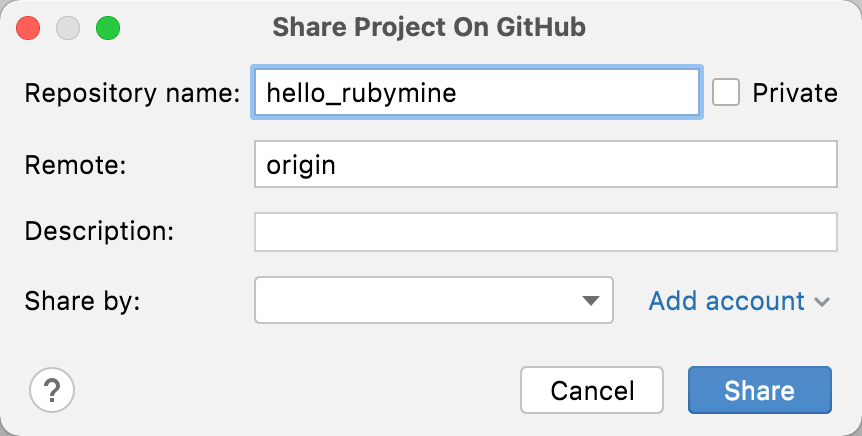
In the next dialog, you will be prompted to choose files for the initial commit. Leave the default set of files, specify the commit message, and click Add. Wait until the project is pushed to GitHub.
After the project is created on GitHub, provide the
homepageandmetadata["source_code_uri"]attributes in the project's *.gemspec file (https://github.com/rubyminedoc/hello_rubymine in our case). Then, commit and push changes made in *.gemspec.
Build gem
After you've specified the gem information in the *.gemspec file, build the gem.
Open the terminal and run the following command in the project root directory:
gem build hello_rubymine.gemspecAfter the command completes, the
.gemfile will be created in the project directory.
Install gem
After building a gem, we can install it to a local interpreter for testing:
Press Ctrl twice and enter the following command:
gem install hello_rubyminePress Enter to install a gem.
Test gem with IRB
In this chapter, we'll test our gem using the IRB console by calling it's greet method:
In the main menu, go to .
Type
require 'hello_rubymine'and press Enter to load our gem to IRB.Then, type
HelloRubymine.greet("JetBrains")in a console and press Enter again to make sure our gem works as expected.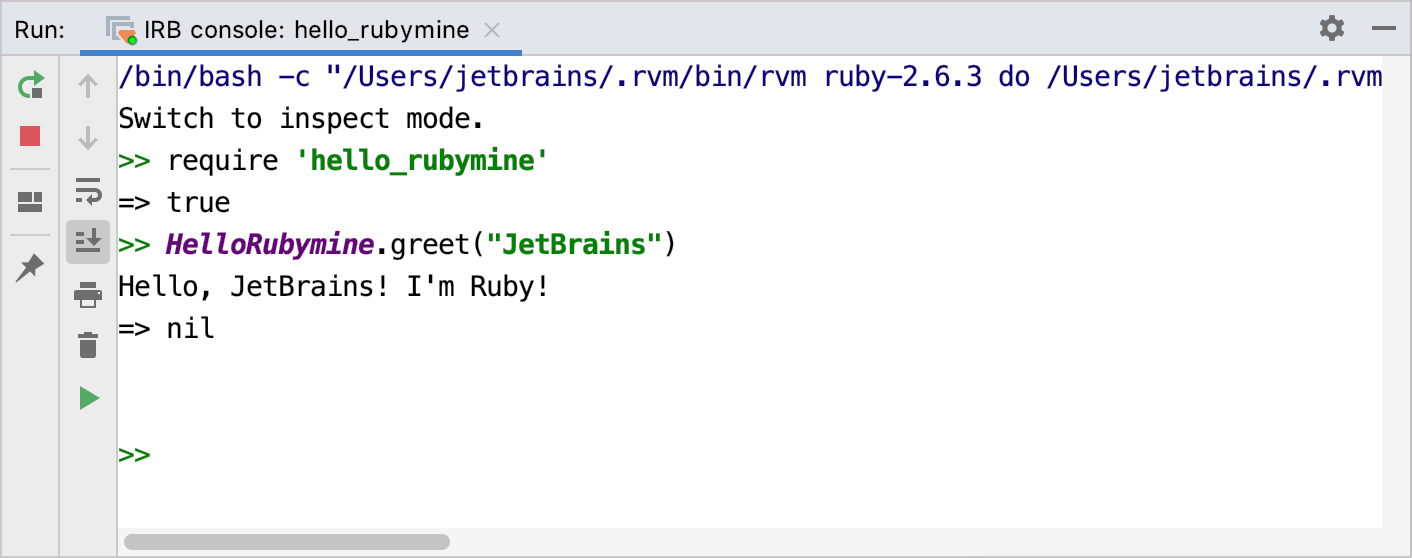
Publish gem
Make sure you have a RubyGems account and your credentials are configured.
Run the following command:
gem push hello_rubymine-0.1.0.gemAfter the command completes, your gem will be published to RubyGems.