```
> **Note:**
> A single `data-controller` attribute can reference several controllers separated by spaces. RubyMine completes and resolves each identifier in the list.
Procedure: Declare and connect targets and an action
A Stimulus controller declares targets and action methods in JavaScript. RubyMine uses these declarations to complete the corresponding data attributes in an ERB template.
In this procedure, you will declare two targets and one action in the `clipboard` controller. You will then use completion to connect the HTML elements in `app/views/messages/index.html.erb` to those declarations.
1. Open `app/javascript/controllers/clipboard_controller.js` and replace the generated controller with the following code:
```JAVASCRIPT
import { Controller } from "@hotwired/stimulus"
export default class extends Controller {
static targets = ["source", "status"]
copy() {
}
}
```
The controller declares the `source` and `status` targets and exposes the `copy` action. RubyMine uses these declarations to provide completion in HTML and ERB templates.
> **Note:**
> In applications that use Importmap, the `@hotwired/stimulus` import is mapped in `config/importmap.rb` and provided by the `stimulus-rails` gem. It is not installed in `node_modules`. If RubyMine reports that the module is not installed, the warning does not affect the Stimulus-specific completion demonstrated in this tutorial.
2. Return to `app/views/messages/index.html.erb` and start typing `data-` in the opening `p` tag.
3. Select data-clipboard-target, suggested by RubyMine based on the controller connected to the enclosing `div`.
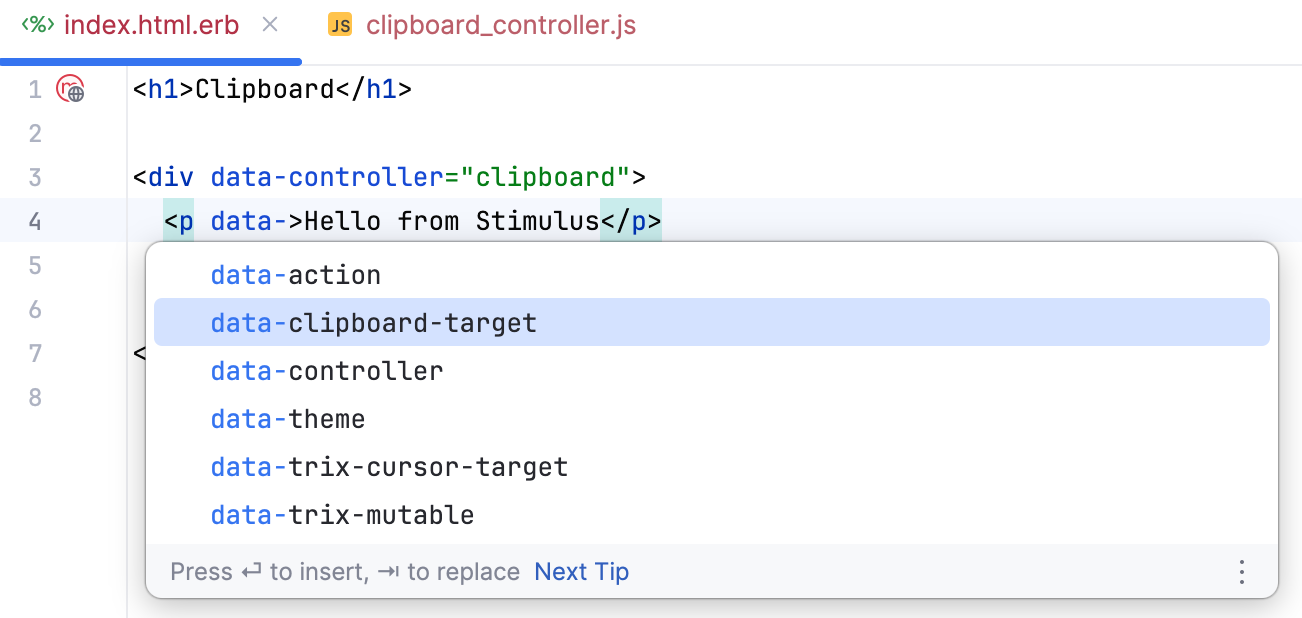
4. Invoke completion inside the attribute value. RubyMine suggests the names from the controller's `static targets` array.
Select source.
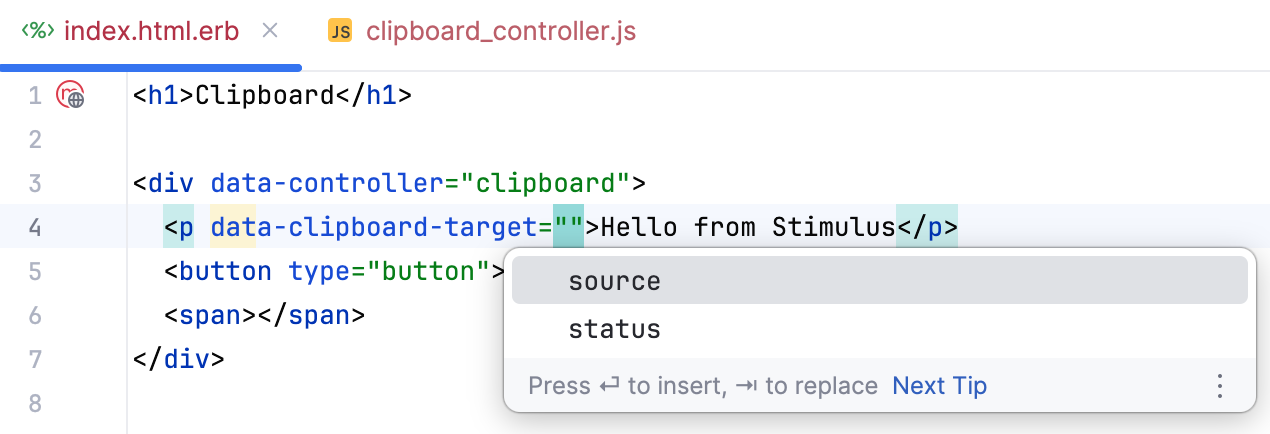
5. Repeat the step above to add the same attribute to the `span` element and select status as its value. The line should look like this:
```HTML
```
6. In the opening `button` tag, add a `data-action` attribute and type `click->clipboard#` to invoke code completion.
RubyMine suggests the action methods declared in the `clipboard` controller.
Select copy.
 to copy text from the `source` target and then displays a confirmation in the `status` target.
1. Open `app/javascript/controllers/clipboard_controller.js` and change the empty `copy` method to an asynchronous method:
```JAVASCRIPT
async copy() {
}
```
2. Inside the method, enter:
```JAVASCRIPT
await navigator.clipboard.writeText(this.s
```
At this point, the completion list includes the `sourceTarget` and `statusTarget` properties derived from the `static targets` declaration.
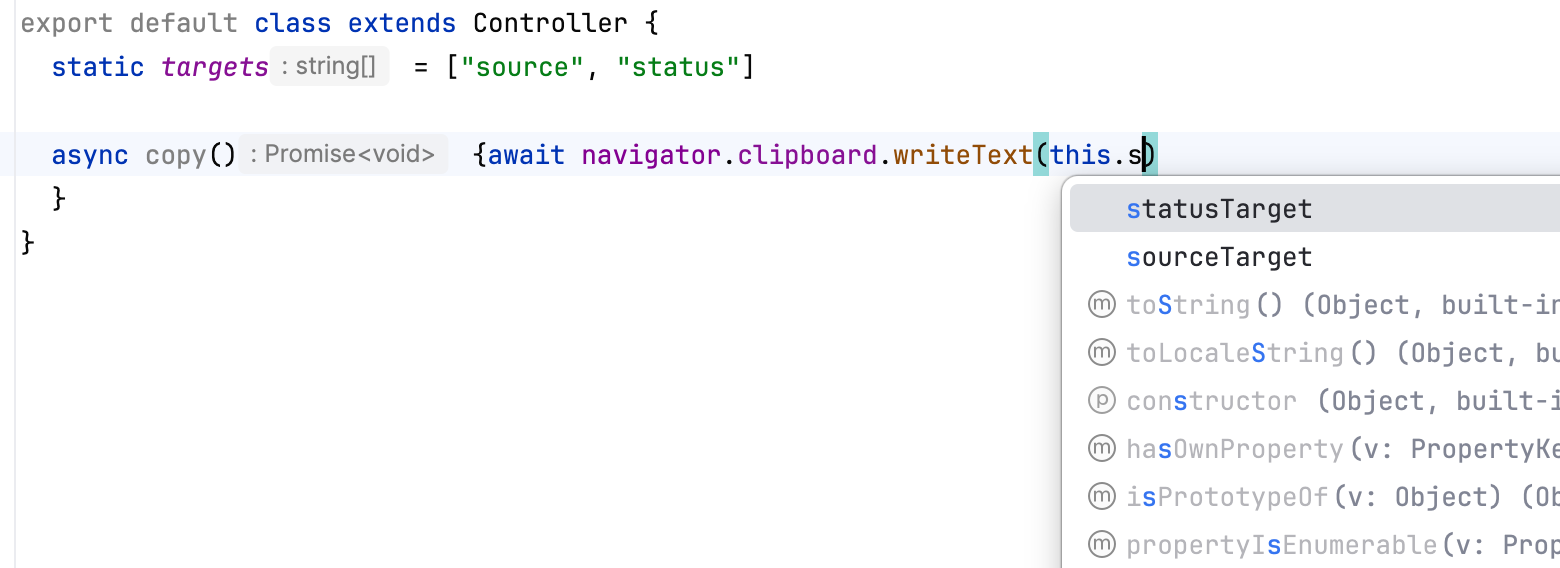
3. Select sourceTarget and complete the expression with `.textContent`:
```JAVASCRIPT
await navigator.clipboard.writeText(this.sourceTarget.textContent)
```
4. On the next line, enter `this.`, select statusTarget from the invoked code completion, and assign the confirmation text to its `textContent` property. This property is derived from the `status` name in `static targets`.
The complete controller should now look as follows:
```JAVASCRIPT
import { Controller } from "@hotwired/stimulus"
export default class extends Controller {
static targets = ["source", "status"]
async copy() {
await navigator.clipboard.writeText(this.sourceTarget.textContent)
this.statusTarget.textContent = "Copied"
}
}
```
Procedure: Declare and use a value and a CSS class
From `static values` and `static classes` declarations, RubyMine derives the corresponding data attributes for ERB templates and properties for JavaScript code.
1. Open `app/javascript/controllers/clipboard_controller.js` and add the `values` and `classes` declarations after the existing `targets` declaration:
```JAVASCRIPT
import { Controller } from "@hotwired/stimulus"
export default class extends Controller {
static targets = ["source", "status"]
static values = { message: String }
static classes = ["success"]
async copy() {
await navigator.clipboard.writeText(this.sourceTarget.textContent)
this.statusTarget.textContent = "Copied"
}
}
```
The controller now declares a value named `message` and a logical CSS class named `success`. These names provide the source declarations for completion in the next steps.
2. Open `app/assets/stylesheets/application.css` and add the CSS class that will indicate a successful copy operation:
```CSS
.copied {
color: green;
}
```
3. Return to `app/views/messages/index.html.erb` and in the opening `div` tag that contains `data-controller="clipboard"`, start typing `data-clipboard-`.
RubyMine suggests attributes derived from the controller declarations, including `data-clipboard-message-value` and `data-clipboard-success-class`.
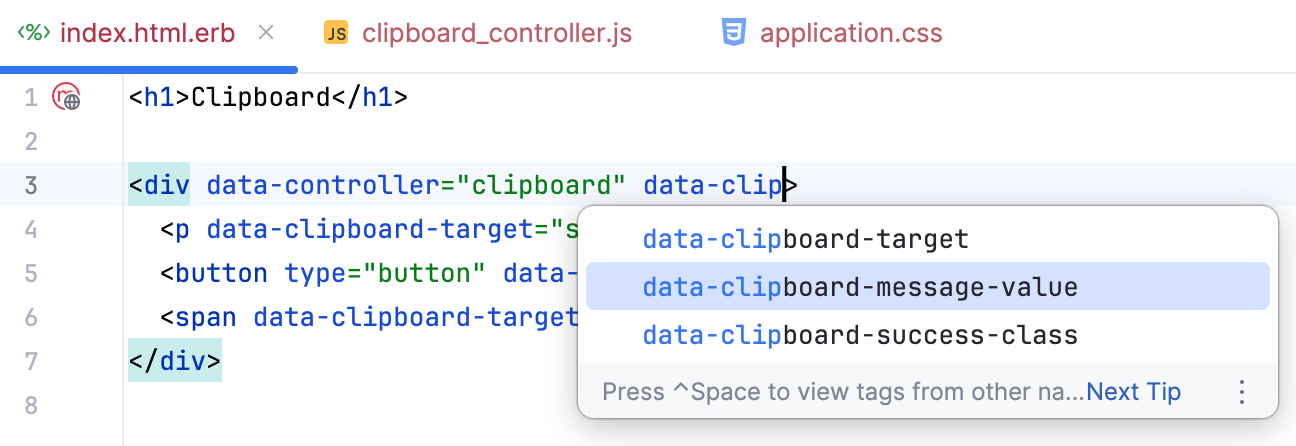
4. Select both attributes and specify their values. The complete view should now look as follows:
```HTML
Clipboard
```
The two attributes connect the `message` and `success` declarations to the values `Copied` and `copied` in this template.
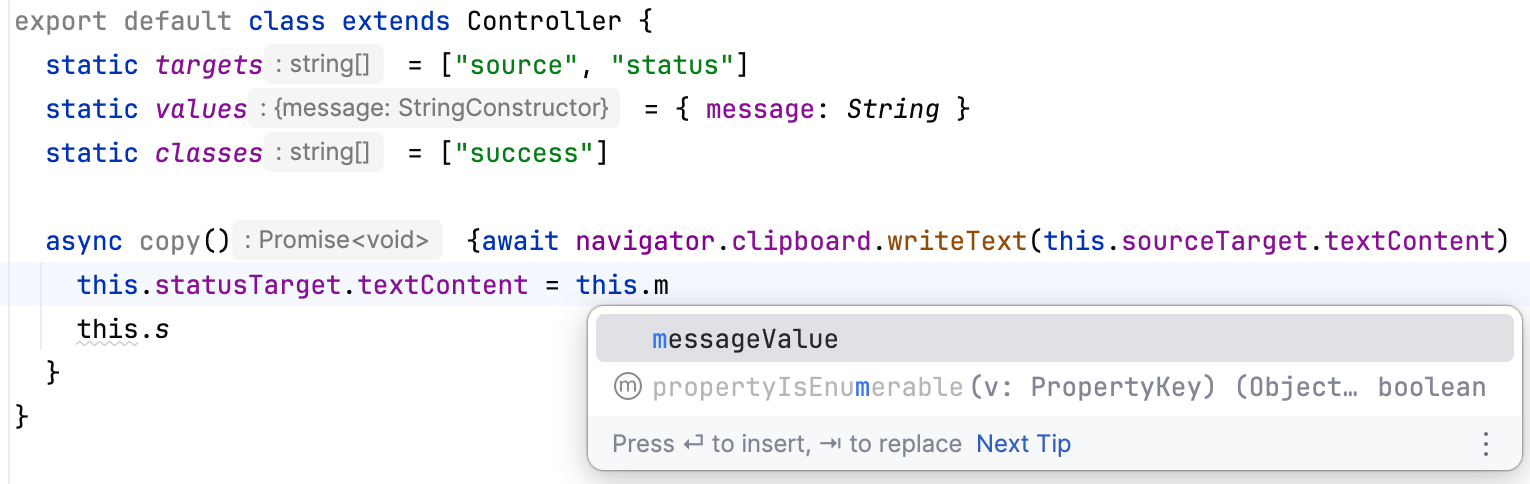
5. Return to `app/javascript/controllers/clipboard_controller.js` and replace the hardcoded `"Copied"` string with `this.`
From the invoked code completion list, select messageValue, which RubyMine derives from the `message` entry in `static values`.
6. On the next line, enter `this.statusTarget.classList.add(this.` to invoke code completion again.
Select successClass, which RubyMine derives from the `success` entry in `static classes`:
```JAVASCRIPT
this.statusTarget.classList.add(this.successClass)
```
The first completed property supplies the confirmation text. The second supplies the CSS class applied to the status element.
The complete controller should now look as follows:
```JAVASCRIPT
import { Controller } from "@hotwired/stimulus"
export default class extends Controller {
static targets = ["source", "status"]
static values = { message: String }
static classes = ["success"]
async copy() {
await navigator.clipboard.writeText(this.sourceTarget.textContent)
this.statusTarget.textContent = this.messageValue
this.statusTarget.classList.add(this.successClass)
}
}
```
7. Reload `/messages/index` and click Copy. The page displays the value from `data-clipboard-message-value` and applies the CSS class specified by `data-clipboard-success-class`.
Procedure: Navigate to Stimulus declarations
RubyMine resolves target names and action descriptors in ERB templates to their declarations in Stimulus controllers.
In `app/views/messages/index.html.erb`, do one of the following:
* Place the caret at `source` or `status` in a `data-clipboard-target` attribute and press `Ctrl+B` (Windows), `⌘ B` (macOS), `⌘ B` (IntelliJ IDEA Classic (macOS)), `⌘ B` (macOS System Shortcuts), `Ctrl+B` (XWin), `Ctrl+B` (GNOME), `Ctrl+B` (KDE), `Ctrl+Alt+G` (Emacs), `F12` (Sublime Text), `F12` (Sublime Text (macOS)), `F12` (Visual Studio), `F12` (Visual Studio (macOS)), `Meta+B` (TextMate), `Ctrl+B` (NetBeans), `F3` (Eclipse), `F3` (Eclipse (macOS)). RubyMine navigates to the corresponding name in the `static targets` declaration.
* Place the caret in the `clipboard#copy` action descriptor and press `Ctrl+B` (Windows), `⌘ B` (macOS), `⌘ B` (IntelliJ IDEA Classic (macOS)), `⌘ B` (macOS System Shortcuts), `Ctrl+B` (XWin), `Ctrl+B` (GNOME), `Ctrl+B` (KDE), `Ctrl+Alt+G` (Emacs), `F12` (Sublime Text), `F12` (Sublime Text (macOS)), `F12` (Visual Studio), `F12` (Visual Studio (macOS)), `Meta+B` (TextMate), `Ctrl+B` (NetBeans), `F3` (Eclipse), `F3` (Eclipse (macOS)). RubyMine opens `app/javascript/controllers/clipboard_controller.js` and navigates to the `copy` method.
[Video](https://resources.jetbrains.com/help/img/idea/2026.3/rm_stimulus_navigate_to_declaration.mp4)
Procedure: Rename a Stimulus action
Because action descriptors resolve to controller methods, renaming a method updates its usages in templates. You do not need to find and edit the descriptors manually.
1. In `app/javascript/controllers/clipboard_controller.js`, place the caret at the `copy` method and press `Shift+F6` (Windows), `⇧ F6` (macOS), `⇧ F6` (IntelliJ IDEA Classic (macOS)), `⌘ ⌥ R` (macOS System Shortcuts), `Shift+F6` (XWin), `Shift+F6` (GNOME), `Shift+F6` (KDE), `Shift+F6` (Emacs), `Shift+F6` (Sublime Text), `⇧ F6` (Sublime Text (macOS)), `Ctrl+R, R` (Visual Studio), `⌘ R, R` (Visual Studio (macOS)), `Shift+F6` (TextMate), `Ctrl+R` (NetBeans), `Alt+Shift+R` (Eclipse), `⇧ F6` (Eclipse (macOS)).
2. In the Rename dialog, enter `copyText` and click Refactor .

* [Stimulus actions](https://stimulus.hotwired.dev/reference/actions)
* [Stimulus targets](https://stimulus.hotwired.dev/reference/targets)
* [Stimulus values](https://stimulus.hotwired.dev/reference/values)
* [Stimulus CSS classes](https://stimulus.hotwired.dev/reference/css-classes)
* [stimulus-rails](https://github.com/hotwired/stimulus-rails)
* [How to use Stimulus in your Rails apps with RubyMine](https://blog.jetbrains.com/ruby/2024/07/how-to-use-stimulus-in-your-rails-apps-with-rubymine/)