Rename projects
In RubyMine, the project name is the name displayed in the IDE, for example, in the window title and on the Welcome screen.
Rename the project
To change the project name shown in the IDE, follow the procedure below.
From the main menu, go to .
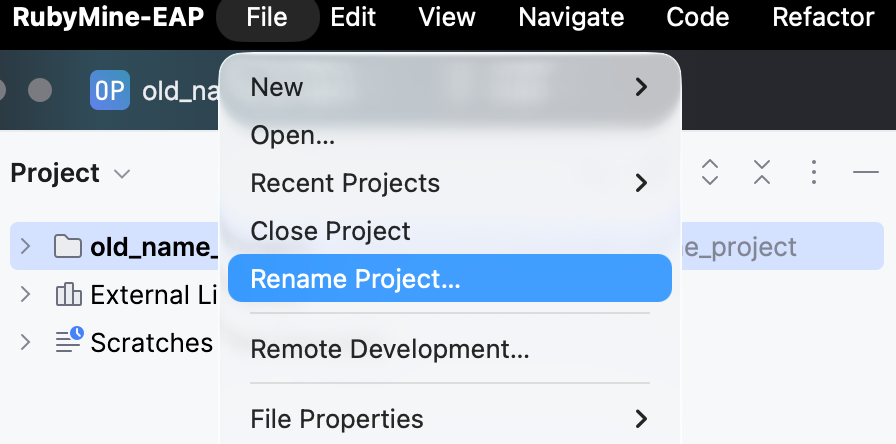
In the Rename Project dialog that opens, enter a new name and press Enter.
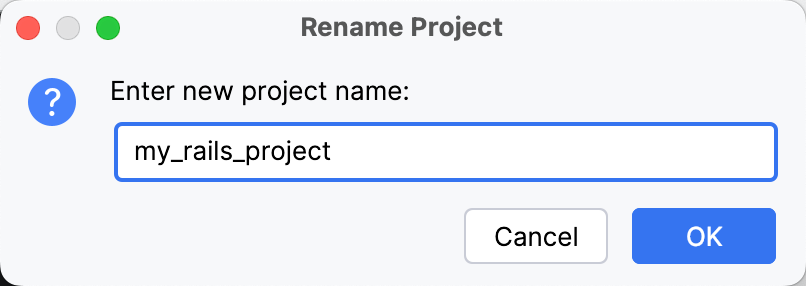
This updates the project display name in the IDE, including the window title and the Welcome screen. The project directory name and location remain unchanged.
Rename the project directory
To rename the project directory on disk, follow the procedure below.
Close the project in the IDE.
Rename the project folder using your file manager or terminal.
Open the project from the renamed folder:
Start RubyMine.
On the Welcome screen, choose the Open option.
In the browser window, find the project folder and click Open.
(Optional) Rename the project accordingly as described in the procedure above.
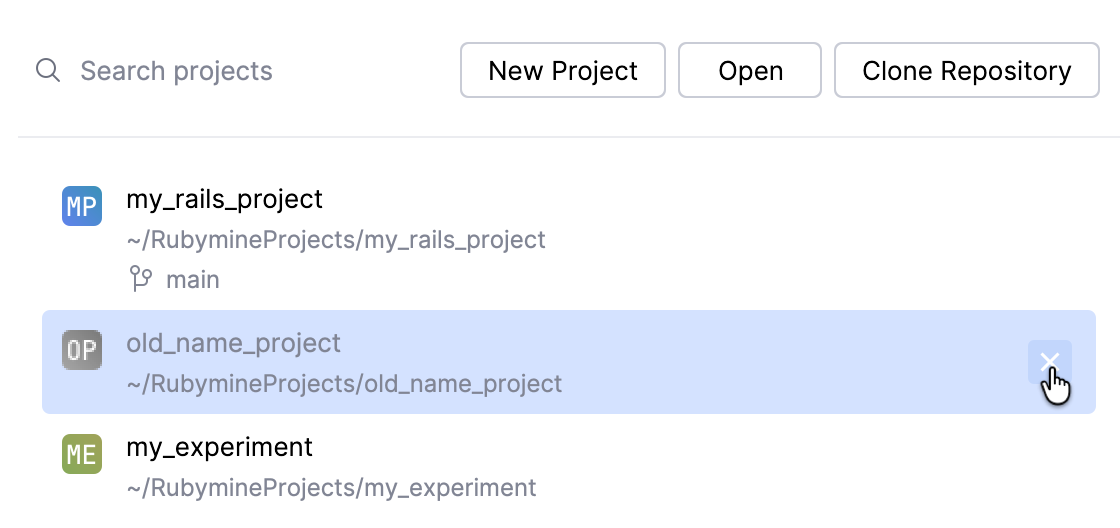
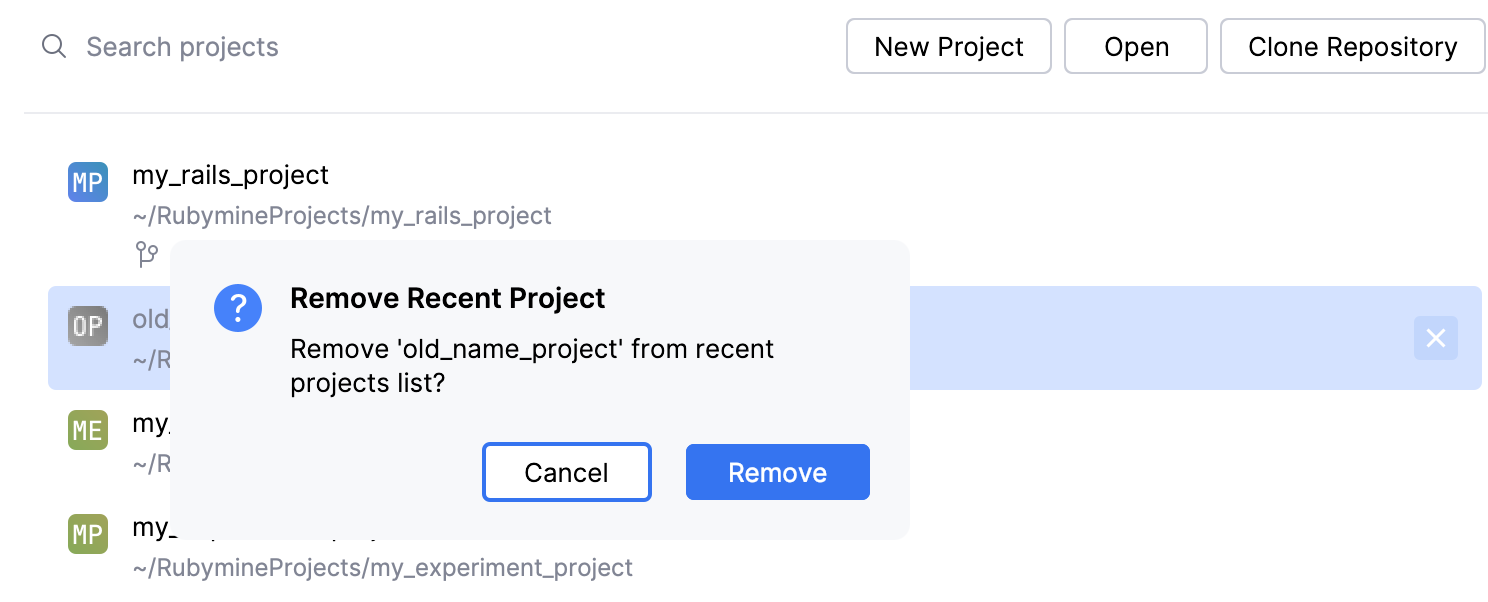
To remove the outdated project entry from the Welcome screen:
Click the exit icon for the entry.
In the Remove Recent Project dialog, click Remove.
After reopening, RubyMine will suggest the project in the Welcome screen at the new path.