Call hierarchy
RustRover provides a separate tool window for viewing call hierarchies. As you browse through the hierarchy, RustRover automatically navigates you to the corresponding code in the editor.
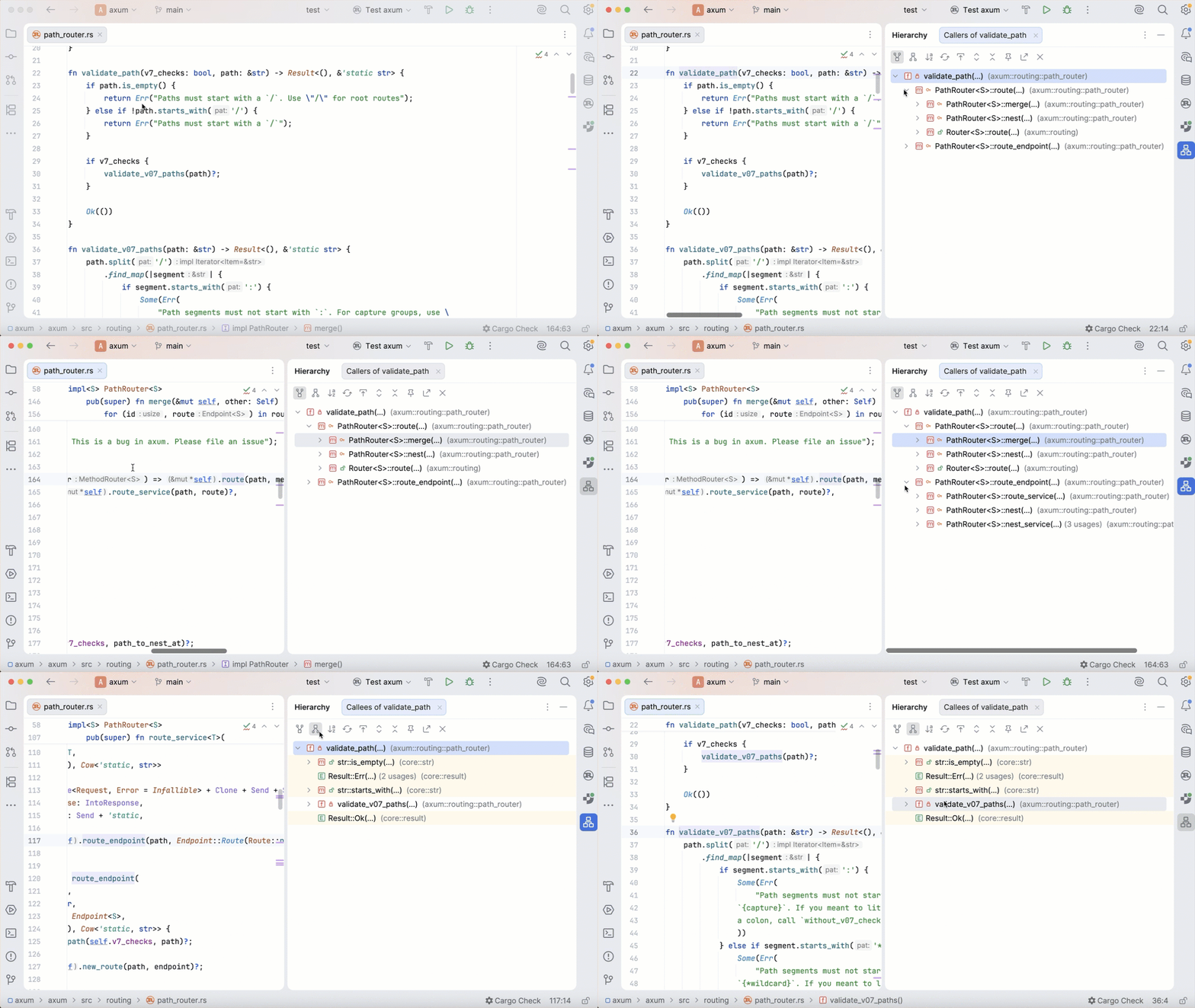
Analyzing call hierarchies
A call hierarchy shows the callers or callees of a method or struct.
When built, a hierarchy can be immediately viewed and examined in the Hierarchy tool window. The caller and the callee hierarchies are displayed in two separate tabs: click  to view callers and
  to view callees.
Build a call hierarchy
Open a file in the editor and place the caret at the declaration or usage of the desired method.
Alternatively, select the desired method in the Project tool window.
In the main menu, go to or press Ctrl+Alt+H.
Retain a hierarchy tab
In the Hierarchy tool window, click the Pin Tab button
 on the toolbar.
Viewing hierarchies
Open the Hierarchy tool window
Make sure, you have already built hierarchies to show, see Building hierarchies above.
Select from the main menu.
Navigate between the tabs
Right-click the currently displayed tab and select or from the context menu.
Press Alt+Right or Alt+Left.
Switch between callers and callees
With RustRover, you can build and explore both caller and callee method hierarchies.
Click
or to show caller methods or callee methods respectively.
Hierarchy tool window buttons
Item | Description |
|---|---|
| Shows the callers of the selected method. |
| Shows the callees of the selected method. |
| Sorts all elements within a tree alphabetically. |
| Shows all updated types or class structures. |
| Moves to a file and a section in a source code that corresponds to the selected node in the hierarchy tree. |
| Expands all nodes. |
| Locks the current tab from closing and reusing. Results of the next command are displayed in a new tab. |
| Exports a hierarchy into a text file. You can specify a location for this file. |
| Closes the tool window. |


