Create and Manage Teams
For easier access and permission management, members can be organized in groups called Teams. A team is given a name and can be managed the same way as an individual member. It can be assigned a Role or added to a project. A person can be a member of one or several teams.
Create a team:
On the main menu, click
 Administration and choose Teams.
All teams to which you have administrative rights will be listed here:
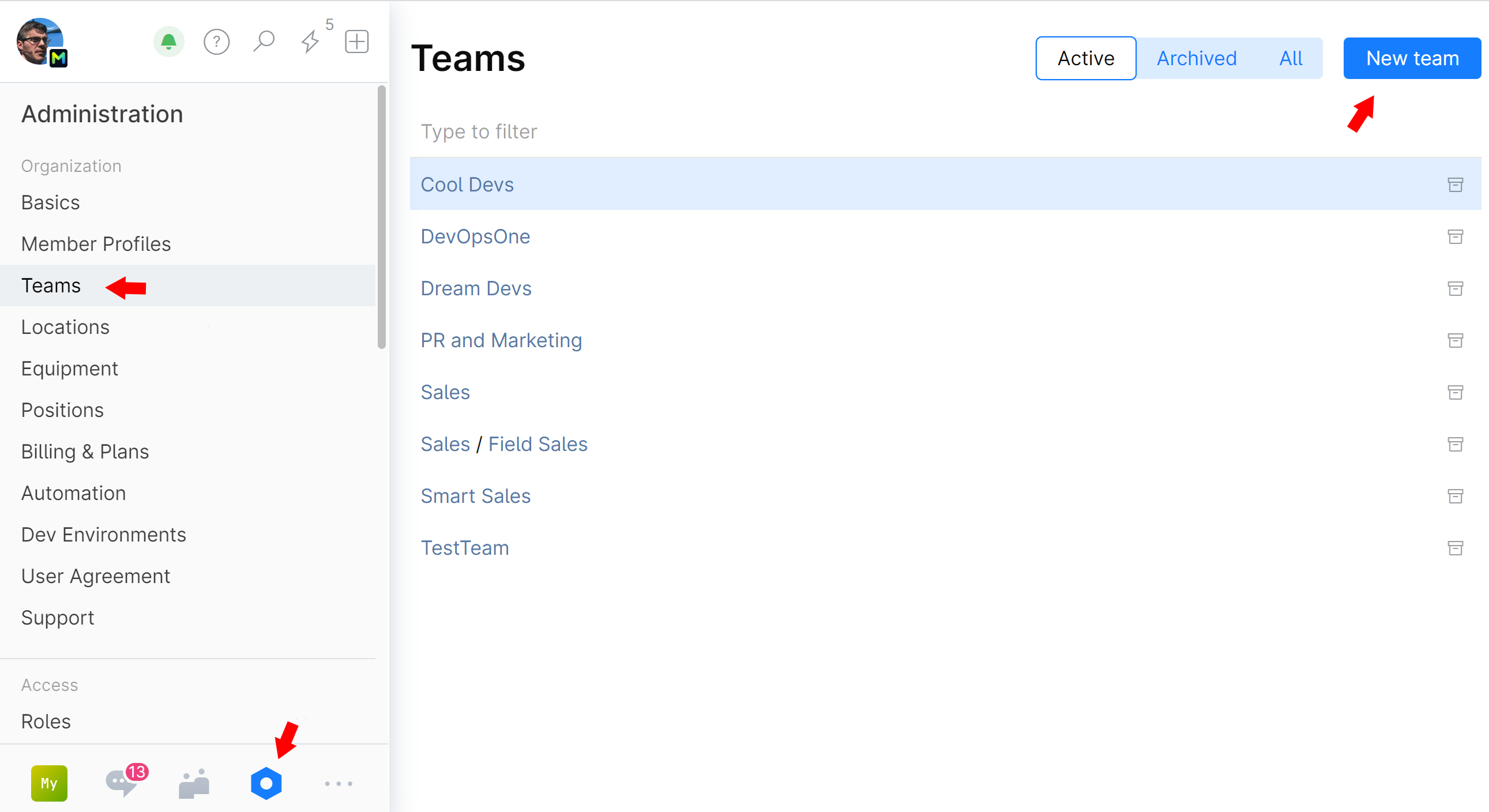
Click New team.
Specify the new team's name and description (optional). If you want to create a sub-team, choose a Parent team for it.
Click Create.
Add members to a team:
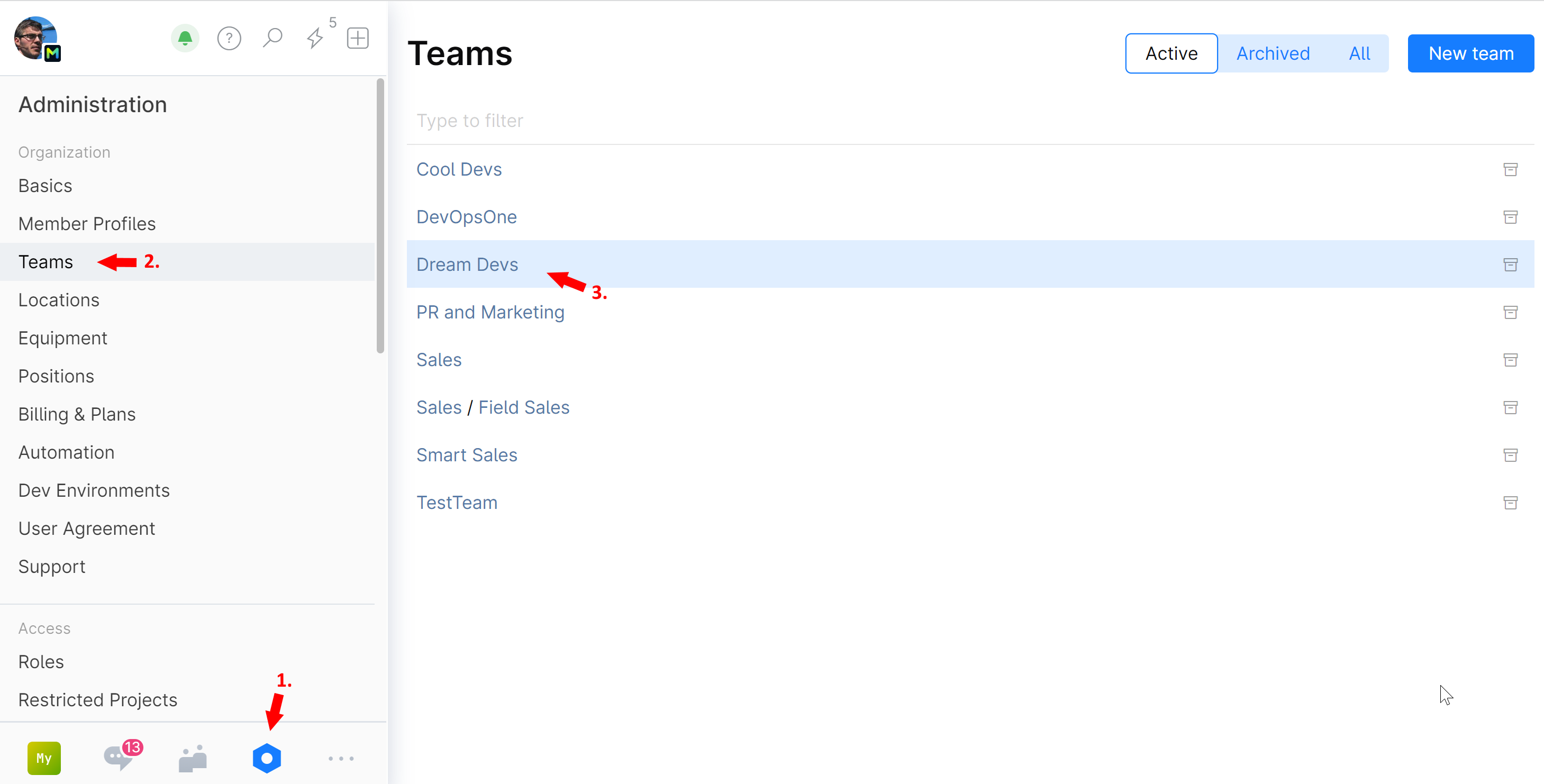
On the main navigation menu, click
Administration and choose Teams.All teams to which you have administrative rights will be listed here.
Click the team you want to edit:
Click Members:
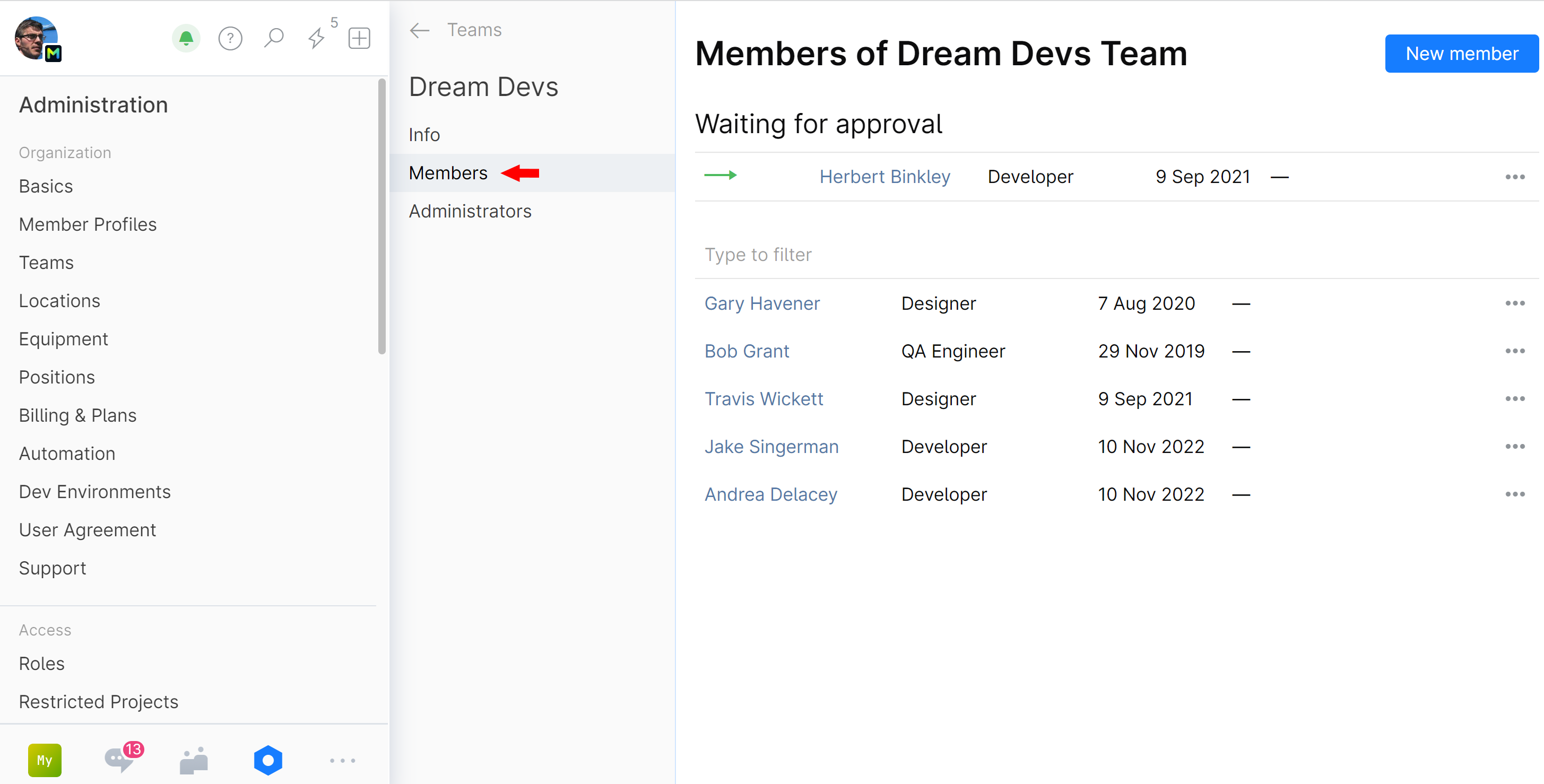
Click New member.
Choose the new member and click Add.
Move a member to another team
You can quickly move a member from one team to another.
Open the person's profile (press Control+K to find it).
On the profile sidebar, click Teams.
Locate the team from which you want to move the member, click
 and choose Move: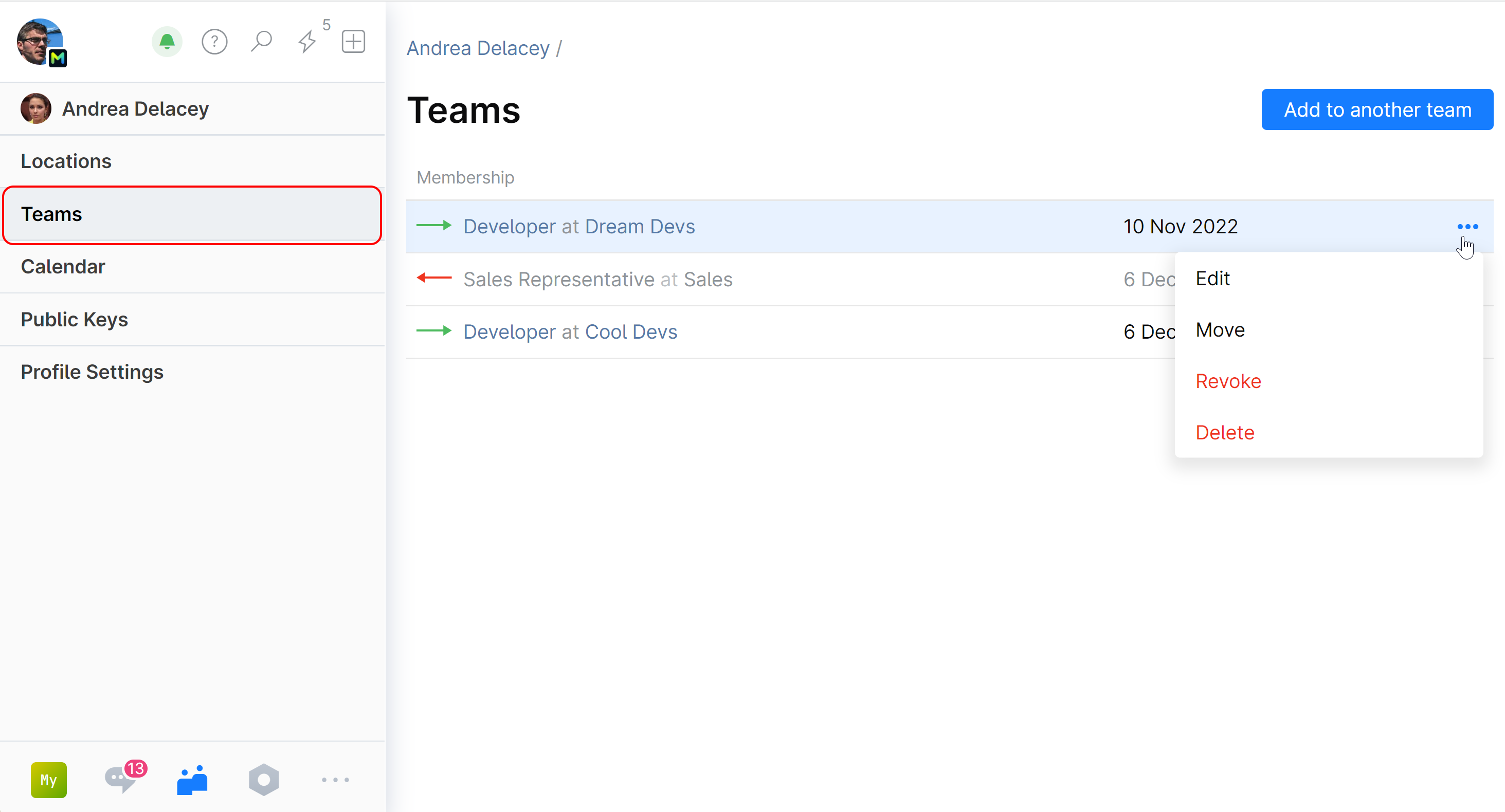
Select the team to which you want to move the member.
Optionally, select the time span for membership in the new team.
Click Move.
The person will be removed from the original team and added to the one you selected.
Rename a team
On the main navigation menu, click
Administration and choose Teams.All teams to which you have administrative rights will be listed here.
Click the team you want to rename.
Edit the Name field.
Click Save.
Edit a team description
On the main navigation menu, click
Administration and choose Teams.All teams to which you have administrative rights will be listed here.
Click the team you want to edit.
Edit the Description field.
Click Save.
Delete (Archive) a team
Teams cannot be deleted permanently, but they can be archived — removed from the active team directory. When you archive a team, its members are consequently removed from the team.
Please keep in mind that even though an archived team can be restored, its former members cannot regain their membership automatically.
Members of an archived team will remain in the organization, but will lose any positions and permissions previously inherited from the team. For example, if a team has access rights to some project, its members will lose these rights after the team is archived.
On the main navigation menu, click
Administration and choose Teams.All teams to which you have administrative rights will be listed here.
Click the team you want to remove.
Click Archive and confirm your action.
Disband a team
You can disband a team to disable it and remove all team members from the team and its subteams at once.
Disbanding works much like archiving, except that the membership history of all removed members remains visible in feeds and profiles.
Members of a disbanded team will lose any positions and permissions previously inherited from the team. For example, if a team has access rights to some project, its members will lose these rights after the team is disbanded.
You can restore a disbanded team. The team will be re-activated and the removed team members will be restored as well.
To disband a team:
On the menu navigation menu, click
Administration and choose Teams.All teams to which you have administrative rights will be listed here.
Click the team you want to disband.
Click Disband and confirm your action.
To restore a disbanded team:
On the main navigation menu, click
Administration and choose Teams.All teams to which you have administrative rights will be listed here.
Locate the disbanded team which you'd like to restore and click it.
Click Restore.