Common Dependency Concepts
This page gives the general idea on how dependencies work in TeamCity based on an example. For the dependencies' description, see Build Configuration Dependencies.
In many cases, it is convenient to use the output of one build in another, as well as to run a number of builds sequentially or in parallel on the same sources. Consider a typical example: you have a cross-platform project that has to be tested under Windows and macOS before you get the production build. The best workflow for this simple case will be to:
Compile your project.
Run tests under Windows and macOS simultaneously on the same sources.
Build a release version on the same sources, of course, if tests have passed under both OSs.
This can be easily achieved by configuring dependencies between your build configurations in TeamCity that would look like this:
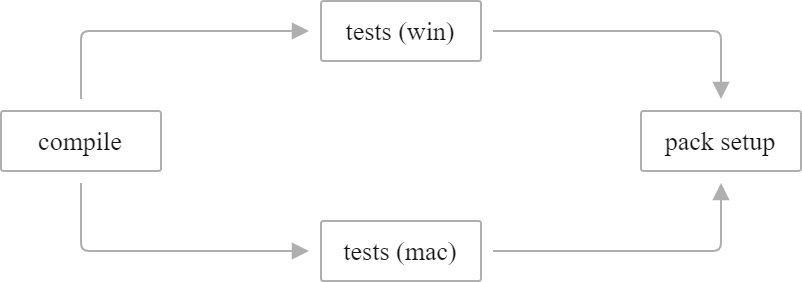
Where compile, tests (win), tests (mac), and pack setup are build configurations, and naturally the tests depend on the compilation, which means they should wait till the compilation is ready.
Common Concepts
In TeamCity, a series of interconnected build configurations is called a build chain. Before getting into details on how it works, let's clarify the legend behind diagrams given here (including the one in the introduction):
| A build configuration. |
| Snapshot dependency between 2 build configurations. Note that the arrow shows the sequence of triggering build configurations, the build chain flow, meaning that B is executed before A. However, the dependencies are configured in the opposite direction (A snapshot-depends on B). The arrows are drawn this way because in the TeamCity UI you can find the visual representation of build chains which are always displayed according to the build chain flow. |
| Artifact dependency. The arrow shows the artifacts flow, the dependency is configured in the opposite direction. |


As you noticed, there are 2 types of dependencies in TeamCity: artifact dependencies and snapshot dependencies. In two words, the first one allows using the output of one build in another, while the second one can trigger builds from several build configurations in a specific order, but on the same sources.
These two dependencies are often configured together because an artifact dependency doesn't affect the way builds are triggered, while a snapshot dependency itself doesn't reuse artifacts, and sometimes you may need only one of those.
Dependencies are configured on the dedicated page of Build Configuration Settings.
Now, let's see what you can do with artifact and snapshot dependencies, and how exactly they work.
Artifact Dependencies
An artifact dependency allows reusing the output of one build (or a part of it) in another.

If build configuration A has an artifact dependency on B, then the artifacts of B are downloaded to a build agent before a build of A starts. Note that you can flexibly adjust artifact rules to configure which artifacts should be taken and where exactly they should be placed.
If for some reason you need to store artifact dependency information together with your codebase and not in TeamCity, you can configure Ivy Ant tasks to get the artifacts in your build script.
If both snapshot and artifact dependency are configured, and the 'Build from the same chain' option is selected in the artifact dependency settings, TeamCity ensures that artifacts are downloaded from the same-sources build.
Snapshot Dependencies
A snapshot dependency is a dependency between two build configurations that allows launching builds from both build configurations in a specific order and ensure they use the same sources snapshot (sources revisions corresponding to the same moment).
When you have a number of builds interconnected by snapshot dependencies, they form a build chain.
When to Create Build Chain
The most common use case for creating a build chain is running the same test suite of your project on different platforms. For example, you may need to have a release build and want to make sure the tests run correctly on different platforms and environments. For this purpose, you can instruct TeamCity to run an integration build first, and after that to run a release build, if the integration one was successful.
Another case is when your tests take too long to run, so you have to extract them into a separate build configuration, but you also need to make sure they use the same sources snapshot.
Build Chains in TeamCity UI
Once you have snapshot dependencies defined and at least one build chain was triggered, the Build Chains tab appears on the Project Home page and on the Home pages of the related build configurations, providing a visual representation of all build chains and a way to rerun any chain step manually, using the same set of sources pulled originally.

How Snapshot Dependencies Work
To get an idea of how snapshot dependencies work, think of module dependencies, because these concepts are similar. However, let's start with the basics. Let's assume, we have a build chain:

If a build of A1 is triggered, the whole build chain A1...AN is added to the build queue, but not vice versa! - if build AN is triggered, it doesn't affect anything else in the build chain, only AN is run.
Builds run sequentially starting from AN to A1. Build A(k-1) won't start until build Ak finishes successfully.
All builds in the chain will use the same sources snapshot, i.e. with explicit specification of the sources revision, that is calculated at the moment when the build chain is added to the queue.
Now let's go into details and examples.
Example 1
Let's assume we have the following build chain with no extra options - plain snapshot dependencies.

What Happens When Build A is Triggered
TeamCity resolves the whole build chain and queues all builds - A, B, and C. TeamCity knows that the builds are to run in a strict order, so it won't run build A until build B is finished, and it won't run build B until build C is finished.
When the builds are added to the queue, TeamCity starts checking for changes in the entire build chain and synchronizes them — all builds have to start with the same sources snapshot.
Note that if the build configurations connected with a snapshot dependency share the same set of VCS roots, all builds will run on the same sources. Otherwise, if the VCS roots are different, changes in the VCS will correspond to the same moment in time.
Once build C has finished, build B starts, and so on. If build C failed, TeamCity won't further execute builds from the chain by default, but this behavior is configurable.
What Happens When Build B is Triggered
The same process will take place for build chain B → C. Build A won't be affected and won't run.
Example 2

When the final build A is triggered, TeamCity resolves the build chain and queues three builds in total: A, B1, and B2. Build A won't start until both B1 and B2 are ready.
In this case it doesn't matter which build - B1 or B2 - starts first; if there are at least two idle compatible agents, these builds can run in parallel. As in the first example, when all builds are added to the queue, TeamCity checks for changes in the entire build chain and synchronizes them.
Advanced Snapshot Dependencies Setup
Reusing builds
All builds belonging to the build chain are placed in the queue. But, instead of enforcing the run of all builds from a build chain, TeamCity can check whether there are already suitable builds, i.e. finished builds that used the required sources snapshot. The matching queued builds will not be run and will be dropped from the queue, and TeamCity will link the dependency to the suitable builds. To enable this, select 'Do not run new build if there is a suitable one' when configuring snapshot dependency options.
Another option that allows you to control how builds are re-used is called " Only use successful builds from suitable ones " and it may help when there's a suitable build, but it isn't successful. Normally, when there's a failed build in a chain, TeamCity doesn't proceed with the rest of the chain. However, with this option enabled, TeamCity will run this failed build on these sources one more time. When is this helpful? For example, when the build failure was caused by a problem when connecting to a VCS.
Turned off Enforced Revisions Synchronization
If you disable the " Enforce revisions synchronization " option when creating a snapshot dependency, TeamCity will be able to use different revisions for chain parts when a build is promoted from one part to another (read more in Build Chain).
Let's explore the example of a deployment chain:

with the following build configurations:
D: compilation
C: integration testing
B: system testing
A: deployment
Here, the " Enforce Revisions Synchronization " option is disabled in a snapshot dependency of build B, while C and A have snapshot dependencies with this option enabled (default state). Based on these settings, TeamCity will synchronize revisions between D and C, as well as between B and A, but it will be able to use different revisions for chain parts D-C and B-A.
In our example, D and C have revision 1, B has revision 2, and A has revision 3.
If you want to run an older compilation build D using the latest deployment configuration A while skipping integration testing C, you can promote build D directly to B. TeamCity will run D using revision 1; then it will synchronize B with the newer revision of A and run B and A using revision 3.
By enabling and disabling this option for dependencies of different build configurations in a chain, you can get more control over your setup and make it more flexible.
To prevent conflicts between revisions, avoid configuring chains where the dependent build (A) must synchronize revisions with its several direct dependency builds (B) and (C), and these builds have different states of the " Enforce Revisions Synchronization " option in their snapshot dependencies on some other build (D).
Use the following valid chains instead:
Synchronization is enabled for the D-B-A build flow but disabled for D-C-A.

Synchronization is enabled for D-B and D-C but disabled for B-A and C-A.

Run build on the same agent
This option was designed for the cases when a build from the build chain modifies system environment, and the next build relies on that system state and thus has to run on the same build agent.
Build behavior if dependency has failed
It is possible to configure the final build behavior if its dependency has failed.
Trigger on changes in snapshot dependencies
The VCS build trigger has another option that alters triggering behavior for a build chain. With this options enabled, the whole build chain will be triggered even if changes are detected in dependencies, not in the final build.
Let's take a build chain from the example: pack setup — depends on — tests — depends on — compile.
With the VCS Trigger set up in the pack setup configuration, the whole build chain is usually triggered when TeamCity detects changes in pack setup; changes in compile will trigger compile only and not the whole chain. If you want the whole chain to be triggered on a VCS change in compile, add a VCS trigger with the " Trigger on changes in snapshot dependencies " option enabled to the final build configuration of the chain, pack setup. This will not change the order in which builds are executed, but will only trigger the whole build chain, if there is a change in any of snapshot dependencies. In this setup, no VCS triggers are required for the compile or tests build configuration.
Changes from Dependencies
For a build configuration with snapshot dependencies, you can toggle the Show changes from snapshot dependencies option in the Version Control section of build configuration settings.

Enabling this setting shows changes of upstream build configurations in Change Log and Pending Changes tabs, as well as in build history and issue log. This setting also allows build configuration triggers to automatically start new builds on changes committed to upstream configurations.
The Show changes from shapshot dependencies option specifies the default behavior. Regardless of this setting, users can toggle the corresponding checkbox when viewing the list of build changes to include or exclude changes that originate from other configurations/repositories.

Parameters in Dependent Builds
TeamCity provides the ability to use properties provided by the builds the current build depends on (via a snapshot or artifact dependency). When build A depends on build B, you can pass properties from build B to build A, i.e. properties can be passed only in the direction of the build chain flow and not vice versa.
For the details on how to use parameters of the previous build in chain, refer to the Dependencies Properties section.
Running Builds in Parallel
A build chain can have an indefinite number of parallel and sequential connections. Builds will run in parallel to each other if:
Each of these builds has own snapshot dependency on the same dependency build. These builds will be able to start as soon as the dependency build finishes.
There are enough free build agents on the server. If the agents are busy, TeamCity will run these builds one after another, in accordance to the agents' load.
Securing Configurations
TeamCity supports linking configurations through snapshot and artifact dependencies, enabling complex multi-project build chains. However, this also means that developers from external projects can use dependencies to trigger builds and import artifacts from configurations owned by other teams.
If your project includes sensitive or resource-intensive configurations, you can the following ways to protect them:
Set up strict user permissions. Anyone with the Project viewer role for your project can create dependencies to this project in their own configurations. This allows external users to utilize your configurations even if they do not have permissions to run them directly.
Use the Build Approval feature. This way other teams can still add dependencies to your configurations, but new builds will stay queued until approved by your designated team members.
Set up fine-grained access permissions in the Project Isolation tab of project settings. You can allow artifact and snapshot dependencies from any project or restrict them to an allowlist. If a project is not on the list, its configuration builds will fail to start. See the Project Isolation section below for more information about this option.
Project Isolation
Project isolation options are available in the corresponding tab of project settings.
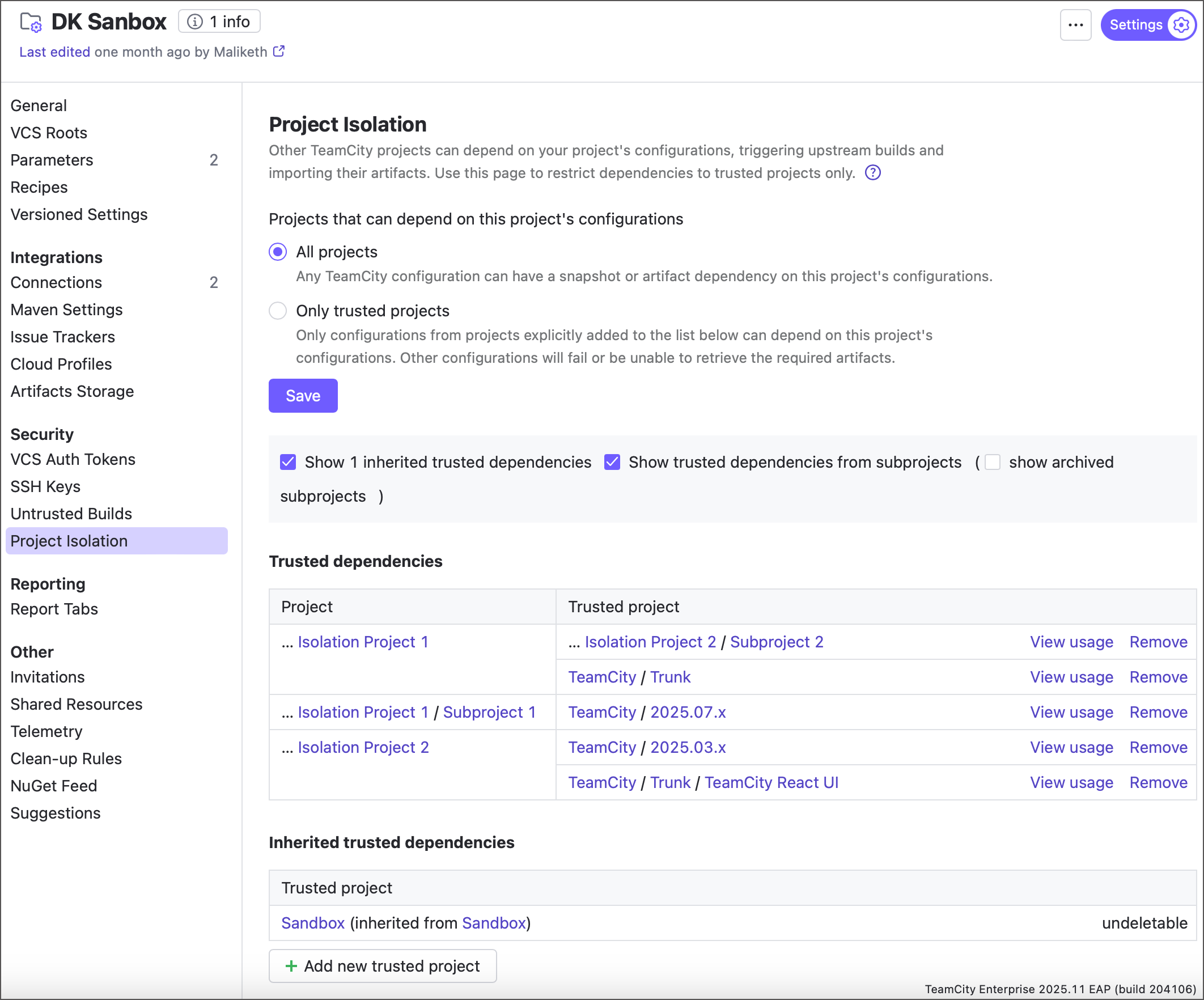
The Only trusted projects mode isolates the target project along with its subprojects, preventing build configurations owned by other (external) projects from accessing this isolated branch via snapshot and artifact dependencies.
- Default trust relations
Switching a project to Only trusted projects mode produces an isolated project branch where all subprojects are mutually trusted.
For example, consider the following project hierarchy:
Root Project │ ├── Project A │ │ │ ├── Project A1 │ └── Project A2 │ └── Project B ("Only trusted projects" enabled) │ ├── Project C └── Project D │ ├── Project D1 └── Project D2Project B is in "Only trusted projects" mode, which isolates the "B → C, D → D1, D2" branch. If all other projects are in less restrictive "All projects" mode, this setup means the following:
All configurations from the "B → C, D → D1, D2" chain can freely depend on each other. This includes both top-down and bottom-up dependencies.
// Horizontal dependency object C_BuildConfig : BuildType({ name = "Configuration from Project C" dependencies { // Configurations from sibling projects C and D snapshot(D_BuildConfig) {} } }) // Top-down dependency object C_BuildConfig : BuildType({ name = "Configuration from Project C" dependencies { // Projects trust their direct and indirect parents snapshot(D1BuildConfig) {} } }) // Bottom-up dependency object D1BuildConfig : BuildType({ name = "Configuration from Project D1" dependencies { // Projects trust their direct and indirect children snapshot(B_BuildConfig) {} } })You can limit top-down dependencies by switching subprojects to the "Only trusted projects" mode. For example, if Project D is in this mode, the "D → D1, D2" chain is further isolated, preventing "B → D" dependencies.
Dependencies from projects A, A1, and A2 to any of the isolated projects will fail. You can fix this by adding external projects to the allowlist.
object A2BuildConfig : BuildType({ name = "Configuration from Project A2" dependencies { // A2 cannot trigger isolated D1, the build will fail snapshot(D1BuildConfig) {} } })The opposite is not true: since A is not isolated, configurations of projects B, C, D, D1 and D2 projects can depend on A, A1 and A2.
object D1BuildConfig : BuildType({ name = "Configuration from Project D1" dependencies { // D1 can trigger non-isolated A2 snapshot(A2BuildConfig) {} } })
- Trusted projects list
To allow projects outside the isolated branch to have dependencies to these isolated projects, click Add new trusted project and add required projects to the list. Projects propagate their allowlists to all their direct and indirect children. In the example above, if Project D trusts Project A, the latter can have snapshot and artifact dependencies to configurations owned by projects D, D1, and D2.
The Project Isolation page splits trusted dependencies in two tables: those explicitly declared on this project level, and those inherited from parent projects.

Since children inherit trusted project lists from their parents, we recommend adding trusted projects to the topmost project of an isolated branch (Project B in the example above). Doing so allows you to keep a clean and easily maintainable setup.
When you switch a project to Only trusted projects mode, TeamCity warns you that builds dependent on this project (and its subprojects) will fail unless you add their projects to the allowlist. Tick the Add currently dependent projects to trusted checkbox to let TeamCity scan the current project hierarchy and pre-fill this list.
- Settings inheritance
If a project has no parent enforcing isolation, the Project Isolation page offers two modes: All projects and Only trusted projects.
Otherwise, if any direct or indirect parent uses the second mode, the All projects option is replaced with Inherit settings from a parent project.

In this inherited mode, a project trusts:
Its direct and indirect child projects;
Its direct and indirect parent projects (up to the parent it inherits isolation from);
Projects in the parents' allowlists. Each subproject can additionally define its own list of trusted projects (see Trusted projects list for more information).
- Project isolation and versioned settings
The trust mode setting and the list of trusted projects are not stored in versioned settings. At the same time, using versioned settings with the disabled Allow editing project settings via UI option does not block Project Isolation settings in TeamCity UI.
This ensures that trust policies can only be modified by project administrators via the TeamCity UI, not through changes to remote configuration files (which can be accessible to regular project developers).
Miscellaneous Notes on Using Dependencies
Build chain and clean-up
By default, TeamCity preserves builds that are a part of a chain from clean-up, but you can switch off the option. Refer to the Clean-Up description for more details.
Artifact dependency and clean-up
Artifacts may not be cleaned if they were downloaded by other builds and these builds are not yet cleaned up. For a build configuration with configured artifact dependencies, you can specify whether the artifacts downloaded by this configuration from other builds can be cleaned or not. This setting is available on the clean-up policies page.
Running personal build in a chain
If you run a personal build that is a part of a build chain, all its dependency builds will be run as personal builds as well.
However, if you enable the reuse of suitable builds in the dependency settings, TeamCity will try to optimize the chain whenever possible. If running a personal dependency build does not bring any value or contradicts the checkout rules, TeamCity will use a finished non-personal build instead.