Configuring Build Parameters
Parameters are name=value pairs that you reference via the %parameterName% syntax in TeamCity settings and build scripts.
The parameter value part can be a raw value (release.number=2026.1) or include a reference to another parameter (system.tomcat.libs=%env.CATALINA_HOME%/lib/*.jar).
Parameter Types
TeamCity supports paramters of three types:
Configuration Parameters — parameters whose primary objective is to share settings within a build configuration. You can also use these parameters to customize a configuration that was created from a template or uses a recipe. TeamCity does not pass parameters of this type to a build process (that is, these parameters are not accessible by a build script engine).
Environment Variables — parameters that start with the
env.prefix. These parameters are passed to the process of a build runner similarly to the default env variables of a system.System Properties — parameters that start with the
system.prefix. TeamCity can pass parameters of this type to configuration files of certain runners as variables specific to a build tool.
Main Use Cases
Parameterize a build script
If occasionally you need to run custom script variations, you can replace raw values with parameters. For example, the following Kotlin DSL sample illustrates a Gradle step that runs the clean build command by default.
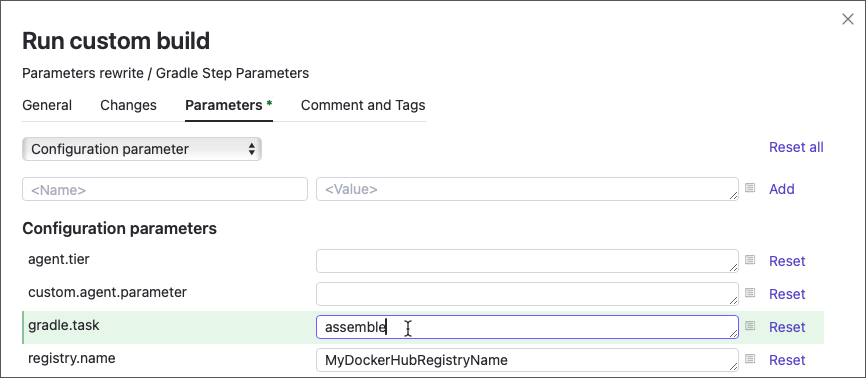
Users can trigger a custom build to override this parameter and run a different Gradle task.
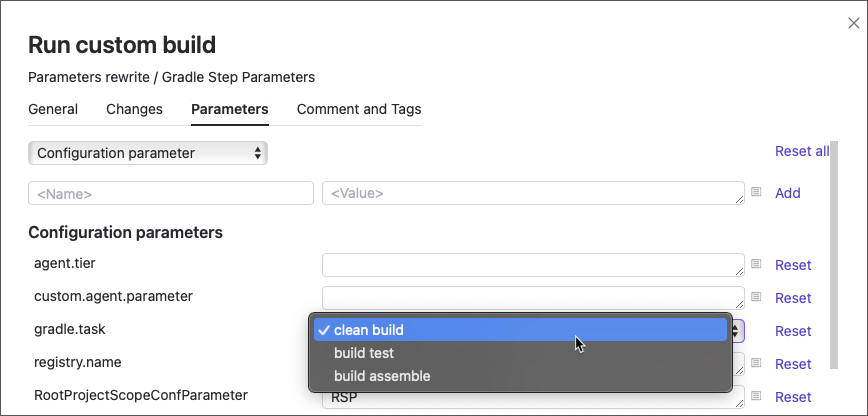
You can also pre-fill this parameter with supported values. Then, instead of typing, users will be able to select an option via a combo-box...
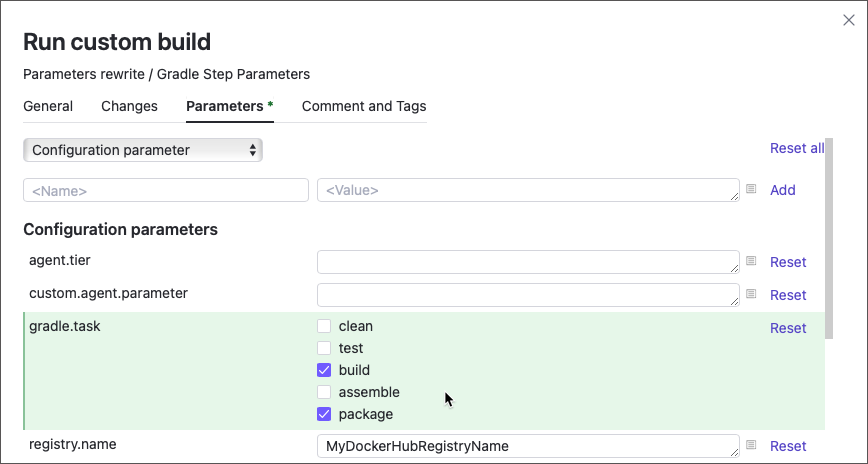
...or checkboxes.
See Create and Set Up Custom Parameters for more information on parameter customization.
Share common settings
Project-owned parameters can store settings common for multiple build configurations or pipelines. For example, if your organization follows strict branch-naming guidelines for all repositories, you can avoid entering identical branch specifications and other settings for each VCS root.
Avoid raw values
TeamCity agents report a number of parameters that store tool installation paths. You can use these parameters in build scripts and TeamCity settings. Doing so allows you to create agent-agnostic conditions and minimize potential errors.
In other cases, you might want avoid raw values because this data is sensitive (for example, authentication credentials used inside a build script). To hide these sensitive values from both TeamCity UI and build logs, create a password parameter.
Customize templates and recipes
Templates allow you to quickly create similar build configurations and pipelines. You can parameterize certain template settings to implement unique behavior for each object that derives from this template.
For example, the following build configuration has two steps and the Boolean skip.optional.step parameter. Step #2 will or will not be executed depending on this parameter value.
If you extract a template from this configuration, you can create multiple copies of the same configuration. In those copies that do not need to run the optional step #2, override the skip.optional.step parameter and set it to true.
Recipes are generalized steps that encapsulate frequently used actions. These objects also use parameters to customize their behavior.
Specify step execution conditions
You can define step execution conditions to specify whether individual steps should run. You can craft these conditions using custom and predefined configuration parameters and environment variables.
For example, you can run different shell scripts depending on the build agent's operating system.
Specify agent requirements
Agent requirements allow you to specify parameter-operator-value conditions. Only those agents that meet these conditions are allowed to build this build configuration.
You can define agent requirements using only those parameters whose values agents can report before the build starts. These parameters are:
Predefined configuration parameters available for all agents (for example,
teamcity.agent.name).Environment variables reported by agents (for example,
env.DOTNET_SDK_VERSION).Custom configuration parameters that are present in agents' buildAgent.properties files (for example, create a
custom.agent.parameterin TeamCity UI and add thecustom.agent.parameter=MyValueline to agents' properties files).
In Kotlin DSL, use the requirements collection to define new requirements.
Parameterize builder configurations
.NET, Maven, Gradle, Ant and NAnt runners allow you to reference TeamCity parameters in build configuration files. This technique allows you to pass the required values to build processes.
In .NET, pass parameter values using the $(<parameter_name>) syntax.
The following sample .csproj file defines two custom MSBuild targets:
To reference a parameter value in Maven and Ant, use the ${parameterName} syntax.
To reference a parameter value in Maven and Ant, use the ${parameterName} syntax.
For Gradle runner, TeamCity system properties can be accessed as native Gradle properties (those defined in the gradle.properties file). If the property name is allowed as a Groovy identifier (does not contain dots), use the following syntax:
Otherwise, if the property has dots in its name (for example, build.vcs.number.1), use the project.ext["build.vcs.number.1"] syntax instead.
Parameter Sources
All TeamCity parameters can be categorized in two main groups: predefined and custom (created by TeamCity users). Custom parameters can be declared on multiple levels, including individual projects, build configurations, and agent machines.
- Predefined parameters
TeamCity exposes multiple predefined parameters that you can reference in your build workflows. For example, the
teamcity.agent.work.dir.freeSpaceMbparameter reports the total free space on this particular build agent, andDotNetCLI_Pathparameter returns the .NET CLI installation path.See this article for more information: List of Predefined Build Parameters.
- Custom template, project, configuration, and pipeline parameters
These parameters are created by users inside project, configuration, and pipeline settings. In certain cases, TeamCity creates them automatically. For example, if your CLI step runs the
echo %MyParam%command butMyParamdoes not exist, every build will fail. TeamCity recognizes this as a misconfiguration and does not run new builds unless you provide a value for this missing parameter. In other words, the presence of a missing parameter becomes an implicit requirement for new builds.See Create and Set Up Custom Parameters and Implicit Requirements for more information.
- Custom agent parameters
You can manually declare parameters inside agent configuration files (
<AGENT_HOME>/conf/buildAgent.properties). For example, the following sample demonstrates how to implement a custom build agents' ranking system:# An agent's "buildAgent.properties" files ###################################### # Default Build Properties # ###################################### # ... agent.tier=Platinum # ...This custom agent rank can then be employed in agent requirements:
object Build : BuildType({ name = "My build config" requirements { equals("agent.tier", "Platinum") } })- Custom build parameters
Users who trigger custom builds can override existing parameter values and add new parameters on a corresponding dialog tab.
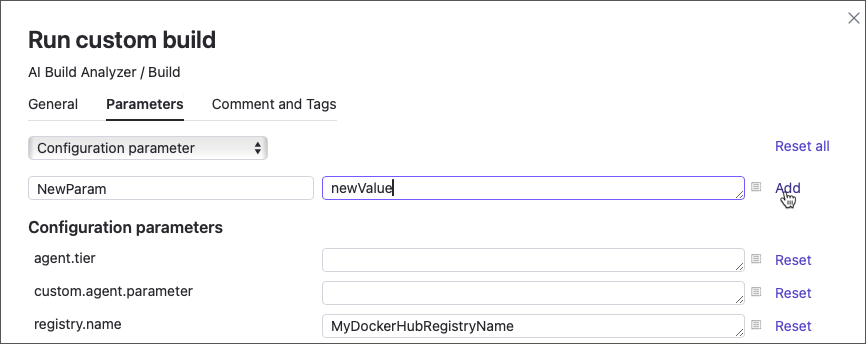
For example, if you do not specify the Java version for a Maven build step, it uses the agent’s default Java defined by the
JAVA_HOMEenvironment variable. To override it, add theenv.JAVA_HOMEparameter in the Custom Build Run dialog and set it to an existing agent parameter such as%env.JDK_21_0_ARM64%.- Dynamically created custom parameters
Print the
##teamcity[setParameter name='foo' value='bar']service message to the build log to update an existing or add a new parameter.
Parameter Values
TeamCity parameters can obtain their values from one or multiple sources listed below.
Values from a template selected as the enforced settings template. These values cannot be disabled or overridden by users.
The Parameters tab of the Run Custom Build dialog.
Custom values assigned to a parameter in build configuration or pipeline settings.
Custom values assigned to a parameter parent project settings. Parameters defined within a project are inherited by all its child entities.
Values specified in a regular build configuration template.
Values specified in a build agent's configuration file (the
<AGENT_HOME>/conf/buildAgent.propertiesfile).Values reported by an agent when it connects to the TeamCity server. These values are passed to parameters that describe the agent environment. For example, the
DotNetCoreSDK7.0_Pathparameter that stores the path to .NET 7 SDK on this specific agent.Values of predefined build parameters. These parameters can collect their values on a server side in the scope of a specific build (for example, the
build.numberparameter), or on the agent side right before a build starts (for example, theteamcity.agent.work.dir.freeSpaceMbparameter).
The list above also ranges parameter value sources by priority, from highest to lowest. That is, if the same parameter retrieves different values from different sources, a value from the topmost source in this list is applied. For example, if the my.parameter is defined inside an agent configuration file and inside a build configuration, the value from the configuration settings page wins.
Override Parameter Values During a Build
Initial parameter values can be overridden by sending the ##teamcity[setParameter name='foo' value='bar'] service message. Note that parameters modified in such manner update their values only in the scope of the current build or build chain. To permanently override a parameter value, send the REST API request from your build step like shown below:
Get Parameter Value From a Remote Source
To hide sensitive data from both TeamCity UI and build logs (for example, login credentials and access tokens), use password parameters that mask their values. To secure critical values even further, store them in a third-party vault and create a TeamCity parameter of the remote secret type. These parameters have no explicit "value" part. Instead, they store a query that TeamCity runs whenever it needs to resolve the parameter reference.
Currently, only HashiCorp Vault is supported as a remote secret storage. See this article for more information: HashiCorp Vault Integration.
Track Parameter Values
When a build finishes, you can check out all parameters that were present during this build on the Parameters tab of the Build Results page. TeamCity highlights new parameters and those whose values changed during the build.
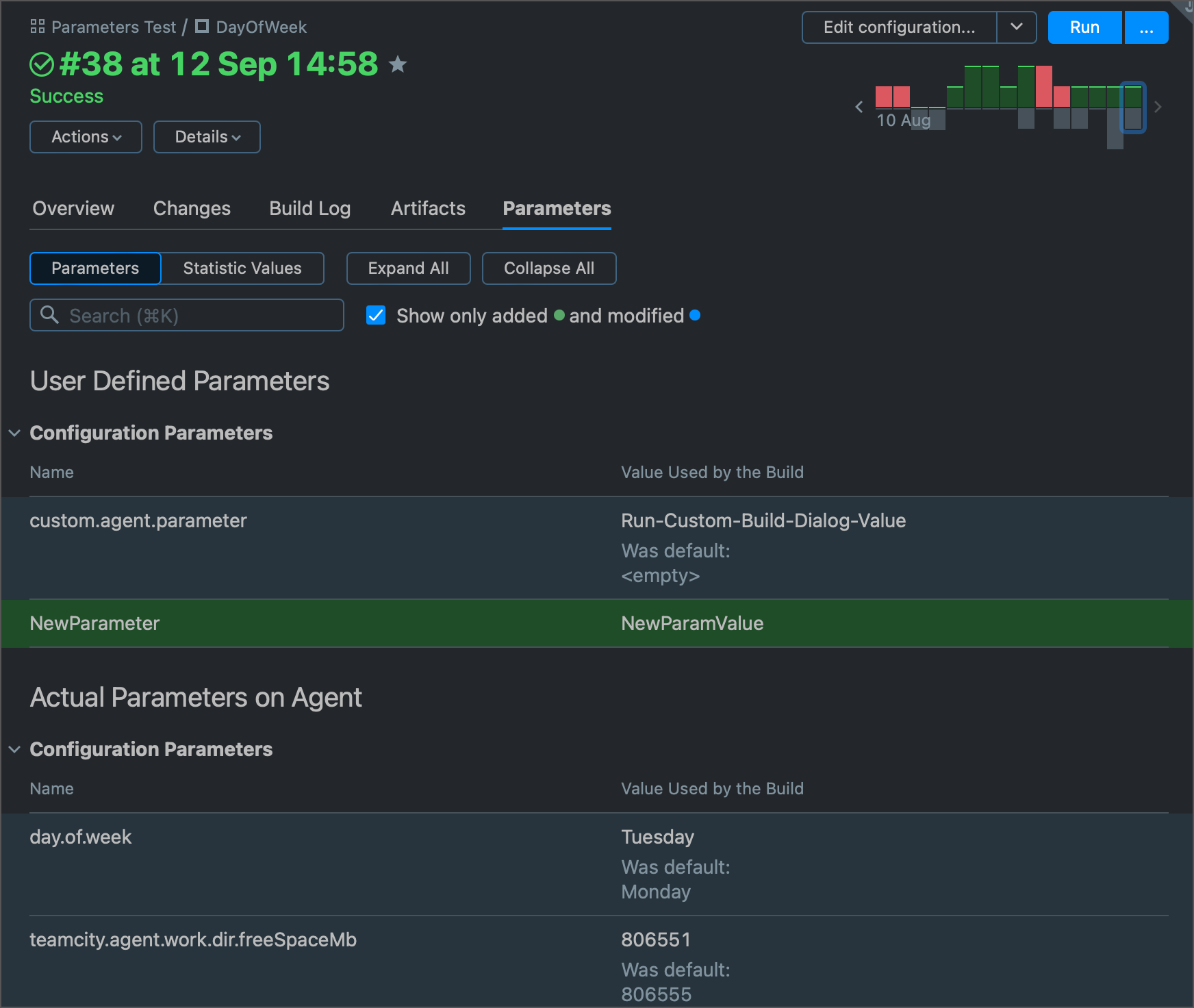
To check initial and actual parameter values of the specific build via REST API, send GET requests to the /app/rest/builds/[{buildLocator}](https://www.jetbrains.com/help/teamcity/rest/buildlocator.html) endpoint and specify required payload fields according to the Build schema.
/app/rest/builds/{buildLocator}?fields=originalProperties(*)— returns user-defined parameters from the build configuration and their default values./app/rest/builds/{buildLocator}?fields=startProperties(*)— returns all parameters reported by an agent and their values at the time the build started./app/rest/builds/{buildLocator}?fields=resultingProperties(*)— returns all parameters reported by an agent and their values by the time the build finished.
You can also check initial and final values of the specific parameter. To do this, specify the name of the target parameter: