Integration with AI Agents
While AI Assistant is a great tool for debugging and analyzing existing TeamCity workflows, it is only available in the TeamCity UI. In some cases, though, you may want to work with TeamCity from an external AI-powered tool. For example, when using an agentic IDE such as Air or Cursor, you might want to run CI/CD tasks without leaving your coding environment. To do that, the agent needs access to tools that can work with TeamCity.
There are two main ways to enable this: CLI tools and MCP servers. TeamCity supports both, so let’s start with a quick overview of each approach.
- MCP
Model Context Protocol is an open-source standard for connecting AI applications to external systems. Your external AI solution uses an authorized request to the specific endpoint and retrieves a list of ready-to-use tools for working with this resource.
- CLI
If a product comes with CLI support, you can "teach" the AI agent to work with supported commands. To do so, an agent needs a skill — a set of instructions, scripts, and resources that the agent can load when relevant to improve its performance in specialized tasks. At its bare minimum, a skill is a simple
SKILL.mdwith detailed instructions that tell an agent how to perform a specific task.
The choice between MCP and CLI integration depends on the nature of your AI tool and its environment.
Environment requirements. Using agent skills demands an environment where you can install the related CLI tool. For example, locally running code agents like Codex, Claude Code, and Junie CLI can use skills to run commands and work with files. Unlike them, chat tools like ChatGPT or Claude cannot use CLI tools directly.
Nature of instructions. When the primary goal is to run specific actions, CLI might be a more natural choice. For example, a code agent can call terminal commands to report the latest build status or run a specific test suite. At the same time, chat agents that rely on MCP excel at smart problem investigation and analytics.
Safety concerns Safety depends heavily on permissions and sandboxing. When compared to an agent using MCP tools, a recklessly used agent armed with CLI tools can do more damage if permissions are too broad.
Implementation costs. If the software already has a good CLI and the vendor gives you a ready-made skill, you can often drop it into the repo and start immediately, without configuring a server connection. TeamCity CLI comes with a ready-to-use skill that allows you to do exactly that.
Scalability. A large number of tools connected upfront may create a significant overhead and drastically reduce the available context window of an LLM. Various solutions designed to mitigate this issue (for example, Anthropic Tool search tool) may deal with MCP tools better than skills.
For TeamCity, the CLI tool provides much broader integration options. An agent can use CLI commands to disable agents or edit project parameters, while the TeamCity MCP tools currently support a much narrower set of developer-focused actions, such as starting personal builds.
The CLI skill also teaches agents how to send REST API requests when no dedicated CLI command exists yet. As a result, agents with this skill can handle a far wider range of TeamCity tasks.
TeamCity MCP
TeamCity servers expose the <server-url>/app/mcp endpoint that exposes three AI tools:
- teamcity_build_log
Retrieves the full build log for the target build. Supports pagination and filtering by message types (all lines or only warnings and errors). Used to investigate failed builds.
- teamcity_rest_get
Sends
GETrequests using TeamCity REST API: return the list of projects and build configurations, find the last successful build, display currently muted problems, and so on. The list of available operations depends on the auth token permissions scope.- teamcity_rest_post
Sends
POSTrequests using TeamCity REST API. Currently, supports onlyPOSTrequests to the/app/rest/buildQueueendpoint to trigger new builds with default or custom settings. All builds triggered by AI agents are marked with thepersonal=trueattribute.
To retrieve and use these tools, an AI agent needs to pass token-based authorization in TeamCity. You can issue access tokens on the user profile page. TeamCity allows you to choose whether you want the agent to have same permissions as the user who issued the token, or fine-grained per-project permissions.
Examples
This section illustrates how to connect most popular AI tools with TeamCity using the MCP server. For better security, we recommend exporting your TeamCity access token into an environment variable:
Then, you will be able to use the $TC_AUTH_TOKEN reference instead of a raw value.
Air, Cursor
Open IDE settings and paste the following JSON snippet to add a global/project/workspace server:
Claude
Modify the Settings | Developer | Edit config file as follows:
Codex
Add the following snippet to the ~/.codex/config.toml file...
...or run the following terminal command.
Claude Code
Run the following terminal command:
TeamCity CLI
TeamCity CLI is a standalone tool that you can install on any machine to run builds, inspect build logs, manage agents, and perform other operations via terminal commands.
Homebrew (recommended):
Install script:
Winget (recommended):
PowerShell (install script):
To enable an AI agent to work with this tool, run teamcity skill install. You can optionally specify the target agent and project.
This command installs agent-specific skills into the default locations, so supported agents can discover and use them automatically — no extra setup needed.
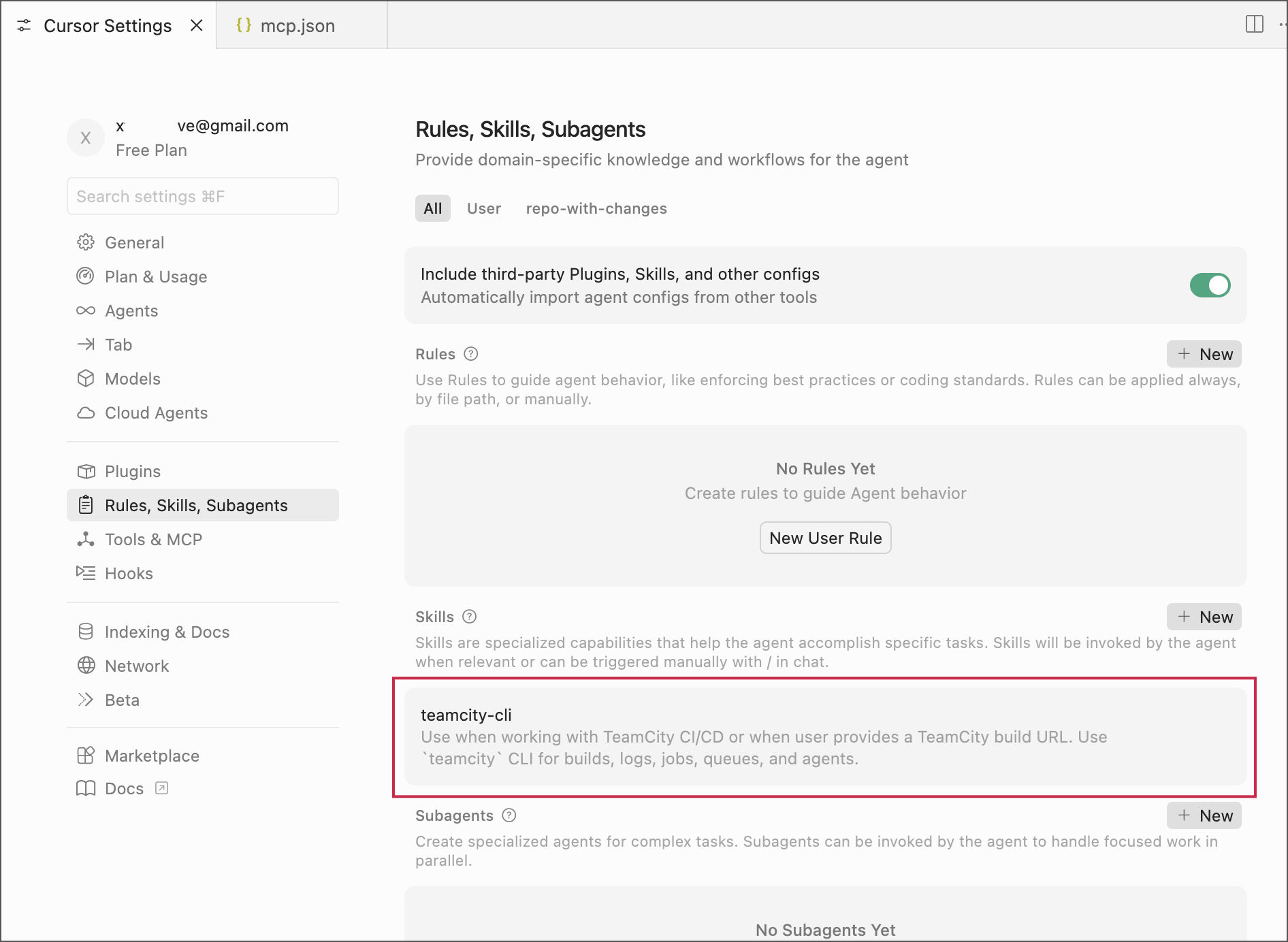
Once the skill is installed, you can ask an agent to perform TeamCity-related tasks such as:
See the following article for more information: TeamCity CLI AI Agent Skill.
Access token rate limits
TeamCity is a CI/CD solution designed to handle parallel access from hundreds of users across multiple server nodes. In rare cases, integrations with external tools can cause sudden request spikes that degrade UI performance. This usually happens because of a misconfiguration, when an external tool such as an AI agent sends dozens of requests at the same time.
To prevent or resolve this issue, use the teamcity.http.limiter.maxParralelRequestPerUser internal property to limit the number of simultaneous HTTP requests allowed per access token. For example, the following setting limits token-based tools to 20 concurrent requests:
For troubleshooting, set the limit to a desired value and enable the teamcity.http.limiter.dryRun=true property. In this mode, TeamCity does not block excessive requests, but it records them in the audit log.