Runs represent build executions in TeamCity. The teamcity run command group lets you start builds, monitor them in real time, view logs and test results, manage artifacts, and organize runs with tags, comments, and pins.
Listing runs
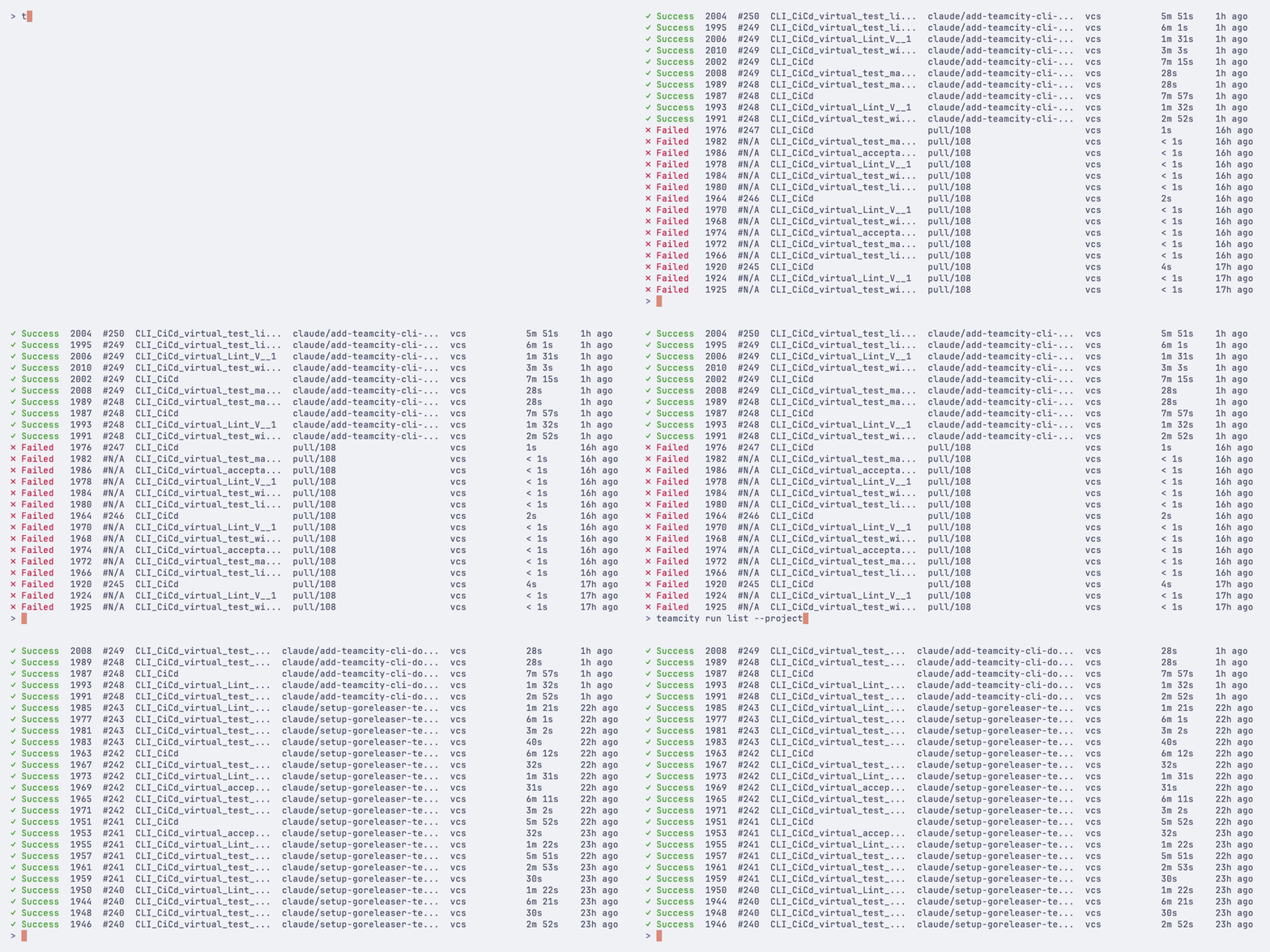
View recent builds with teamcity run list:
teamcity run list
Favorite runs
Use teamcity run list --favorites to show the current user's favorite builds, including manually starred builds and builds TeamCity marked as important for you:
teamcity run list --favorites
teamcity run list --favorites --status failure --limit 10
--favorites works with the existing run list filters and output modes.
Filtering
Use flags to narrow results:
# Builds for a specific job
teamcity run list --job MyProject_Build
# Filter by project
teamcity run list --project MyProject
# Filter by branch
teamcity run list --branch main
# Auto-detect the current git branch
teamcity run list --branch @this
# Filter by status
teamcity run list --status failure
# Show only your favorite builds
teamcity run list --favorites
# Show only your own recent builds
teamcity run list --user @me
# Show only the latest matching run
teamcity run list --user @me --branch @this --limit 1
# Filter by user who triggered the build
teamcity run list --user alice
teamcity run list --user @me
# Combine filters
teamcity run list --job MyProject_Build --status failure --branch main
Filtering by revision
Use --revision to find all builds that include a specific VCS commit:
# All builds for a commit
teamcity run list --revision abc1234
# Scoped to a specific job
teamcity run list --revision abc1234 --job MyProject_Build
# Auto-detect the current HEAD commit
teamcity run list --revision @head
Time-based filtering
Use --since and --until to filter by time. Accepts duration offsets (24h, 7d, 2w, 1mo, 4w2d5h) or ISO dates (2026-01-15, 2026-01-15T12:00:00Z):
# Builds from the last 24 hours
teamcity run list --since 24h
# Builds from the last week
teamcity run list --since 7d
# Builds from a specific date onward
teamcity run list --since 2026-01-15
# Builds in a time range
teamcity run list --since 2026-01-15 --until 2026-01-20
Limiting results
teamcity run list --limit 20
Output options
# JSON output (see Scripting and automation for details)
teamcity run list --json
teamcity run list --json=id,status,webUrl
# Plain text for scripting
teamcity run list --plain
teamcity run list --plain --no-header
run list flags
Flag
Description
-j, --job
Filter by job (build configuration) ID
-p, --project
Filter by project ID
-b, --branch
Filter by branch name. Use @this to resolve the current git branch.
--status
Filter by status: success, failure, running, queued, error, or unknown
--favorites
Show favorite builds for the current user.
-u, --user
Filter by the user who triggered the build. Use @me for the current user.
--revision
Filter by VCS revision (commit SHA). Use @head to resolve the current git HEAD.
--since
Show builds finished after this time (for example, 24h, 7d, 2026-01-21)
--until
Show builds finished before this time
-n, --limit
Maximum number of runs to display
--json
Output as JSON. Use --json= to list available fields, --json=f1,f2 for specific fields.
--plain
Tab-separated output for scripting
--no-header
Omit header row (use with --plain)
-w, --web
Open the list in the browser
Starting a run
Trigger a new build with teamcity run start:
teamcity run start MyProject_Build
Specifying a branch and revision
# Build a specific branch
teamcity run start MyProject_Build --branch feature/login
# Build the branch you are currently on
teamcity run start MyProject_Build --branch @this
# Pin to a specific Git commit
teamcity run start MyProject_Build --branch main --revision abc123def
# Pin to the current HEAD
teamcity run start MyProject_Build --branch @this --revision @head
Build parameters
Pass custom parameters, system properties, and environment variables:
# Clean all source files before building
teamcity run start MyProject_Build --clean
# Rebuild all dependencies
teamcity run start MyProject_Build --rebuild-deps
# Rebuild only failed dependencies
teamcity run start MyProject_Build --rebuild-failed-deps
# Reuse existing builds as snapshot dependencies (pin by build ID)
teamcity run start MyProject_Build --reuse-deps 6946,6917
# Add to the top of the queue
teamcity run start MyProject_Build --top
# Run on a specific agent
teamcity run start MyProject_Build --agent 5
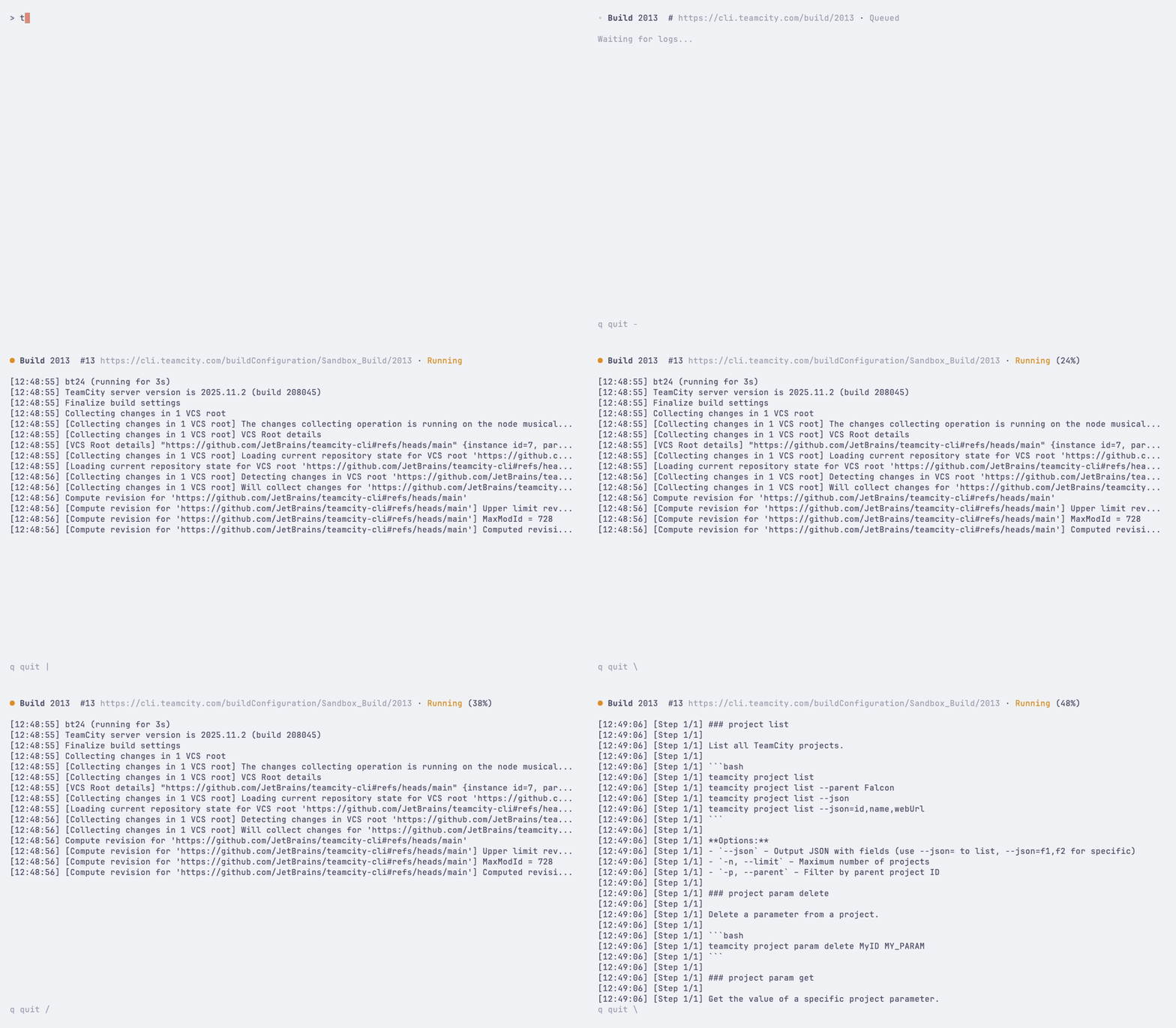
Add --watch to follow the build after starting it:
teamcity run start MyProject_Build --branch main --watch
You can also set a timeout or adjust the polling interval:
teamcity run start MyProject_Build --watch --timeout 30m
teamcity run start MyProject_Build --watch --interval 10
Personal builds
Include uncommitted local changes in a personal build:
# Auto-detect changes from Git working directory
teamcity run start MyProject_Build --local-changes
# From a patch file
teamcity run start MyProject_Build --local-changes changes.patch
# From stdin
git diff | teamcity run start MyProject_Build --local-changes -
By default, the CLI pushes your branch to the remote before starting a personal build. Use --no-push to skip this:
teamcity run start MyProject_Build --local-changes --no-push
Dry run
Preview what would be triggered without actually starting a build:
teamcity run start MyProject_Build --dry-run
run start flags
Flag
Description
-b, --branch
Branch to build. Use @this to resolve the current git branch.
--revision
Pin build to a specific Git commit SHA. Use @head to resolve the current HEAD; short SHAs are expanded from the local repo.
-P, --param
Build parameters as key=value (can be repeated)
-S, --system
System properties as key=value (can be repeated)
-E, --env
Environment variables as key=value (can be repeated)
-m, --comment
Build comment
-t, --tag
Build tag (can be repeated)
--personal
Run as a personal build
-l, --local-changes
Include local changes. Accepts git (default), - (stdin), or a file path.
--no-push
Skip auto-push of branch to remote
--clean
Clean source files before building
--rebuild-deps
Rebuild all dependencies
--rebuild-failed-deps
Rebuild failed or incomplete dependencies only
--reuse-deps
Reuse existing builds as snapshot dependencies. Accepts a comma-separated list of build IDs or can be repeated. TeamCity resolves which dependency slot each build fills by its build configuration.
--top
Add to the top of the build queue
--agent
Run on a specific agent (by ID)
--watch
Watch the build after starting it
-i, --interval
Refresh interval in seconds when watching (default: 3)
--timeout
Timeout when watching (for example, 30m, 1h); implies --watch
--dry-run
Preview without starting
--json
Output as JSON
-w, --web
Open run in browser
Viewing run details
teamcity run view 12345
teamcity run view 12345 --web
teamcity run view 12345 --json
Snapshot dependency tree
Visualize the snapshot dependency chain for a run with teamcity run tree:
teamcity run tree 12345
Limit the depth of the tree:
teamcity run tree 12345 --depth 2
Output as JSON:
teamcity run tree 12345 --json
run tree flags
Flag
Description
-d, --depth
Limit tree depth (0 = unlimited)
--json
Output as JSON
Watching a run
Monitor a running build with live updates:
teamcity run watch 12345
Stream build logs while watching:
teamcity run watch 12345 --logs
Set a custom refresh interval or timeout:
teamcity run watch 12345 --interval 10
teamcity run watch 12345 --timeout 30m
Use --quiet for minimal output that shows only state changes and the final result:
teamcity run watch 12345 --quiet
Use --json to wait for the build to complete and output the final result as JSON (useful for scripting):
teamcity run watch 12345 --json
run watch flags
Flag
Description
-i, --interval
Refresh interval in seconds
--logs
Stream build logs while watching
--quiet
Minimal output — only state changes and result
--json
Wait for completion and output result as JSON
--timeout
Stop watching after this duration (for example, 30m, 1h)
Viewing build logs
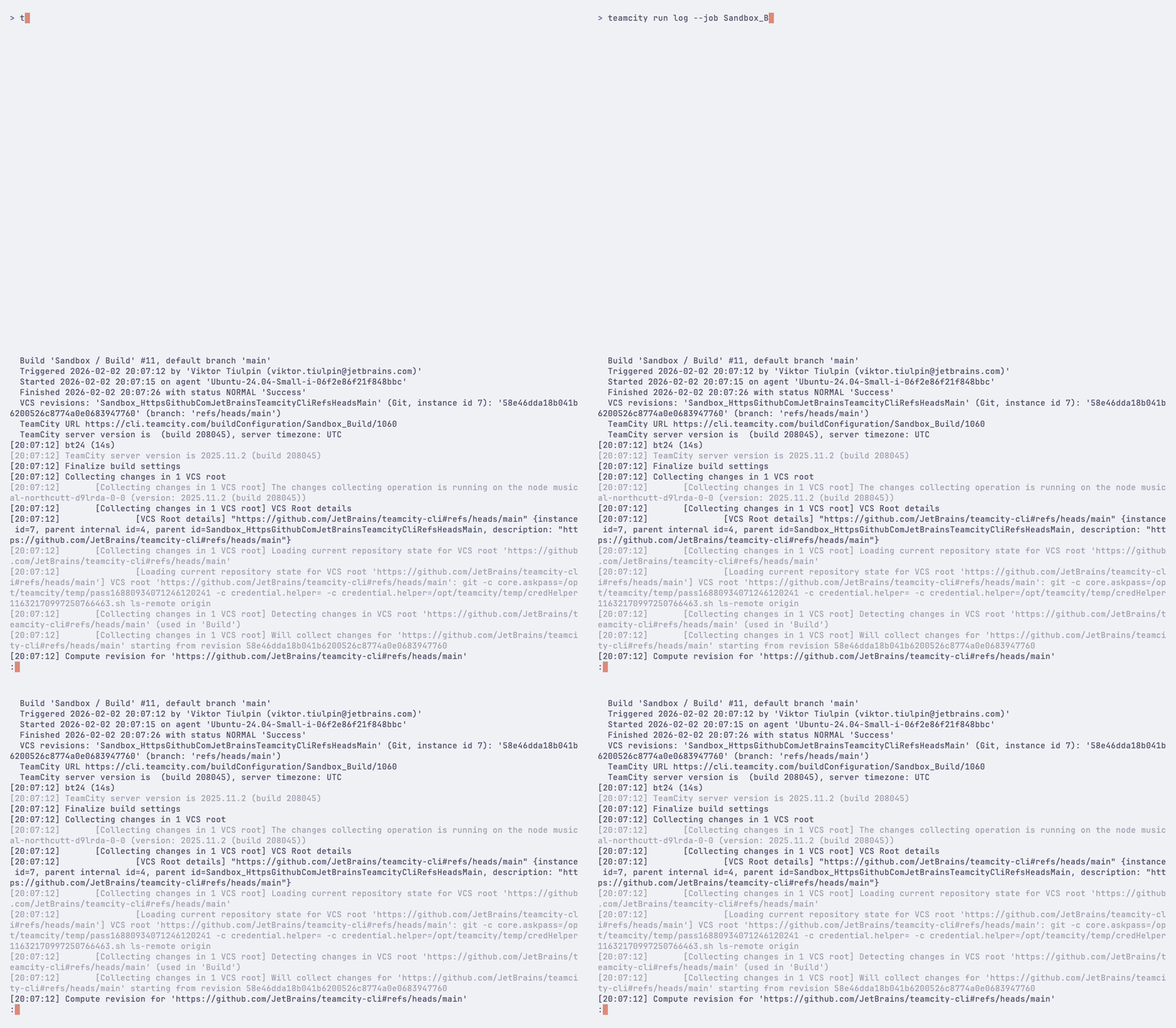
View the log output from a run:
teamcity run log 12345
View the log for the latest run of a specific job:
teamcity run log --job MyProject_Build
Show failure diagnostics — build problems, failed tests with full stack traces, and whether each failure is new or pre-existing:
teamcity run log 12345 --failed
Bypass the pager and output raw text:
teamcity run log 12345 --raw
Stream the log in real-time until the build finishes:
teamcity run log 12345 --follow
Show the last 50 log messages:
teamcity run log 12345 --tail 50
Output the log as JSON:
teamcity run log 12345 --json
Open the build log in your browser:
teamcity run log 12345 --web
Canceling a run
Cancel a running or queued build:
teamcity run cancel 12345
teamcity run cancel 12345 --comment "Canceling for hotfix"
Use --yes to skip the confirmation prompt:
teamcity run cancel 12345 --yes
Restarting a run
Restart a run with the same configuration:
teamcity run restart 12345
teamcity run restart 12345 --watch
teamcity run restart 12345 --timeout 30m
teamcity run restart 12345 --web
Artifacts
Listing artifacts
List artifacts from a run without downloading them:
teamcity run artifacts 12345
teamcity run artifacts --job MyProject_Build
teamcity run artifacts 12345 --path html_reports/coverage
teamcity run artifacts 12345 --json
Downloading artifacts
Download artifacts from a completed run:
teamcity run download 12345
teamcity run download 12345 --path build/assets
teamcity run download 12345 -o ./artifacts
teamcity run download 12345 --artifact "*.jar"
teamcity run download 12345 --path build/assets -a "*.js"
teamcity run download 12345 --timeout 30m
The --timeout flag sets the maximum time for the entire download operation (default: 10m). Use longer values for large artifact sets, for example --timeout 1h.
Test results
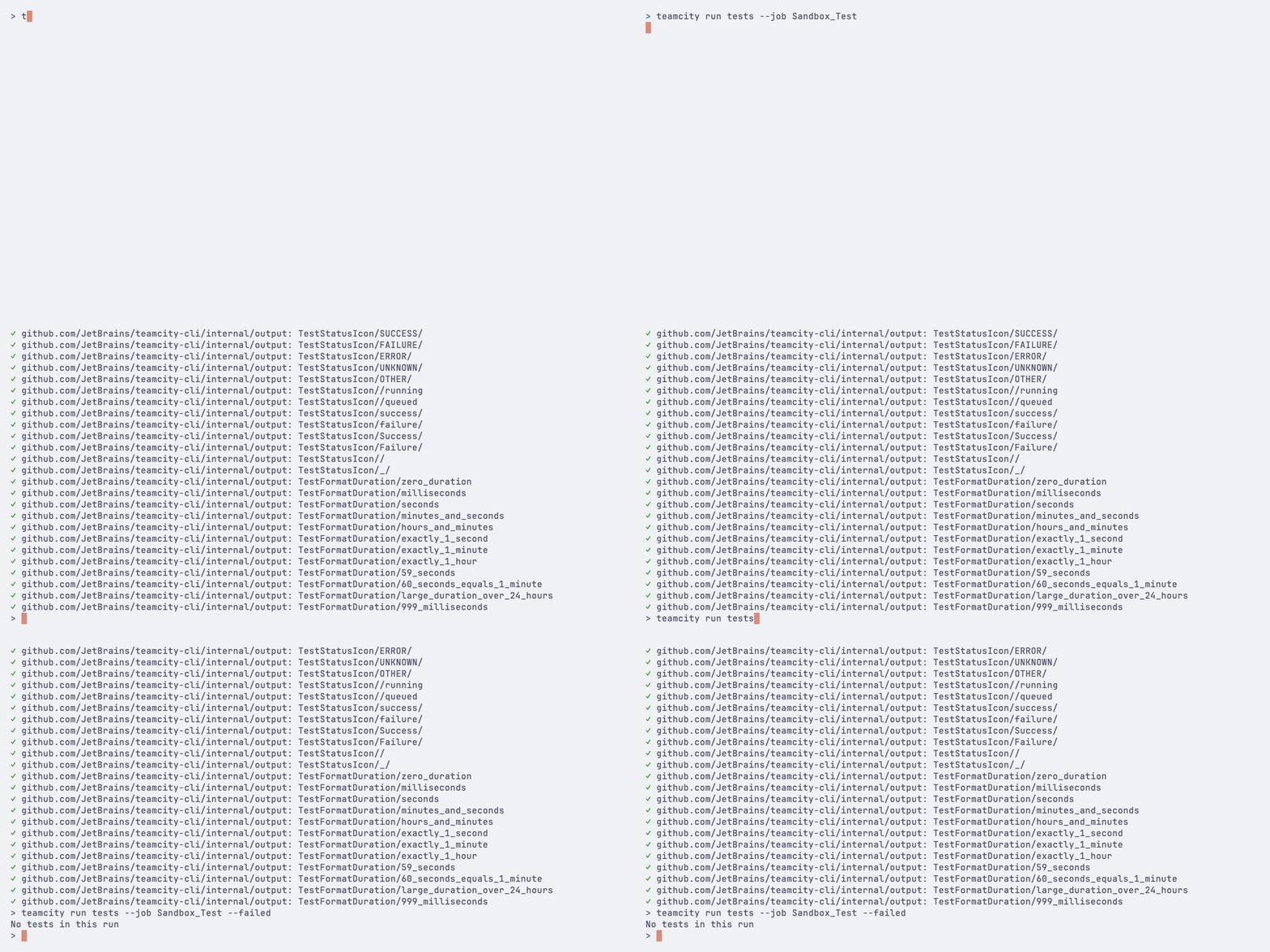
Show test results from a run:
teamcity run tests 12345
teamcity run tests --job MyProject_Build
Show only failed tests, excluding muted failures:
teamcity run tests 12345 --failed
Show only muted failed tests:
teamcity run tests 12345 --muted
Limit the number of results:
teamcity run tests 12345 --limit 50
teamcity run tests 12345 --json
VCS changes
Show the VCS commits included in a run:
teamcity run changes 12345
Show commits only (without file listings):
teamcity run changes 12345 --no-files
teamcity run changes 12345 --json
Comparing runs
Compare two runs side-by-side and highlight what changed between them — status, duration, agent, parameters, test results, problems, and VCS changes:
teamcity run diff 12345 12346
If only one run ID is given, the CLI compares it against the previous finished run of the same job — handy for "what changed since last time?":
teamcity run diff 12345
Diffing build logs
Pass --log to compare the two build logs as a colored unified diff. Timestamps, temp paths, and noisy git progress lines are normalized so the diff focuses on real content:
teamcity run diff 12345 12346 --log
teamcity run diff 12345 12346 --log -U5 # 5 lines of context
The output is piped through your pager ($PAGER, defaults to less). Strip colors and pipe to an external diff viewer for richer rendering:
teamcity run diff 12345 12346 --log --no-color | delta
teamcity run diff 12345 12346 --log --no-color | diff-so-fancy
Other forms
Open both runs in the browser:
teamcity run diff 12345 12346 --web
Machine-readable output for scripts:
teamcity run diff 12345 12346 --json
Pinning runs
Pin a run to prevent it from being cleaned up by retention policies:
teamcity run pin 12345
teamcity run pin 12345 --comment "Release candidate"
Remove the pin:
teamcity run unpin 12345
Tagging runs
Add tags to a run for categorization and filtering:
teamcity run tag 12345 release
teamcity run tag 12345 release v2.0 production
Remove tags:
teamcity run untag 12345 release
teamcity run untag 12345 release v2.0
Comments
Set a comment on a run:
teamcity run comment 12345 "Deployed to production"