Pipeline Settings
This article explains settings available for the entire pipeline that specify common pipeline behavior.
Edit Pipeline Settings
To view and edit core pipelines settings, click the Settings toggle in the top right corner, then click anywhere within the pipeline canvas area surrounding the jobs in the visual editor.
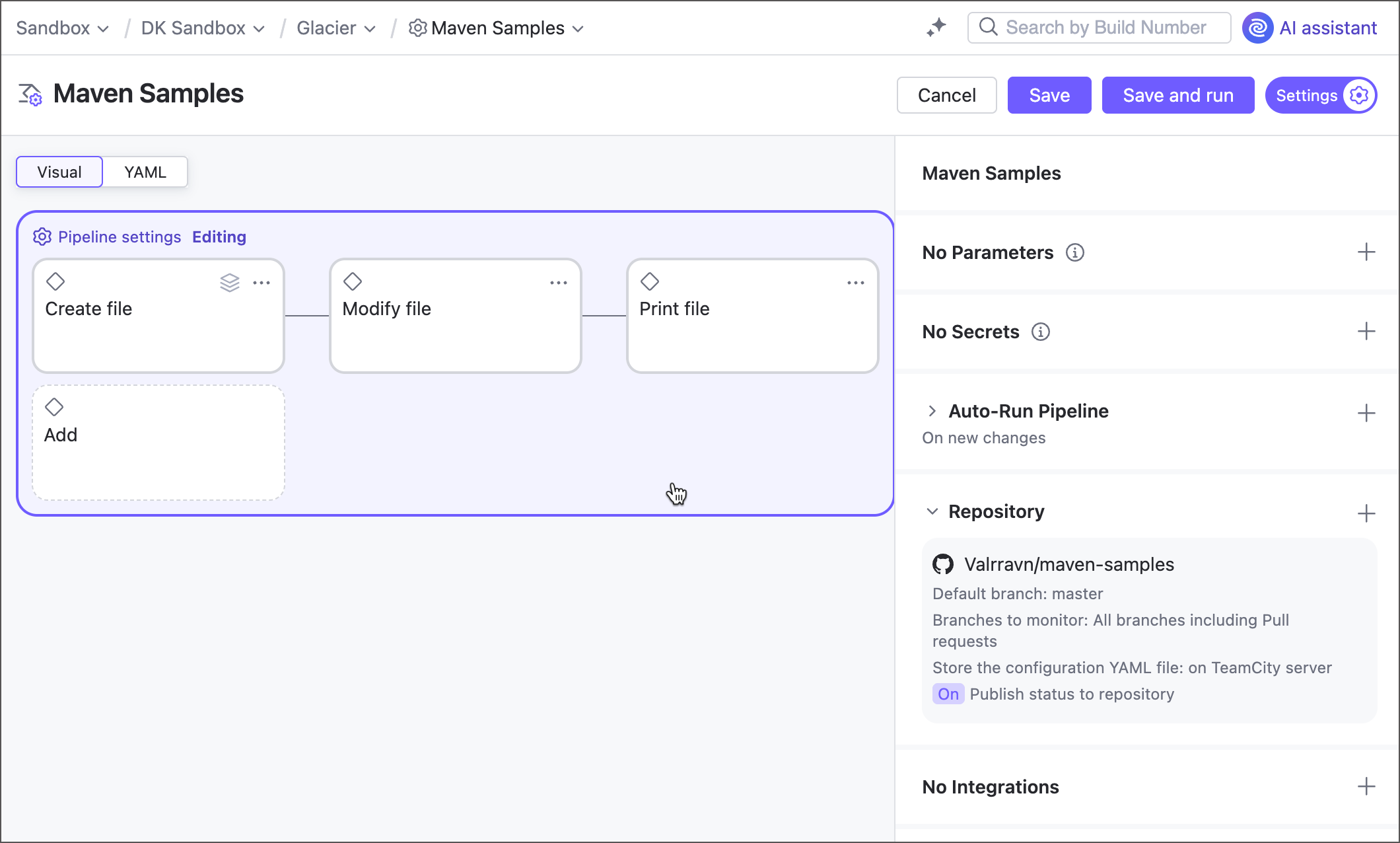
You can also switch from the visual editor to the code and edit the markup directly.
Parameters
Parameters are name-value pairs designed to substitute raw values with references. When TeamCity encounters a parameter reference (%param-name%), it substitutes it with the actual parameter value.
TeamCity supports two layers of parameters: pipeline parameters and job parameters. Pipeline parameters in their turn are available as input and output parameters.
Job parameters are designed to be used in these very jobs, and jobs that depend on it (via the
job.<source-job-ID>.<param-name>syntax). See Job parameters to learn more.Pipeline input parameters are shared across all jobs within a pipeline. The sample below illustrates a pipeline parameter propagated to two jobs.
parameters: PipelineParam: foo jobs: Job1: name: Job 1 steps: - type: script script-content: 'echo "Pipeline parameter: %PipelineParam%"' # prints 'foo' Job2: name: Job 2 dependencies: - Job1 parameters: env.Job2Param: '%PipelineParam% bar' # job parameter references pipeline input param steps: - type: script script-content: |- echo "Original pipeline parameter: %PipelineParam%" # prints 'foo' echo "Modified pipeline parameter: %env.Job2Param%" # prints 'foo bar'Pipeline output parameters are shared to downstream pipelines and build configurations when this pipeline is a part of a build chain. Having this separate type grants you more control over which parameters can be exposed and which should stay private.
Note that output parameters cannot be used inside the same pipeline.
parameters: PipelineInputParam: foo output-parameters: PipelineOutputParam: bar jobs: Job1: name: Job 1 steps: - type: script script-content: |- # Prints 'foo' echo "Input param: %PipelineInputParam%" # Unresolved reference: no compatible agents echo "Output param: %PipelineOutputParam%"See this section to learn more about parameters in build chains: Pipeline Dependencies.
Secrets
Secrets are protected parameters designed for storing sensitive data. You can reference in the same manner as with regular parameters, but their actual values are hidden from both TeamCity UI and build log.
If you switch to the code view of a pipeline, you will notice that secret values are replaced by names of tokens that store these values. TeamCity automatically creates these tokens to avoid leaking secret data via remotely stored configuration files.
The snippet below illustrates a secret that can be used instead of a password in the Integrations section of a pipeline. The command-line script that attempts to expose this secret prints the "Secret value: *******" line to the build log.
Pipeline Dependencies
This section allows you to link pipelines and build configurations in a single build chain.
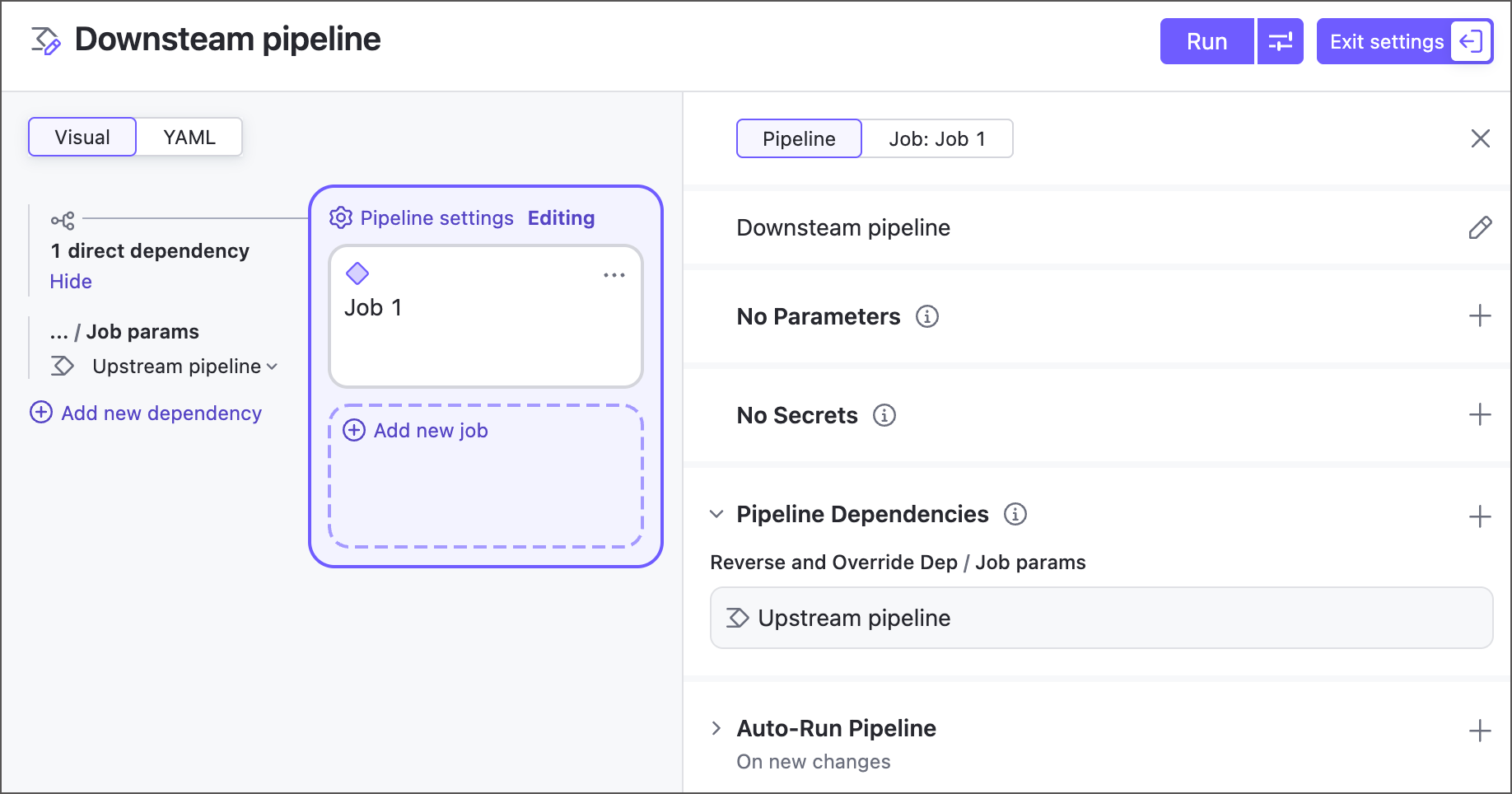
When you add a dependency to object "A" in pipeline "B" settings, you create the "A → B" chain where:
object A can run solo;
pipeline B automatically triggers object A when launched.
"A" can be both a classic build configuration or another pipeline.
Pipeline dependencies have the following settings:
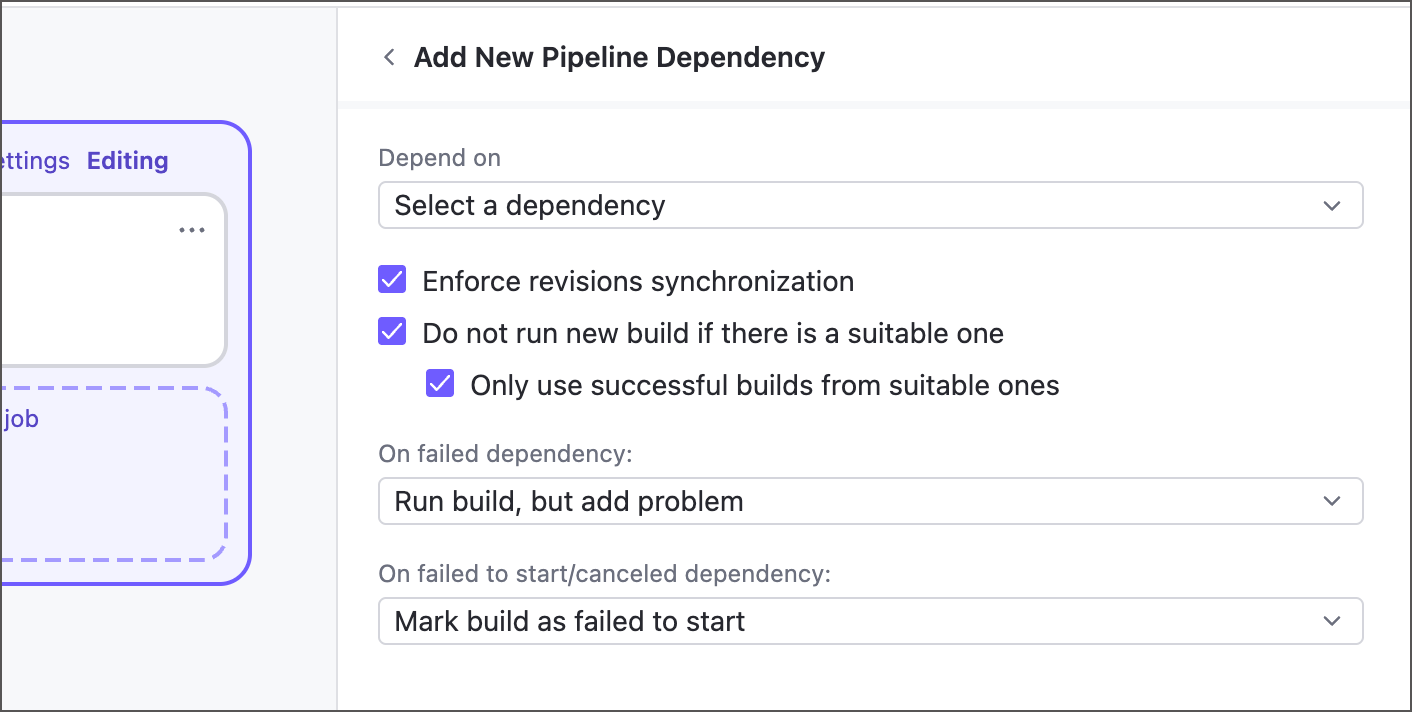
- Depend on
Choose an upstream configuration or pipeline that should finish before your currently edited pipeline can start.
- Enforce revisions synchronization
Specifies whether TeamCity should ensure both objects linked by a dependency use the same revision of code sources.
Revision synchronization enabled: recommended for setups that need to use the same state of the sources. For example, in the "A → B" chain: "A" starts on revision 1.2 and is promoted to "B" when finished. Build "B" runs on the same 1.2 revision even if its latest revision is 1.4.
Revision synchronization disabled: use this setup when builds do not have strict sources' dependencies (for example, separate package and deploy steps). In this case, a downstream build uses the latest available revision. In the "A → B" chain: "A" starts on revision 1.2 and is promoted to "B", but "B" runs on its latest 1.4 revision.
See Revision Synchronization for the effects this setting has on a whole build chain.
- Do not run new build if there is a suitable one
If this option is enabled, TeamCity does not run a new upstream build when another running or finished build with the appropriate sources' revision already exists. See Suitable Builds for the criteria TeamCity uses to determine a reusable build.
In this case, when a downstream build is triggered, the upstream build is still put into the queue. Then, once the changes for the chain are collected, this upstream build is removed from the queue and the dependency is linked to the suitable finished build instead.
- Only use successful builds from suitable ones
A new triggered build will only use successfully finished suitable builds as dependencies. If the latest finished suitable build failed, it is rerun.
- On failed dependency, On failed to start/canceled dependency
These settings let you control whether a downstream build should run if its upstream build fails, and, if it should, whether the same build problem should appear in its results.
Run build, but add problem: the downstream build runs and the problem is added to it, changing its status to failed (unless the problem was muted earlier).
Run build, but do not add problem: the downstream build runs and no problem is added.
Mark build as failed to start: the downstream build does not run and is marked as " Failed to start ".
Cancel build: the downstream build does not run and is marked as " Canceled ".
The snippets below illustrate how to set up dependencies in code.
Auto-Run Pipeline
This section includes settings that allow TeamCity to automatically run your pipeline on certain conditions. This functionality is available as triggers.
On New Changes
These settings trigger new pipeline runs whenever TeamCity detects new changes in a repository. In classic TeamCity build configurations, similar functionality is available via VCS triggers.
Trigger settings define which changes should start a new run. Use the Branches toggle to select stable repository branches. In the example below, TeamCity runs the pipeline automatically only when changes are committed to the "production" branch.
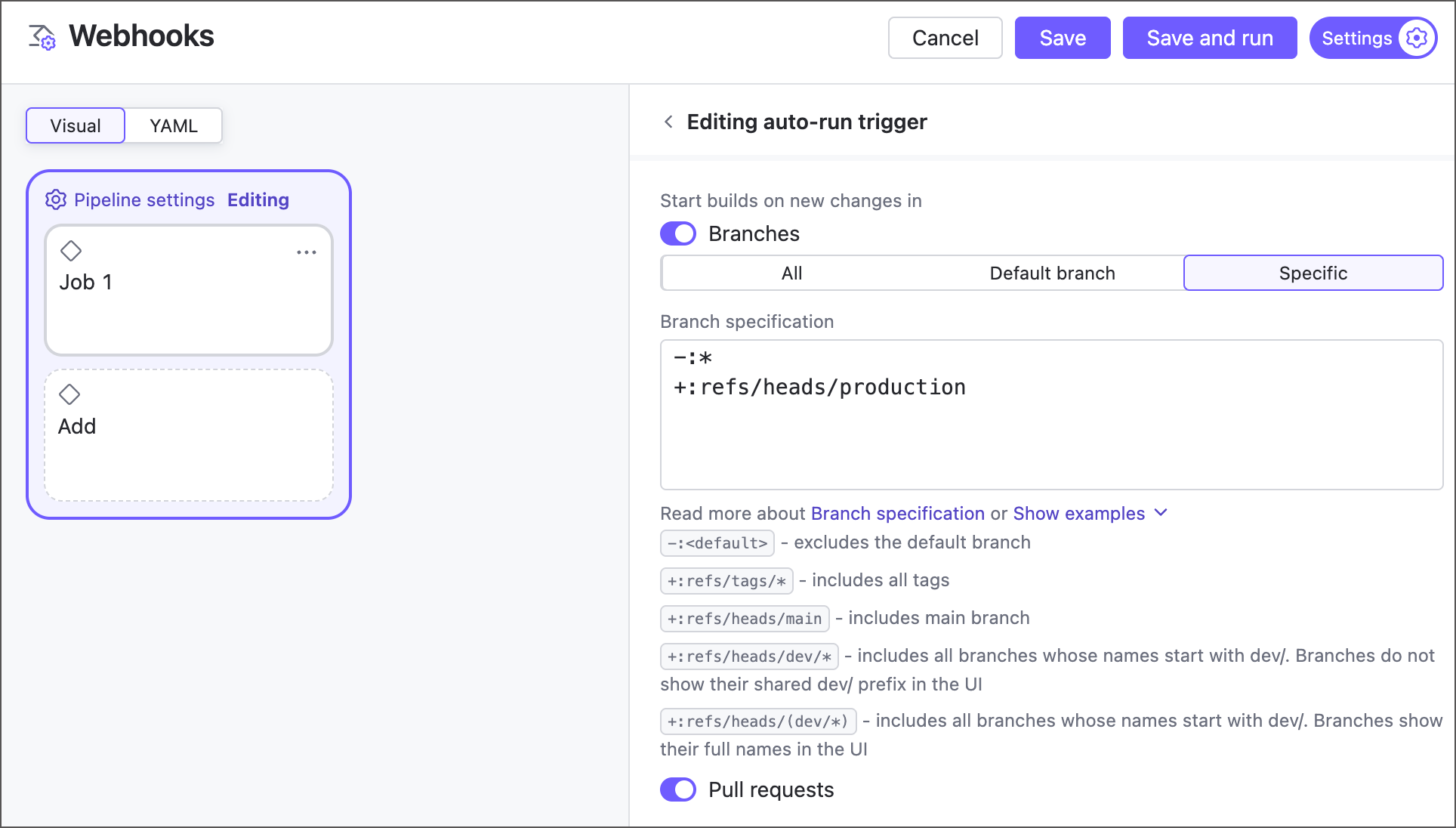
The Pull requests toggle includes pull request branches (for example, GitHub refs/pull/ branches) to the list of available sources. Note that you can enable this option only when a pipeline tracks these pull request branches (see the Repository section).
On a Schedule
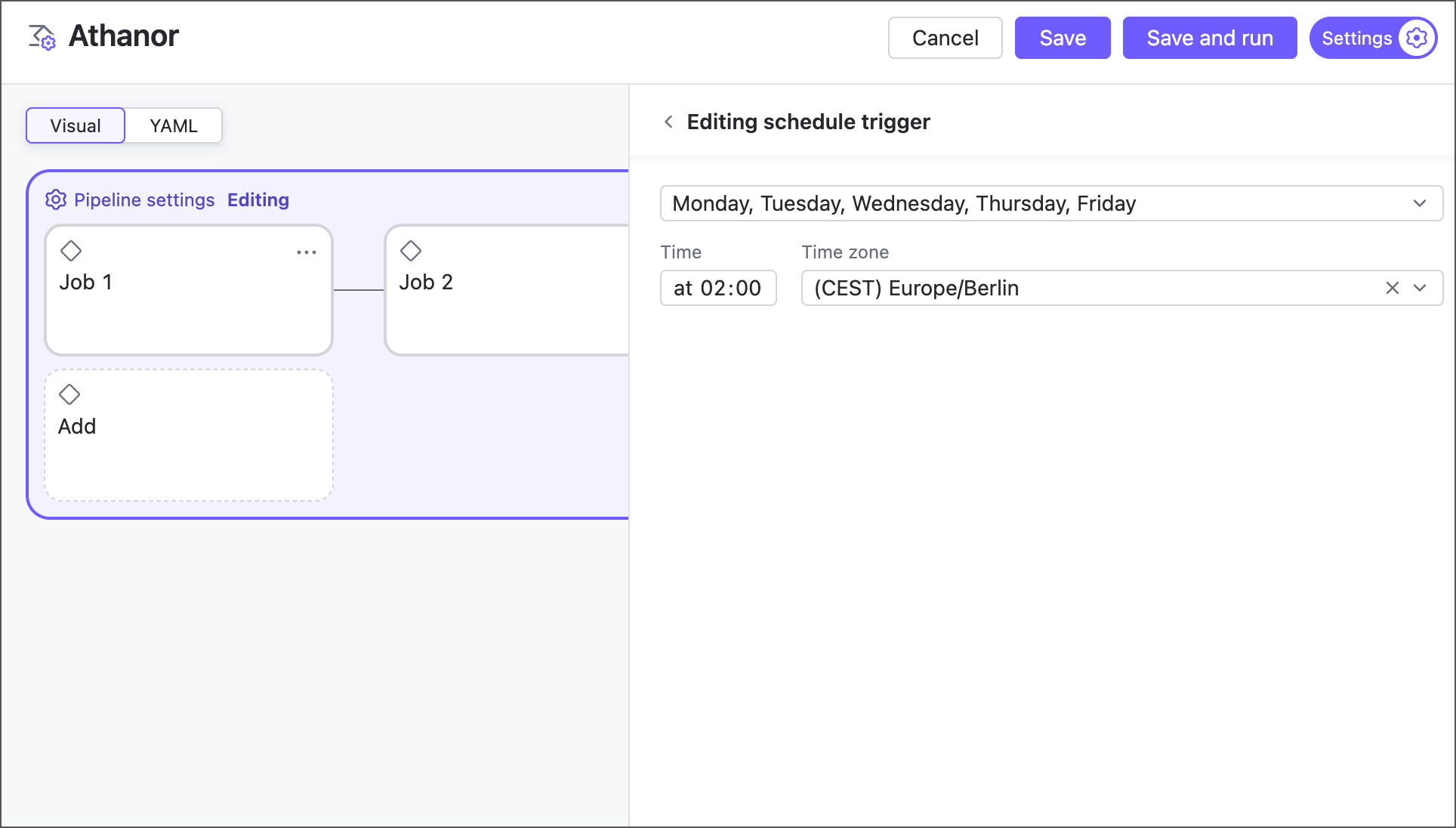
These settings, similar to a classic build configuration’s schedule trigger, let you define a date-time pattern for when TeamCity should run the pipeline.
Repository
The Repository section lets you check out multiple repositories during a pipeline run. TeamCity retrieves sources from all added repositories, even if no jobs are configured to process them.
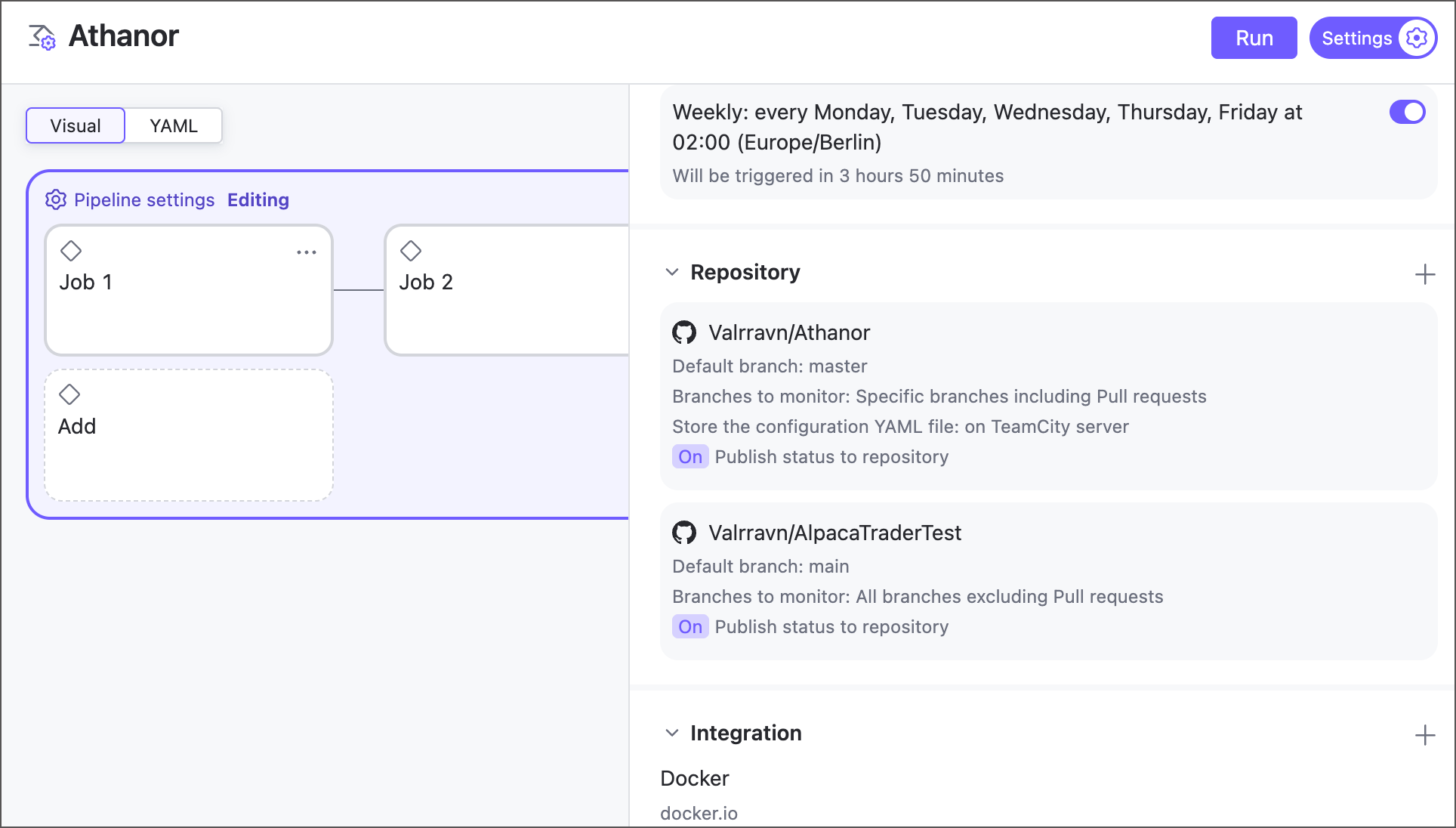
The initial repository entry, created automatically with the pipeline, is called the main repository. It cannot be deleted and includes an extra YAML file storage selector.
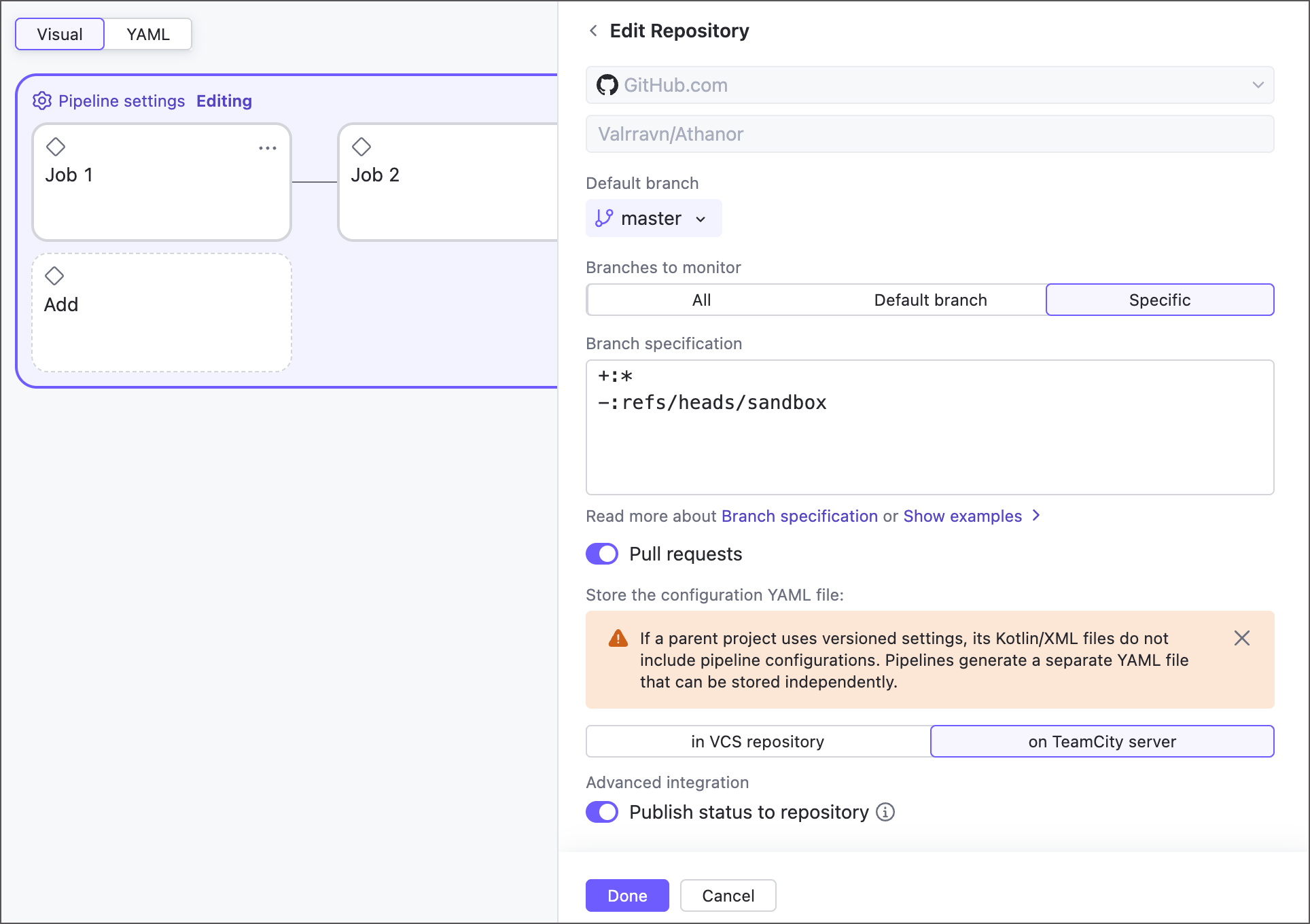
- Repository URL and source
Core repository settings that allow you to choose which repository a pipeline should check out.
Disabled for main repositories.
- Default branch and branch specification
These settings define which branches TeamCity tracks. Untracked branches are completely ignored: they do not report changes to the server, you cannot run for these branches, and so on.
See the following classic build configuration articles to learn more about branch specification syntax: Common Specification Syntax and Default Branch.
- Pull requests
When this setting is enabled, TeamCity includes pull (merge) request branches in the branch selector on the main pipeline page.
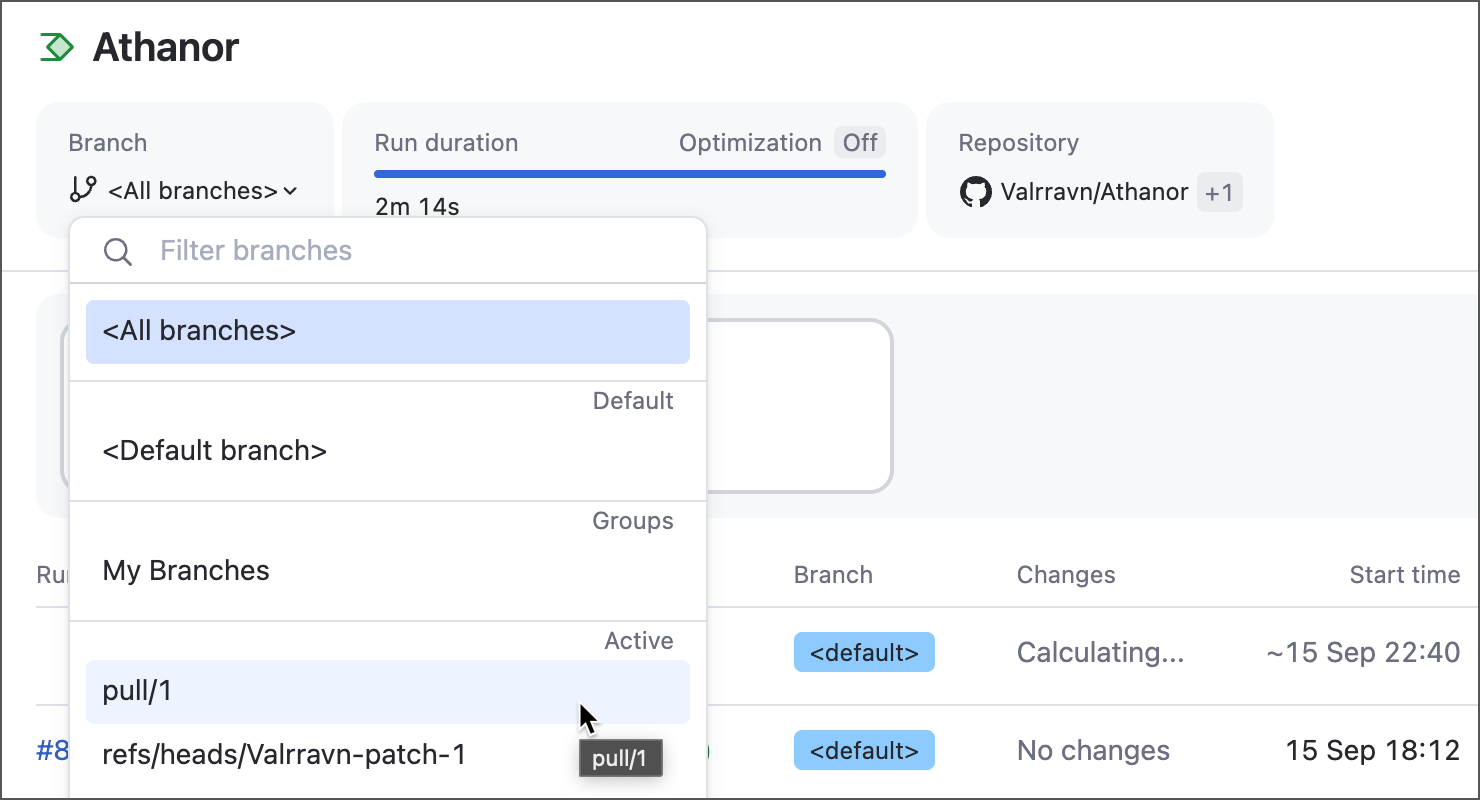
You can also enable the related toggle of the "On new changes" trigger to have TeamCity automatically build incoming pull requests.
- Configuration file storage
Specifies where to store the pipeline YAML configuration: on the TeamCity server or in the source repository. These settings are available for main repository only.
The configuration file itself can be in two formats: YAML (default) and Kotlin DSL (see Pipelines Kotlin DSL). Depending on the parent project's Versioned Settings and this in repository/on the server toggle, the behavior and available options may differ.
For example, if the project's versioned settings synchronization is off, its pipelines store its setting in YAML regardless of the location. Otherwise, when you turn project synchronization on, pipeline settings can be in either of these formats: existing pipelines that already store their YAML settings in remote repositories will continue to do so, while new pipelines and those that store their settings on the server will convert their YAML to .kts files.
- Publish status to repository
If this setting is enabled, TeamCity reports pipeline run statuses (running, successful, failed) to the VCS hosting provider. The following image illustrates how GitHub presents this information.
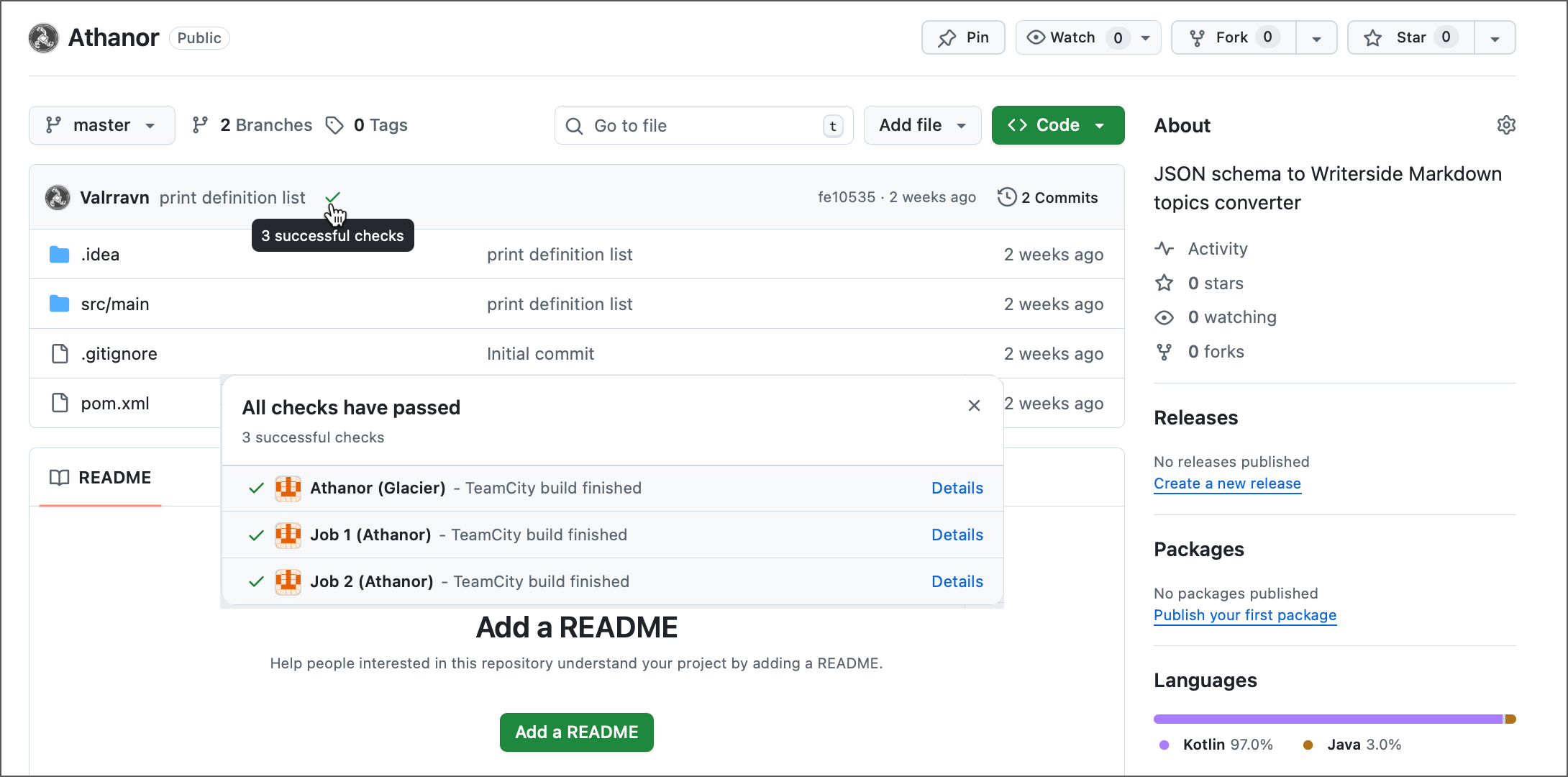
For classic build configurations, this functionality is available as the Commit Status Publisher build feature.
When adding more repositories, you can choose to reuse an existing connection or VCS root, or enter the repository URL manually.
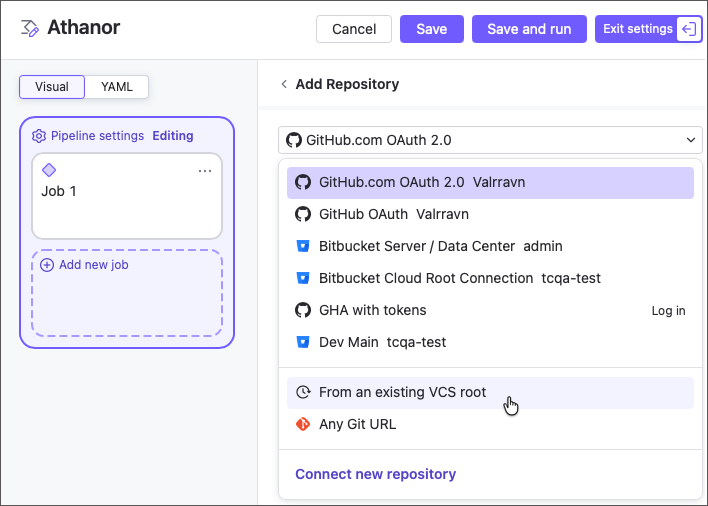
Each individual job can choose which of the pipeline repositories it will check out. See the following article for more information: Job Settings.
Feature Branches
If a pipeline stores its YAML configuration in a repository, you can give individual branches their own workflow:
In the settings editor, switch to a branch using the branch selector.
Edit jobs, steps, parameters, or any other setting stored in YAML.
Click Save. TeamCity commits the changes to that branch's YAML file.
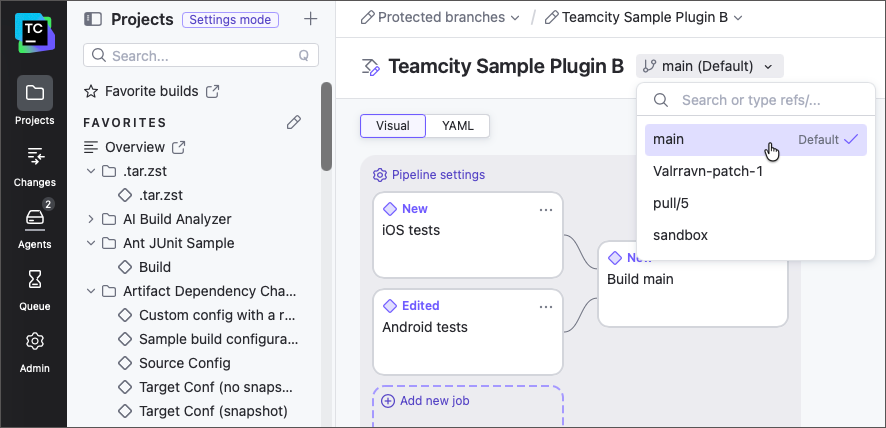
Branches without their own committed settings inherit the workflow defined in the default branch's YAML file.
Protected Branches
If the selected branch is protected, TeamCity may be unable to commit your changes directly. In this case, clicking Save prompts you to choose a different branch to save to instead.
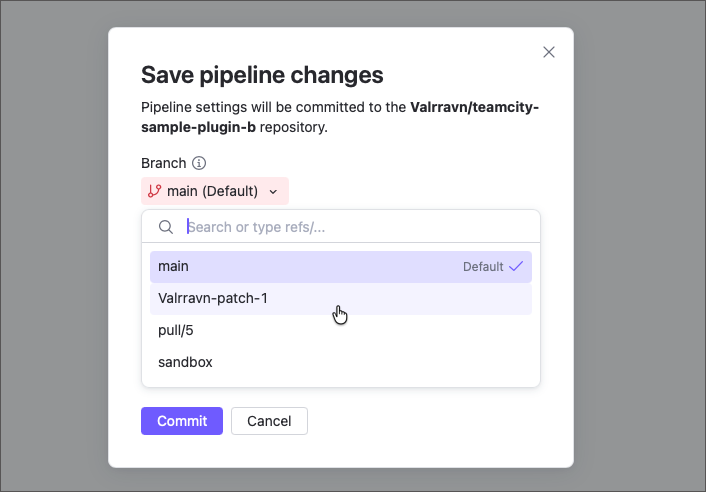
Alternatively, switch to the code view of the settings editor, copy the generated YAML, and commit it to the protected branch manually, following your team's branch protection rules.
Integrations
Both pipeline and job settings panels include an Integrations section for connecting to private Docker and NPM registries.
In the pipeline settings, you manage the full list of available integrations for jobs.
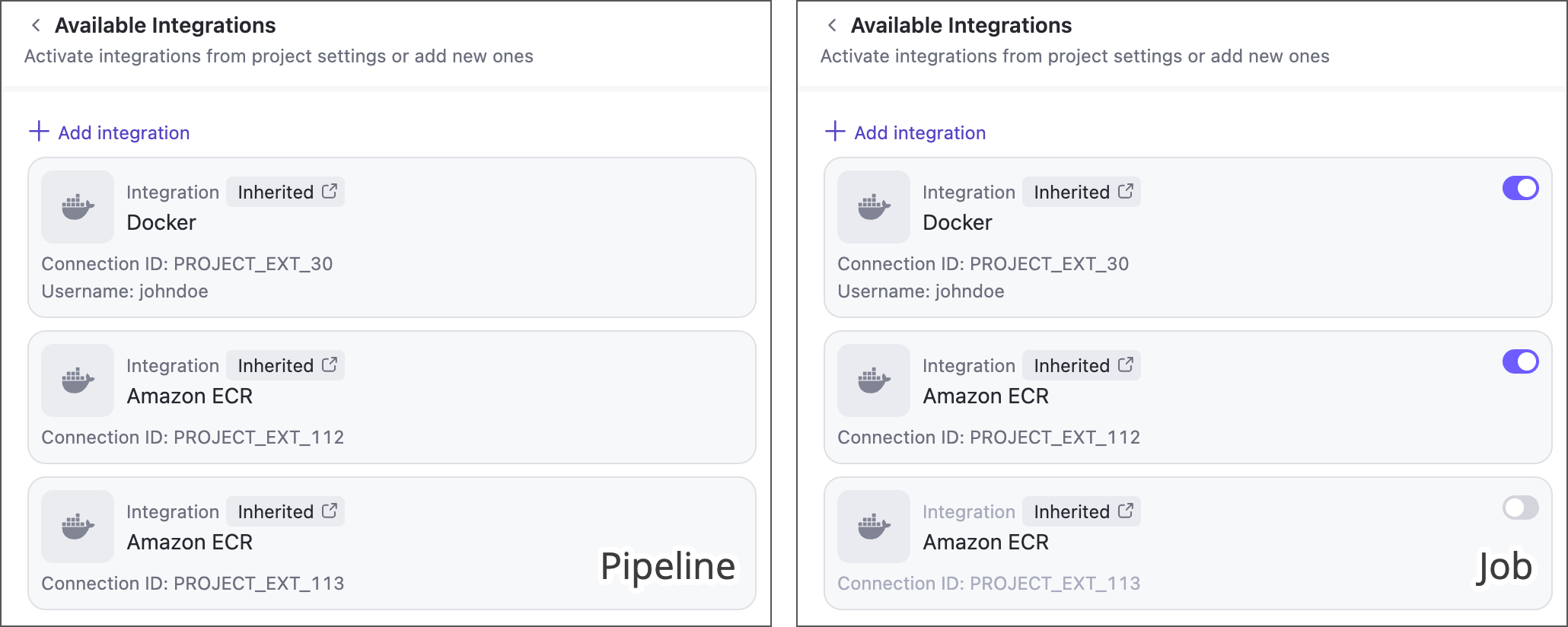
In job settings, toggles let you select which registries the job should log in to automatically, ensuring build steps can access the required data.
YAML
Integrations added directly to the pipeline do now expose their settings to YAML. The only part of integrations visible in YAML is the list of integration IDs enabled for each specific job.
Inherited Integrations
If you already have a Docker or NPM connection in a project, a pipeline shows it under its "Integrations" section.
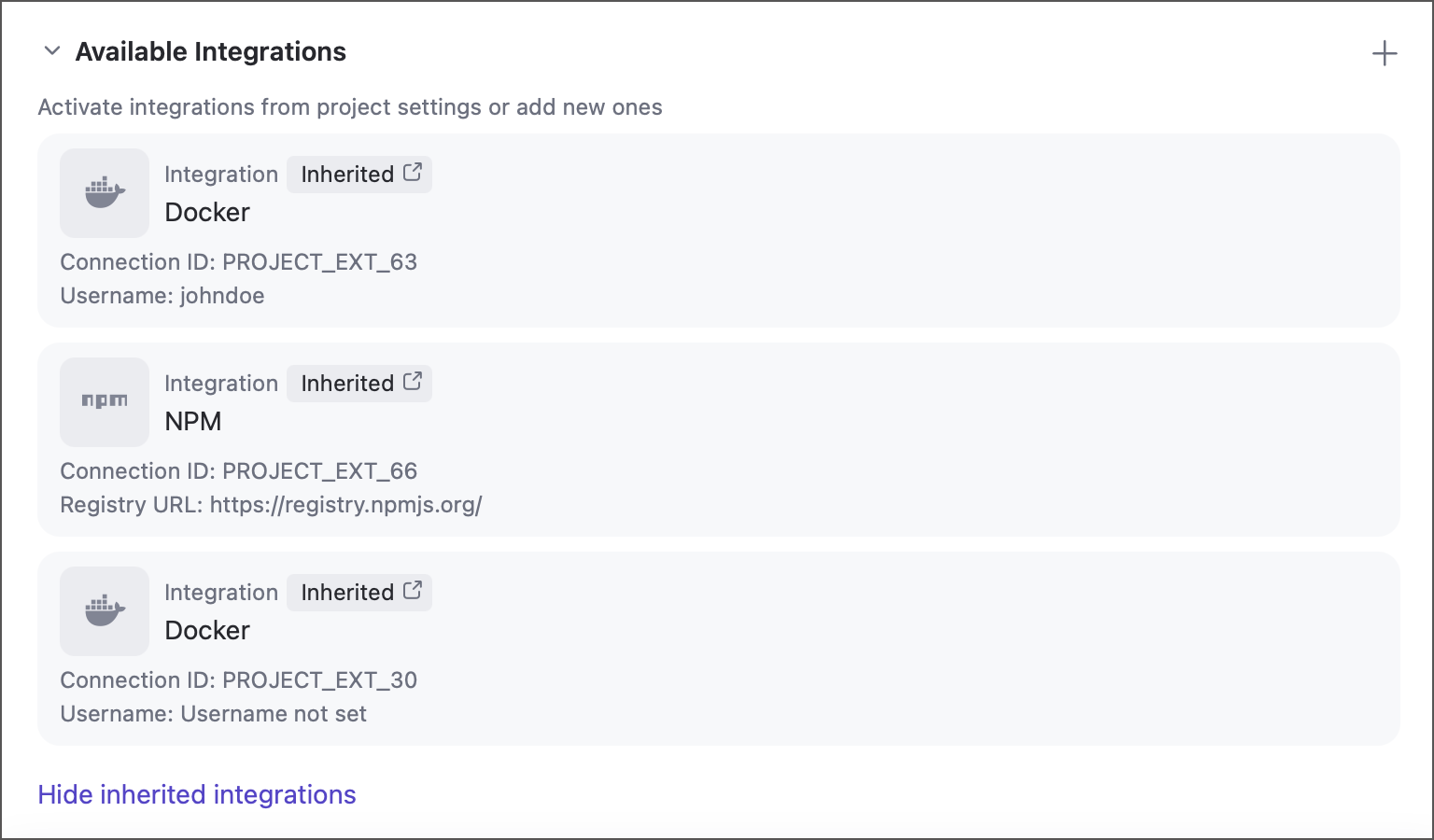
These inherited integrations cannot be edited directly via the pipelines settings panel, you need to modify the origin connection in project settings to do so.
Amazon ECR
Currently, pipelines and jobs support only inherited Amazon ECR connections — you cannot add them via the pipeline settings sidebar or YAML.
All Amazon ECR connections owned by a parent project are displayed under the Integrations sections. Individual jobs show toggles that specify whether this job should use this specific connection.
In Build Configurations
Classic TeamCity build configurations support this functionality via the "connection + build feature" combinations:
The Docker Registry Connections build feature uses Docker Registry and Amazon ECR connections.
The NPM Registry build feature uses corresponding connections.
Optimizations
Execution timeout
Use this setting to limit how long a pipeline run may take.
TeamCity applies execution timeouts on three levels. Each setting accepts an integer value: the maximum allowed duration in minutes. As with classic build configurations, a timeout applies only to the actual run time; service tasks like source checkout or artifact resolution are excluded.
- Global timeout
TeamCity UI: Admin | Global Settings | Default build execution timeout
Sets a server-wide default that limits the duration of an individual job, not of an entire pipeline run. TeamCity ignores it when a pipeline- or job-level timeout is set.
- Pipeline timeout
TeamCity UI: Pipeline settings | Optimizations | Execution timeout
Limits how long a pipeline run may take from start to finish. Jobs that run in parallel count once, not cumulatively. When a run exceeds this limit, TeamCity cancels the jobs that are still running and marks the run as failed.
- Job timeout
TeamCity UI: Job settings | Optimizations | Execution timeout
If a job runs longer than this setting allows, TeamCity aborts it and marks both the job and the pipeline run as failed. A job can also be aborted before reaching its own limit — if the pipeline-level timeout runs out first.