Managing Runs
Runs represent build executions in TeamCity. The teamcity run command group lets you start builds, monitor them in real time, view logs and test results, manage artifacts, and organize runs with tags, comments, and pins.
Listing runs
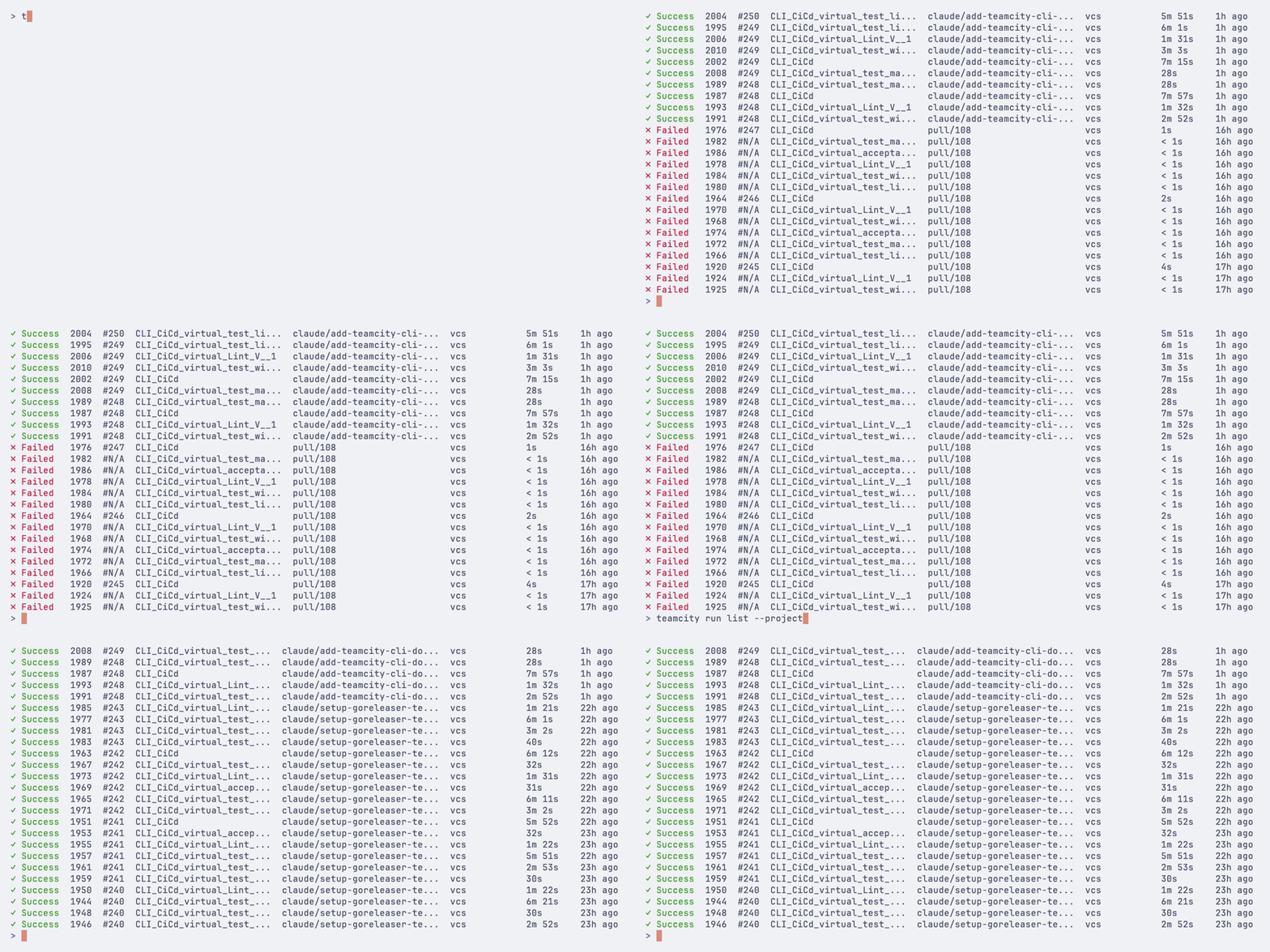
View recent builds with teamcity run list:
Favorite runs
Use teamcity run list --favorites to show the current user's favorite builds, including manually starred builds and builds TeamCity marked as important for you:
--favorites works with the existing run list filters and output modes.
Filtering
Use flags to narrow results:
Filtering by revision
Use --revision to find all builds that include a specific VCS commit:
Time-based filtering
Use --since and --until to filter by time. Accepts duration offsets (24h, 7d, 2w, 1mo, 4w2d5h) or ISO dates (2026-01-15, 2026-01-15T12:00:00Z):
Limiting results
Use --limit 0 to remove the result limit. When a finite --limit hides additional results, the CLI prints a hint on stderr (stdout and --json stay unchanged).
Without a job filter, searches start with a window of 5,000 recent builds. --limit 0 does not remove this search limit. If runs are missing, narrow the search with --project or --job, or increase the search window:
TEAMCITY_LOOKUP_LIMIT accepts a positive integer; zero and invalid values use 5,000.
Output options
run list flags
Flag | Description |
|---|---|
| Filter by job (build configuration) ID |
| Filter by project ID |
| Filter by branch name. Use |
| Filter by status: |
| Show favorite builds for the current user. |
| Filter by the user who triggered the build. Use |
| Filter by VCS revision (commit SHA). Use |
| Filter by tag (can be repeated, matches runs with all given tags) |
| Show builds started after this time, excluding queued runs (for example, |
| Show builds started before this time |
| Maximum number of runs to display (use 0 for all) |
| Output as JSON. Use |
| Tab-separated output for scripting |
| Omit header row (use with |
| Open the list in the browser |
Starting a run
Trigger a new build with teamcity run start:
Specifying a branch and revision
For jobs with multiple VCS roots, repeat --revision ROOT=SHA[@BRANCH] to pin individual roots. Unspecified roots use TeamCity's normal revision selection. ROOT=@BRANCH uses the latest revision TeamCity has already fetched for that root; it does not fetch new commits. Use full refs for tags or pull requests.
Root IDs are the VCS root IDs shown by teamcity project vcs list, not numeric VCS root instance IDs. A root can appear only once, and bare and per-root forms cannot be mixed. Bare SHA/@head still applies to every root and resolves locally; per-root SHAs are passed verbatim. --branch is the build's logical branch; use @BRANCH to specify a pinned root's own branch independently. --dry-run displays the requested pins without resolving branch heads.
Build parameters
Pass custom parameters, system properties, and environment variables:
Build options
Versioned settings source
When a build configuration uses versioned settings, --settings chooses where the run's settings come from. Without the flag, the job's configured mode applies.
Tags and comments
Start and watch
Add --watch to follow the build after starting it:
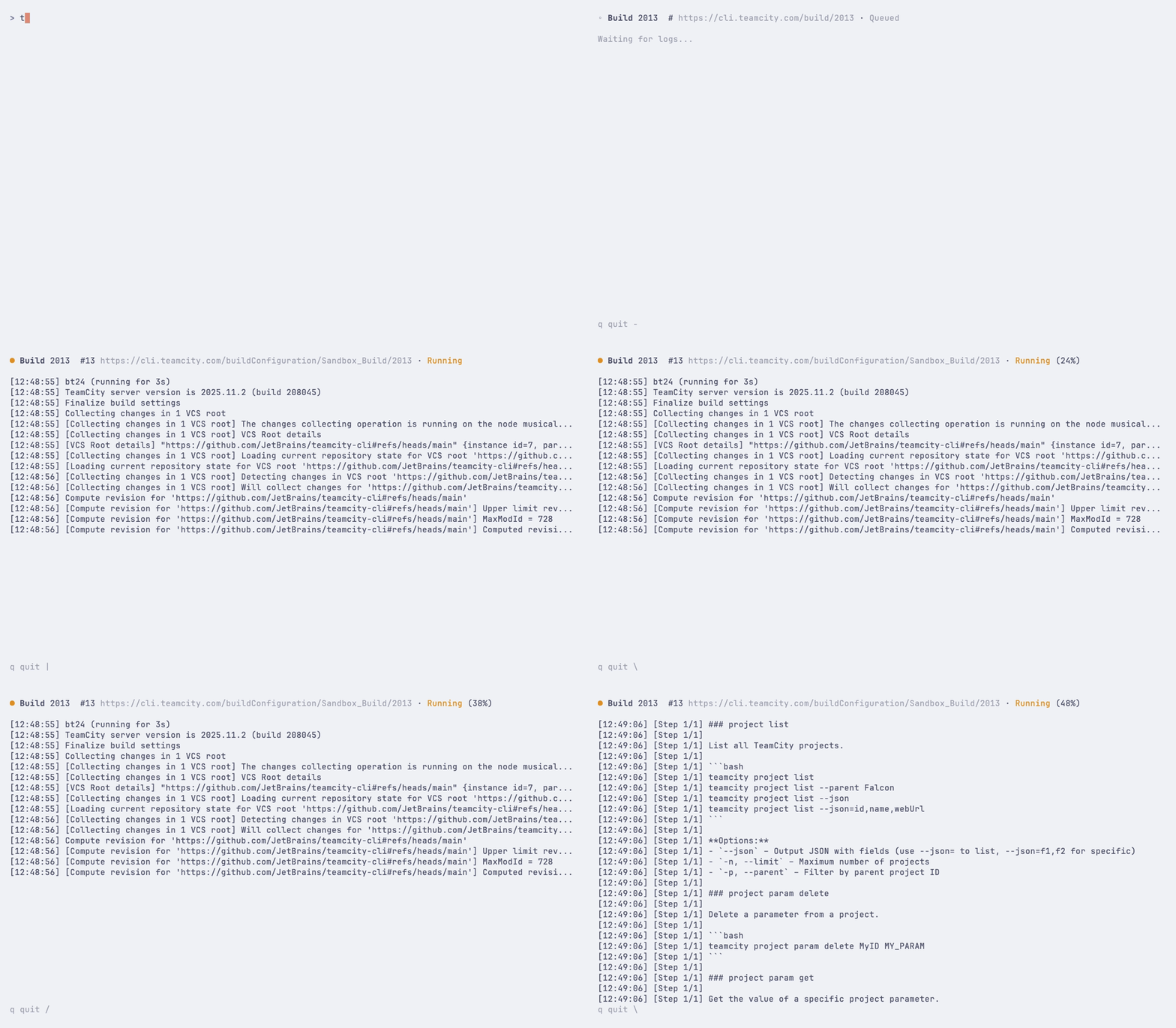
You can also set a timeout or adjust the polling interval:
Personal builds
Include uncommitted local changes in a personal build:
By default, the CLI pushes your branch to the remote before starting a personal build. Use --no-push to skip this:
Dry run
Preview what would be triggered without actually starting a build:
run start flags
Flag | Description |
|---|---|
| Branch to build. Use |
| Pin build to a specific Git commit SHA. Use |
| Build parameters as |
| System properties as |
| Environment variables as |
| Build comment |
| Build tag (can be repeated) |
| Run as a personal build |
| Include local changes. Accepts |
| Skip auto-push of branch to remote |
| Clean source files before building |
| Rebuild all dependencies |
| Rebuild failed or incomplete dependencies only |
| Reuse existing builds as snapshot dependencies. Accepts a comma-separated list of build IDs or can be repeated. TeamCity resolves which dependency slot each build fills by its build configuration. |
| Add to the top of the build queue |
| Run on a specific agent (by ID) |
| Watch the build after starting it |
| Refresh interval in seconds when watching (default: 5) |
| Timeout when watching (for example, |
| Preview without starting |
| Output as JSON |
| Open run in browser |
Viewing run details
On TeamCity 2026.3 and later, run view lists compatible and incompatible agents plus cloud images that can start an agent for queued runs. Incompatible entries include unmet requirements, such as a missing parameter. Large pool groups are summarized with unique reasons; the JSON result adds every entry in compatibility. On servers without this API, the command keeps its existing agent summary.
Snapshot dependency tree
Visualize the snapshot dependency chain for a run with teamcity run tree:
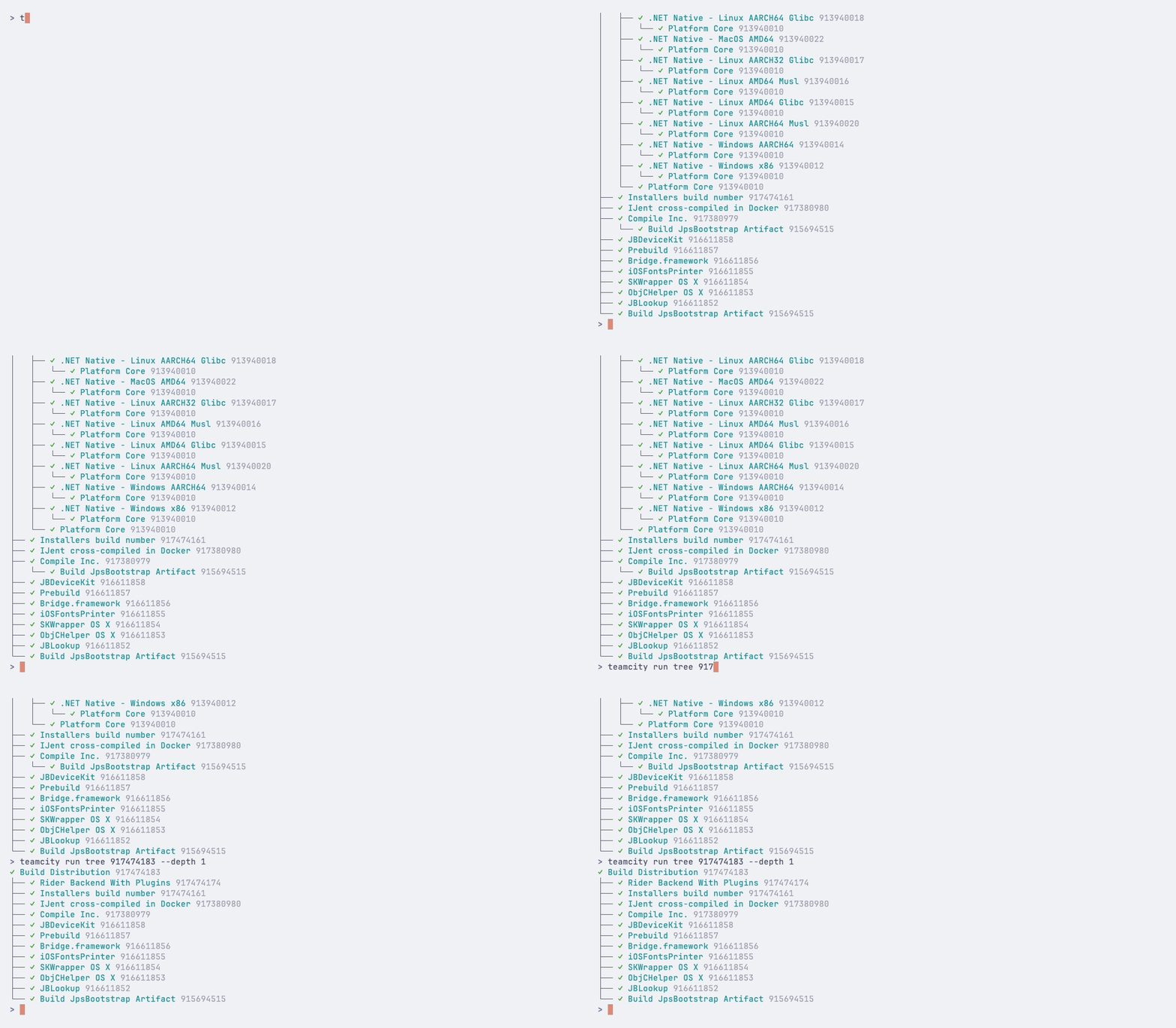
Limit the depth of the tree:
Output as JSON:
run tree flags
Flag | Description |
|---|---|
| Limit tree depth (0 = unlimited) |
| Output as JSON |
Watching a run
Monitor a running build with live updates:
Stream build logs while watching:
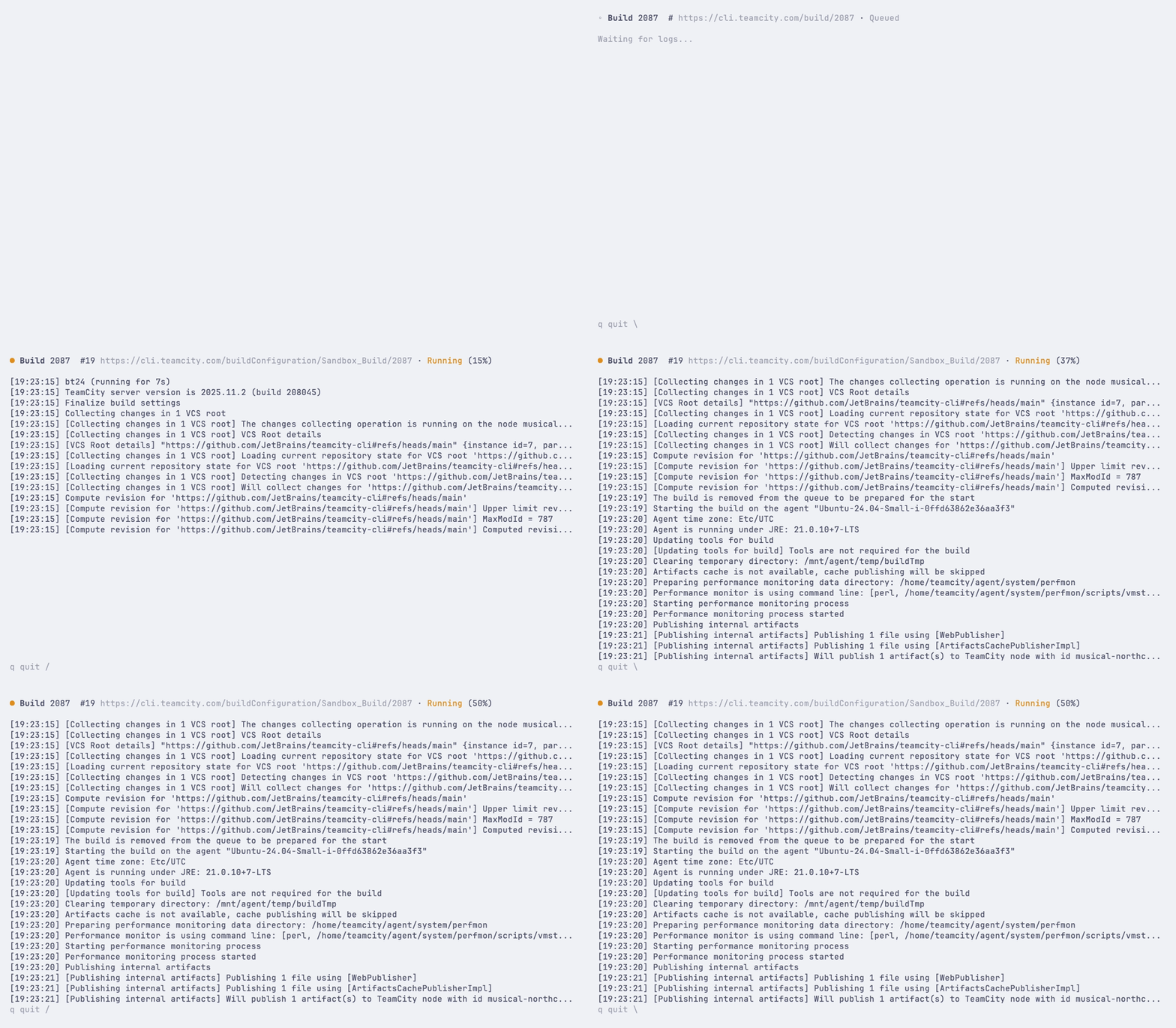
Set a custom refresh interval or timeout:
Use --quiet for minimal output that shows only state changes and the final result:
Use --json to wait for the build to complete and output the final result as JSON (useful for scripting):
run watch flags
Flag | Description |
|---|---|
| Refresh interval in seconds |
| Stream build logs while watching |
| Minimal output — only state changes and result |
| Wait for completion and output result as JSON |
| Stop watching after this duration (for example, |
Viewing build logs
View the log output from a run:
View the log for the latest run of a specific job:
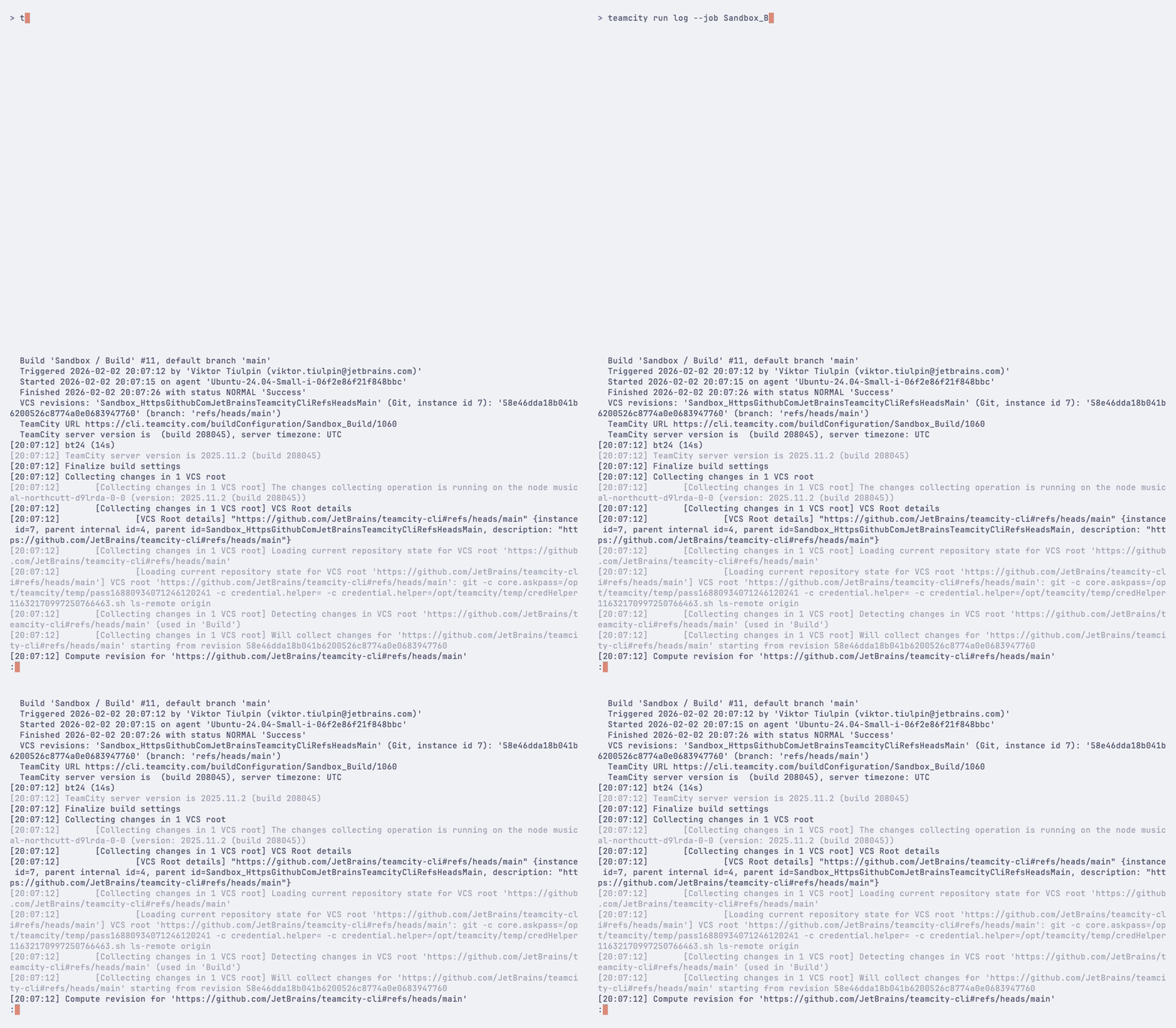
Show failure diagnostics — build problems, failed tests with full stack traces, and whether each failure is new or pre-existing:
Bypass the pager and output raw text:
Stream the log in real-time until the build finishes:
Show the last 50 log messages:
Output the log as JSON:
Open the build log in your browser:
Canceling a run
Cancel a running or queued build:
Use --yes to skip the confirmation prompt:
Restarting a run
Restart a run with the same configuration:
Artifacts
Listing artifacts
List artifacts from a run without downloading them:
Downloading artifacts
Downloads stay within the selected output directory, including when existing directories contain symlinks. Each file is staged before replacing its destination, so a failed or incomplete download preserves the previous file. A destination file symlink is replaced, not followed.
Download artifacts from a completed run:
The --timeout flag sets the maximum time for the entire download operation (default: 10m). Use longer values for large artifact sets, for example --timeout 1h.
Test results
Show test results from a run:
Show only failed tests, excluding muted failures:
Show only muted failed tests:
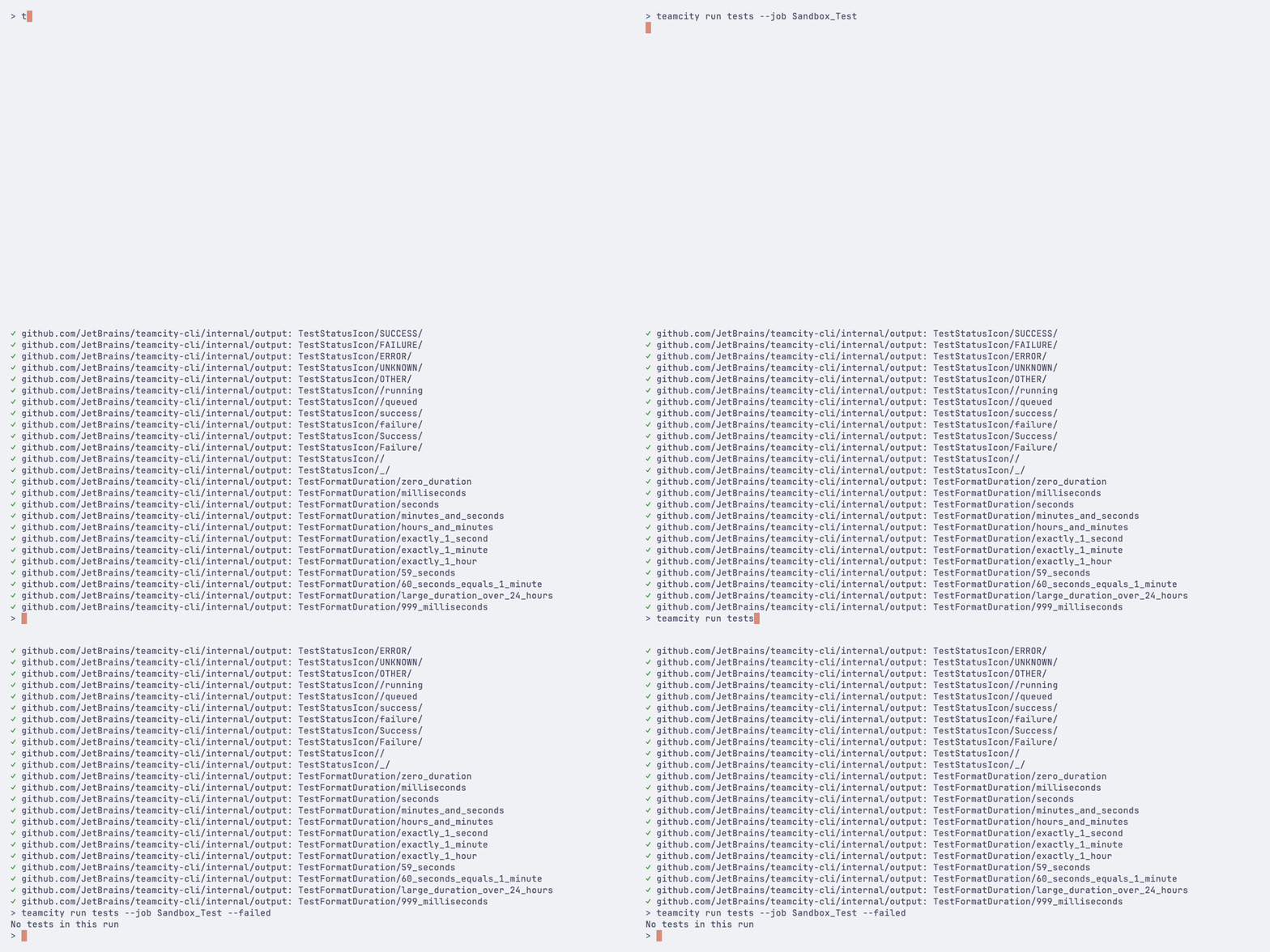
Limit the number of results:
Test history across builds
Pass --test NAME to follow a single test across builds instead of inspecting one run — the answer to "is this test flaky?". Scope it to a job, or leave --job off for a server-wide history:
The test name is shown once as a header and each build becomes a row; the trailing TESTS: summary doubles as a pass-rate. --failed/--muted narrow the history, and --json emits the raw occurrence array for your own flakiness analysis:
VCS changes
Show the VCS commits included in a run:
Show commits only (without file listings):
Comparing runs
Compare two runs side-by-side and highlight what changed between them — status, duration, agent, parameters, test results, problems, and VCS changes:
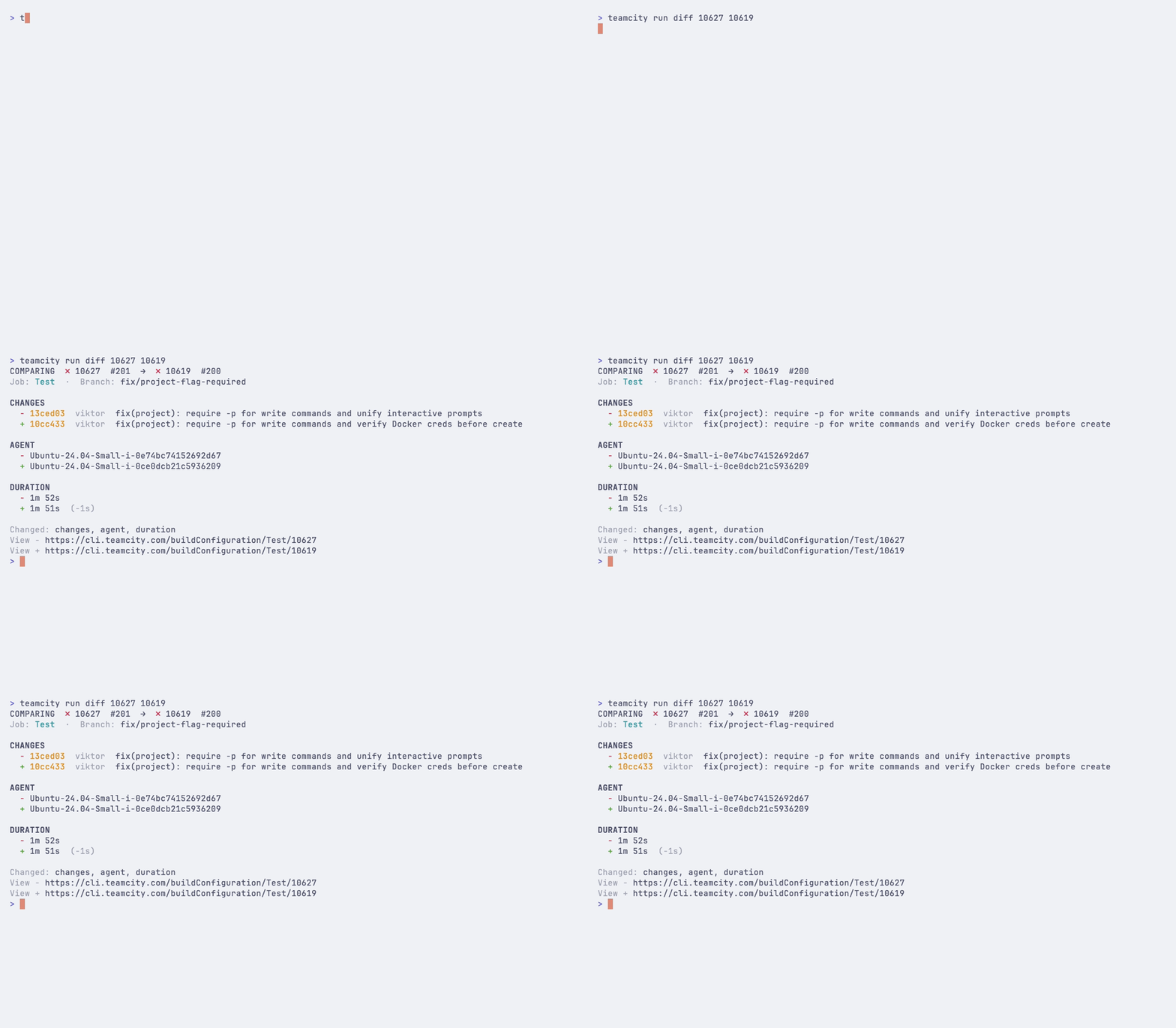
If only one run ID is given, the CLI compares it against the previous finished run of the same job — handy for "what changed since last time?":
Diffing build logs
Pass --log to compare the two build logs as a colored unified diff. Timestamps, temp paths, and noisy git progress lines are normalized so the diff focuses on real content:
The output is piped through your pager ($PAGER, defaults to less). Strip colors and pipe to an external diff viewer for richer rendering:
Other forms
Open both runs in the browser:
Machine-readable output for scripts:
Pinning runs
Pin a run to prevent it from being cleaned up by retention policies:
Remove the pin:
Tagging runs
Add tags to a run for categorization and filtering:
Remove tags:
Comments
Set a comment on a run:
View the current comment:
Delete the comment: