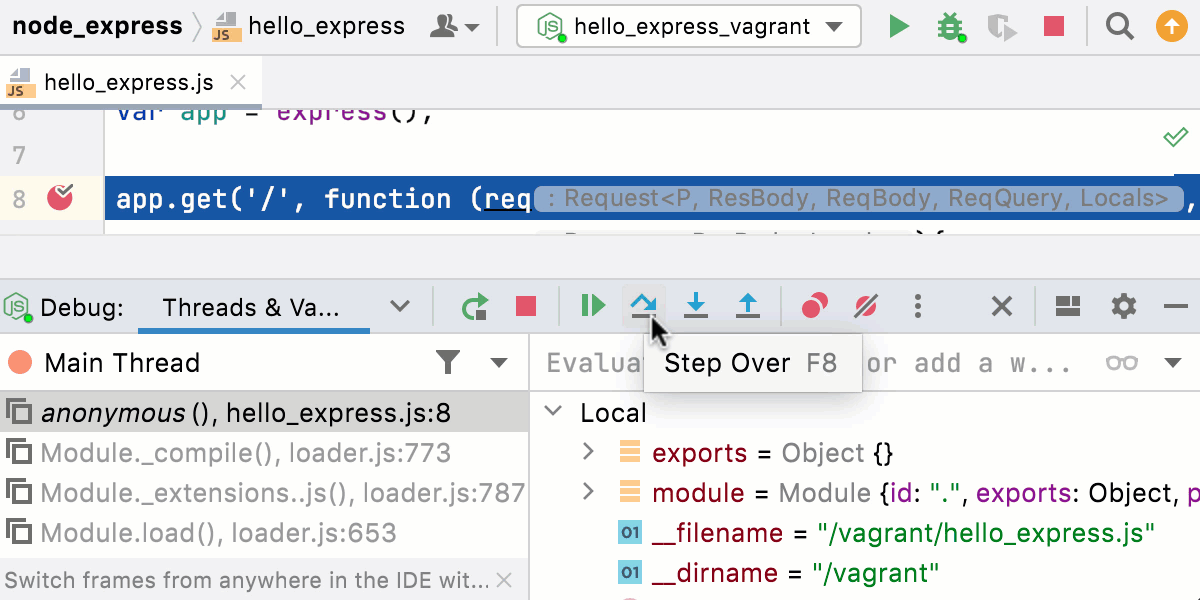
Node.js with Vagrant
With Vagrant, you can quickly bootstrap your Node.js application to run, debug, and profile it from WebStorm.
Before you start
Make sure the Vagrant, JavaScript Debugger, Node.js, and Node.js Remote Interpreter required plugins are enabled on the Settings | Plugins page, tab Installed. For more information, refer to Managing plugins.
Make sure Vagrant and Oracle's VirtualBox are downloaded, installed, and configured on your computer. For more information, refer to Vagrant: Working with Reproducible Development Environments.
Make sure that the parent folders of the following executable files are added to the system PATH variable:
vagrant.bat or vagrant from your Vagrant installation. This should be done automatically by the Vagrant installer.
VBoxManage.exe or VBoxManage from your Oracle's VirtualBox installation.
To have Node.js executable in your Vagrant environment, you can start with a ready-to-use Vagrant box, for example, jandir/nodejs.
Open the embedded Terminal (Alt+F12) and run the following commands:
vagrant init jandir/nodejs vagrant up
Configure a Node.js runtime in a Vagrant environment
Node.js runtimes in Vagrant environments are configured in the Configure Node.js Remote Interpreter dialog. You can open this dialog from the JavaScript Runtime page of the Settings dialog or later, when you create or edit a Node.js run/debug configuration for running or debugging your application on Vagrant.
The recommended way is to configure a remote Node.js runtime in the Settings dialog. In this case you can set the runtime and the associated package manager as default for your project.
A remote Node.js runtime that you configure right in the Node.js run/debug configuration can be used only with this run/debug configuration.
Open the Settings dialog (Ctrl+Alt+S) and go to .
Click
 next to the Node runtime field.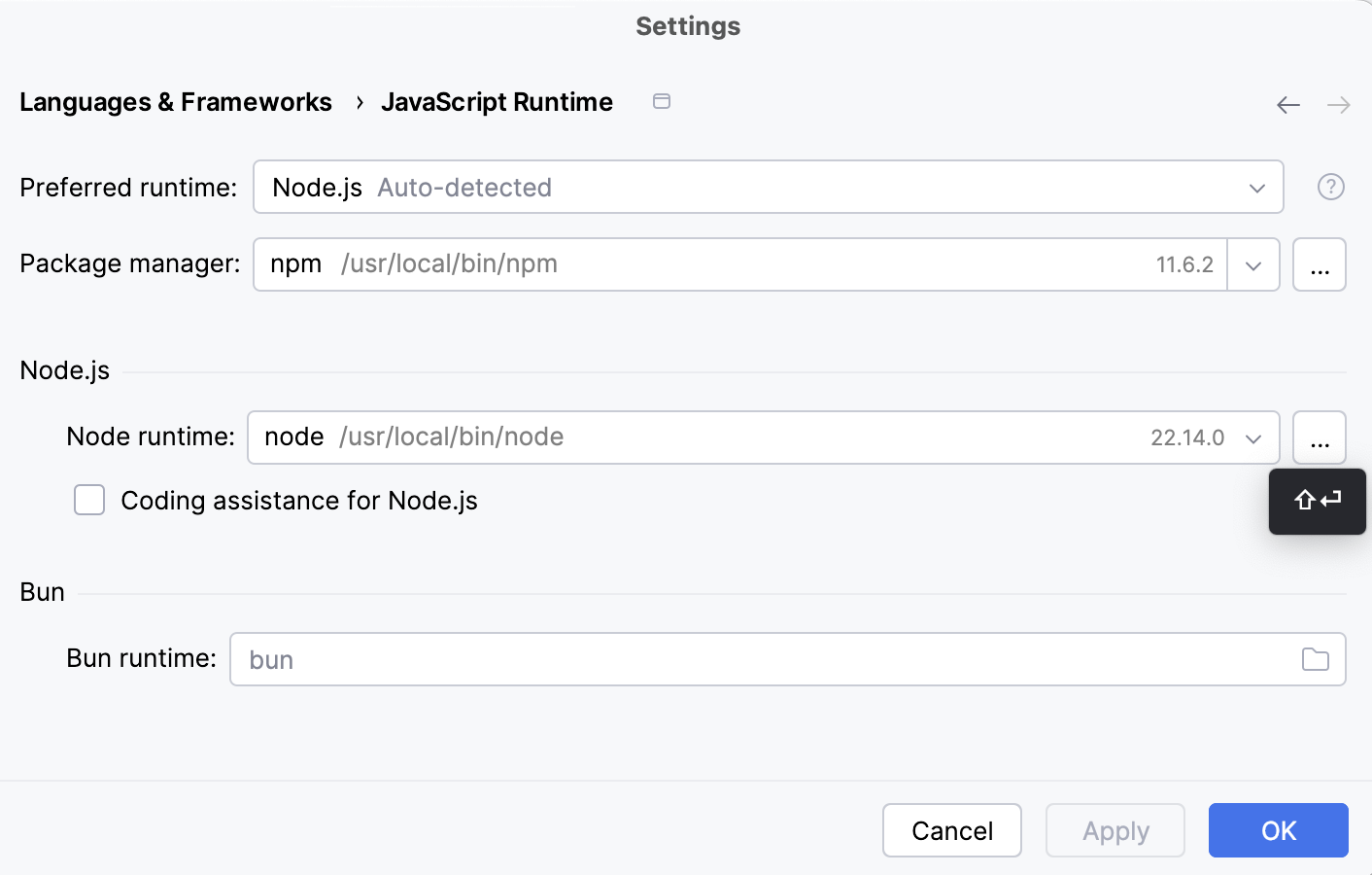
In the Node.js Runtimes dialog with a list of all the currently configured runtimes, click
 on the toolbar and select Add Remote from the context menu.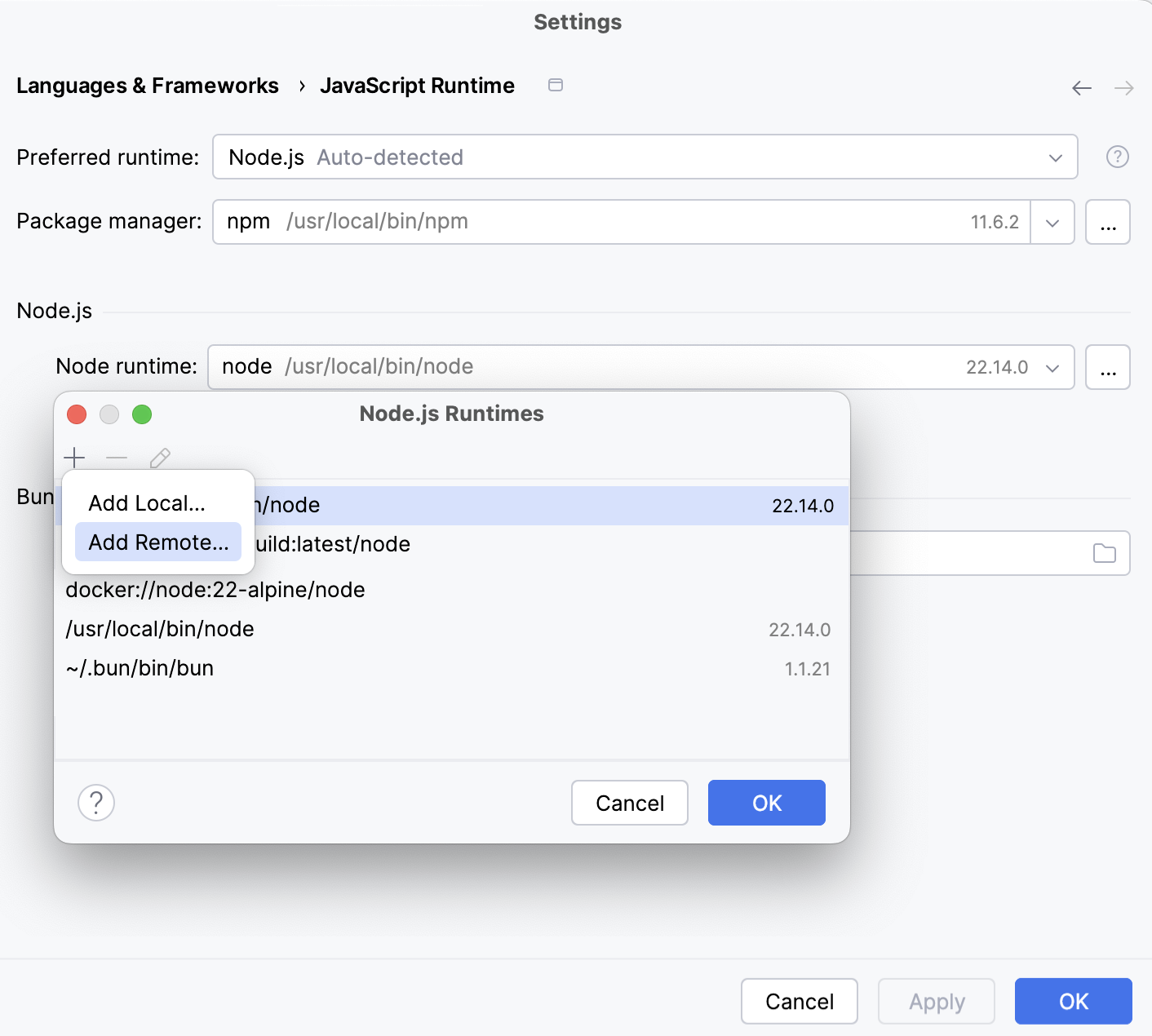
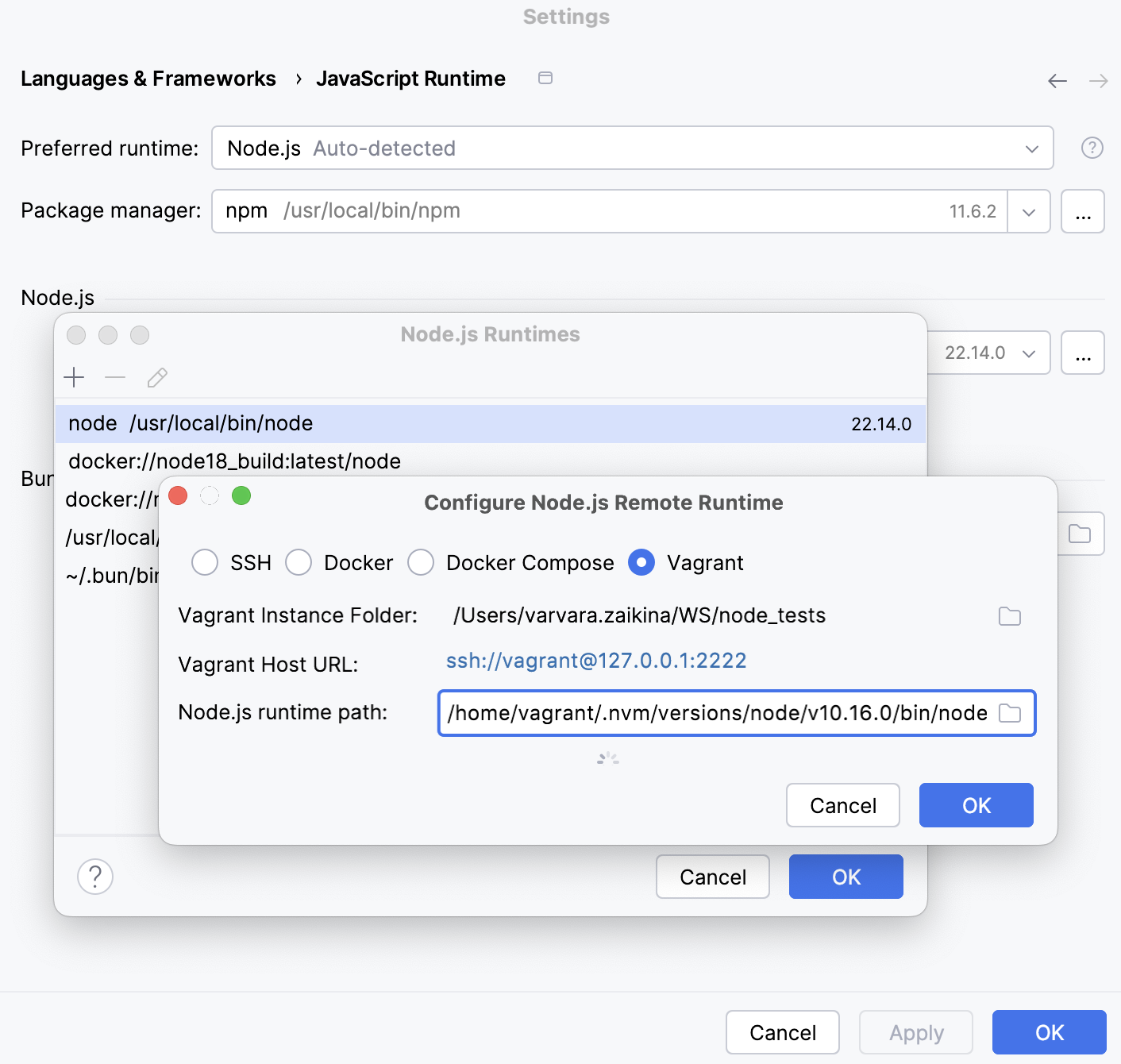
In the Configure Node.js Remote Runtime dialog that opens, select Vagrant.
Specify the Vagrant instance folder that points at the environment you are going to use.
Technically, it is the folder where the VagrantFile configuration file for the desired environment is located. Based on this setting, WebStorm detects the Vagrant host and shows it as a link in the Vagrant Host URL read-only field.
By default, the field shows the current project folder.
In the Node.js runtime path field, specify the location of the Node.js executable file.
To locate the Node.js executable, open the embedded Terminal (Alt+F12) and type:
vagrant ssh whereis node exit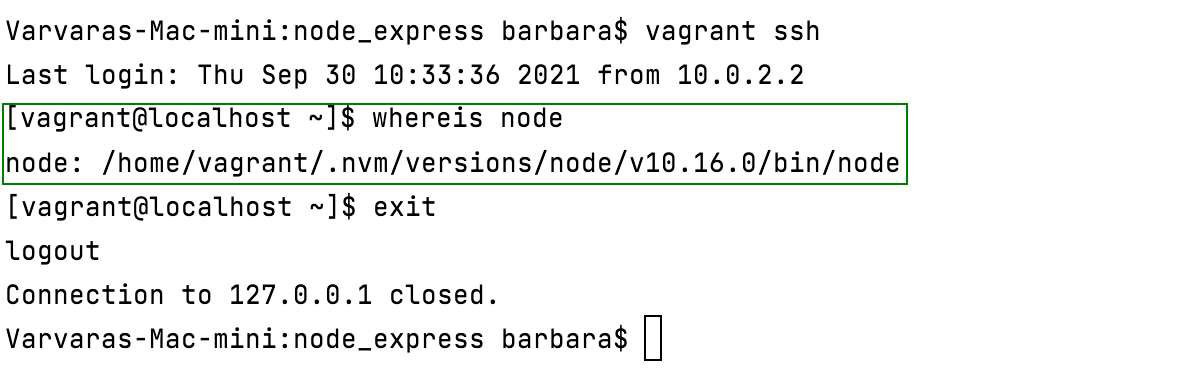
Click OK to return to the Node.js Runtimes dialog where the new runtime is added to the list.
To set the newly configured runtime as project default, select it in the list and click OK to return to the JavaScript Runtime dialog.
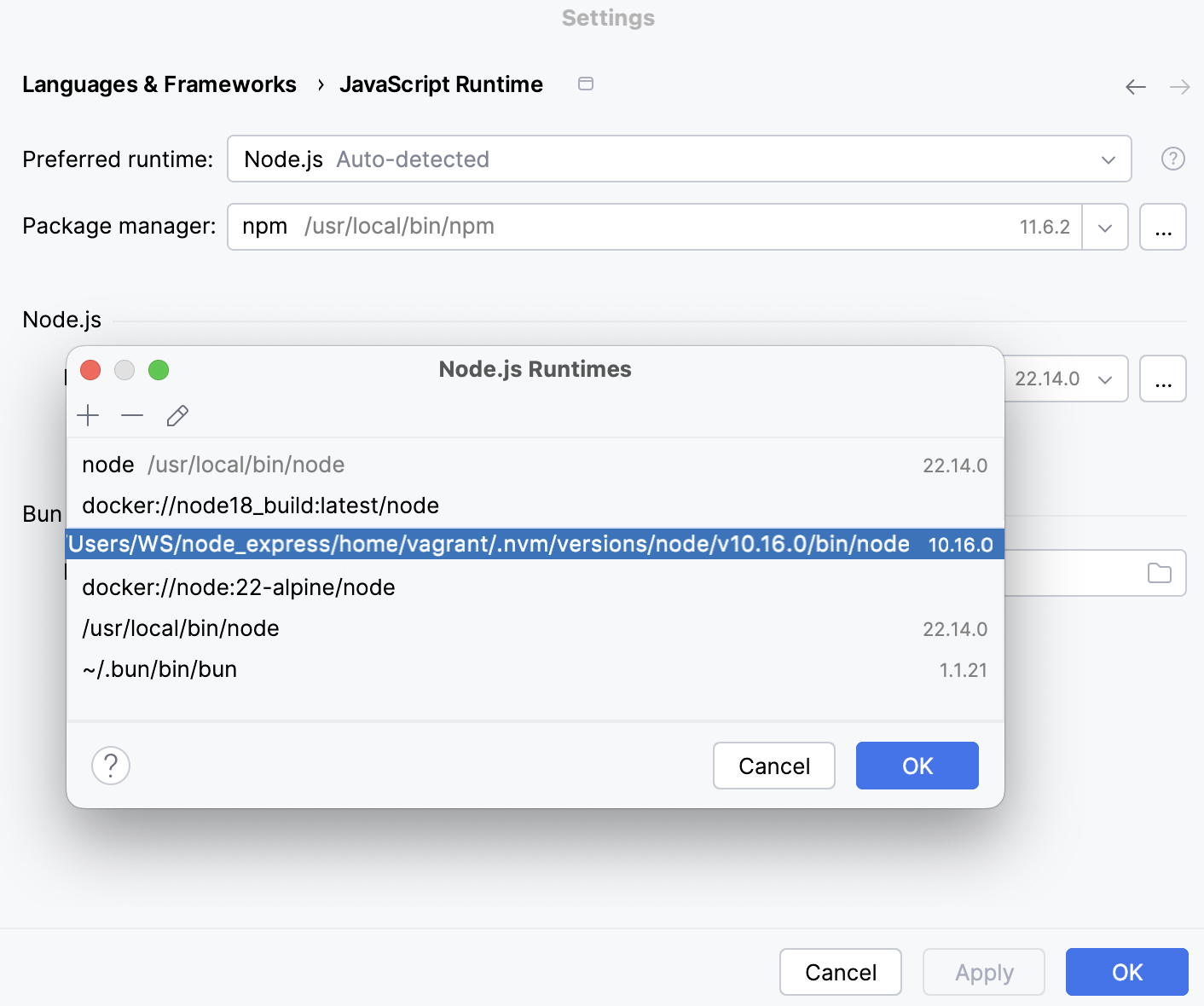
WebStorm automatically uses this interpreter every time you select the
Projectalias from Node runtime lists, for example, when creating run/debug configurations.Specify the path to the package manager to use.
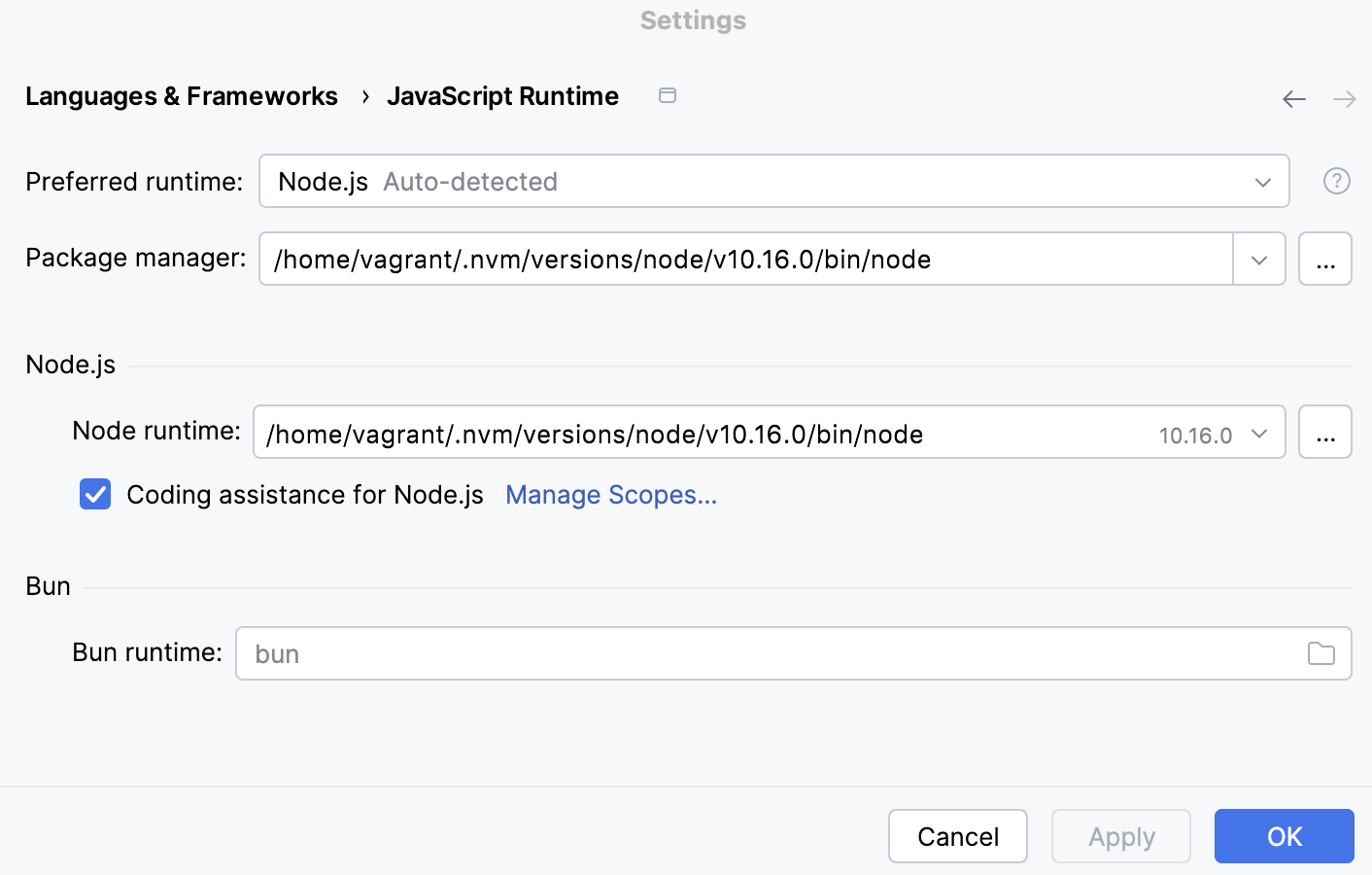
To locate the package manager, open the embedded Terminal (Alt+F12) and type:
vagrant ssh whereis <package manager> exit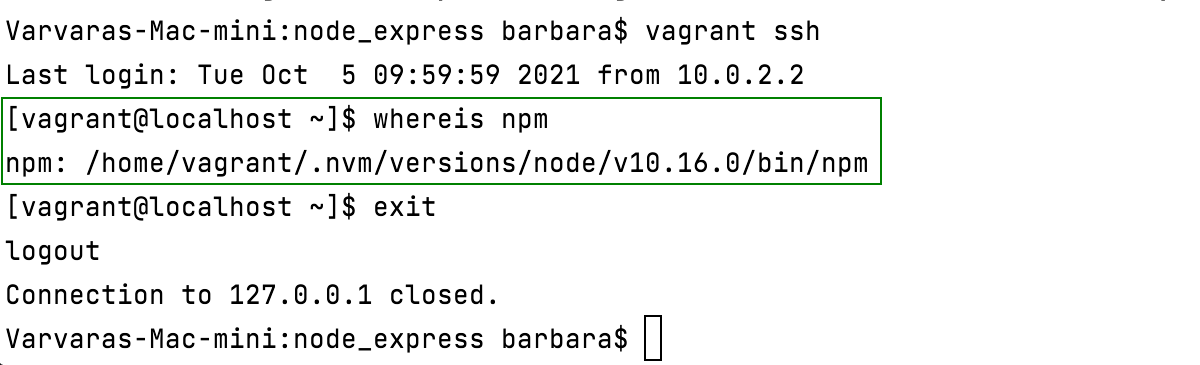
Create a Node.js run/debug configuration
Go to . In the Edit Configuration dialog that opens, click
on the toolbar and select Node.js from the context menu. The Run/Debug Configuration: Node.js dialog opens.In the File field, specify the path to the file that starts the application.
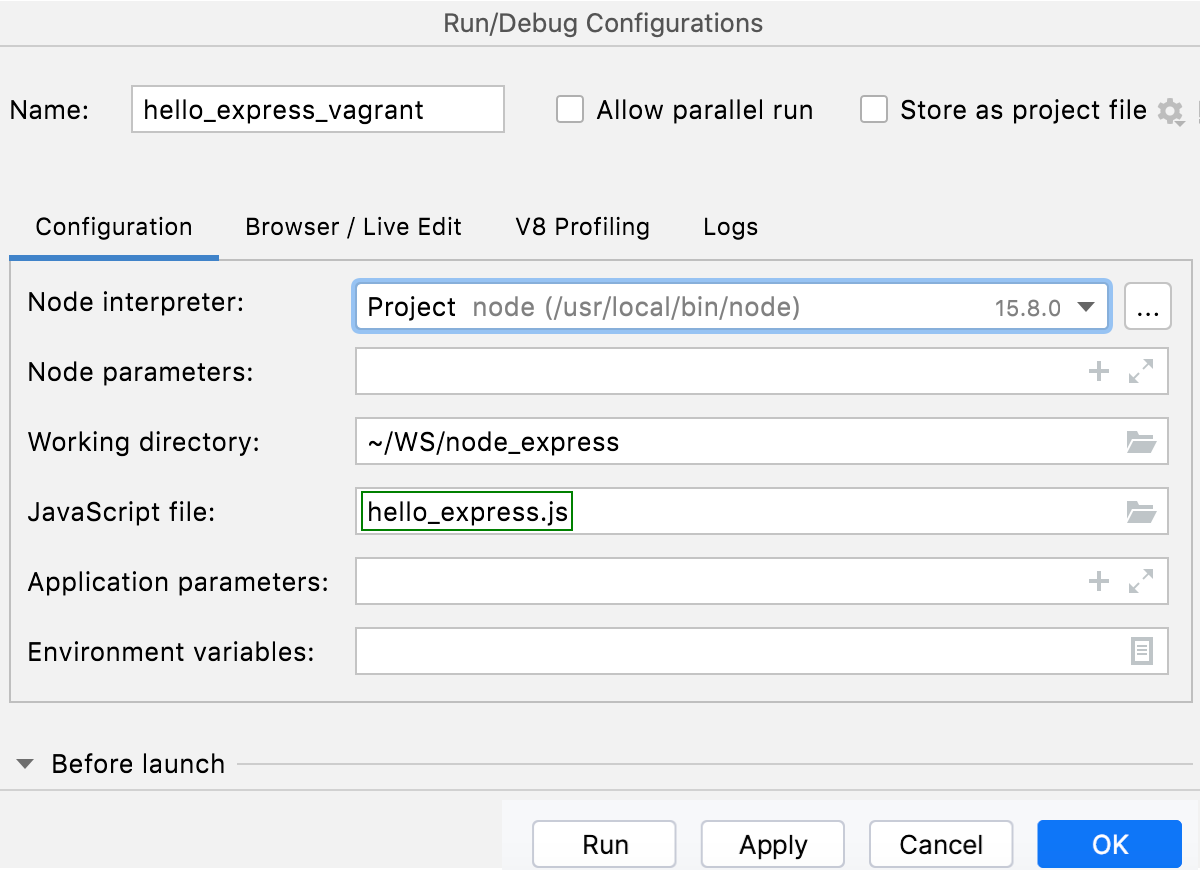
If necessary, specify some optional settings as described in Running and debugging Node.js applications.
From the Node runtime list, select the relevant remote Node.js runtime in a Vagrant environment.
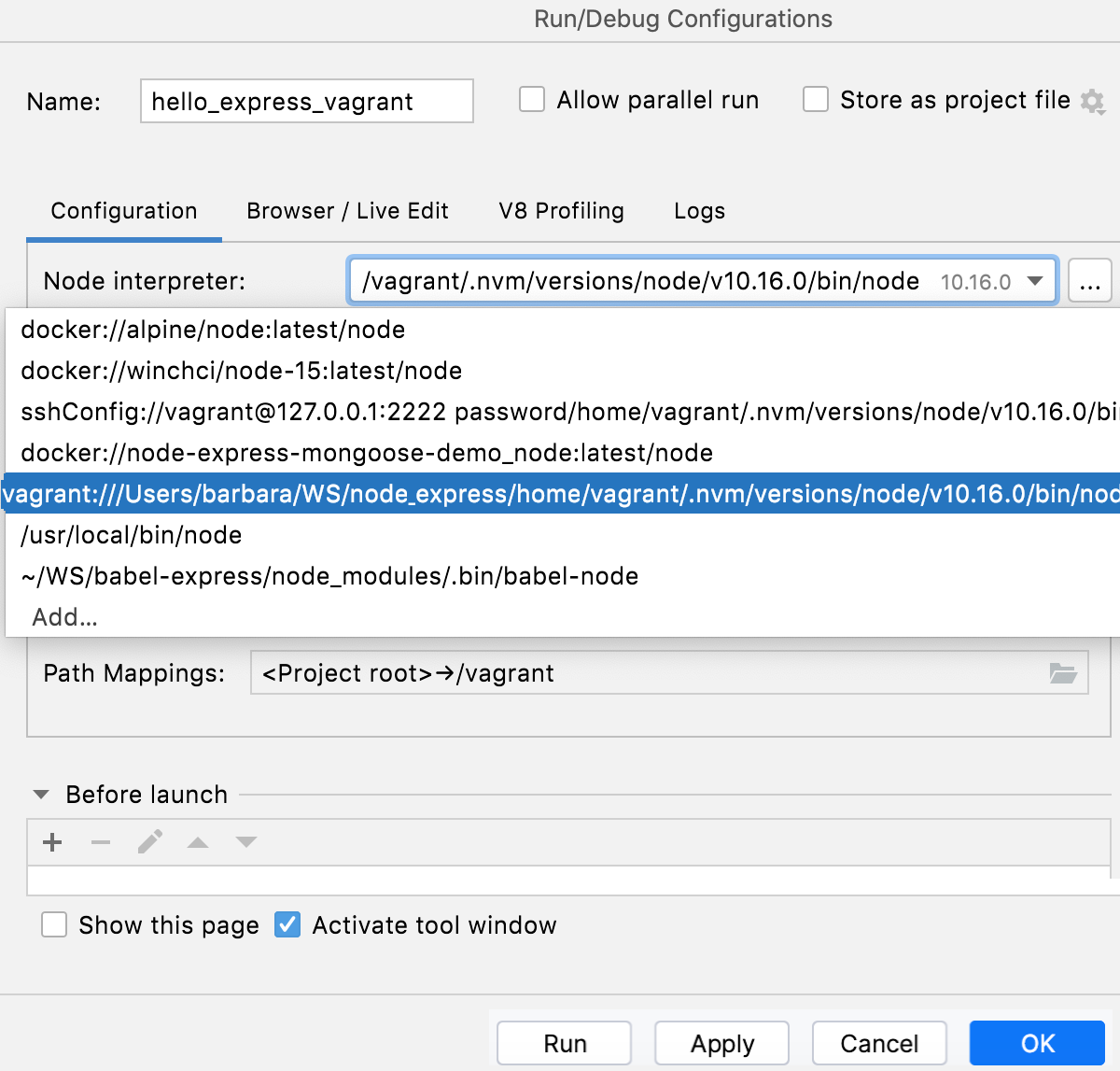
Alternatively, click
next to the Node runtime field. The Node.js Runtimes dialog opens.Click
on the toolbar and select Add Remote from the context menu.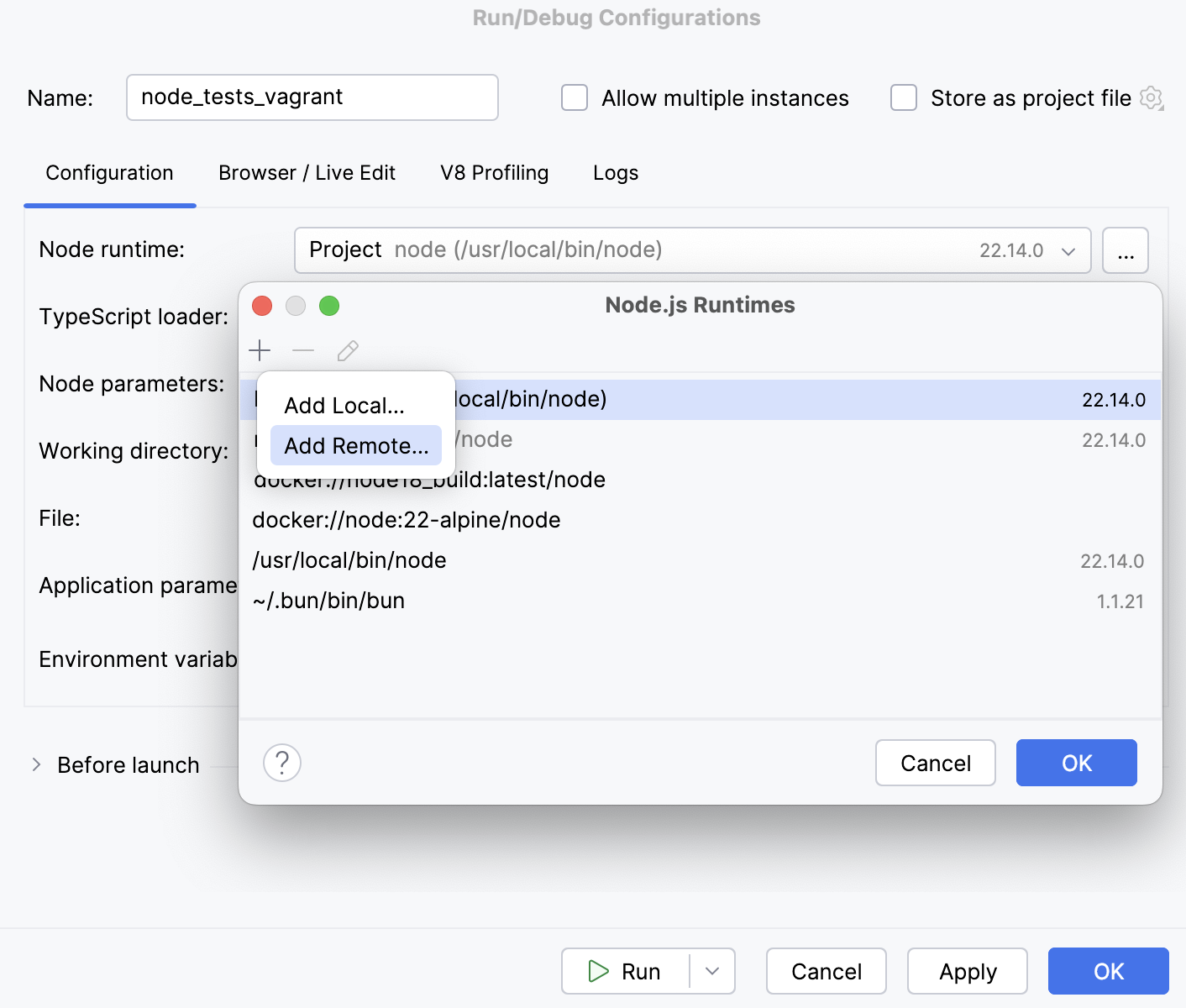
Configure a remote Node.js runtime in a Vagrant environment as described above.
Click OK to save the run/debug configuration.
Run a Node.js application in a Vagrant environment
From the Run/Debug Configurations widget list on the toolbar, select the newly created Node.js configuration and click
 next to it.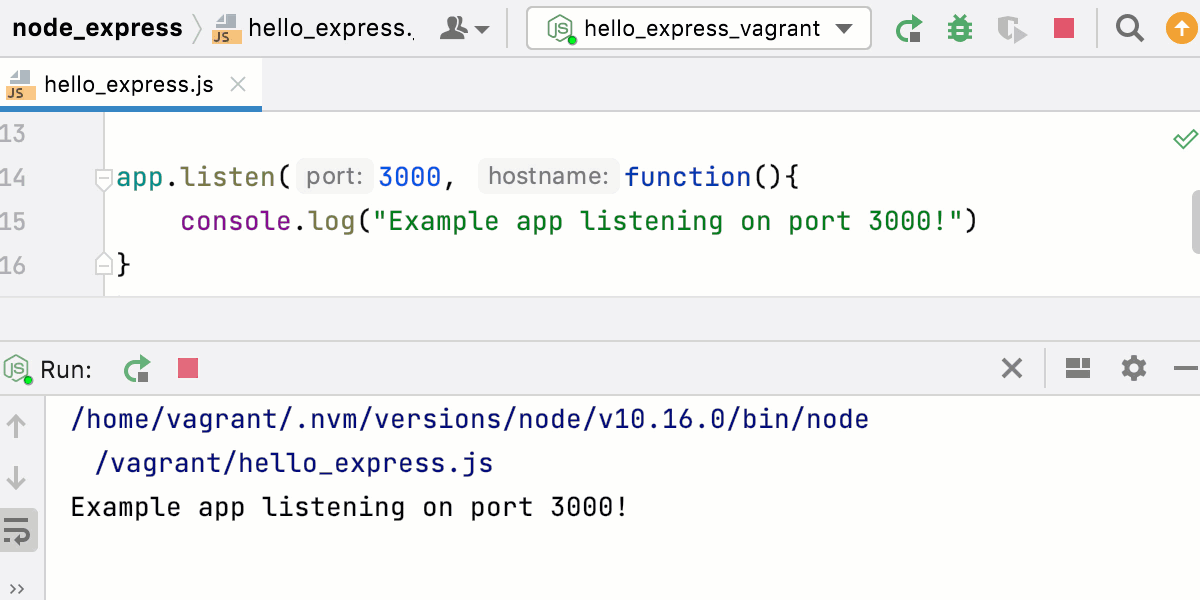
Alternatively, create a Node.js run/debug configuration with a Node.js runtime in a Vagrant environment as described above or modify an existing one and click Run in the dialog.
Check the application output
To make sure the application works as expected, you can run a HTTP request from the WebStorm built-in HTTP Client.
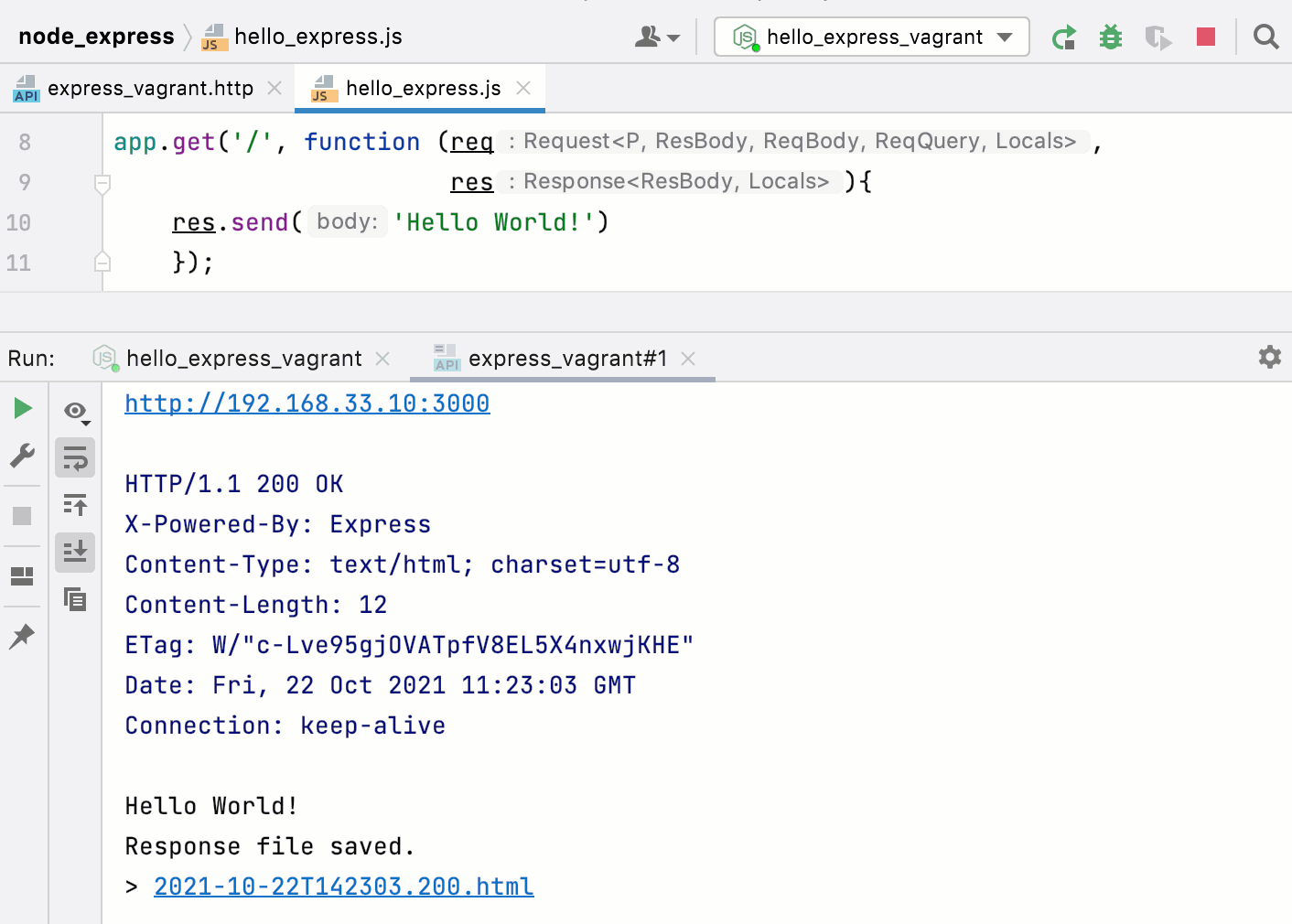
Create a HTTP Request file.
Write the following request:
GET http://<host IP>:<application port>/By default, the host IP is 192.168.33.10. For example:
GET http://192.168.33.10:3000/Click
 in the gutter and click next to Run http://<host IP>:<application port>/.
The application output is shown in a separate tab of the Run tool window.
Debug a Node.js application in a Vagrant environment
Put breakpoints in your code as necessary.
Create a Node.js run/debug configuration with a Node.js runtime in a Vagrant environment as described above.
From the Run widget list on the toolbar, select the newly created Node.js configuration and click
 next to it.
 In the Debug tool window that opens, proceed with the debugging session — step through the breakpoints, switch between frames, change values on-the-fly, examine a suspended program, evaluate expressions, and set watches.