YAML
WebStorm enables you to work with YAML files (.yml, .yaml) and supports the following capabilities:
Syntax highlighting
You can change color settings on the Editor | Color Scheme | YAML page of the Settings dialog (Ctrl+Alt+S) .
You can access code style settings related to YAML on the Editor | Code Style | YAML page of the Settings dialog (Ctrl+Alt+S) .
WebStorm detects duplicated keys, unused anchors in YAML documents, and so on.
For example, you can use code completion for YAML documents that have the JSON schema, or you can complete anchor aliases.
For instance, you can navigate between anchors and aliases.
Rename refactorings (for example, for anchors and aliases)
WebStorm maintains indentation, sequence markers, brackets, and quotes as you type.
Let us explore some YAML-specific features available in the editor.
Anchors and aliases
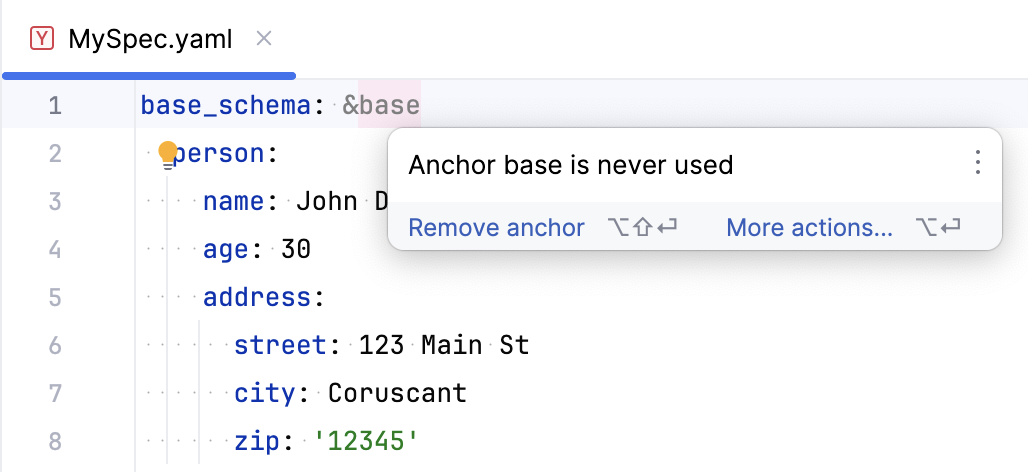
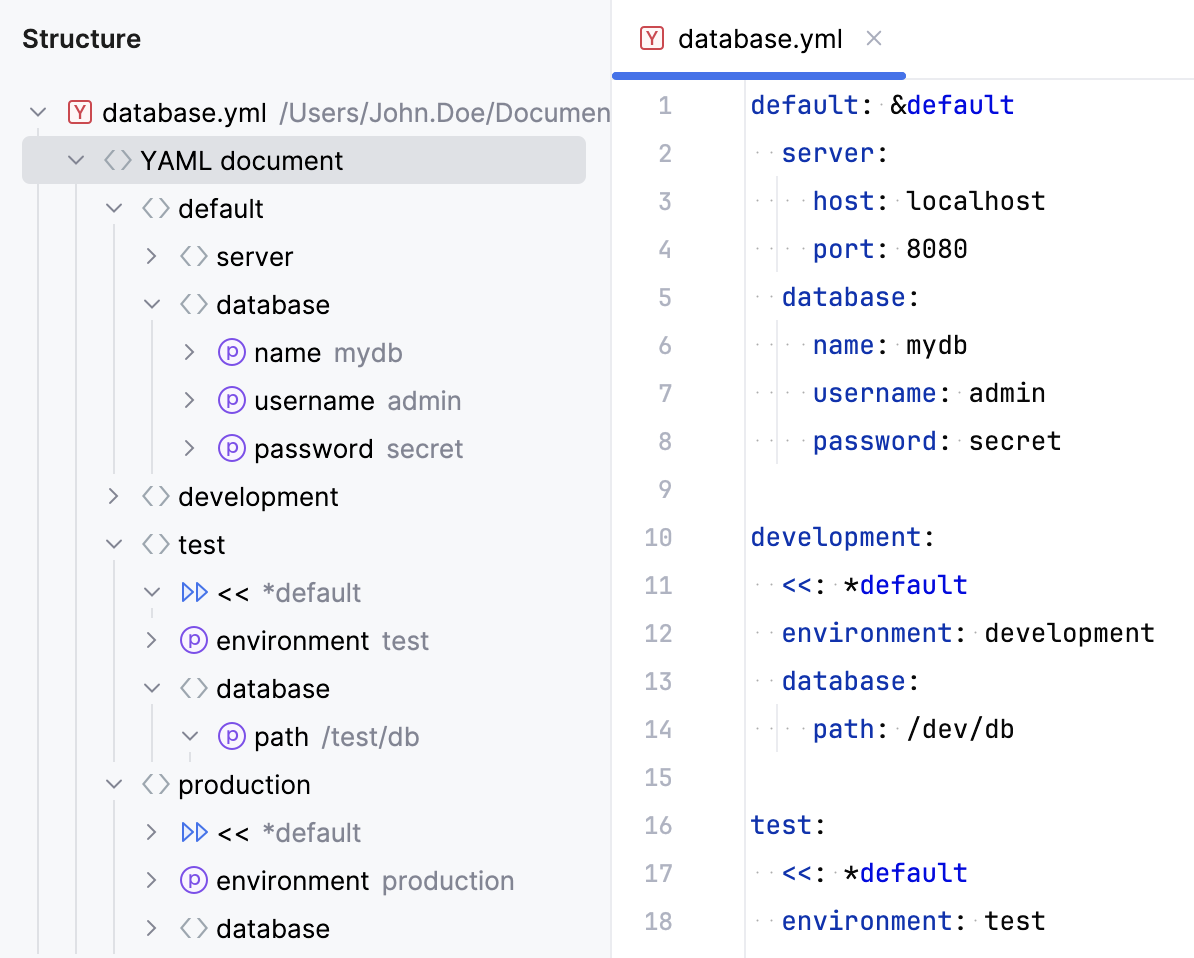
WebStorm supports working with anchors and aliases. If you specify a new anchor in the YAML file, the editor will show a warning that this anchor is not used by any node.
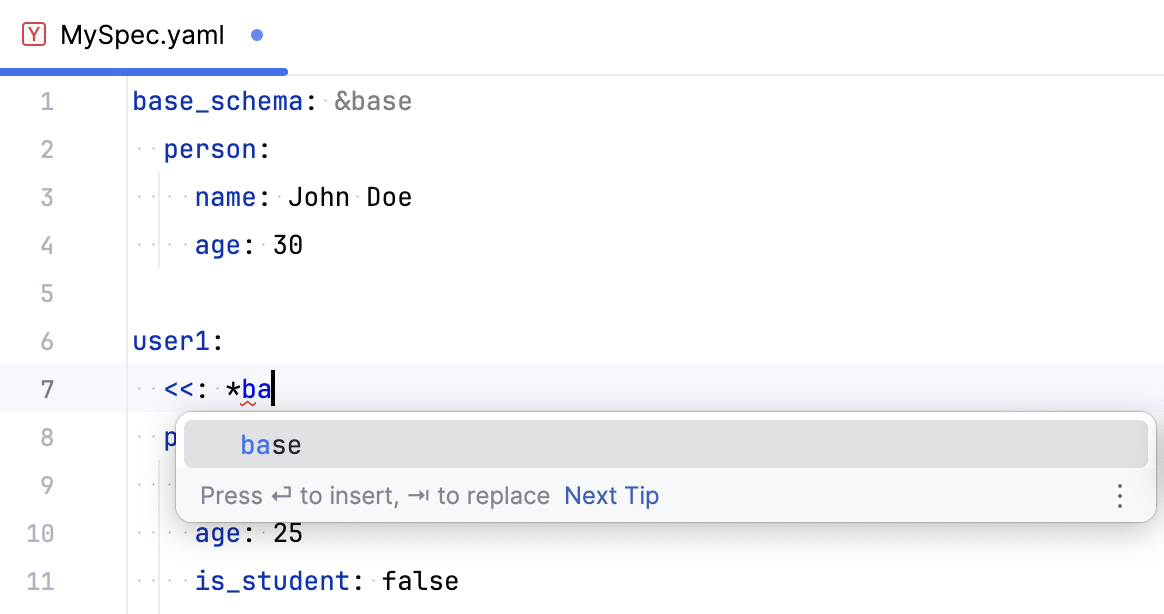
The editor enables you now to complete aliases for this anchor.
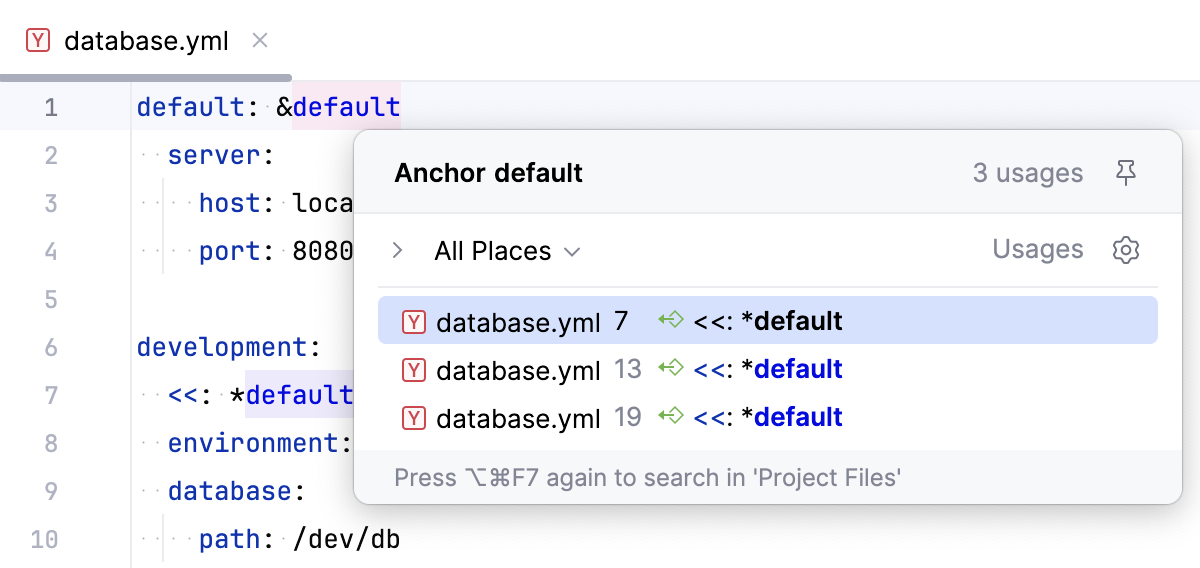
To quickly find usages of an anchor, place the caret on the anchor and press Ctrl+B.
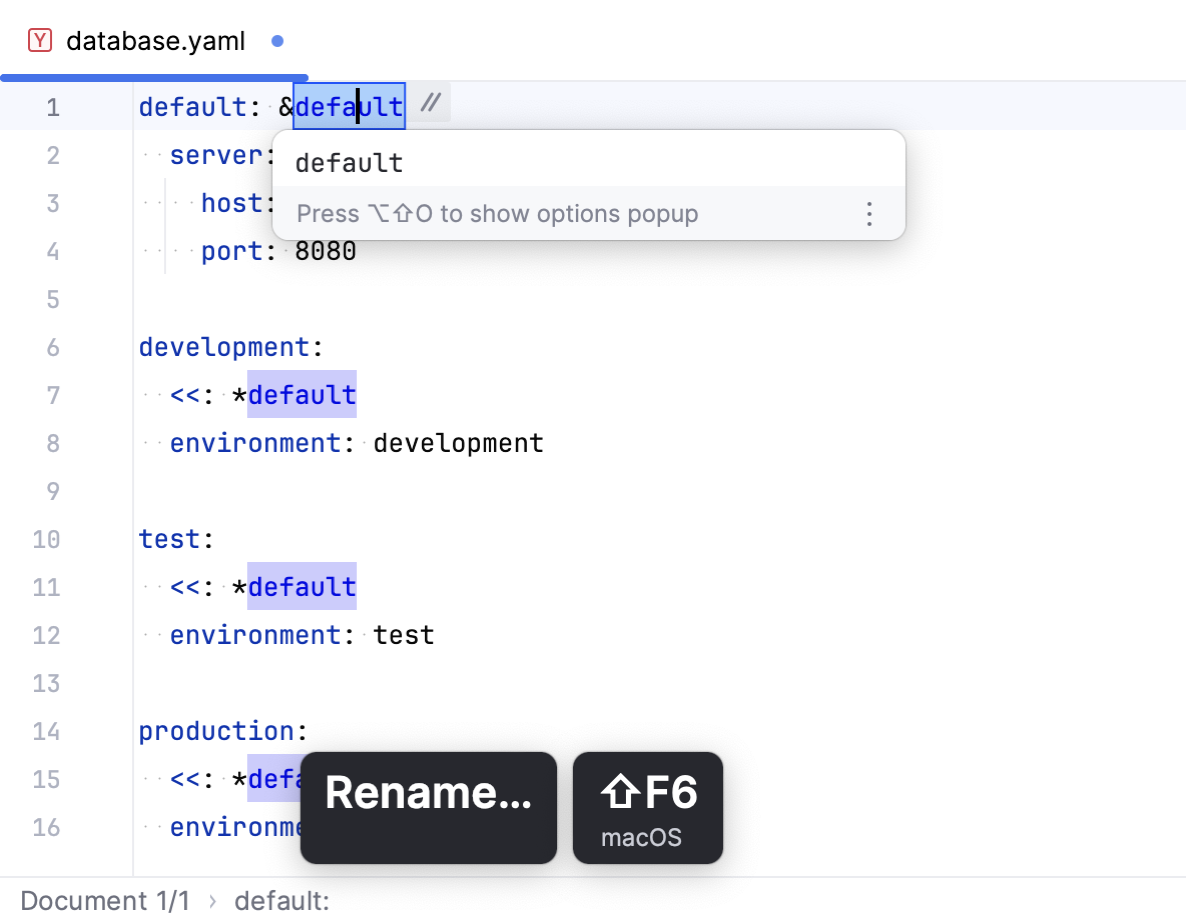
WebStorm supports the rename refactoring for anchors and aliases: Place the caret on the anchor and press Shift+F6. Alternatively, right-click the anchor and select .
Use the Structure tool window (Alt+7) to quickly navigate through YAML files. To show or hide elements of reused anchors in the Structure tool window, click  use Aliased sub-trees.
JSON schemas
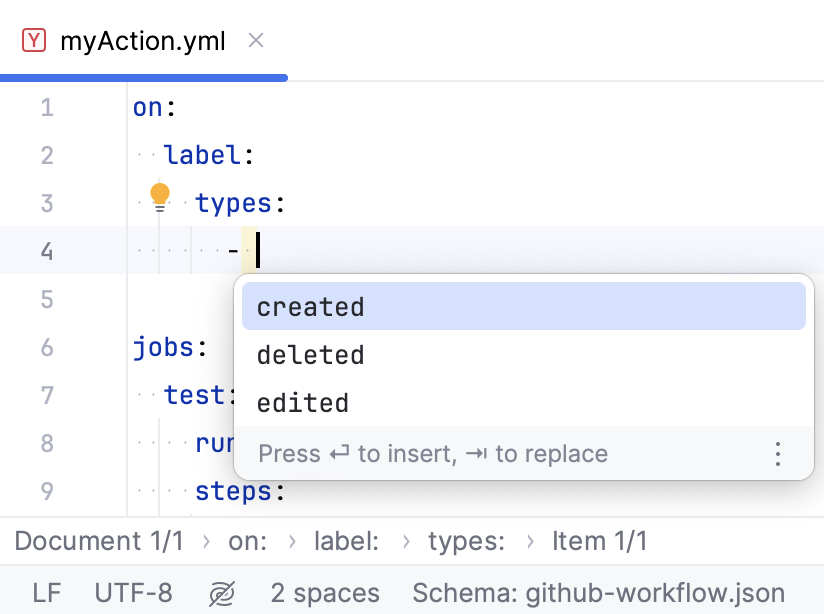
WebStorm supports code completion and inspections for YAML files using the JSON schema. WebStorm can infer a schema automatically (based on the file location or structure), or you can select it manually. For example, if you have GitHub Actions workflow files in the .github/workflows directory, WebStorm will suggest completing its options based on the github-workflow.json schema automatically loaded from schemastore.org:
You can manage loading JSON schemas using the Languages & Frameworks | Schemas and DTDs | Remote JSON Schemas page of the Settings dialog (Ctrl+Alt+S) .
If necessary, you can specify a path to the required schema file in Languages & Frameworks | Schemas and DTDs | JSON Schema Mappings.
Select a JSON schema for a file
You can specify a custom schema for a particular file.
Click the schema switcher in the status bar.
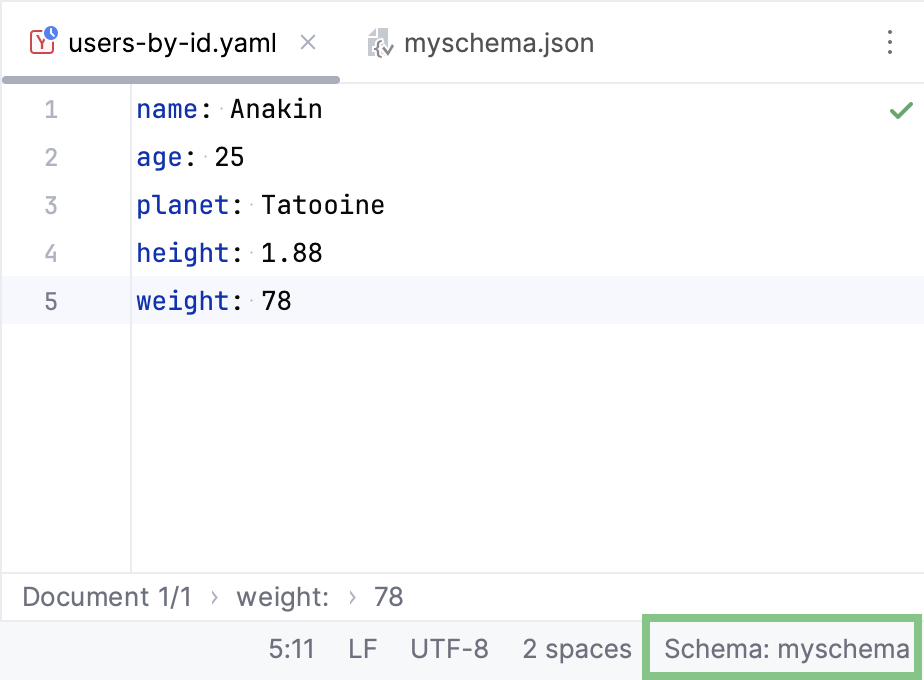
In the list that opens, select one of the suggested schemas or click New Schema Mapping…. This will open the JSON Schema Mappings settings where you can specify a local or remote schema for your file.
Get properties from a schema
If WebStorm detects a schema for your YAML file, you can quickly insert all of its properties into that file using a dedicated action, removing the need for manual typing.
If a schema contains required properties, and you want to insert only these particular properties, press Alt+Enter (Show Context Actions) anywhere in a file and select Add missing properties.
If you want to insert all properties available in the schema, press Alt+Enter (Show Context Actions) anywhere in a file and select Fill in all properties from JSON schema.
Use $schema keyword
You can also refer to a schema right in the file itself.
At the top of the file, enter
# $schema:.Start typing the name of a schema file. You will get completion for the names of schemas loaded from schemastore.org.
If you want to use a local schema file, specify the path to it relative to the file where you want to use the schema, for example,
# $schema: ./my-schema.json. This will enable the same coding assistance that you would have when you use a remote schema, including inspections, completion, and property filling actions.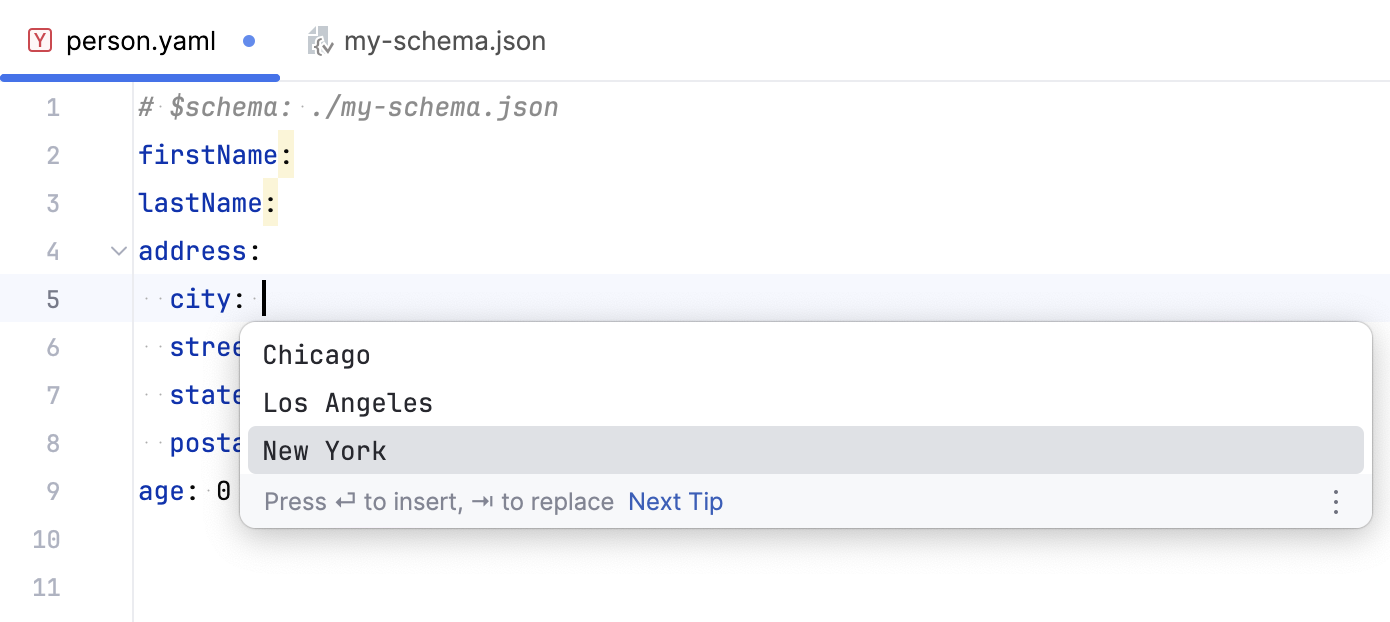
Copying keys
WebStorm provides the ability to copy a full path to a specific option specified in the YAML file. You can do this in two ways:
Place a caret to the required key and press Ctrl+Alt+Shift+C.
Hover over the required key, right-click it and select Copy Reference.
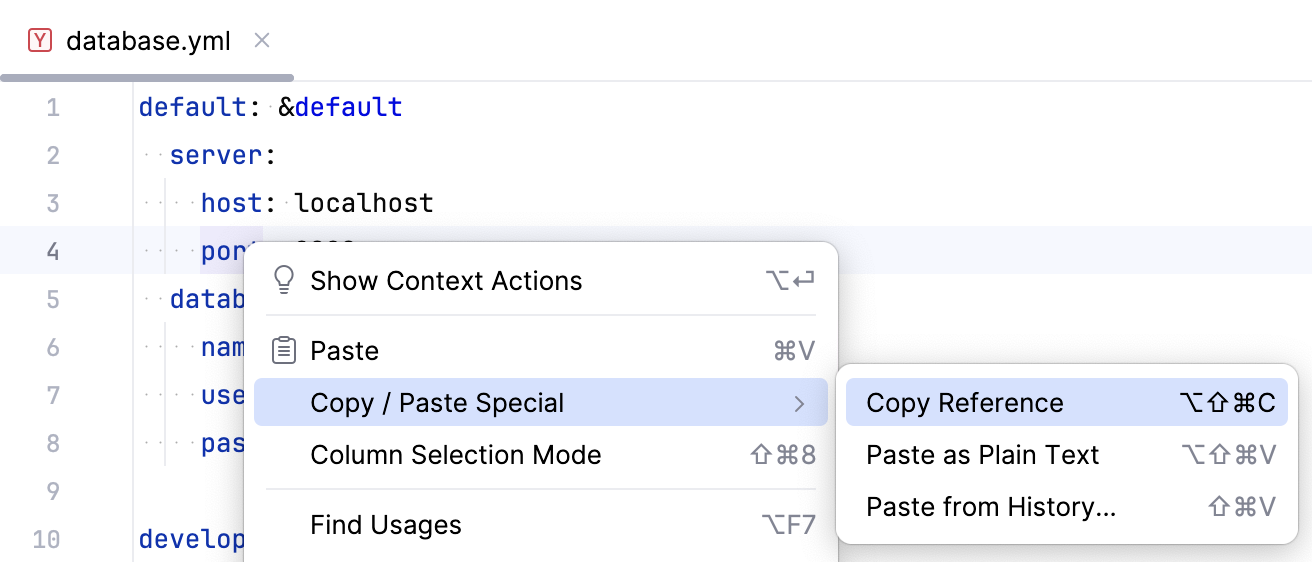
For example, on the image above, default.server.port will be copied.
Typing handlers
As you edit YAML files, WebStorm maintains indentation, sequence markers, brackets, and quotes for you. In the following examples, <caret> marks the caret position.
Sequence markers
When you press Enter after a sequence item, WebStorm starts a new item and inserts the - marker automatically:
If you press Enter again on the empty item, WebStorm removes the marker and moves the caret to the parent indentation level, including in nested sequences.
When a sequence item holds a mapping, pressing Enter continues the mapping on a new indented line without adding a second marker, even when marker insertion is on:
To delete an empty item, press Backspace after the space that follows the - marker. WebStorm removes the - and the space that follows it in a single action. If a value follows the marker on the same line, WebStorm still removes the marker together with the space and keeps the value in place:
Indentation
When you press Enter, WebStorm keeps the new line at the indentation level that matches the current structure:
After a key that has no value, the new line is indented one level deeper.
After a key-value pair, the new line stays at the same level.
After a block scalar indicator (
|), the new line is indented one level deeper, and the following lines stay at that level.
Inside a block scalar, the new line lands at the standard block indentation, one level under the key. If the current line is over-indented manually, the new line still uses the standard block indentation instead of aligning with the over-indented text.
If you press Enter on a line that contains only whitespace below a completed entry, WebStorm keeps the indentation that you set manually instead of re-aligning the new line.
When you type - followed by a space on an empty line in a sequence that has no items yet, WebStorm corrects the marker indentation. With the Indent sequence value option on, the marker is placed one level deeper than the parent key; with the option off, the marker is aligned with the parent key. If the sequence already contains items, the marker keeps the current indentation. You can find this option on the Editor | Code Style | YAML page of the Settings dialog (Ctrl+Alt+S) .
Brackets and quotes
In a key or value position, WebStorm closes flow collections and quoted scalars automatically. When you type [, {, ", or ', WebStorm inserts the matching character and places the caret between the pair:
Auto-closing applies only where the character starts a YAML structural token, such as a new key or value position or a point inside an existing flow collection. When the caret is within or directly after plain scalar text, WebStorm inserts the character as ordinary text and closes nothing.
When you type a closing ], }, or quote right before the same character, WebStorm moves the caret past it instead of inserting a duplicate. However, if the next character is an unpaired quote, typing the same quote character creates a new pair rather than moving over the existing one.
To delete an empty pair, press Backspace between the two characters, and WebStorm removes both.
Moving keys and items
To move a key, a nested block, or a sequence item, place the caret on it and press Ctrl+Shift+Up or Ctrl+Shift+Down. WebStorm moves the whole entry, including its nested content, and keeps the indentation correct:
If you select several entries, WebStorm expands the selection to whole entries and moves them as a group.
Pasting
When you paste content into a YAML file, WebStorm adjusts it to the target structure:
Plain lines pasted into a sequence become separate items, each with its own
-marker.If the pasted lines start with
-, or mix prefixed and unprefixed lines, WebStorm normalizes the markers so that each line has exactly one.A dotted path, such as
spring.datasource.url, expands into nested keys.A multi-line block is re-indented so that its first line matches the caret indentation, while inner lines keep their relative indentation. Blank lines remain empty.
When you paste directly in front of an existing key, WebStorm re-indents the pasted block and keeps the existing key at its original column.
For example, paste spring.datasource.url at a mapping position:
To turn dotted-key expansion on or off, use the Auto expand key sequences upon paste option on the Editor | General | Smart Keys | YAML page of the Settings dialog (Ctrl+Alt+S) .